How to Configure Retraction Settings for Flexible TPU in PrusaSlicer
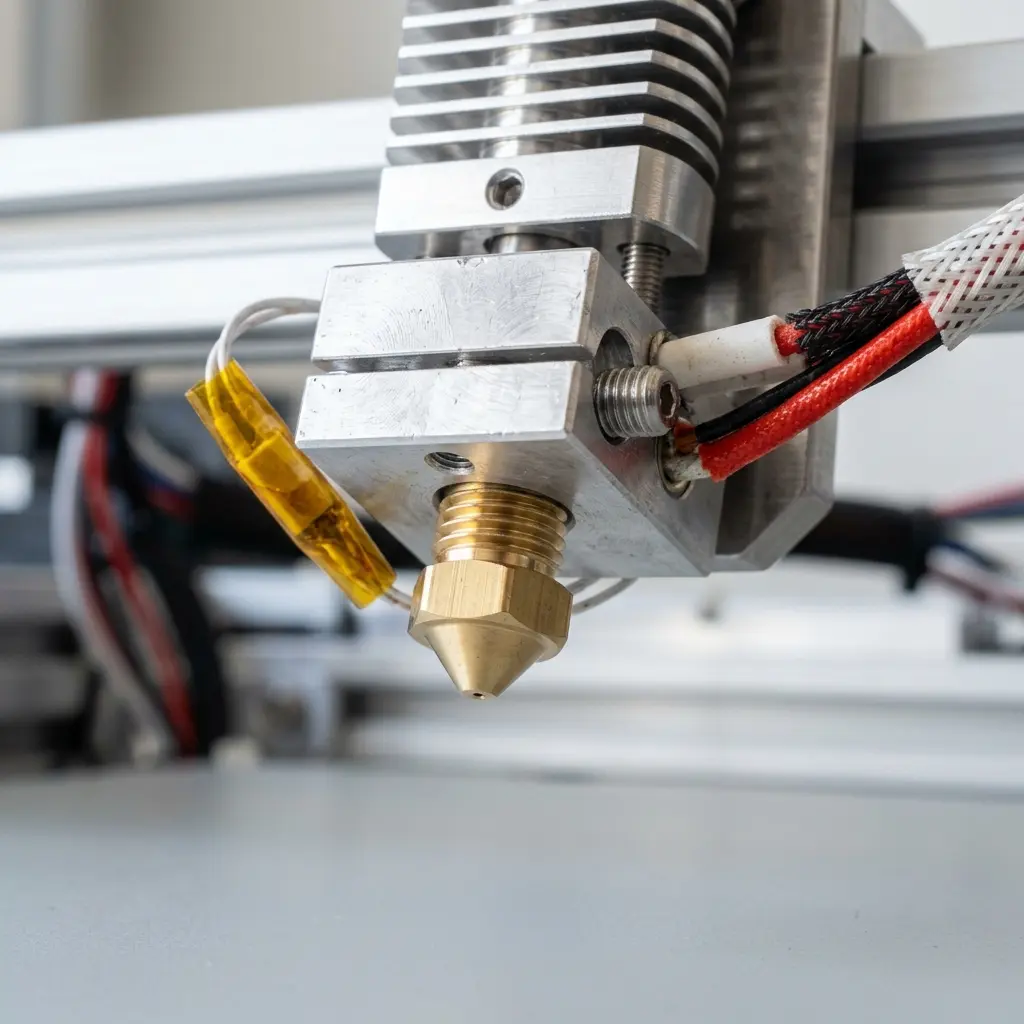
Configuring retraction settings for flexible TPU in PrusaSlicer is essential for achieving optimal print quality and minimizing issues such as stringing and oozing.
Understanding Retraction: The Basics
Retraction is a critical process in 3D printing, especially when using flexible materials like TPU. This process involves pulling the filament back into the nozzle when the print head moves between sections of a print.
By doing so, it prevents the filament from oozing out and creating unwanted strings or blobs on the finished model. Flexible TPU (Thermoplastic Polyurethane) is particularly prone to stringing due to its elastic nature.
Thus, adjusting retraction settings in PrusaSlicer becomes paramount to achieve clean prints. Understanding how retraction works will enhance overall printing performance and quality.
Key Settings for Retraction in PrusaSlicer
PrusaSlicer offers several adjustable settings that influence the retraction process. Understanding these settings is vital for fine-tuning your prints.
Primary Retraction Settings
- Retraction Length: This defines how far the filament is pulled back into the nozzle, typically measured in millimeters.
- Retraction Speed: This controls how quickly the filament is retracted, influencing the speed of the print head movement.
- Minimum Travel Distance: This setting determines the minimum distance the print head must travel before a retraction occurs, avoiding unnecessary retractions.
- Extra Prime Amount: This adjusts the amount of filament extruded after a retraction to help maintain consistent flow, preventing under-extrusion.
- Retract on Layer Change: Enabling this option retracts filament when changing layers to reduce stringing, particularly beneficial in complex models.
Step-by-Step Configuration of Retraction Settings
Configuring retraction settings in PrusaSlicer for flexible TPU involves several steps. Follow this straightforward guide for optimal results:
- Open PrusaSlicer and load your 3D model.
- Select the printer profile suitable for your setup to ensure compatibility.
- Navigate to the Print Settings tab to access relevant options.
- Under the Filament Settings, locate the Retraction section.
- Adjust the Retraction Length between 0.5 to 2.0 mm. Start with 1 mm as a baseline.
- Set the Retraction Speed to 20-30 mm/s for TPU, balancing speed and effectiveness.
- Ensure the Minimum Travel Distance is set to at least 1 mm to prevent excessive retraction.
- Enable Retract on Layer Change to further reduce stringing during layer transitions.
- Adjust the Extra Prime Amount to a small value, starting at 0.1 mm to maintain consistent flow after retraction.
- Save your print settings and start slicing your model for printing.
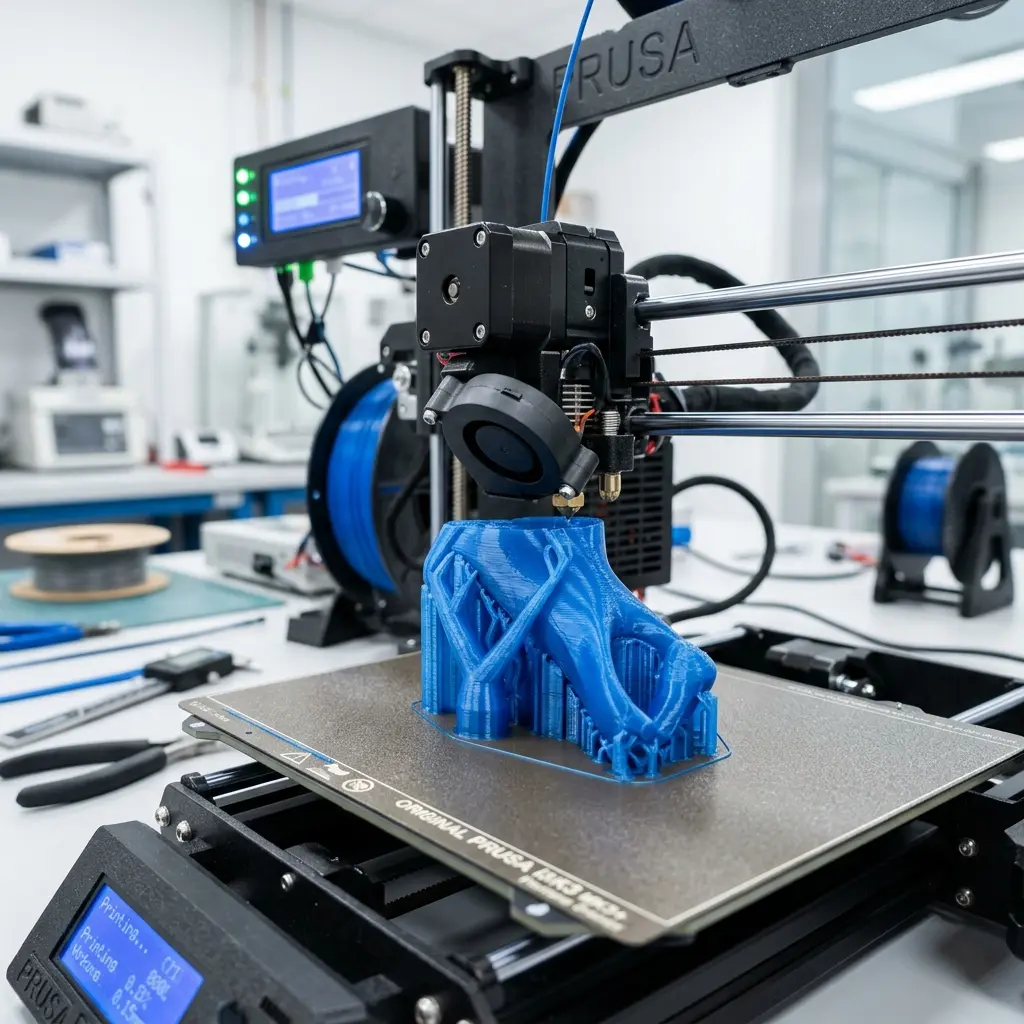
Fine-Tuning Retraction Settings for Flexible TPU
After the initial setup, it may be necessary to fine-tune the retraction settings based on the specific characteristics of the TPU being used. Each brand and type of TPU may respond differently to retraction adjustments.
Consider the following tips when fine-tuning settings:
- Conduct test prints to evaluate stringing and adjust settings incrementally based on observed results.
- If stringing occurs, increase the retraction length or speed in small increments for better control.
- Conversely, if the extrusion is inconsistent, decrease the retraction settings to improve flow.
- Monitor the print closely, making adjustments in real-time if possible, to achieve the best results.
Common Issues with TPU Printing and Their Solutions
Printing with flexible TPU often presents unique challenges. Understanding these challenges can help in troubleshooting effectively.
Here are some common issues and their solutions:
| Issue | Solution |
|---|---|
| Stringing | Increase retraction length or speed to minimize filament oozing. |
| Under-extrusion | Adjust the extra prime amount or retraction settings to ensure consistent filament flow. |
| Clogs in the nozzle | Use a larger nozzle size or reduce retraction settings to prevent excessive filament movement. |
| Layer adhesion issues | Increase print temperature slightly to enhance adhesion between layers. |
| Filament slipping | Ensure the extruder is properly calibrated and that the tension on the filament path is correct. |
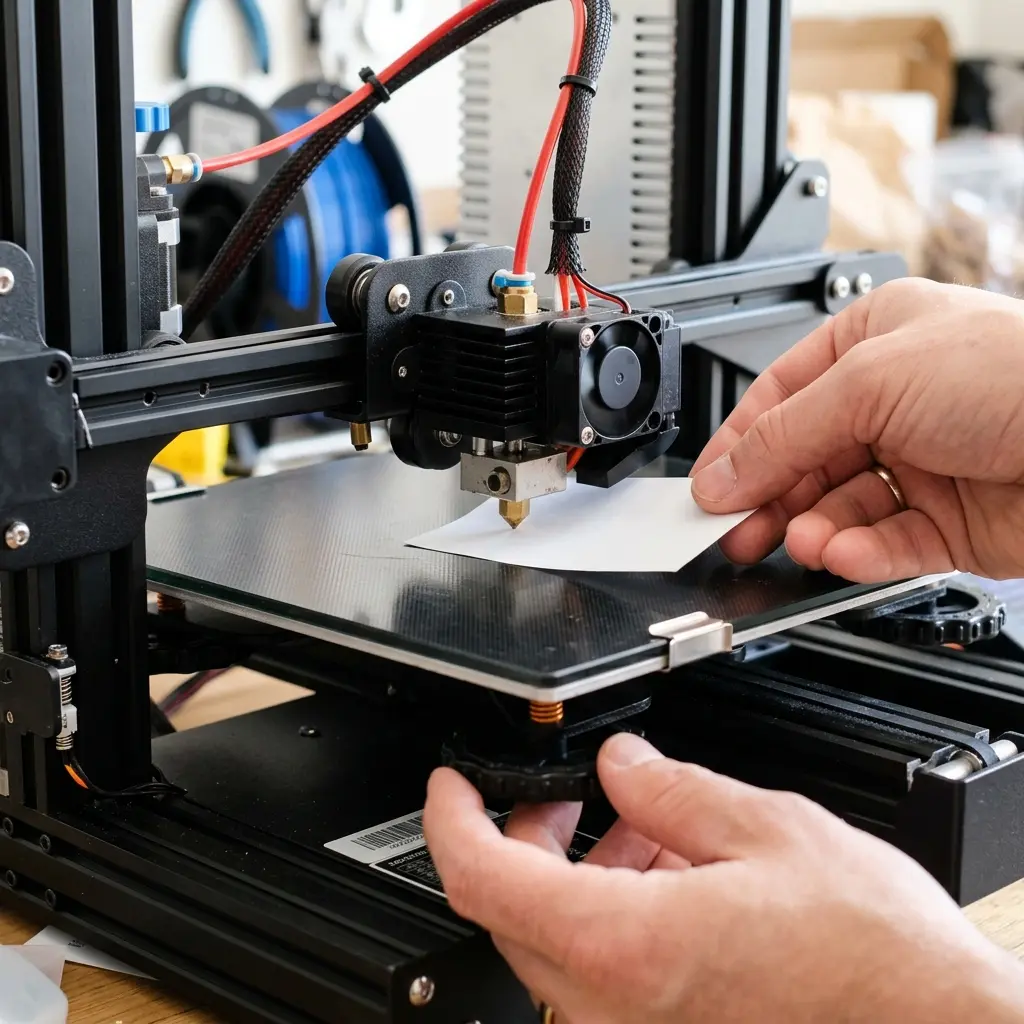
DomineTec Tip: Always ensure the printer's nozzle is clean before starting a print. A dirty nozzle can lead to inconsistent extrusion and affect the effectiveness of your retraction settings.
Post-Processing and Quality Checks
Once the print is complete, inspect the model closely for any signs of stringing or defects. It's crucial to perform quality checks to ensure the retraction settings were effective.
If any issues are found, adjustments to the settings may be necessary before the next print. Common post-processing techniques include:
- Removing stringing with a heat gun to gently melt away excess filament.
- Cutting away excess filament with scissors for a clean finish on your final model.
- Sanding or smoothing surfaces if required for aesthetic purposes.
 PLA vs ABS Filament" loading="lazy"/>
Conclusion: Mastering TPU Printing with PrusaSlicer
By understanding and effectively configuring retraction settings in PrusaSlicer, your ability to print with flexible TPU will significantly improve. Careful adjustments and thorough testing are key to achieving high-quality prints.
Continue experimenting with different settings based on your specific TPU brand and printer configuration. This iterative approach will lead to optimal results over time, enhancing your overall 3D printing experience.
Frequently Asked Questions
What is the recommended retraction length for TPU?
A retraction length between 0.5 mm and 2.0 mm is generally recommended for TPU. Starting with 1 mm is a good baseline.
How can I reduce stringing when printing with TPU?
Stringing can be minimized by increasing the retraction length and speed. Additionally, ensure that the print temperature is optimized for the specific TPU being used.
Is it necessary to adjust retraction settings for every print?
While not always necessary, adjusting retraction settings based on specific models and filament characteristics can lead to better print quality. Each print may require slight modifications.
Can I use the same settings for different brands of TPU?
Different brands of TPU can have varying properties, so it is advisable to test and adjust settings for each specific brand. What works for one may not work for another.
What can I do if my TPU prints are too soft or flexible?
If prints are too soft, increasing the print temperature or adjusting layer height can improve strength. Additionally, consider using a higher infill percentage.




