How to Reset Intelbras Router: A Complete Step-by-Step Guide
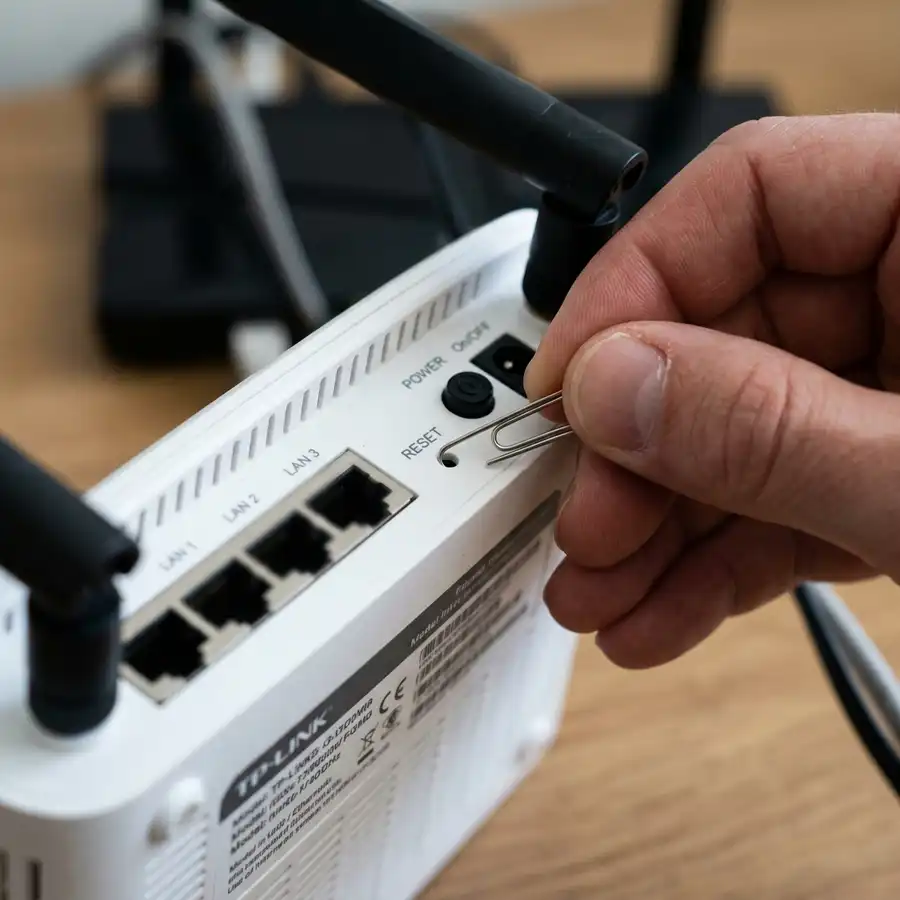
Configuring and managing a home or enterprise computer network requires being prepared to deal with minor day-to-day issues, such as forgetting security passwords or facing persistent connection instability. In moments of severe system freeze or total loss of administrative access credentials, the fastest and most effective solution is to return the device to its original factory state. To factory reset an Intelbras router using the physical button, ensure the router is powered on, then press and hold the physical Reset button (usually located on the back or bottom panel) for 10 to 15 seconds using a pointed object like a paperclip until all the LED indicators flash simultaneously, and then release the button.
After performing this physical system restoration, the hardware will completely delete all previously stored custom settings, including wireless network names (SSIDs), WPA2/WPA3 encryption keys, port forwarding rules, custom DNS configurations, bandwidth limits, and parental control restrictions. The router will reboot using its original firmware and load the factory default parameters, allowing you to configure the entire device from scratch in a clean state. In this comprehensive technical guide, we will present the step-by-step procedure applicable to the main Intelbras models (such as the Action, RG, RF, and Wi-Force series), as well as provide the default credentials, quick reconfiguration methods, and solutions to common issues that arise during this process.
1. What Happens When You Factory Reset an Intelbras Router?
The physical reset process (also known as a Hard Reset) is completely different from simply rebooting the router (unplugging it and plugging it back into the power outlet). Rebooting only clears the volatile memory (RAM) and terminates hung processes, keeping all saved settings intact. On the other hand, a factory reset clears the non-volatile flash memory (NVRAM) where all the configurations you modified since unboxing the router are stored.
When you perform a factory reset on your Intelbras router, the following modifications will occur instantly:
- Wi-Fi Network Name (SSID): Both the 2.4 GHz and 5 GHz networks will revert to their factory defaults, which typically begin with "Intelbras_" followed by alphanumeric characters identifying the specific model.
- Wi-Fi Password: The custom password you created will be deleted. Wireless access will either become open (no password) or will require the default PIN key/password printed on the label affixed to the bottom of the router.
- Admin Panel Login Password: The security password used to access the web configuration panel via your browser will revert to the factory default (such as admin, or will prompt you to create a new password on the first login, depending on the model's firmware version).
- WAN Port Configuration: If your internet service provider (ISP) requires authentication via PPPoE protocol (requiring a username and password) or uses static IP addresses, this information will be wiped out. The router will return to its default DHCP (Dynamic IP) mode on the WAN port.
- Additional Network Features: Custom DNS servers, Quality of Service (QoS) rules, IP/MAC address filtering, static DHCP reservations, and port forwarding setups will be completely removed from the memory board.
2. Step-by-Step Guide to Resetting an Intelbras Router Using the Physical Button
The procedure to restore factory default configurations is virtually identical across almost all Intelbras models, varying only in the duration you need to press the physical button due to different hardware processing boards.
Follow these steps closely to perform a factory reset using the physical button:
- Locate the Reset button: Look at the back or bottom panel of your Intelbras router for a small hole marked with the word "Reset" or "RST/WPS". On most modern router models, this button is recessed inside the hole to prevent accidental trigger events.
- Keep the router powered on: Make sure the power adapter cable is firmly plugged into the wall outlet and the router is powered up. Do not attempt to reset the device while it is turned off, as no firmware changes can be written to the flash memory without active power.
- Use a pointed tool: Find an unfolded paperclip, a sturdy toothpick, or a phone SIM card ejector tool. Gently insert it into the reset hole until you feel the mechanical click of the internal button.
- Press and hold the button: Push down on the button and keep it held. Watch the status LED lights on the front of the router. You must hold the button down for 10 to 15 seconds.
- Observe the LED status: When all the LEDs flash together or go off and turn back on at the same time, it indicates the system has accepted the factory restore command. Release the button immediately.
- Wait for the reboot: The router will take approximately 1 to 2 minutes to load its original operating system. During this phase, the lights will flash sequentially. Once the Wi-Fi and system (SYS or Power) lights stabilize, the router is ready to be configured.
3. How to Access and Reconfigure the Intelbras Router After a Reset
Once the router has been reset and rebooted successfully, it will transmit an open default wireless network or require the initial password provided on the back label. To regain internet access and configure wireless security, you will need to log into the web administration panel of the device.
To configure your router after a factory reset, follow these steps:
- Connect to the router: You can connect in two ways: via a physical ethernet network cable (connecting the LAN port of the router to the network card of your computer) or via Wi-Fi (connecting your smartphone or laptop to the wireless network named "Intelbras" that appears in your network list). An ethernet cable connection is highly recommended to prevent disconnects while writing configurations.
- Open a web browser: Open Google Chrome, Mozilla Firefox, Microsoft Edge, or Safari.
- Type the default IP address: In the browser's URL address bar (not the Google search box), type the default management IP address of your Intelbras router. The most common IP is 192.168.1.1, but some newer models use 192.168.0.1 or the friendly domain http://meuroteador.intelbras.com.br. Press Enter.
- Enter default credentials: A login interface will load. On older models, type admin in the username field and admin in the password field. On modern models (such as the Wi-Force line), the system will prompt you to create a new strong admin password on your first access to secure the device from unauthorized logins.
- Follow the Setup Wizard: Follow the on-screen configuration instructions. Select your ISP's WAN connection type (Dynamic IP for most cable/fiber modems, or PPPoE if your provider requires a username and password).
- Configure wireless security: Set custom network names (SSIDs) for both the 2.4 GHz and 5 GHz frequencies, and select WPA2-PSK (AES) or WPA3-SAE (if available) as the security protocol. Type a strong Wi-Fi password containing letters, numbers, and special symbols. Save and apply the changes. The router will restart and be ready for secure operation.

4. Default Credentials for Intelbras Routers (IP and Passwords)
Depending on the generation and specific model of your Intelbras router, the default login details will vary. Having these details handy after a reset is essential for making your initial login to the system.
The following table lists the default IP addresses, usernames, and passwords for the main Intelbras router models sold on the market:
| Intelbras Models | Default IP Address | Default Username | Factory Password |
|---|---|---|---|
| Action Series (RG 1200, RF 1200) | 192.168.0.1 or http://meuroteador.intelbras.com.br | admin | admin (or set on first login) |
| Wi-Force Series (W5-1200F, W6-1500) | 192.168.1.1 or http://meuroteador.intelbras.com.br | admin | Requires new password on 1st login |
| Legacy Models (WRN 150, WRN 240, WRN 300) | 10.0.0.1 | admin | admin |
| IWR Series (IWR 3000N) | 192.168.1.1 | admin | admin |
| Twibi Mesh Systems (Giga & Fast) | Managed via Wi-Fi Control Home App | N/A (mobile setup only) | N/A (mobile setup only) |
5. Troubleshooting Common Issues When Factory Resetting
Although restoring factory defaults is a straightforward task, users sometimes encounter errors due to hardware glitches or user mistakes. Here are the most common problems and how to resolve them:
The router lights don't flash, and the reset fails: Ensure you are actually making contact with the internal electronic button. The mechanical click should be felt. If there is no click, the button might be broken inside. Try holding it longer (up to 25 seconds). If it still fails, try the 30-30-30 method: unplug the power cord while holding the reset button, wait 10 seconds, plug it back in while keeping the button pressed for another 15 seconds, then release it.
The configuration page 192.168.1.1 or 192.168.0.1 won't load: This is usually caused by an IP address conflict with your internet modem connected to the router's WAN port. Temporarily disconnect the cable from the WAN port and keep only your computer's ethernet cable connected to one of the LAN ports. Clear your browser cache or open an incognito window. Ensure your computer's network card is set to obtain an IP address automatically via DHCP.
The default "admin" password is rejected after reset: If you reset the router and "admin" is rejected, the factory reset process was not completed successfully. The hardware did not write the changes and kept the previous settings. Repeat the reset process, holding down the button for a full 15 seconds until the status LEDs blink in unison.
6. Post-Reset Security Best Practices for Your Router
Leaving a router on its default factory settings makes it an easy target for remote exploits and unauthorized access. Immediately after resetting and configuring your internet access, you must apply essential security measures to safeguard your devices and personal files.
We recommend applying the following security measures immediately:
- Change the default admin login: Never leave the administrative web panel password as "admin". Anyone connected to your Wi-Fi (or hackers if remote management is enabled) could gain access to your settings, alter your DNS servers to redirect your traffic to phishing sites, or lock you out of the device.
- Use WPA2-PSK (AES) or WPA3: Set up your wireless security with WPA2-PSK (AES) or the newer WPA3 protocol. Avoid using obsolete and insecure encryption methods like WEP or basic WPA, which are easily cracked by hacking tools.
- Create a strong Wi-Fi password: Choose a password that is at least 12 characters long, combining uppercase and lowercase letters, numbers, and symbols. Do not use easily guessable info like names, birthdays, or simple numerical sequences.
- Disable WPS (Wi-Fi Protected Setup): The WPS feature lets devices connect easily using a PIN or physical button. However, it contains well-documented security flaws. Disable WPS in the advanced wireless settings menu of your Intelbras interface.
- Update the router's firmware: Check the system update section in your router's administration panel or go to Intelbras's official website to download the latest firmware for your model. Keeping your firmware updated fixes security vulnerabilities and improves wireless connection speed and stability.
Frequently Asked Questions
How long should I hold the reset button on an Intelbras router?
You must hold the physical reset button for 10 to 15 seconds while the device is plugged in. Release the button only after all the LEDs flash simultaneously.
What is the default IP address to configure the router after a reset?
The most common default IP addresses to access the Intelbras administration panel are 192.168.1.1 and 192.168.0.1. You can also type http://meuroteador.intelbras.com.br in your browser.
Does a factory reset delete my ISP internet configurations?
Yes, a factory reset wipes all custom configuration data. If your internet connection relies on specific settings provided by your ISP (such as PPPoE username/password or a static IP), you must enter these settings again in the WAN menu.
Why won't the configuration page open after I reset my Intelbras router?
This typically happens due to an IP address conflict with your internet modem or because your computer's network card has a static IP set. Disconnect the WAN internet cable, set your PC to obtain an IP automatically, and try loading the page again.




