How to Remove Shortcut Virus from USB Flash Drive Using CMD

How to Remove Shortcut Virus from USB Flash Drive Using CMD
Removing the shortcut virus from a USB flash drive can be efficiently accomplished using the Command Prompt (CMD). This method is particularly effective for users familiar with basic command-line operations.
Understanding the Shortcut Virus
The shortcut virus typically manifests by transforming files into shortcuts, which redirect users to malicious content. This virus often spreads through removable drives and can significantly hinder access to important data.
Why Use CMD for Virus Removal?
Utilizing the Command Prompt allows for a deeper level of access to the file system, making it possible to uncover hidden files and restore functionality effectively. CMD offers a straightforward approach to combating the shortcut virus without the need for third-party software.
Required Tools
Ensure that the following pre-requisites are in place before proceeding with the removal process:
- A computer with Windows OS.
- USB flash drive infected with the shortcut virus.
- Basic knowledge of command-line operations.
Step-by-Step Guide to Remove Shortcut Virus
Follow these steps carefully to remove the shortcut virus from a USB flash drive using CMD:
- Insert the USB flash drive into the computer.
- Press Windows key + R to open the Run dialog box.
- Type cmd and press Enter to launch Command Prompt.
- In the CMD window, type diskpart and press Enter.
- Type list volume and press Enter to display all drives.
- Identify the letter assigned to the USB drive (e.g., E:).
- Type E: (replace E with the correct drive letter) and press Enter.
- Type attrib -h -r -s *.* and press Enter to remove attributes from files.
- Type del *.lnk and press Enter to delete shortcut files.
- Type exit and press Enter to close CMD.
DomineTec Tip: For optimal viewing experiences, consider using the best portable USB-C monitor to manage your files and applications effectively.
Potential Risks and Precautions
While the CMD method is largely effective, it is crucial to take precautionary measures. Avoid executing commands that may inadvertently delete important files.

Common Signs of the Shortcut Virus
Identifying the shortcut virus early can prevent data loss. Common indicators include:
- Files appearing as shortcuts.
- Missing files that were previously visible.
- Unusual file size discrepancies.
Comparison of USB Flash Drives
| Brand | Speed (MB/s) | Capacity (GB) | Price (USD) |
|---|---|---|---|
| SanDisk | 150 | 32 | 10 |
| Kingston | 100 | 64 | 15 |
| Samsung | 300 | 128 | 25 |
| Transcend | 80 | 16 | 8 |
Post-Removal Steps
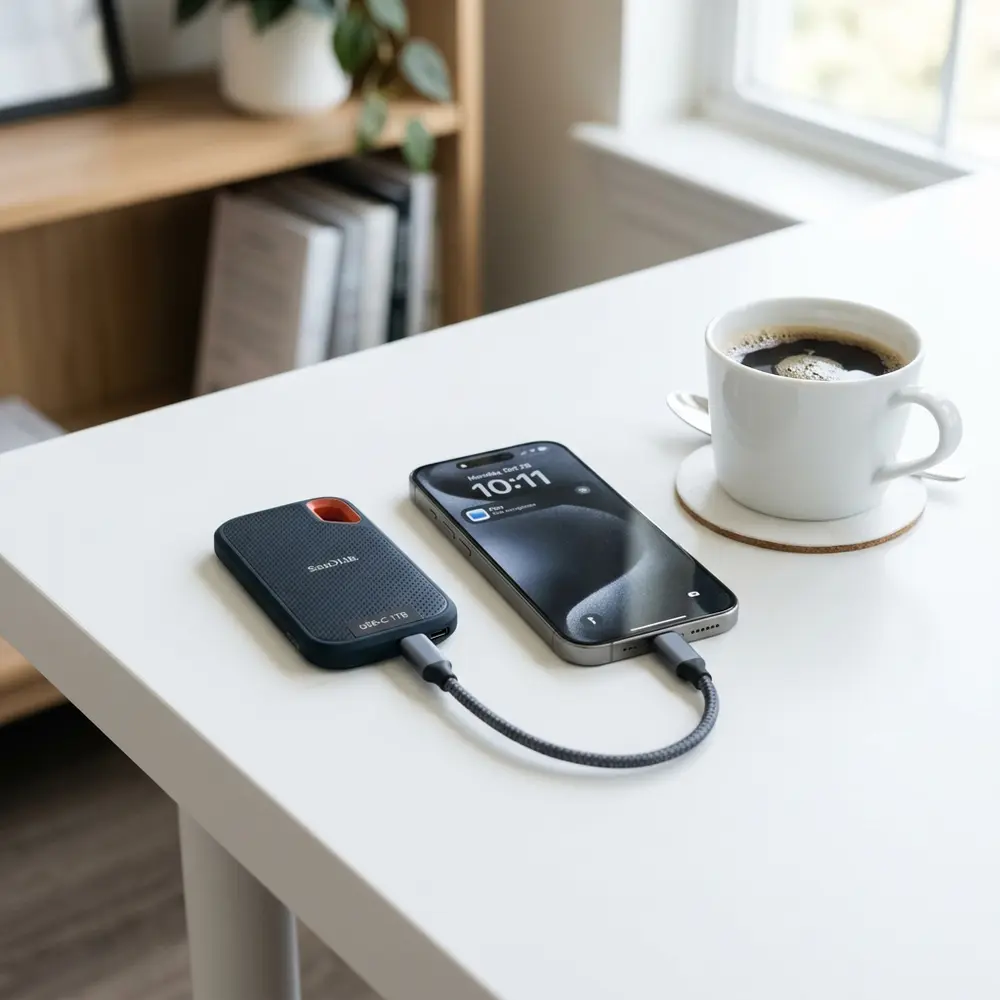
After successfully removing the shortcut virus, it is advisable to restore any lost files. For guidance on this process, refer to the article on how to restore usb flash drive back to its full original capacity.
Regular Maintenance Tips
Maintaining the integrity of a USB flash drive requires regular checks. Always perform antivirus scans and ensure that files are backed up securely.
Frequently Asked Questions
1. Can CMD remove all types of viruses from a USB drive?
CMD is effective for specific viruses like the shortcut virus but may not effectively address more complex malware.
2. What should be done if files are still missing after CMD removal?
Utilize file recovery software or consult a professional data recovery service to retrieve lost files.
3. Are there any risks associated with using CMD for virus removal?
Improper usage of CMD can lead to unintended file deletions. Caution is advised when executing commands.
4. How can the shortcut virus be prevented in the future?
Avoid opening unknown files and regularly scan the USB drive for viruses. Keeping software updated also reduces vulnerability.
5. What if the USB drive is still not functioning after virus removal?
A complete format of the drive may be necessary, but remember that this will erase all data. Always back up first.
Advanced Setup Tips for CMD Usage
Utilizing the Command Prompt effectively requires an understanding of the correct commands to execute. One should ensure that the USB flash drive is properly connected and recognized by the system before proceeding with any command inputs.
It is advisable to run Command Prompt as an administrator to avoid permissions issues. This can be done by right-clicking on the Command Prompt icon and selecting "Run as administrator" for elevated access.
Setting the Command Prompt to the correct drive letter where the USB is located is crucial. For example, if the USB is assigned the letter E, the command should begin with "E:" to navigate to the correct directory.
Common Mistakes When Using CMD
One of the most common mistakes is neglecting to check which drive letter corresponds to the USB flash drive. Using the wrong drive letter can lead to confusion and ineffective command execution.
Another frequent error is not typing commands accurately, leading to syntax errors. Careful attention should be paid to the correct spelling and spacing of commands to prevent these issues.
Failing to run the Command Prompt as an administrator is also a common oversight. This can limit the ability to execute certain commands necessary for effectively removing the shortcut virus.
Model Comparisons: USB Flash Drives
Different models of USB flash drives may have varying susceptibility to shortcut viruses based on their security features. Some models come equipped with built-in security software that can prevent virus infiltration.
Comparatively, high-end models tend to include encryption and protective measures against malware. In contrast, low-cost models might lack these features, making them more vulnerable to threats.
When selecting a USB flash drive, consider those that have positive reviews regarding their security capabilities. This can greatly reduce the risk of encountering shortcut viruses in the first place.
Use Case Scenarios for CMD Virus Removal
In a corporate environment, CMD can be utilized to quickly address shortcut viruses affecting multiple USB drives. This can streamline the process of maintaining data integrity across various devices.
For personal use, CMD provides a valuable tool for individuals who may frequently use USB drives for transferring files. Learning to remove shortcut viruses through CMD can empower users to manage their devices independently.
Additionally, educational institutions can benefit from CMD virus removal techniques to protect student data. Teaching students how to use these methods can foster a culture of digital hygiene and responsibility.
System Compatibility Considerations
When attempting to remove shortcut viruses using CMD, it is essential to consider the operating system in use. Windows operating systems, particularly versions like Windows 10 and Windows 11, support CMD commands effectively for this purpose.
Older systems may have limited command functionality or different command syntax, which can hinder the removal process. Therefore, ensuring compatibility with the system is key to a successful virus removal.
Compatibility with the USB file system format, such as FAT32 or NTFS, should also be verified. Certain commands may behave differently depending on the formatting of the USB drive.
Cost Estimates for Virus Removal Solutions
Using CMD to remove shortcut viruses is a cost-effective solution that requires no financial investment. The only resources needed are the computer and the USB drive, making it accessible for anyone.
In contrast, hiring a professional to handle virus removal can lead to significant costs, often ranging from $50 to $150 per hour. This expense can be avoided by learning effective CMD techniques.
In cases where additional software is required for virus removal, costs can vary widely. Some anti-virus programs may offer free versions, while premium versions can range from $30 to $100 annually.
Troubleshooting CMD Issues
If CMD commands do not yield the desired results, it may indicate an underlying issue with the USB drive itself. Checking for hardware damage or corruption should be the first step in troubleshooting.
Another potential issue could arise from improper command syntax, which can lead to errors. Verifying each command's accuracy and ensuring there are no typos can often resolve these problems.
In cases where CMD is unable to remove the virus, utilizing alternative methods like third-party software may be necessary. This can serve as a backup plan when CMD proves ineffective.
When to Seek Expert Help
Seeking expert help may become necessary if CMD commands consistently fail to remove the shortcut virus. Professionals may have access to advanced tools and techniques that can effectively address complex virus issues.
If data on the USB flash drive is critical and cannot be risked with DIY methods, consulting an expert is advisable. This ensures data recovery and virus removal are handled with the utmost care and expertise.
Additionally, if the virus persists after multiple attempts with CMD, it may indicate a more serious infection. In these cases, professional intervention is recommended to prevent further complications.
How to Remove Shortcut Virus from USB Flash Drive Using CMD
The shortcut virus is a common issue faced by users of USB flash drives. It typically converts files into shortcuts, making them inaccessible. Using the Command Prompt (CMD) is an effective way to remove this virus. Below is a detailed approach to help users effectively eliminate the shortcut virus from their USB drives.
Steps to Remove Shortcut Virus Using CMD
- Insert the USB Flash Drive: Connect the USB flash drive to the computer.
- Open Command Prompt: Press Windows + R keys to open the Run dialog, type cmd, and press Enter.
- Access the USB Drive: Type the drive letter of your USB drive followed by a colon (e.g.,
E:) and press Enter. - Display Hidden Files: Type
dir /aand press Enter to view all files, including hidden ones. - Remove the Shortcut Virus: Type the following command and press Enter:
attrib -h -r -s *.*. This command will remove the hidden, read-only, and system attributes from all files in the drive. - Delete the Shortcut Files: Use the command
del *.lnkto delete all shortcut files created by the virus. - Scan for Remaining Viruses: It's advisable to run an antivirus scan on the USB drive to ensure all threats are eliminated.
Verification Checklist
After following the steps above, it is essential to verify that the shortcut virus has been successfully removed. Use the following checklist:
- Check if all original files are visible on the USB drive.
- Ensure there are no remaining shortcut (.lnk) files.
- Run a full scan using an updated antivirus software.
- Attempt to open original files to verify they are not corrupted.
Common Errors and Troubleshooting
While attempting to remove the shortcut virus using CMD, users may encounter various errors. Here are some common errors and their solutions:
- Access Denied: This error may occur if administrative privileges are not granted. Right-click on CMD and select Run as administrator.
- File Not Found: Ensure that the USB drive is correctly selected and that the drive letter is accurate.
- Device Not Ready: This may indicate that the USB drive is not properly connected. Try reconnecting the drive.
Comparison Table: CMD vs. Other Methods
| Method | Effectiveness | Ease of Use | Speed |
|---|---|---|---|
| CMD | High | Moderate | Fast |
| Antivirus Software | High | Easy | Variable |
| Third-party Removal Tools | Moderate | Easy | Fast |
| Manual Deletion | Low | Difficult | Slow |
Technical Glossary
- CMD: Command Prompt, a command line interpreter application available in most Windows operating systems.
- Shortcut Virus: A type of malware that creates shortcuts for files and hides the original files.
- Attrib: A command used to change file attributes, such as hidden, read-only, or system.
- Virus Scan: A process performed by antivirus software to detect and remove malicious software from devices.
- Drive Letter: A letter assigned to different storage devices by the operating system, typically starting from C: for the main drive.
- Antivirus Software: A program designed to detect, prevent, and remove malware from computer systems.
Additional FAQ
What causes the shortcut virus on USB drives?
The shortcut virus often spreads through infected computers, malicious software, or when an infected USB drive is connected to a computer.
Can I recover files after the shortcut virus infection?
Yes, using CMD to remove the virus may restore access to the original files, provided they were not deleted or corrupted.
Is it safe to use CMD for virus removal?
Yes, using CMD is safe if the correct commands are followed. However, caution is advised to avoid unintentional deletion of important files.
How can I prevent the shortcut virus in the future?
To prevent future infections, regularly update antivirus software, avoid connecting unknown USB drives, and scan all external devices before accessing them.
What should I do if CMD does not work?
If CMD does not successfully remove the virus, consider using reputable antivirus software or third-party removal tools as alternatives.




