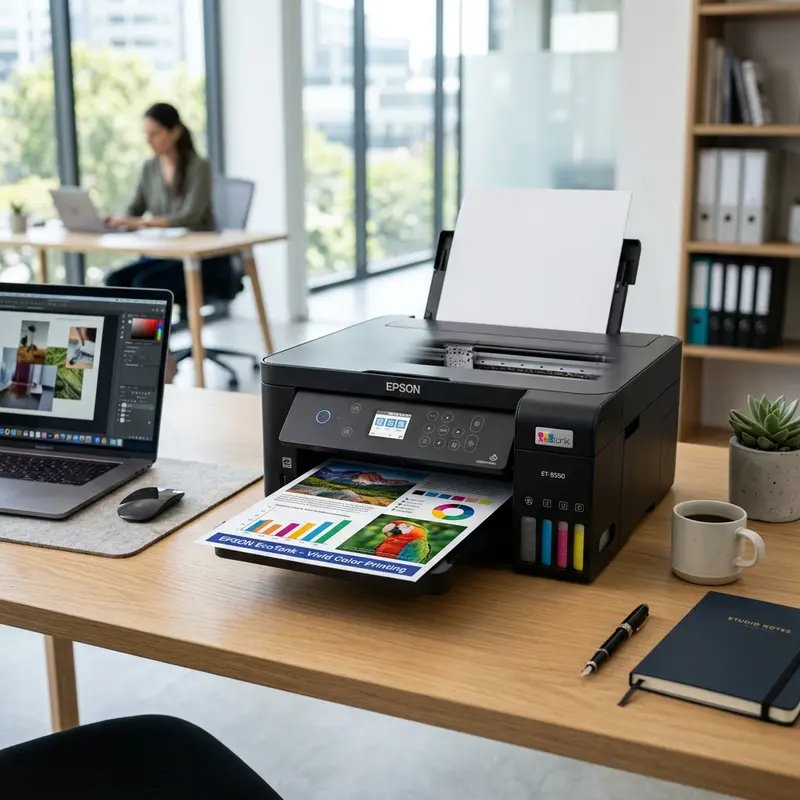
The Epson EcoTank L3250 is highly regarded for its versatility, offering an excellent solution for printing crisp black-and-white documents as well as vibrant, high-definition photographs. However, many users run into issues when attempting to print on thicker, glossy media. To print on photo paper with the Epson L3250 without causing paper jams or smudging, you must load the photo paper with the glossy side facing forward in the rear paper feed tray, adjust the paper guides snugly but not too tightly, and configure your print driver settings to the correct paper type (such as Epson Premium Glossy) and set the print quality to "High".
Ignoring the physical limits of the printer's roller feed system or skipping the correct driver settings can lead to common printing failures. These include paper feed failures, paper jams, alignment errors, roller track marks (often referred to as "pizza cutter marks"), and smudged prints that fail to dry. Epson's inkjet printing process depends on the rapid absorption of ink by the chemical receiving layer of the photo paper. Understanding this interaction, along with the mechanics of the pickup roller assembly, is essential for obtaining professional-quality results at home. This guide provides an in-depth technical walkthrough of everything you need to know, from selecting the right paper weight to adjusting the driver settings.
The Mechanics of the Epson L3250 Paper Feed Assembly
Unlike larger office-grade printers that utilize front-loading cassettes with reverse-friction rollers, the Epson L3250 uses a rear vertical feeding system known as an Auto Sheet Feeder (ASF). In this design, the paper sits at an approximate 75-degree angle, allowing gravity to assist the feed path. The mechanical force is applied by a primary rubber-coated roller, called the Pickup Roller, which works in tandem with a secondary separator roller (or Retard Roller) to ensure only a single sheet is drawn into the feed throat at a time.
The Pickup Roller is driven by a high-torque direct current stepper motor. This motor controls the feeding velocity so that the leading edge of the sheet aligns perfectly with the optical page-edge sensor (PE Sensor). Photo paper is significantly thicker, stiffer, and smoother on its backing than standard 75g/m² copier paper. If the photo paper is too heavy or rigid, the spring-loaded separator pad will fail to flex the sheet around the curve of the paper path. This causes the rubber roller to slip against the backing of the paper, producing a clicking sound and triggering a "Paper Out" error on the printer's control panel.
Over time, the rubber surface of the Pickup Roller accumulates paper dust, fibers, and chemical residue from various photo papers. This buildup lowers the coefficient of friction, leading to slippage. Keeping this roller clean is an essential maintenance task if you plan on regularly printing on heavy-weight media. A simple cleaning using a lint-free cloth lightly moistened with distilled water will restore the grip of the rubber without causing damage.
Understanding Photo Paper Types: Cast Coated vs. Microporous
When selecting photo paper for your inkjet printer, you will generally find two main categories of paper. Each type has a distinct manufacturing process that affects how it absorbs ink from the L3250 (which uses dye inks for color channels and pigment ink for black):
- Cast Coated Photo Paper: This is the most common and budget-friendly photo paper. It is made by coating standard paper pulp with a layer of silica and polymers. The glossy finish is created by pressing the paper against a hot chrome drum (calendering) during production. Cast coated papers work well with dye-based inks, but they have lower water resistance and are prone to fading when exposed to air over time. The ink drying time is slightly longer, and the paper may warp under heavy ink loads.
- Microporous (Resin Coated) Photo Paper: This is a professional-grade media. The paper base is sealed between two layers of polyethylene plastic, similar to traditional silver halide photographic paper. The image-receiving layer contains microscopic silica or alumina particles that absorb ink instantly via capillary action. This type of paper dries immediately, is completely waterproof, and offers deeper colors and better longevity. It is the best choice for professional prints and portfolios.
The Epson L3250 can print on both types of paper. However, microporous paper is much less likely to show roller marks, as the ink dries before the sheet passes beneath the metallic exit wheels (pizza cutters). If you are experiencing other hardware issues or need to reset your printer's sensors, you may find it helpful to read technical articles like how to reset hp deskjet 2776 to understand general printer electronics diagnostics.
Paper Weight Limits and Roller Compatibility
Epson's official specifications state that the L3250 supports plain paper weights up to 90g/m² and original Epson photo papers up to 256g/m² (such as Epson Ultra Glossy Photo Paper). However, the printer can generally feed high-quality third-party photo papers weighing up to 260g/m² or 280g/m², provided the paper is flat and free of curls or bent corners.
Using papers heavier than 260g/m² puts significant strain on the feed motor and plastic gear train. Over time, this extra load can wear down the gear teeth or overheat the motor driver on the main logic board. For everyday photo printing, papers between 180g/m² and 230g/m² offer a good balance of thickness and rigidity without putting excessive strain on the printer's mechanical feed assembly.
How to Configure the Driver Settings for High-Quality Photos
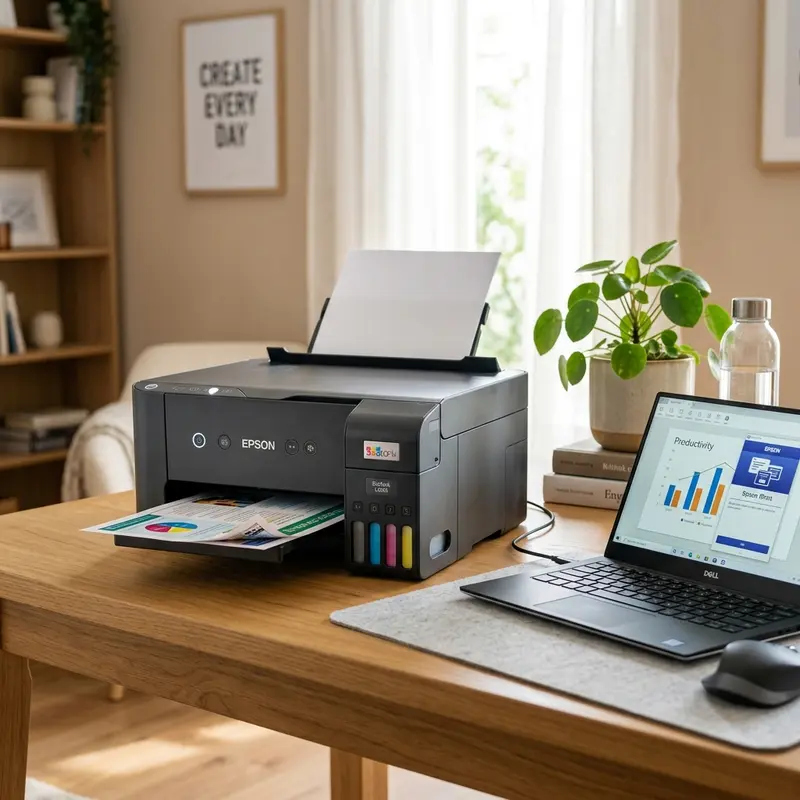
One of the most common mistakes users make when printing on photo paper is leaving the driver set to "Plain Paper" and "Standard" quality. In this mode, the printer applies ink at a rate designed for plain paper, which causes the ink to pool on glossy surfaces. This leads to muddy, dark images that smudge easily. You must adjust the driver settings to match the chemical coating of your photo paper.
Follow these steps to configure the print driver on Windows:
- Open your photo editing software or image viewer, select your image, and press Ctrl + P to open the print dialog.
- Select your "Epson L3250 Series" printer and click on "Printer Properties" or "Printing Preferences."
- Under the "Main" tab, locate the "Paper Type" drop-down menu. Change it from "Plain Paper" to Epson Premium Glossy (for standard glossy papers) or Epson Matte (for matte photo papers).
- Change the "Quality" setting from "Standard" to High. This slows down the print carriage and increases the resolution (dots per inch), preventing visible print lines (banding).
- For advanced color matching, go to the "More Options" tab, click on "Color Correction," select "Custom," and click "Advanced." Here, you can select the Adobe RGB color space or let the Epson driver manage colors automatically to enhance brightness and contrast.
- Before printing, it is a good idea to verify that your nozzles are clear. To learn how to perform a cleaning cycle from your computer if you notice gaps in your test prints, refer to our guide on how to run epson l3250 printhead cleaning from pc.
- Click "OK" to apply the settings and click "Print" to start.
Recommended Driver Settings by Media Type
The table below provides recommended settings for various paper types to help you achieve the best print results with your Epson L3250:
| Physical Paper Type | Recommended Weight | Driver Paper Type Setting | Quality Setting | Estimated Drying Time |
|---|---|---|---|---|
| Standard Glossy (Cast Coated) | 180g/m² to 230g/m² | Epson Premium Glossy / Epson Glossy | High | 5 to 10 minutes | Professional Glossy (Microporous / RC) | 200g/m² to 260g/m² | Epson Ultra Glossy / Photo Paper Glossy | High | Instant (Dry to the touch) |
| Matte Photo Paper | 120g/m² to 180g/m² | Epson Matte | High or Standard | 2 to 5 minutes |
| Glossy Photo Sticker Paper | 115g/m² to 150g/m² | Epson Premium Glossy / Epson Glossy | Standard or High | 5 to 10 minutes |
Troubleshooting Common Photo Printing Issues
Printing on photo paper can sometimes present unexpected challenges. Below is a guide on how to troubleshoot and resolve the most common issues:
1. The printer fails to feed the photo paper
This is usually caused by paper dust or chemical coatings from photo papers building up on the rubber surface of the Pickup Roller, reducing its grip on glossy surfaces.
Solution: Unplug the printer and clear any paper from the tray. Dampen a lint-free cloth or a cotton swab with a small amount of distilled water. Reach into the rear paper slot, locate the rubber roller, and wipe its surface clean. Manually rotate the roller to clean the entire circumference. Avoid using isopropyl alcohol, as it can dry out the rubber over time and reduce its effectiveness.
2. Fine vertical dotted lines on the print (Pizza Cutter Marks)
These marks are caused by the small star-shaped metal wheels located at the paper exit. They keep the paper flat as it leaves the printer. If the ink is still wet when the paper passes under these wheels, they can leave tiny tracks on the glossy surface.
Solution: Use microporous photo paper, which absorbs ink almost instantly. You can also change the quality setting in the driver from "Super Photo" to "High" or disable the "High Speed" print option. This reduces the amount of ink applied per pass and allows the ink more time to dry before reaching the exit rollers.
3. Color mismatch or tinted prints
If the colors on your printed photo do not match what you see on your monitor, the issue is typically related to incorrect color management settings or clogged printhead nozzles.
Solution: Run a nozzle check to confirm that all four ink colors are printing correctly. If the nozzle check is clean, ensure you have selected the correct paper type in the print driver. The paper type selection loads the specific ICC profile designed for that media type, ensuring accurate color rendering.
Handling and Storing Your Printed Photos
Proper handling and storage are crucial to maintaining the quality and longevity of your prints. Because the Epson L3250 uses dye-based inks for color printing, the prints are sensitive to UV light and air exposure.
- Allow the Ink to Cure: Even if the photo feels dry immediately after printing, it takes about 24 hours for the ink to fully cure and stabilize. Avoid stacking your prints or placing them in albums or under glass until this curing period is complete.
- Keep Out of Direct Sunlight: Ultraviolet (UV) radiation breaks down dye molecules over time, causing colors to fade. Display your photos away from direct sunlight or use UV-protective glass in your frames.
- Use Acid-Free Sleeves: When storing photos in albums, use acid-free polypropylene sleeves. Avoid PVC plastics, which release gases that can yellow the paper and degrade the image quality over time.
- Store in a Low-Humidity Environment: Dye inks are water-soluble. High humidity (above 70%) can cause the ink to migrate through the paper fibers, resulting in blurry edges and loss of detail.
7. Adjusting Dry Time Settings in the Printer Driver for Thick Media
When printing heavy ink volumes on thick glossy paper, you can configure the paper dry time between head passes to prevent smudges. In the advanced settings of the Epson driver, increase the print head dry time value. This forces the carriage to pause for 2 to 5 seconds at the end of each pass, giving the solvent base of the ink time to evaporate before the feed rollers advance the sheet under the star wheels.
8. Managing Color Gamut and Applying Custom ICC Color Profiles
To prevent colors from appearing saturated or dark, you should apply color-matching profiles. Under driver preferences, set color management to Manual and choose sRGB or Adobe RGB space depending on your photo editing workflow. If using specialty photo paper, download the custom ICC profiles from the manufacturer and assign them inside Photoshop to guarantee exact calibration.
9. Controlling Environment Humidity and Handling Media Curls
High relative humidity causes paper fibers to warp and absorb moisture, resulting in surface curling. If a curled sheet is fed, the head nozzle plate will scrape against it, depositing black ink trails. Store media in cool cabinets inside sealed bags, and flatten any warped corners manually by counter-bending them gently before launching a print task.
10. Resolving Print Spooler Memory Limits for Large Photo Files
Printing high-resolution images can bottleneck your laptop's print spooler queue. When Windows encounters massive raw files, the spooler memory stack can overflow, resulting in a 'spooler service stopped' error. To resolve this, open Windows Services, locate the Print Spooler service, stop it, clear all pending .SHD and .SPL files in C:\Windows\System32\spool\PRINTERS, and restart the service. Adjusting virtual memory allocation on your laptop also helps process large photo files smoothly. To prevent future spooler problems, navigate to your printer properties, go to the Advanced tab, and ensure 'Start printing immediately' is checked rather than 'Spool print documents so program finishes printing faster'. This minimizes buffer requirements on your local machine.




