How to Print with Flexible TPU Filament: Best Extruder and Speed Settings
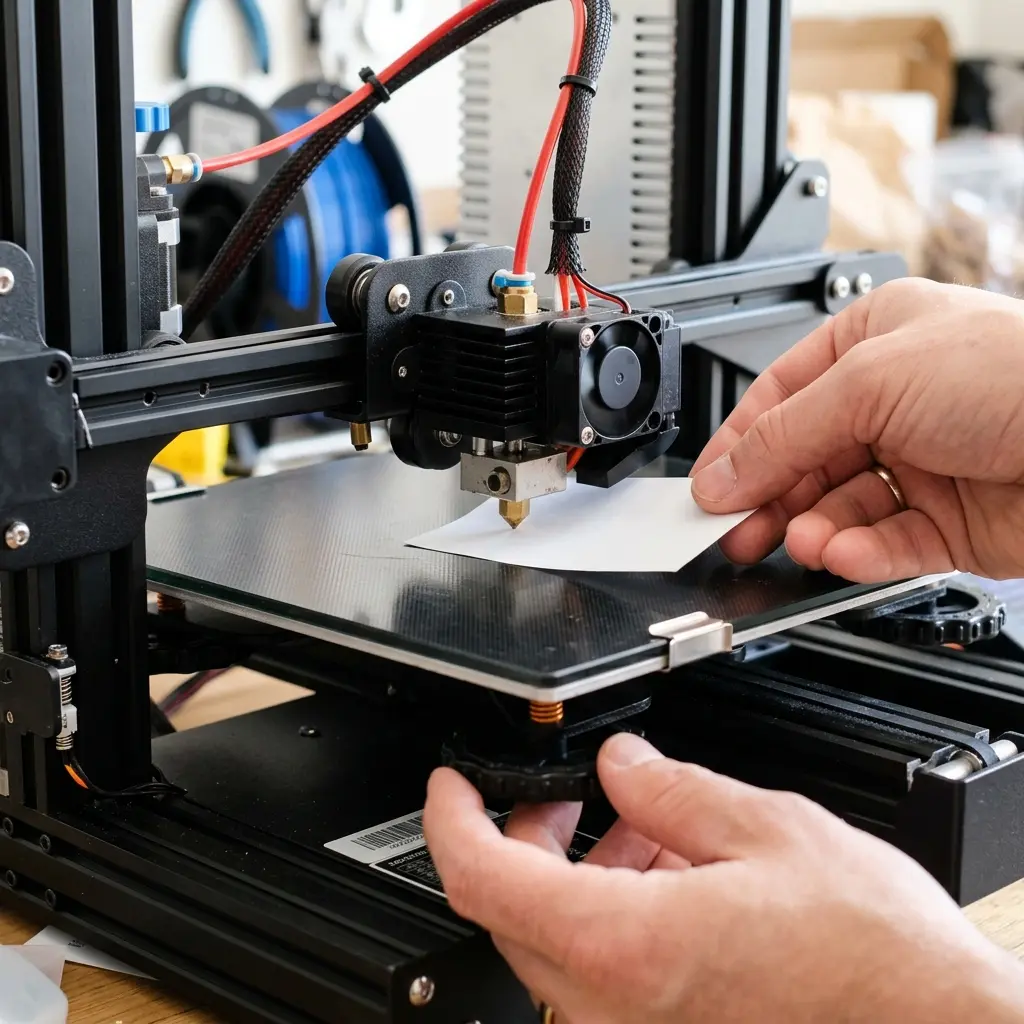
Printing with flexible TPU filament requires specific settings for optimal results, particularly regarding extruder and speed configurations.
Understanding TPU Filament
Thermoplastic Polyurethane (TPU) is a versatile and flexible material commonly used in 3D printing. Its elasticity makes it ideal for applications requiring durability and flexibility, such as phone cases, gaskets, and wearable devices.
TPU is a type of thermoplastic elastomer (TPE), which combines the advantages of rubber-like flexibility with the durability of plastic. It comes in various Shore hardness ratings, allowing users to choose the right flexibility for specific projects.
The Shore A hardness scale ranges from very soft (Shore 00) to very hard (Shore D). Understanding these ratings helps in selecting the appropriate TPU for specific needs. For instance, a Shore A rating of 85 is commonly used for phone cases, while a softer TPU with a rating of 65 might be better suited for wearable technology.
This material's unique properties necessitate specific printing techniques for successful outcomes, including careful calibration of the printer settings.
Choosing the Right Extruder for TPU
The extruder plays a pivotal role in printing TPU successfully. Direct drive extruders are generally preferred for TPU filament due to their ability to push the filament directly into the hotend.
This setup minimizes the distance the filament must travel, reducing the chances of jams or misfeeds. Direct drive extruders provide a more consistent flow of material, which is crucial for flexible filaments like TPU.
Bowden setups can work but may require adjustments, such as increased retraction settings, to compensate for the longer distance the filament travels. Ensuring the extruder gears are appropriately calibrated to handle the flexibility of TPU is essential to prevent slippage.
Using a filament guide can reduce bending and friction as the filament travels from the spool to the hotend.
Optimal Speed Settings for TPU Printing
Speed settings are critical when working with TPU filament. Slower print speeds, typically between 15 to 30 mm/s, allow for better layer adhesion and reduce the likelihood of stringing and oozing.
Higher speeds can lead to under-extrusion and poor print quality. The flexibility of TPU means that it is more prone to issues if the print speed is too fast, so patience is key when printing with this material.
Finding the perfect balance between speed and quality often requires experimentation with different settings based on the specific printer and the characteristics of the TPU being used. Adjusting the travel speed can also help minimize issues while maintaining overall efficiency.
Printing small, intricate details may necessitate even slower speeds to ensure accuracy.
Temperature Settings for TPU Printing
Temperature settings are another crucial aspect of printing with TPU. The typical nozzle temperature for TPU ranges from 220°C to 250°C, depending on the specific brand and formulation of the filament.
It is essential to consult the manufacturer's specifications for the optimal temperature range. Using a temperature that is too low can result in poor layer adhesion, while too high can cause the material to degrade.
Bed temperature should also be taken into account. A heated bed set between 40°C and 60°C can improve adhesion and reduce warping.
Using a suitable build surface, like PEI or glass, can further enhance the print's chances of success. Applying a light layer of adhesive spray or glue stick can also help with bed adhesion, especially when printing larger objects.
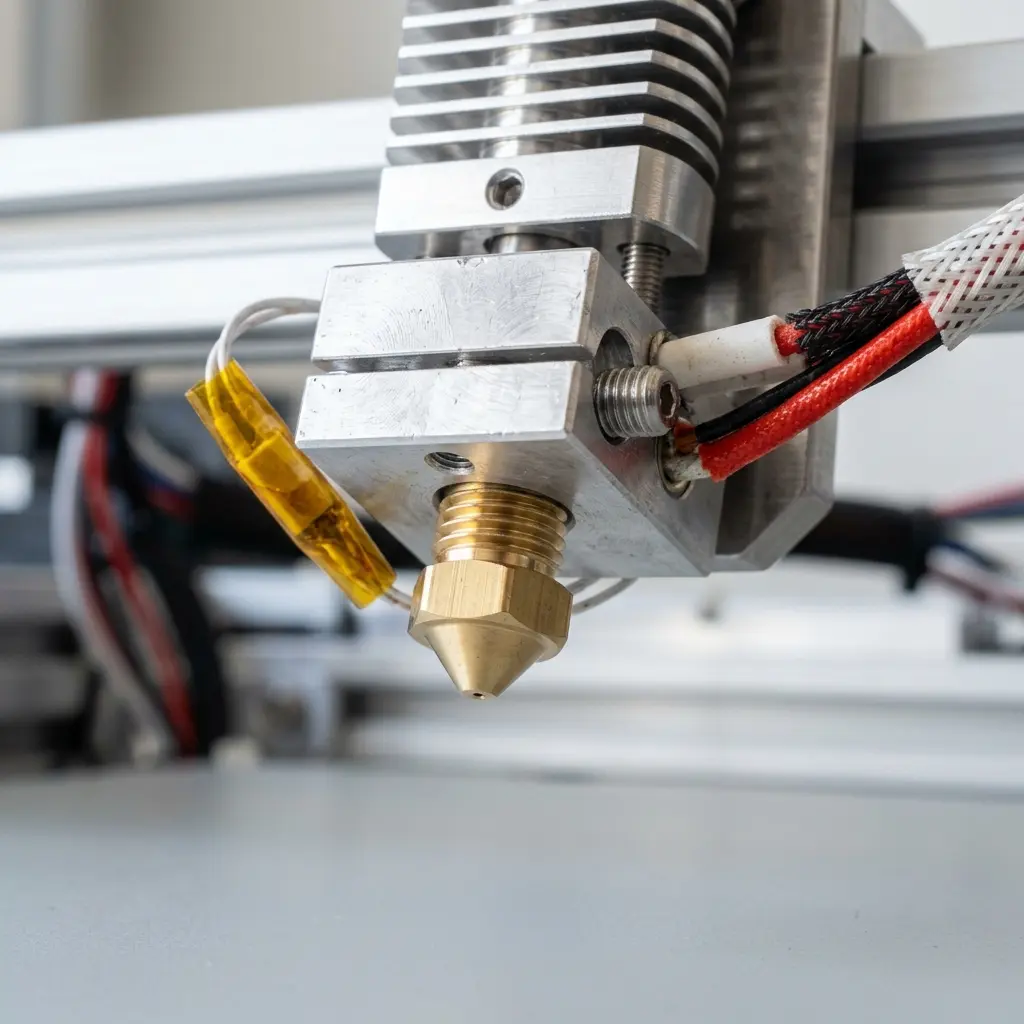
Fine-Tuning Retraction Settings
Retraction settings greatly influence the quality of prints made with TPU. Because of TPU's flexible nature, high retraction distances can lead to clogs and jams.
A retraction distance of 1-3 mm is often recommended, with a retraction speed of 20-30 mm/s. It's crucial to reduce these settings further if issues such as stringing or oozing are noticed during printing.
Disabling retraction for certain models that do not require support structures can further improve the printing process. Experimentation is key to determining the best settings based on the 3D printer and specific TPU being utilized.
In some cases, tuning retraction settings in combination with adjusting print speeds leads to the best results.
Creating the Perfect Print: Step-by-Step Guide
- Ensure the 3D printer is clean and properly calibrated. Refer to the how to calibrate 3D printer guide if necessary.
- Set the printer's nozzle temperature between 220°C and 250°C.
- Adjust the bed temperature to between 40°C and 60°C for optimal adhesion.
- Configure the print speed to between 15 mm/s and 30 mm/s.
- Set retraction distance to 1-3 mm and retraction speed to 20-30 mm/s.
- Load the TPU filament into the extruder and ensure it feeds smoothly.
- Start the print and monitor for any signs of issues such as under-extrusion or stringing.
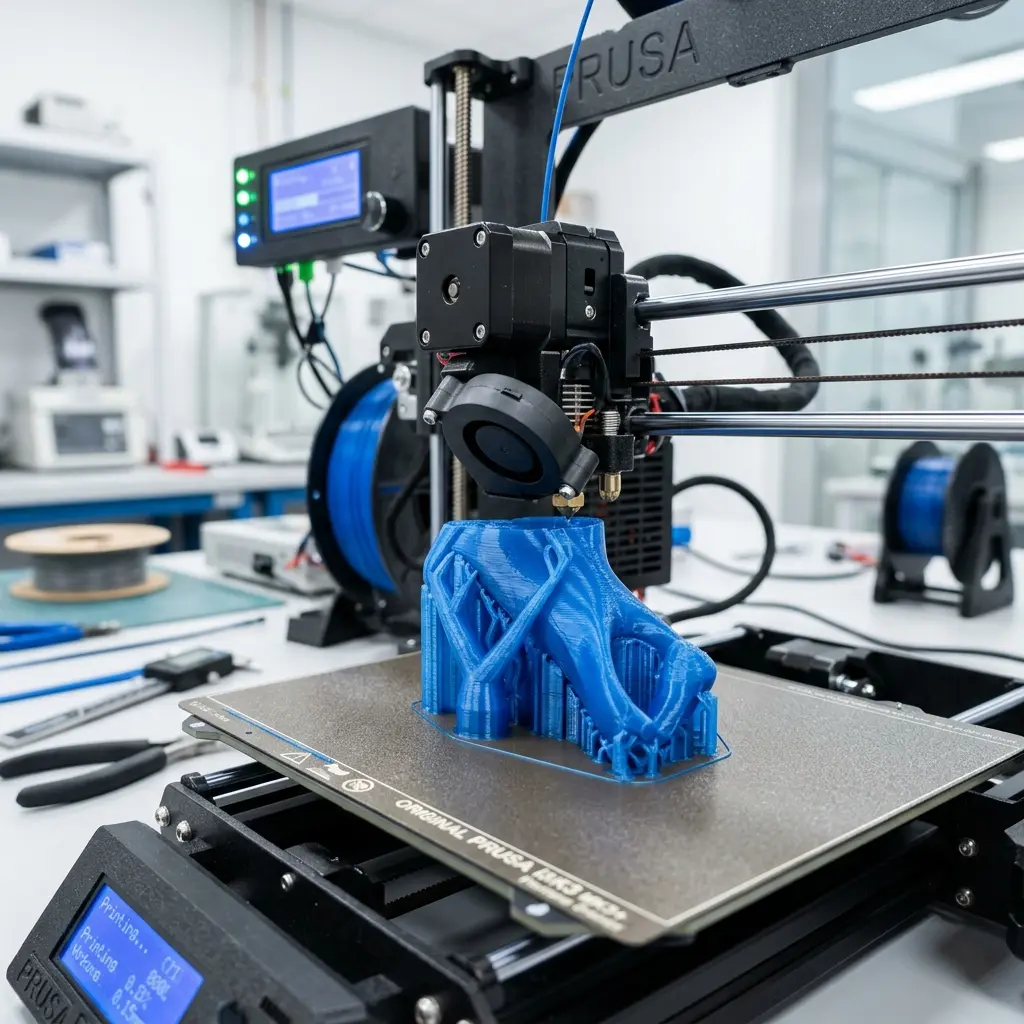
Technical Specifications Comparison Table
| Parameter | Recommended Settings | Notes |
|---|---|---|
| Nozzle Temperature | 220°C - 250°C | Adjust based on filament brand. |
| Bed Temperature | 40°C - 60°C | Improves adhesion and reduces warping. |
| Print Speed | 15 mm/s - 30 mm/s | Slower speeds yield better results. |
| Retraction Distance | 1 mm - 3 mm | Higher distances can cause clogs. |
| Retraction Speed | 20 mm/s - 30 mm/s | Adjust according to printer capabilities. |
DomineTec Tip: When using TPU, ensure that the filament path is clean and free from obstructions. Regular maintenance of the extruder and hotend can prevent many common issues.
Common Challenges When Printing with TPU
Printing with TPU can come with its own set of challenges. Below are some common issues and solutions:
- Stringing: This occurs when the nozzle oozes filament during travel moves. To combat this, adjust retraction settings or increase travel speed.
- Under-extrusion: This can happen if the print speed is too high or if the material isn't heated enough. Decrease the speed and ensure the temperature is within the recommended range.
- Clogs: Flexible materials can lead to jams. Ensure the extruder is compatible and regularly maintain the nozzle to avoid buildup.
- Adhesion Issues: If prints aren't sticking to the bed, check bed leveling and temperature settings. Consider using adhesion aids like glue stick or specialized build surfaces.
Best Practices for Storing TPU Filament
TPU can absorb moisture from the air, which can negatively impact print quality. Here are some tips for storing TPU filament:
- Keep It Sealed: Store TPU filament in airtight bags or containers with desiccants to absorb moisture.
- Cool and Dry Place: Keep the filament in a cool, dry location away from direct sunlight.
- Use Within a Reasonable Time: Try to use TPU within a few months of purchase to ensure the best quality.
Conclusion
Success in 3D printing with TPU filament hinges on the right settings and techniques. Adjusting extruder type, print speed, temperature, and retraction settings will significantly enhance print quality.
With careful consideration and adjustments, TPU can produce stunning results for a wide range of applications. Experimentation and attention to detail ensure that the unique properties of TPU are fully leveraged, resulting in high-quality prints.
This flexible material can open new avenues for creativity in 3D printing when properly managed. Whether creating prototypes or custom pieces, mastering TPU can elevate the 3D printing experience.
Frequently Asked Questions
What is TPU filament best used for?
TPU filament is ideal for projects requiring flexibility and durability, such as wearable devices, phone cases, and gaskets.
Can TPU be printed on any 3D printer?
Not all printers can handle TPU well. A direct drive extruder is preferred for optimal results with flexible filaments, while Bowden setups may require more tuning.
How do I prevent stringing when printing TPU?
Reduce print speed and retraction settings to minimize stringing. Fine-tuning temperature settings can also help. Additionally, ensure the filament is dry.
Is it necessary to use a heated bed for TPU printing?
A heated bed is recommended as it improves adhesion and decreases the likelihood of warping during the printing process. It is especially beneficial for larger prints.
What are the best slicing settings for TPU?
Using a slower print speed, appropriate retraction settings, and the correct temperature range will optimize the slicing settings for TPU. Always consult the filament manufacturer's guidelines for best practices.
Advanced Configurations for TPU Printing
Utilizing advanced configurations is essential for achieving optimal results with TPU filament. Settings such as retraction distance and speed must be fine-tuned to prevent stringing and ensure a smooth flow of material.
An advanced slicer setting to consider is the "coasting" feature, which helps to reduce oozing by stopping material flow just before the end of a move. Adjusting the minimum layer time can also enhance print quality by allowing layers to cool adequately before the next is applied.
Common Calibration Mistakes to Avoid
Calibration errors can lead to disastrous results when printing with TPU filament, particularly in the first few layers. Ensuring the bed is level and the nozzle height is correctly set can prevent issues such as poor adhesion and warping.
Another common mistake is neglecting to calibrate the extruder steps per millimeter, which is critical for accurate filament extrusion. Inaccurate extrusion settings can result in under-extrusion or over-extrusion, significantly affecting the print quality.
Cost Estimations for TPU Printing
The cost of printing with TPU filament can vary widely based on material quality and print complexity. High-quality TPU typically falls within the range of $20 to $40 per kilogram, which should be factored into the overall project budget.
In addition to material costs, one must consider potential additional expenses for printer modifications, such as a direct drive extruder upgrade. This investment can enhance performance but should be weighed against the expected benefits in print quality and reliability.
Security Precautions While Printing with TPU
Printing with TPU can emit fumes that may be harmful in poorly ventilated areas, making safety precautions essential. Ensuring adequate ventilation in the printing environment can significantly reduce exposure to potentially harmful particles and gases.
Using a fireproof surface and keeping a fire extinguisher nearby is advisable, as with any 3D printing process. Monitoring the printer during operation and avoiding leaving it unattended can further enhance safety measures.
Alternative Filament Choices for Flexibility
While TPU is a popular choice for flexible prints, alternatives such as TPE (Thermoplastic Elastomer) and TPC (Thermoplastic Copolyester) should not be overlooked. Each material has unique properties that can suit specific applications better than TPU.
For instance, TPE offers greater flexibility and is often easier to print, making it suitable for specific applications like seals and gaskets. Evaluating the requirements of the intended project can help in selecting the most appropriate flexible filament type.
Impact of Print Speed on TPU Quality
Print speed plays a critical role in the quality of TPU prints, with slower speeds typically yielding better results. Recommended speeds often range between 20-30 mm/s to allow for the filament to properly flow and adhere to previous layers.
Experimentation with speed settings is encouraged, as different designs may respond differently to variations. A balance between speed and quality ensures successful prints while minimizing the risk of defects such as delamination or poor layer adhesion.
How to Print with Flexible TPU Filament: Best Extruder and Speed Settings
Printing with flexible TPU (Thermoplastic Polyurethane) filament requires specific settings and equipment to achieve optimal results. This guide provides essential technical details regarding extruder configurations, speed settings, and other considerations for successful TPU printing.
Understanding TPU Filament
TPU is known for its elasticity, durability, and resistance to abrasion. It is commonly used in applications requiring flexibility, such as phone cases, gaskets, and footwear. However, its flexible nature can present challenges during the printing process.
Choosing the Right Extruder
The extruder plays a critical role in printing TPU filament. There are two main types of extruders: direct drive and Bowden. Each has its pros and cons when working with flexible materials.
| Extruder Type | Advantages | Disadvantages |
|---|---|---|
| Direct Drive |
Publicidade |
|
| Bowden |
|
|
Recommended Extruder Settings
For optimal TPU printing, the following extruder settings are recommended:
- Temperature: 220°C to 250°C
- Retraction Distance: 1mm to 3mm
- Retraction Speed: 20mm/s to 40mm/s
- Nozzle Size: 0.4mm to 0.8mm
Speed Settings for TPU Printing
Speed settings can significantly impact the quality of TPU prints. Slower speeds generally yield better results. Below are some recommended speed settings:
| Print Speed | Recommended Value |
|---|---|
| Initial Layer Speed | 15mm/s to 20mm/s |
| Normal Print Speed | 25mm/s to 40mm/s |
| Travel Speed | 60mm/s to 80mm/s |
Other Important Settings
In addition to extruder and speed configurations, other settings also contribute to successful TPU printing:
- Layer Height: Use a layer height of 0.1mm to 0.3mm for better adhesion and detail.
- Cooling: Minimal cooling is preferred. Set the cooling fan to 20% or turn it off for the first few layers.
- Bed Adhesion: Use a heated bed set to 40°C to 60°C. Apply glue stick or painter's tape to enhance adhesion.
Troubleshooting Common Issues
Even with the right settings, challenges may still arise during TPU printing. Below are some common issues and their solutions:
| Issue | Possible Cause | Solution |
|---|---|---|
| Filament Slipping | Too much retraction or inadequate extruder pressure | Reduce retraction settings and ensure the extruder gear is clean and properly tensioned |
| Under-Extrusion | Incorrect temperature or speed settings | Increase the temperature slightly or reduce the print speed |
| Layer Separation | Insufficient bed adhesion or cooling | Ensure bed is clean and heated; adjust cooling settings |
Conclusion
Printing with flexible TPU filament requires careful consideration of extruder types, speed settings, and other factors. By implementing the recommended settings and troubleshooting common issues, high-quality prints with TPU can be achieved.
``` ```htmlUnderstanding TPU Filament
Thermoplastic Polyurethane (TPU) is a flexible filament widely used in 3D printing. Its elasticity and durability make it ideal for a variety of applications, including phone cases and custom gaskets.
Characteristics of TPU
- High flexibility and elasticity.
- Good abrasion resistance.
- Excellent impact strength.
- Resistant to oils and greases.
- Available in various shore hardness levels.
Choosing the Right Extruder for TPU Printing
Selecting an appropriate extruder is crucial for successful TPU printing. Direct drive extruders are generally preferred due to their ability to handle flexible materials effectively.
Recommended Extruder Types
- Direct Drive Extruder: Provides better control over filament feed.
- Bowden Extruder: Less suitable due to potential issues with filament bending.
Key Features of a Suitable Extruder
- Short filament path minimizes bending.
- High grip on filament to prevent slipping.
- Adjustable tension settings for precise control.
Optimal Speed Settings for TPU Printing
Speed settings play a vital role in achieving high-quality prints with TPU. Slower print speeds generally yield better results by allowing the filament to adhere properly.
Recommended Speed Settings
| Parameter | Recommended Value |
|---|---|
| Print Speed | 20-30 mm/s |
| Travel Speed | 40-60 mm/s |
| Initial Layer Speed | 15-20 mm/s |
Temperature Settings for TPU Filament
Temperature settings significantly affect the print quality and adhesion of TPU. The nozzle temperature should be carefully monitored and adjusted for optimal results.
Recommended Temperature Settings
| Parameter | Recommended Value |
|---|---|
| Nozzle Temperature | 220-240 °C |
| Bed Temperature | 40-60 °C |
Tuning Print Settings for Best Results
Fine-tuning various print settings can enhance the performance of TPU filament. Consider adjusting retraction settings, layer heights, and infill percentages.
Important Adjustments to Consider
- Retraction Distance: Set to a minimal value (1-2 mm).
- Layer Height: Use a larger layer height (0.2-0.3 mm) for faster prints.
- Infill Percentage: Keep it lower (10-20%) to maintain flexibility.




