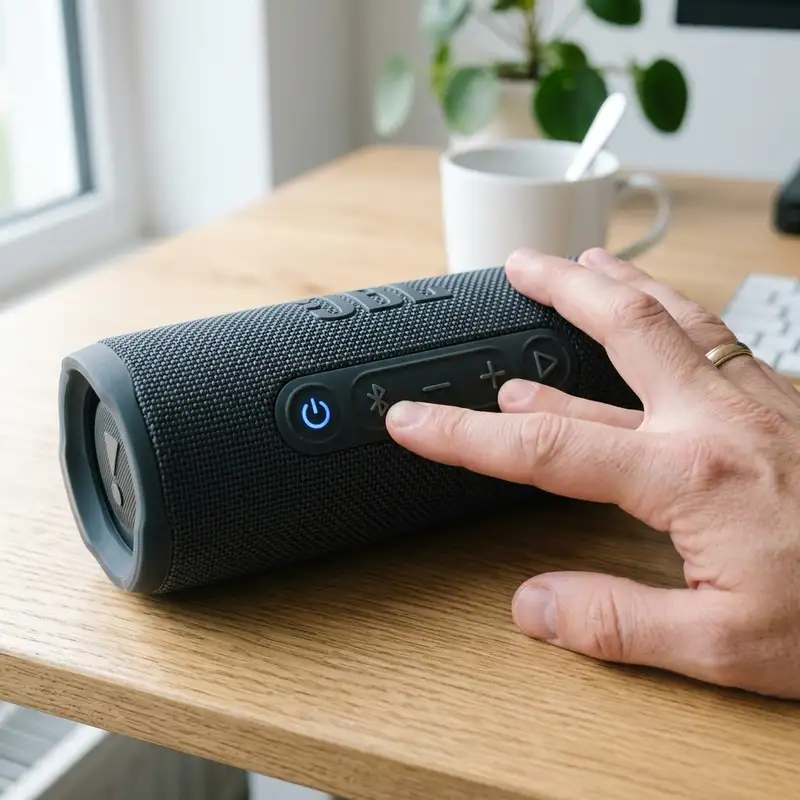
Wireless Bluetooth headphones, particularly those engineered by JBL, have become essential accessories for modern mobile lifestyles. While the Bluetooth pairing process is designed to be user-friendly, the underlying RF communication protocols can occasionally fail due to firmware bugs, battery depletion, or signal interference. If your phone cannot discover your JBL headphones, or if the connection keeps dropping, understanding the technical steps required to establish a stable link is crucial for restoring your audio experience.
To pair JBL wireless headphones, power them on, hold the Bluetooth button (or touch sensor) to enter pairing mode, and select them in your phone's Bluetooth menu. This initiates the cryptographic handshake required to stream audio between your devices.
1. Preliminary Checks: Battery Voltages and RF Signal Environments
Before attempting to pair your JBL wireless headphones with your phone, you must ensure both devices meet the basic hardware requirements for stable wireless communication. Many pairing failures are caused by low battery voltages or local signal interference.
1.1. Battery Voltage and Chipset Operations
JBL headphones rely on internal lithium-ion (Li-ion) pouch cells, which typically operate at a nominal voltage of 3.7V. When battery charge drops below 15%, the voltage supplied to the RF transceivers can become unstable. This voltage drop can cause the microcontroller unit (MCU) to experience boot loops, limit RF transmission power (reducing discovery range), or prevent the Bluetooth pairing chip from executing its initialization scripts. Always ensure your headphones are charged for at least 30 minutes before pairing. When charging, make sure the copper charging contacts on True Wireless Stereo (TWS) earbuds and case pogo pins are clean and free of oxidation.
Furthermore, internal protection boards monitor the cell impedance dynamically. If a charge state imbalance occurs between the left and right TWS earbud batteries, the microcontroller may prevent the earbuds from synchronizing their local stereo links. Keeping the gold-plated landing pads polished prevents impedance spikes and ensures symmetric charging current. This allows the internal battery management systems to align the battery capacities properly before initializing the RF pairing sequence.
1.2. Managing Radio Frequency Interference
Bluetooth operates on the 2.4 GHz ISM band, dividing the spectrum into 79 channels. This frequency is shared with Wi-Fi routers, microwave ovens, and wireless baby monitors. If you try to pair your headphones in an environment with high RF congestion, packet loss rates can surge, causing the cryptographic handshake to fail. Perform the initial pairing within 3 feet (1 meter) of your phone, and move away from active Wi-Fi routers or heavy metal obstructions that can block radio signals.
2. Activating Pairing Mode on Different JBL Headphone Form Factors
For your phone to find your JBL headphones, the headphones' Bluetooth chip must actively broadcast discovery beacons. The physical method to trigger this broadcast varies depending on the style of your headphones.
Identify your headphone type and execute the appropriate sequence:
- True Wireless Stereo (TWS) Earbuds (e.g., JBL Tune, Wave, Live TWS): Remove both earbuds from the charging case. They will automatically turn on and attempt to sync with each other. If they are not paired to any device, they will enter pairing mode automatically, indicated by a rapidly flashing blue LED on one or both earbuds. If they do not enter pairing mode, tap and hold the touch sensor on the right earbud for 5 seconds.
- On-Ear and Over-Ear Headphones (e.g., JBL Tune 510BT, Live 660NC): Ensure the headphones are powered off. Press and hold the power button for 5 to 7 seconds. Do not release the button when you hear the startup tone; keep holding until the status LED begins to flash blue rapidly. On some models, a dedicated Bluetooth button is present and should be held for 3 seconds while the unit is on.
- Neckband/In-Ear Wireless (e.g., JBL Tune 125BT): Locate the inline remote control. With the device turned off, press and hold the multi-function center button for 5 seconds until the LED flashes blue and red alternately.
Note on Bluetooth Modulations: The flashing blue LED indicates that the transmitter is using Gaussian Frequency-Shift Keying (GFSK) modulation to broadcast the speaker's MAC address and supported Bluetooth profiles, making it visible to scanning devices.
The GFSK modulation scheme uses a Gaussian filter to smooth frequency transitions in the RF signal. This minimizes sideband emissions and reduces interference in adjacent channels. During this discovery phase, the headphones are also transmitting advertising packets containing their Bluetooth Device Address (BD_ADDR) and class of device (COD). The scanning phone decodes these GFSK symbols, compiling them into a list of nearby audio targets ready to negotiate the cryptographic pairing keys.
3. Establishing the Connection on Android and iOS Systems

Once your JBL headphones are actively broadcasting, you must configure your phone to receive the beacon and complete the handshake process.
Follow these steps depending on your mobile operating system:
Connecting on Android Devices
- Swipe down from the top of the screen to open the Quick Settings panel, and long-press the Bluetooth icon.
- Ensure the Bluetooth switch is set to On.
- Tap Pair new device (or wait for the scanner to refresh the list of available devices).
- Locate your JBL model (e.g., "JBL Tune 510BT") under the "Available devices" section and tap it.
- Accept any pairing prompt that appears. The system will negotiate the connection.
Connecting on iOS (iPhone) Devices
- Open the Settings app and tap Bluetooth.
- Toggle the Bluetooth switch to On (green).
- Look under the Other Devices section at the bottom of the screen.
- Tap on your JBL headphone model when it appears.
- The device will move to the "My Devices" list and display as "Connected."
During the connection, your phone and headphones negotiate specific communication profiles: A2DP (Advanced Audio Distribution Profile) for streaming high-quality stereo audio using codecs like AAC or SBC, AVRCP (Audio/Video Remote Control Profile) for managing play/pause and volume controls, and HFP (Hands-Free Profile) to handle microphone input during phone calls.
Additionally, during the profile negotiation phase, the host system and the headphone chipset exchange parameters regarding their maximum buffer sizes and transmission window sizes. This configuration optimizes the low-level L2CAP (Logical Link Control and Adaptation Protocol) channels. By adjusting the flow control modes, the system prevents packet fragmentation, minimizing audio dropouts and ensuring high-fidelity, real-time decoding of digital audio frames.

4. Advanced Troubleshooting: Resetting Cache and Resolving Device Conflicts
If your headphones refuse to pair or do not appear in the Bluetooth scan list, you may be facing a software conflict. The Bluetooth registry on your phone or the EEPROM memory on your headphones can store corrupt link keys, preventing new pairings from establishing.
To clear these software glitches, perform a system-wide reset of both devices:
Resetting Your JBL Headphones
Restoring the headphones to factory settings clears all paired hosts from their internal memory, forcing the chip to start a clean pairing cycle:
- Over-Ear/On-Ear Models: Power on the headphones. Press and hold the Volume + and Volume - buttons simultaneously for 5 to 10 seconds. The LED will flash red and white or blue, then the headphones will power off.
- TWS Earbud Models: Place both earbuds in the charging case. Press and hold the button on the charging case for 10 to 15 seconds, or tap the touch sensors on both earbuds twice and hold on the second tap for 5 seconds while they are outside the case.
Clearing the Phone's Bluetooth Cache
If the phone's Bluetooth stack hangs, you may need to reset its settings. On Android, go to Settings > Apps > Show System Apps > Bluetooth > Storage > Clear Cache. On iPhones, you can perform a network reset, which will also require you to change Wi-Fi password when reconnecting to local networks. Redefining network settings resolves deep driver errors in the iOS wireless controller. For users experiencing broader Bluetooth problems across multiple electronics, performing a factory reset on other devices, such as learning how to reset JBL speaker, can help isolate whether the phone's radio or the audio accessory is causing the failure.
The network reset process forces Apple's iOS CoreBluetooth framework to completely purge its hardware cache and reload its kernel extensions. This action clears corrupted pairing files that might otherwise block the phone's receiver from processing new GFSK advertisements. Once the cache is re-indexed, the phone can accurately capture advertising packets, restoring seamless connectivity with your audio hardware.
5. Reference Table: Pairing Indicators, Profiles, and Audio Codecs

To help you understand the connection states and performance features of your JBL headphones, review the technical table below. This table details LED states, active profiles, and audio codecs.
| LED Pattern (JBL Headphones) | Active Device State | Primary Bluetooth Profile Used | Negotiated Audio Codec | Troubleshooting Action |
|---|---|---|---|---|
| Flashing blue rapidly | Bluetooth Pairing Mode active | None (Broadcasting MAC) | None (Discovery Phase) | Open phone Bluetooth menu and select the device. |
| Flashing blue slowly | Connected to host device | A2DP / AVRCP | AAC (iOS) / SBC (Android) | Ready for use. Check phone volume if no sound plays. |
| Flashing blue/red alternately | Legacy Pairing Mode (Neckband) | None (Broadcasting MAC) | None (Discovery Phase) | Input PIN "0000" if requested by older phones. |
| Solid red LED | Battery charging | None (Charging State) | None (Power Management) | Wait for the LED to turn off, indicating a full charge. |
| Flashing red rapidly | Battery critically low | HFP (Low Power State) | Mono Voice Codec (8kHz) | Dock in case or connect charging cable immediately. |
| LED completely off | Powered off or Deep Sleep | None (Standby) | None (Inactive) | Press power button or check charging dock connection. |
6. Resolving Audio Desynchronization and Multipoint Connection Conflicts
Once paired, you may encounter secondary connection issues, such as audio lag (latency) or conflicts when using JBL's Multipoint connection feature. Understanding how these features operate helps you optimize your wireless connection.
JBL Multipoint allows your headphones to pair with two source devices simultaneously (e.g., a laptop and a smartphone). While highly convenient, it can cause audio source conflicts. If you are playing music on your computer and receive a call on your phone, the headphones will switch to the phone. However, if your computer runs background notifications, they can trick the headphones' firmware into switching back, interrupting your call. To resolve this, disable Bluetooth on the secondary device if you require an uninterrupted connection to the primary host.
For audio latency—which appears as a delay between video on screen and the sound in your ears—be aware of the active codec. iPhones default to AAC, which has an inherent delay of 120ms. Android devices use SBC or aptX. If you experience severe lag while gaming, check if your JBL headphones support a "Smart Audio & Video" mode in the JBL Headphones app. Activating "Video Mode" optimizes the buffering algorithm to reduce latency, while "Audio Mode" increases buffering to prioritize music fidelity and prevent dropouts.
Latency is heavily influenced by the size of the buffer allocated in the smartphone's audio mixer and the media player's software engine. Under standard circumstances, a larger buffer size is used to safeguard against RF signal drops, allowing the headphones to play continuous music even during brief RF blockages. However, during gaming or video playback, this buffer delays audio sync. Video Mode shortens the buffer window in the firmware, requiring a stronger, interference-free Bluetooth connection but resulting in near-instantaneous audio synchronization.
DomineTec Tip: Keeping your JBL headphones in their charging case for 5 seconds before pairing helps your phone discover the signal quickly.
Frequently Asked Questions

Why won't my JBL headphones connect to my iPhone?
If your JBL headphones won't connect to your iPhone, first verify they are in pairing mode (LED flashing blue rapidly), not just turned on. Turn off Bluetooth on any nearby computers or iPads that may have paired with them previously. On your iPhone, toggle Bluetooth off and on, restart the phone, or select 'Forget This Device' if they were paired before. A network settings reset on the iPhone can also resolve iOS-specific connection glitches.
Can I pair a single replacement JBL earbud if I lost one?
Yes, but you must pair the replacement earbud to the existing one before connecting them to your phone. Place both the old and new earbuds in the charging case. Press and hold the pairing button on the case, or tap the touch sensors on both earbuds simultaneously for 5 to 10 seconds to sync them. This forces the earbuds' chipsets to negotiate a new shared encryption key, allowing them to act as a single stereo unit.
Why is only one side of my JBL earbuds playing sound?
This is usually caused by a desynchronization between the left and right earbud microcontrollers. To fix this, place both earbuds in the charging case, wait 10 seconds, and remove them at the exact same time. If this fails, perform a factory reset by taking them out and tapping both touch sensors twice, then holding on the second tap for 5 seconds until the LEDs flash, resetting their pairing cache.
How do I update the firmware on my JBL headphones?
To update your headphones' firmware, download the official "JBL Headphones" app from the Apple App Store or Google Play Store. Connect your headphones to your phone via Bluetooth, open the app, and select your model. If a firmware update is available, you will see an update prompt. Keep the headphones connected to your phone and do not play audio or close the app until the installation process is fully complete.
Conclusion
Pairing your JBL wireless headphones with your phone is a straightforward process once you understand how to manage battery power, RF interference, and pairing modes. By following the correct button sequences to activate pairing mode and performing a factory reset when software conflicts occur, you can ensure a reliable, high-fidelity wireless connection. Using the JBL Headphones app to keep firmware updated will prevent future connectivity bugs and keep your personal audio system performing at its best.



