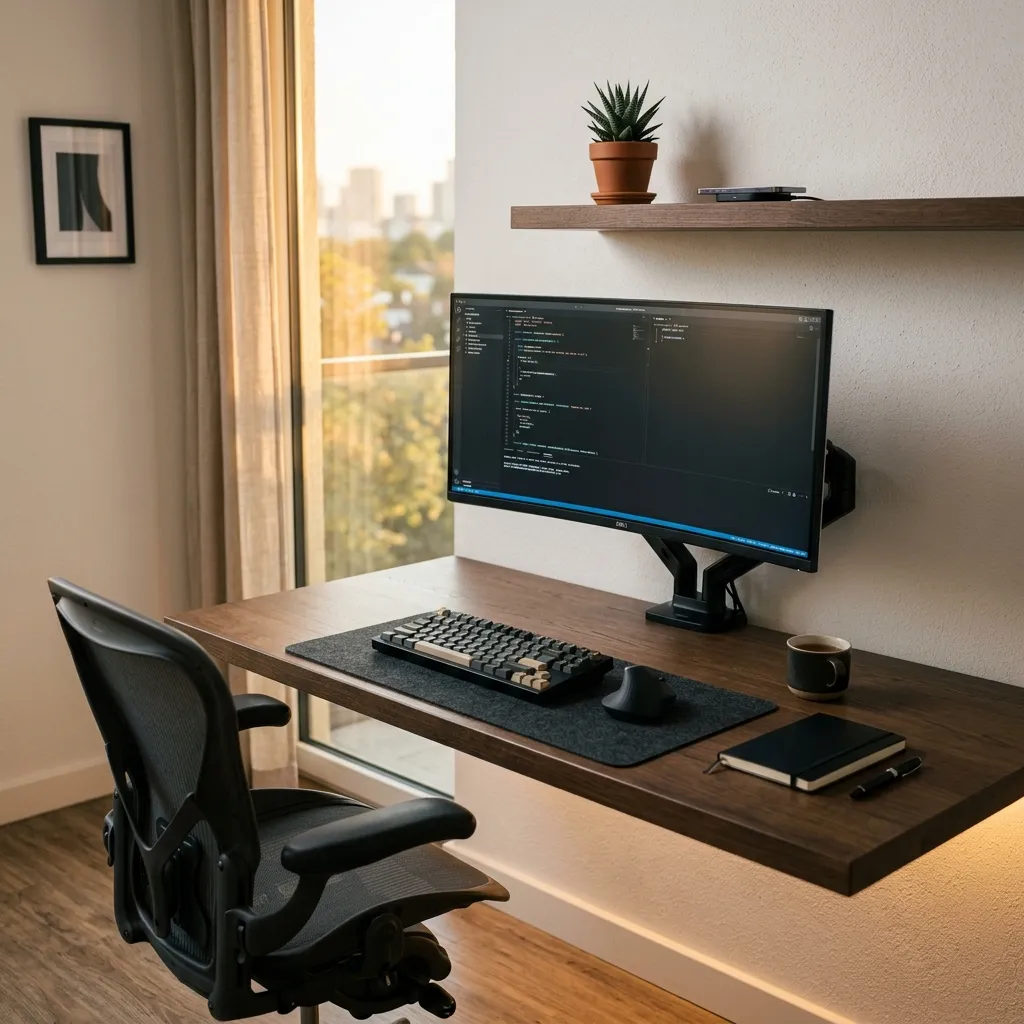
Installing and adjusting an ergonomic monitor arm enhances workspace comfort and productivity.
Understanding Ergonomics in Monitor Arm Setup
Optimal ergonomics in monitor arm placement reduces neck and back strain, promoting a healthier work environment.
Adjusting the monitor's height to eye level and maintaining a 20-30 inch distance from the screen is crucial.
Performance and Benefits of Ergonomic Monitor Arms
Utilizing an ergonomic monitor arm can decrease muscle fatigue and increase focus, enhancing overall work performance.
Many designs allow for easy adjustments, including tilt, swivel, and rotation, catering to individual user preferences.
Materials and Durability Considerations
Ergonomic monitor arms are typically constructed from aluminum, steel, and high-grade plastics, ensuring longevity and durability.
High-quality materials resist wear and tear, maintaining functionality over extended periods of use.
Comparative Analysis of Popular Brands
| Brand | Model | Material | Weight Capacity | Price Range |
|---|---|---|---|---|
| Ergotron | MX Desk Mount | Aluminum | 10 lbs | $200-$250 |
| AmazonBasics | Adjustable Monitor Stand | Steel | 20 lbs | $50-$75 |
| VIVO | Dual Monitor Desk Mount | Steel | 22 lbs | $80-$100 |
| Huanuo | Gas Spring Monitor Mount | Aluminum | 17.6 lbs | $60-$90 |
Adjusting the Monitor Arm for Optimal Use
Positioning the monitor at the correct height and angle is essential for effective use and comfort.
Adjustments should accommodate individual preferences for viewing distance and screen orientation to maximize productivity.
DomineTec Tip: Regularly adjust the monitor arm to accommodate different tasks, ensuring optimal ergonomics throughout the workday.
- Select a monitor arm that supports the monitor's weight and size.
- Install the arm according to the manufacturer's instructions.
- Adjust the height to ensure the top of the monitor aligns with eye level.
- Set the distance to about an arm's length away from the user.
- Fine-tune the tilt and swivel settings for comfortable viewing angles.
For additional tips on achieving a clean productivity desk setup, refer to this clean productivity desk setup.
For more on monitor positioning, check the correct monitor height guide.
Choosing the Right Monitor Arm for Your Workspace
When selecting a monitor arm, consider the specific requirements of your workspace. Different monitor arms come with varying weight capacities, which directly influence their compatibility with your monitor.
Assess the size and weight of your monitor before making a purchase. Most monitor arms specify the maximum weight they can support, so ensuring your monitor falls within this range is essential for safety and functionality.
Additionally, consider the mounting options available. Some monitor arms require a desk clamp, while others may use a grommet mount. Choose a type that best fits your desk design and your preference for stability.
Finally, think about the adjustability features offered by the monitor arm. Look for arms with full motion capabilities, including tilt, swivel, and height adjustments, to achieve the most ergonomic setup for your needs.
Installation Process: Step-by-Step Guide
The installation of a monitor arm can be straightforward if you follow a systematic approach. Begin by gathering all necessary tools and components, including screws, a screwdriver, and the monitor arm itself.
Next, read the manufacturer’s instructions thoroughly. Each model may have specific requirements that are important for a successful installation, so understanding these details upfront can save time and effort.
Once you are familiar with the instructions, start by securely attaching the base of the monitor arm to your desk. Ensure it is stable and tight to prevent any wobbling, which can lead to ergonomic issues over time.
After the base is mounted, attach the monitor to the arm. Take care to follow the weight distribution guidelines provided by the manufacturer to avoid any potential damage to your monitor or the arm itself.
Maintaining Your Ergonomic Monitor Arm
Regular maintenance of your monitor arm is essential to ensure its longevity and optimal performance. Periodically check the tightening of all screws and joints, as movement can cause them to loosen over time.
Cleaning is also an important aspect of maintenance. Use a soft cloth to wipe down the arm and any surfaces it may come into contact with, preventing dust accumulation that can affect functionality.
Inspect the cables attached to your monitor and the arm. Ensure they are not pinched or damaged, as this could pose a safety hazard. Consider using cable management solutions to keep them organized and out of the way.
If you notice any signs of wear or damage, address them promptly. This could mean tightening screws, replacing components, or even considering an upgrade if your needs have changed over time.
Ergonomic Best Practices for Monitor Use
To maximize the benefits of an ergonomic monitor arm, it is essential to adopt best practices for monitor use. Position the monitor at eye level, ideally about an arm’s length away from your face, to reduce strain on your neck and eyes.
Utilize the tilt and swivel features of your monitor arm to avoid glare from windows or overhead lights. Adjusting the angle can significantly improve viewing comfort and reduce eye fatigue.
Incorporate regular breaks into your work routine. The 20-20-20 rule—looking at something 20 feet away for 20 seconds every 20 minutes—can help alleviate eye strain associated with prolonged monitor use.
Finally, maintain good posture while seated. Ensure your feet are flat on the floor, your back is supported by the chair, and your wrists are straight while typing to further enhance your ergonomic setup.
Integration of Multiple Monitors with Monitor Arms
For users who require multiple monitors, choosing the right monitor arm can enhance productivity and organization. Multi-monitor arms allow for seamless integration, enabling users to arrange their screens in a configuration that suits their workflow.
When selecting a multi-monitor arm, consider the arm's capacity and the weight distribution of the monitors. Some arms can accommodate two or more screens, while others may be limited to just one. Ensure compatibility before making a decision.
Adjustability in multi-monitor arms is vital for achieving an ergonomic setup. Look for arms that allow independent movement of each monitor, enabling personalized adjustments for each screen’s height and angle.
Additionally, consider the alignment of monitors in relation to each other. Proper alignment reduces neck strain and promotes a more comfortable viewing experience, maximizing the benefits of your ergonomic work environment.
Understanding the Return on Investment (ROI) of Ergonomic Monitor Arms
Investing in an ergonomic monitor arm may initially seem costly, but the long-term benefits often outweigh the expense. Improved posture and reduced strain can lead to fewer health issues, potentially decreasing medical costs over time.
Increased productivity is another significant return on investment. A well-optimized workstation allows for better focus and efficiency, ultimately benefiting both individual performance and organizational output.
Employers should consider the impact of ergonomics on employee satisfaction and retention. Providing ergonomic solutions demonstrates a commitment to employee well-being, which can foster a positive work environment.
Moreover, the enhanced comfort and functionality offered by ergonomic monitor arms can lead to a more enjoyable working experience, reducing fatigue and increasing overall job satisfaction.
Understanding the Impact of Monitor Positioning on Posture
The positioning of a monitor can significantly influence your overall posture and comfort during work hours. An improperly placed monitor can lead to strain on the neck, shoulders, and back, increasing the risk of musculoskeletal disorders.
Research indicates that a monitor should be positioned at eye level, allowing the user to maintain a neutral spine position. This positioning minimizes the need to lean forward or tilt the head, which can contribute to discomfort over time.
Additionally, the distance between the user and the monitor affects eye strain. Ideally, the monitor should be placed an arm's length away, which allows for comfortable viewing without excessive eye movement or squinting.
Incorporating an ergonomic monitor arm can facilitate these adjustments, enabling users to easily reposition their screens based on their individual ergonomic needs and preferences.
Exploring Advanced Features of Monitor Arms
Modern ergonomic monitor arms come equipped with various advanced features that enhance user experience and comfort. These features may include adjustable tension settings, allowing users to customize the resistance when raising or lowering the monitor.
Some models also offer integrated cable management systems that help keep wires organized and prevent clutter, promoting a cleaner workspace. This not only improves aesthetics but also reduces the risk of accidental disconnections and damage to cables.
Another noteworthy feature is the ability to swivel and pivot the monitor, which enables collaborative work and reduces glare from overhead lighting. This adaptability makes it easier for multiple users to share the workspace comfortably.
Moreover, certain ergonomic monitor arms allow for quick adjustments, which can be beneficial for users who frequently switch between tasks or collaborate with others, ensuring that the monitor is always in the optimal position.
Considerations for Different Work Environments
When selecting an ergonomic monitor arm, it is crucial to consider the specific requirements of different work environments. For instance, home offices may require different features compared to corporate workplaces, where multiple users interact with the same setup.
In a home office, a monitor arm that offers flexibility and ease of adjustment is vital, as it allows users to switch between sitting and standing positions. This adaptability promotes healthier work habits and helps reduce fatigue.
In contrast, corporate environments may benefit from monitor arms designed for durability and stability, as they are likely to experience higher usage rates and require robust construction to withstand daily wear and tear.
Additionally, aesthetics can play a role in selecting a monitor arm that aligns with the office design, contributing to a cohesive and professional appearance that enhances the overall workspace environment.
Environmental Impact and Sustainability of Monitor Arms
As consumers become more environmentally conscious, the sustainability of ergonomic monitor arms is an important consideration. Many manufacturers are now producing monitor arms using recyclable materials and sustainable manufacturing practices.
Opting for monitor arms made from recycled metals or plastics can help reduce the carbon footprint associated with production and disposal. It is essential to review the manufacturer's commitment to sustainable practices before making a purchase.
Furthermore, the longevity of ergonomic monitor arms contributes to environmental sustainability. Investing in high-quality, durable products that are designed to last reduces the frequency of replacements, thus minimizing waste.
Lastly, supporting brands that prioritize eco-friendly initiatives can drive industry standards toward more responsible production methods, promoting a healthier planet for future generations.
Customizing Your Monitor Arm for Individual Needs
Customization of a monitor arm is crucial for accommodating individual user preferences and work habits. Each user may have unique visual requirements, desk heights, and habits that demand specific adjustments to maximize comfort and productivity.
One effective way to customize the monitor arm is to evaluate the distance between the user's eyes and the screen. Ideally, the top of the monitor should be at or slightly below eye level, allowing for a natural neck posture.
Furthermore, users should consider the tilt angle of the monitor. A slight backward tilt of about 10 to 20 degrees can reduce glare from overhead lights and create a more comfortable viewing experience.
Lastly, it is essential to revisit the customization after initial adjustments. Regularly assessing comfort levels and productivity can lead to further refinements. Small changes can significantly affect user experience, highlighting the importance of personalization in ergonomic setups.
Understanding the Role of Monitor Arms in Workflow Efficiency
Monitor arms play a pivotal role in enhancing workflow efficiency by promoting an organized and functional workspace. By lifting monitors off the desk, they free up valuable surface area for other essential tools, such as notebooks or keyboards.
Moreover, with the ability to easily reposition monitors, users can adapt their workspace for various tasks. This adaptability is particularly beneficial in dynamic work settings where tasks frequently change.
Additionally, the ergonomics of monitor arms can reduce the risk of repetitive strain injuries. By allowing users to adjust monitor height and angle on-the-fly, these arms help maintain natural posture, decreasing fatigue during prolonged computer use.
In conclusion, the integration of monitor arms in a workspace can significantly boost workflow efficiency. By providing the flexibility needed to create a customized ergonomic environment, these tools enable users to maintain focus and productivity throughout their workday.
Troubleshooting Common Issues with Monitor Arms
When using an ergonomic monitor arm, various issues may arise that can compromise its functionality. Common problems include difficulty in adjusting the monitor height, instability while moving the monitor, and excessive tension in the arm's joints.
To troubleshoot height adjustment issues, first, ensure the monitor arm is securely mounted to the desk or wall. If the arm appears loose, check the mounting hardware for tightness and consider using a level to confirm the installation is even.
If the monitor remains unstable during movement, inspect the tension adjustment mechanism. Most monitor arms come with an adjustable tension feature that can be fine-tuned using a hex key; this requires turning the adjustment screw clockwise to increase tension or counterclockwise to decrease it.
Excessive tension in the arm’s joints can lead to strain when repositioning the monitor. Adjust the tension gradually while testing the arm’s movement to find a balance that allows for easy adjustments without compromising stability.
Best Practices for Long-Term Use of Monitor Arms
To maximize the lifespan and functionality of a monitor arm, several best practices should be followed. Regular maintenance checks should be conducted to ensure all screws and bolts are tight, and the adjustment mechanisms are free from dust and debris.
It is advisable to periodically recalibrate the monitor position to avoid long-term wear on the arm. This involves checking the monitor's alignment and adjusting the height and tilt settings to maintain ergonomic standards.
Utilizing cable management solutions can prevent tangling and minimize wear on the monitor arm. Organizing cables not only enhances aesthetics but also reduces the risk of damaging the arm or the connected devices.
Finally, it is crucial to educate users on the proper use of the monitor arm. Ensuring that users understand how to make adjustments without applying excessive force can significantly enhance the arm's longevity and performance in a professional environment.
Frequently Asked Questions
What is the ideal monitor height?
The ideal monitor height should align the top of the screen with the user's eye level.
How much weight can a monitor arm hold?
Most monitor arms can hold between 10 to 30 lbs, depending on the model and brand.
Are dual monitor arms worth it?
Dual monitor arms provide flexibility and organization, enhancing multitasking efficiency in professional environments.
Can monitor arms be adjusted easily?
Most ergonomic monitor arms feature simple adjustment mechanisms for height, tilt, and swivel, allowing for quick customization.
What materials are best for durability?
Aluminum and heavy-duty steel are recommended for monitor arms due to their strength and resistance to wear.




