How to Format a USB Flash Drive or External SSD in Windows 11
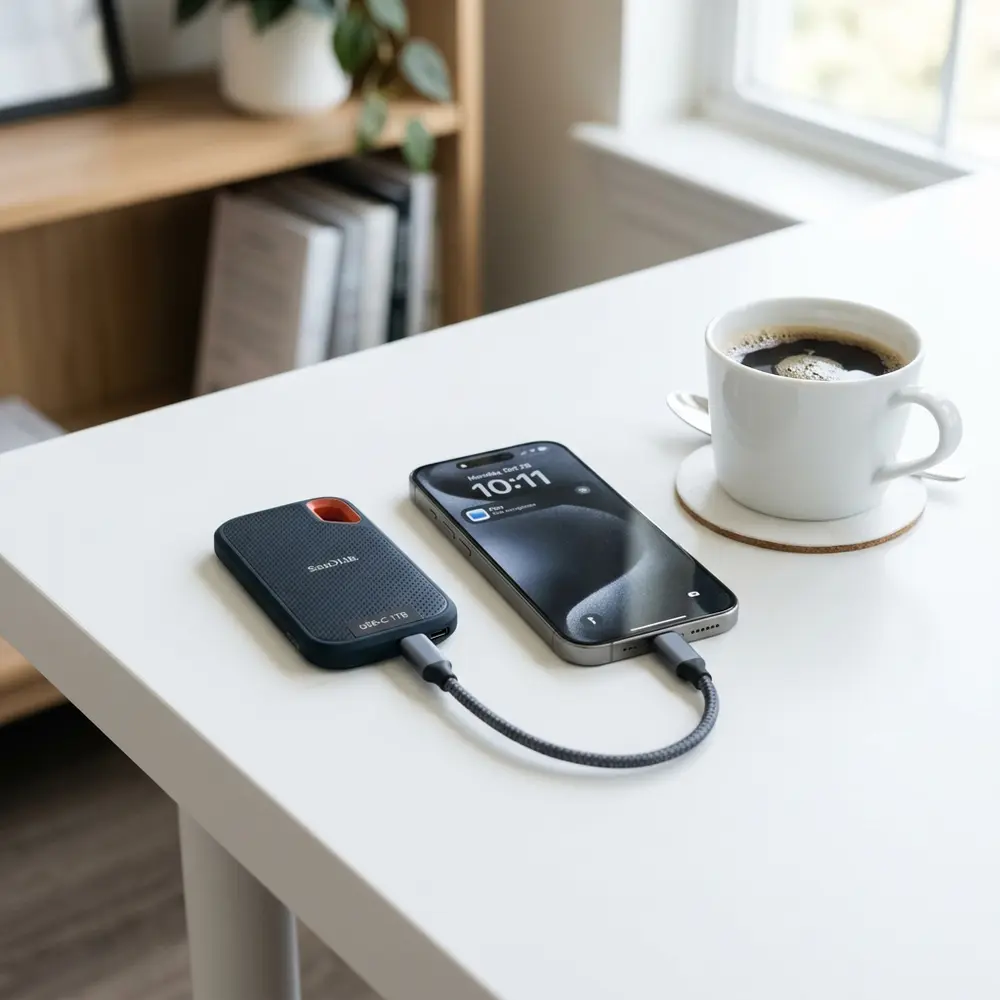
How to Format a USB Flash Drive or External SSD in Windows 11
Formatting a USB flash drive or external SSD in Windows 11 is a straightforward process that can optimize performance and ensure data integrity.
This guide provides a comprehensive overview of how to format these storage devices effectively while covering essential considerations and potential pitfalls.
Understanding the Formatting Process
Formatting a USB flash drive or external SSD involves preparing the device’s file system for data storage. This process erases all existing data, making way for new files.
Two popular file systems used are FAT32 and NTFS. FAT32 is compatible with many devices, while NTFS is preferred for larger files and security features.
Step-by-Step Guide to Format a USB Flash Drive or External SSD in Windows 11
- Connect the USB flash drive or external SSD to the Windows 11 device.
- Open the 'File Explorer' by clicking the folder icon on the taskbar.
- Locate the connected device in the 'This PC' section.
- Right-click on the device and select 'Format' from the context menu.
- Choose the desired file system (FAT32, NTFS, or exFAT) from the dropdown menu.
- Optionally, set a volume label to identify the drive.
- Ensure the 'Quick Format' option is checked for faster formatting.
- Click 'Start' to begin the formatting process.
- Confirm any prompts that appear, and wait for the process to complete.
- Once done, safely eject the device from the system.
DomineTec Tip: Consider using a best portable USB-C monitor for enhanced productivity when managing files on external storage devices.
Comparative Overview of USB Flash Drive and External SSD Options
| Brand | Type | Speed (Read/Write) | Capacity | Price |
|---|---|---|---|---|
| SanDisk | Flash Drive | 400 MB/s / 200 MB/s | 128 GB | $19.99 |
| Samsung | External SSD | 1050 MB/s / 1000 MB/s | 1 TB | $99.99 |
| Kingston | Flash Drive | 200 MB/s / 60 MB/s | 64 GB | $10.99 |
| WD | External SSD | 540 MB/s / 400 MB/s | 500 GB | $59.99 |
| Crucial | External SSD | 1050 MB/s / 1000 MB/s | 2 TB | $149.99 |
File System Considerations
Choosing the right file system is critical for compatibility and performance. FAT32 supports files up to 4 GB, making it ideal for smaller files.
For users needing to store larger files, NTFS is recommended due to its higher capacity and advanced features like file permissions.
Potential Risks and Precautions
Formatting erases all data on the device. Ensure that important files are backed up before initiating the process.
Unplugging the device during formatting can cause corruption. It is advisable to wait for the process to complete fully.
Advanced Formatting Options
Accessing advanced formatting options can be useful for experienced users. This includes partitioning the drive and changing the allocation unit size.
These options can be accessed through the Disk Management tool in Windows 11.
Using Disk Management to Format Drives
Disk Management offers a powerful alternative for formatting drives. Access it by right-clicking the Start menu and selecting 'Disk Management.'
Find the device to format, right-click it, and select 'Format.' Follow the prompts to complete the process.

Common Issues and Troubleshooting
Users may encounter issues such as the drive not appearing or formatting errors. Verify that the device is properly connected and recognized by the system.
Running the built-in Windows troubleshooting tool can help identify and resolve common problems.
Best Practices for Drive Maintenance
Regularly formatting the drive can help maintain optimal performance. It is recommended to format the drive at least once every six months.
Keeping the drive clean from unnecessary files also contributes to its longevity and efficiency.
Conclusion
Formatting a USB flash drive or external SSD in Windows 11 is a critical procedure for managing digital assets effectively. Following the outlined steps ensures that the process is efficient and minimizes risks.
Understanding the file systems and proper maintenance will greatly enhance storage device performance and reliability.
Frequently Asked Questions
1. What happens if a USB drive is formatted?
Formatting a USB drive erases all data and prepares the drive for new data storage by creating a new file system.
2. How do I choose the right file system for formatting?
Select FAT32 for compatibility with various devices, NTFS for handling larger files, and exFAT for a balance between the two.
3. Can formatted data be recovered?
Formatted data can sometimes be recovered using specialized software, but success is not guaranteed and depends on subsequent data writes to the drive.
4. Is there a difference between quick format and full format?
A quick format deletes the file system's structure but does not overwrite the data, while a full format overwrites the data and checks the disk for errors.
5. Can a USB drive be used after formatting?
Yes, after formatting, a USB drive is ready for use and can store new data as per the selected file system.
Advanced Setup Tips for Formatting USB Flash Drives
When formatting a USB flash drive or external SSD in Windows 11, selecting the right file system is crucial. Options like NTFS, FAT32, and exFAT each serve different purposes, so understanding their strengths can enhance performance.
For larger files or compatibility with modern devices, exFAT is often recommended due to its support for files over 4GB. NTFS is preferable for Windows-only environments as it offers better security and performance features.
Utilizing Disk Management provides advanced formatting options that may not be available through the standard File Explorer method. This built-in tool allows for partitioning and configuring drive settings that cater to specific user needs.
Common Mistakes to Avoid When Formatting
One of the most frequent errors is selecting the wrong file system based on intended use, which can lead to data loss or incompatibility. Choosing FAT32 for large files will result in frustration, as it cannot handle files exceeding 4GB.
Another common mistake is neglecting to back up important data before formatting. It is essential to remember that formatting a drive erases all existing data, so a backup is crucial to prevent loss.
Failing to safely eject the drive before disconnecting it can lead to corruption or data loss. Always ensure the drive is properly removed using the "Safely Remove Hardware" option to maintain data integrity.
Model Comparisons: USB Flash Drives vs. External SSDs
When choosing between a USB flash drive and an external SSD, performance and speed differ significantly. External SSDs typically offer faster read and write speeds, making them suitable for data-intensive tasks such as video editing.
On the other hand, USB flash drives are more portable and convenient for simple file transfers and backups. They are generally more cost-effective for basic storage needs, while external SSDs provide higher reliability and durability for regular use.
Understanding these differences helps in selecting the right device based on specific use cases, such as gaming, media storage, or general file management. Weighing the pros and cons of each model can lead to a more informed purchasing decision.
Use Case Scenarios for Formatting Drives
Formatting a USB flash drive can be particularly beneficial for transferring large files between devices. It streamlines the process, especially when moving data from a PC to a gaming console or smart TV.
For external SSDs, formatting is essential when repurposing the drive for different operating systems or applications. This ensures compatibility and optimal performance, particularly when switching between Windows and macOS environments.
Additionally, formatting is useful for cleaning a drive that has become cluttered with outdated files. Regular maintenance through formatting can improve speed and efficiency, making data management simpler.
System Compatibility Considerations
Understanding system compatibility is vital when formatting USB flash drives and external SSDs. Different file systems work better with specific operating systems, influencing the choice of formatting method.
For instance, while NTFS works seamlessly with Windows, it may not be recognized by macOS or Linux without additional software. Conversely, exFAT provides cross-platform compatibility, making it ideal for users who frequently switch between different operating systems.
Ensuring that the chosen file system aligns with all devices that will access the drive prevents future issues. Compatibility should always be assessed before initiating the formatting process.
Cost Estimates for Formatting Solutions
Formatting a USB flash drive or external SSD is generally a free process using built-in tools within Windows 11. However, costs can arise from purchasing specialized software for advanced formatting options or recovering data from improperly formatted drives.
External SSDs tend to be more expensive than USB flash drives, and this price difference should be considered when budgeting for storage solutions. Investing in a higher-quality device may save costs in the long run due to greater reliability and durability.
Ultimately, assessing both immediate and long-term costs associated with drive formatting and maintenance can lead to more effective financial planning. Understanding the value of different storage solutions aids in making informed decisions.
Troubleshooting Formatting Issues
Encountering issues during the formatting process is not uncommon, and troubleshooting can often resolve these problems. If a drive fails to format, checking for physical damage or ensuring that the drive is not write-protected should be the first steps.
Sometimes, using Disk Management instead of File Explorer can yield better results, especially for stubborn drives. If problems persist, running the CHKDSK command can identify and fix errors that may be preventing successful formatting.
In certain situations, a drive may become corrupted, necessitating recovery software for data retrieval. Identifying the root cause of formatting issues is crucial in determining the next steps to take.
When to Seek Expert Help
While most formatting tasks can be performed independently, there are situations where seeking expert assistance is advisable. If a drive exhibits persistent errors, it may indicate deeper issues that require professional intervention.
Additionally, users unfamiliar with advanced formatting techniques may benefit from consulting an expert to avoid costly mistakes. Those dealing with sensitive or critical data should consider professional help to ensure data integrity and security.
Recognizing when to enlist expert support can save time and prevent further complications. It is better to seek help than to risk data loss or permanent damage to the drive.
How to Format a USB Flash Drive or External SSD in Windows 11
Additional FAQ
Formatting a USB flash drive or external SSD can raise several questions. Here are some frequently asked questions:
What does formatting a USB drive do?
Formatting a USB drive prepares it for use by erasing all data and setting up a file system. This process ensures that the drive is usable and can be recognized by the operating system.
What file systems can be used when formatting?
- FAT32: Compatible with most devices but has a 4GB file size limit.
- exFAT: Suitable for larger files and cross-platform compatibility, ideal for flash drives.
- NTFS: Best for large files and advanced features, but primarily designed for Windows systems.
How can data be recovered after formatting?
Data recovery tools may be able to restore files after formatting, but success varies based on the extent of new data written to the drive. It is important to act quickly if data recovery is necessary.
Is there a quick format option?
Yes, Windows 11 provides a quick format option that deletes the filesystem table and marks the space as free without overwriting data. This is faster but less secure.
Verification Checklist
Before proceeding with the formatting process, ensure the following checklist is completed:
- All important data has been backed up to another location.
- The USB drive or SSD is properly connected to the computer.
- The drive is recognized by Windows 11.
- Ensure the correct drive is selected for formatting to prevent data loss on other drives.
- Choose the appropriate file system based on intended use.
Comparison Table of File Systems
| File System | Max File Size | Max Volume Size | Compatibility | Best Use Case |
|---|---|---|---|---|
| FAT32 | 4 GB | 2 TB | Windows, macOS, Linux, gaming consoles | Small files, general use |
| exFAT | 16 EB | 128 PB | Windows, macOS, Linux (with drivers) | Large files, flash drives |
| NTFS | 16 TB | 16 EB | Primarily Windows | Large volumes, security features |
Technical Glossary
Understanding some technical terms can help clarify the formatting process:
- File System: A method used by an operating system to organize and keep track of files on a storage device.
- Partition: A section of a storage device that is treated as a separate disk.
- Quick Format: A faster way to format a drive that does not check for bad sectors or overwrite data.
- Full Format: A thorough formatting process that checks for bad sectors and overwrites all data.
- Drive Letter: An identifier assigned to a storage device by the operating system, typically seen as "D:", "E:", etc.
Post-Formatting Tips
After formatting a USB flash drive or external SSD, consider the following tips:
- Safely eject the drive from the system to prevent data corruption.
- Label the drive with a name that reflects its purpose.
- Regularly back up important data stored on the drive.
- Monitor the drive’s health periodically using diagnostic tools.
Common Errors During Formatting
Errors may occur during the formatting process. Here are some common issues:
- Drive not recognized by Windows: Ensure the USB drive or SSD is properly connected.
- Format failed: Try using a different USB port or restarting the computer.
- Access Denied: Check drive permissions or run the format command with administrative privileges.
- Drive is write-protected: Remove the write protection switch if available or use disk management tools to disable it.
Conclusion
Formatting a USB flash drive or external SSD in Windows 11 is a straightforward process, but it is essential to understand the implications of formatting and the different file systems available. Adherence to the verification checklist and awareness of common errors can ensure a smooth experience.




