How to Disable IPv6 on Your Router (Resolve Network Issues)

The global transition from the traditional IPv4 address protocol to the new IPv6 standard was developed to solve the scarcity of IP addresses, enabling billions of smart devices to connect to the global web. However, the hybrid transition implementations (like Dual Stack) deployed by many broadband Internet Service Providers (ISPs) often generate logical network bugs, unstable latencies (high ping), and DNS resolution errors on older devices and gaming consoles. To disable IPv6 on your router, access the admin panel via your gateway IP, open the Network or IPv6 settings, and set the protocol to Disabled.
Understanding the routing overhead and encapsulation bottlenecks generated by misconfigured IPv6 profiles is essential to optimize your bandwidth. To enhance the overall security and control of your home intranet, you can also read our guide on how to block devices from your Wi-Fi router settings or check our tutorial on how to log into your router settings using the default 192.168.0.1 IP address.
1. What is IPv6 and What Technical Issues Can It Cause?
IPv6 (Internet Protocol version 6) is the latest communication standard designed to replace the legacy IPv4 system. While IPv4 uses 32-bit addresses written in a decimal format (e.g., 192.168.0.1), yielding around 4.3 billion unique address combinations, IPv6 employs 128-bit blocks written in hexadecimal characters (e.g., 2001:0db8:85a3:0000:0000:8a2e:0370:7334), which expands the address space to a virtually infinite number of devices.
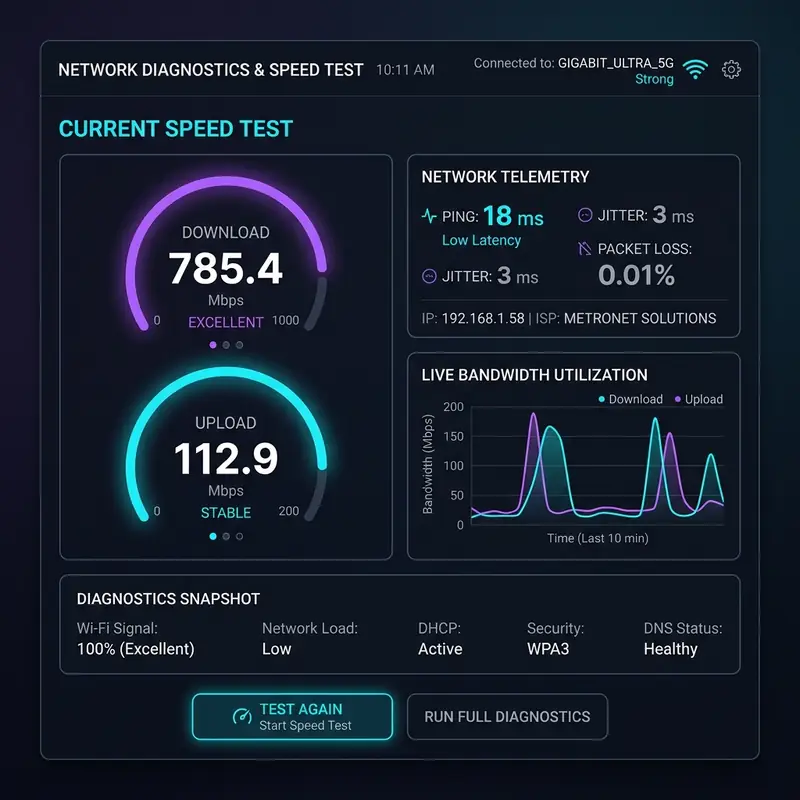
Despite its theoretical architectural benefits, deploying IPv6 in residential networks often leads to performance issues due to inconsistent provider configurations and game server mismatches. Many broadband providers route IPv6 traffic over systems that are still physically built on IPv4. This tunneling mechanism adds packet header processing overhead, causing noticeable jitter (ping variation) and packet loss, which degrades gaming sessions and live video feeds.
Additionally, DNS servers provided by ISPs are frequently slow to resolve AAAA records (IPv6 domains) compared to resolving A records (IPv4 domains). Legacy mobile phones, smart TVs, and IoT smart home peripherals often hang or fail when trying to negotiate IPv6 leases, causing drops and delayed web page loading times.
2. Why Does Disabling IPv6 Improve Ping and Device Compatibility?
When you disable IPv6 on your home router, you force your local devices to communicate using the IPv4 protocol. This simplifies the router CPU's routing tables and bypasses the *Happy Eyeballs* algorithm (RFC 8305) delay. Happy Eyeballs is a mechanism designed to test both IPv4 and IPv6 paths simultaneously when loading a website and select the fastest route. If the ISP's IPv6 configuration has bad routing paths, this check introduces a delay before pages display.
For online gaming, disabling IPv6 is a popular optimization trick. The vast majority of multiplayer game servers are hosted on IPv4 infrastructure. Keeping IPv6 enabled can force game packets through translation protocols (like NAT64/DNS64) at the ISP level, adding latency (ping). Turning off IPv6 ensures your game traffic takes the most direct route to the server.
3. Inside the Happy Eyeballs Algorithm (RFC 8305)
The Happy Eyeballs algorithm was standardized by the Internet Engineering Task Force (IETF) to solve a major user experience problem during the dual-stack phase of IPv6 deployment: if a user's network had a broken or misconfigured IPv6 connection, the browser would hang trying to establish a connection before falling back to IPv4. This made the internet appear completely broken to the user.
The algorithm executes the following logical steps to guarantee fast connections:
- When a web request is initiated, the application queries the DNS server for both IPv4 (A record) and IPv6 (AAAA record) addresses.
- If the DNS returns both address types, the application launches a connection attempt to the IPv6 address first.
- A timer known as the Connection Attempt Delay starts immediately, which typically lasts between 250ms and 300ms.
- If the IPv6 TCP handshake completes within this window, the application proceeds with the IPv6 path. If the timer expires before the IPv6 connection succeeds, the browser immediately fires a parallel connection request to the IPv4 address.
- Whichever connection completes the Three-Way Handshake first is selected for loading the content, while the slower connection is terminated.
If your ISP has a poorly configured IPv6 gateway that drops packets or routes them through slow international gateways, the IPv6 connection doesn't fail immediately. Instead, it times out slowly, causing a delay on every single page element (like scripts, styling files, and images) as the browser waits out the Happy Eyeballs timer. Disabling IPv6 bypasses this check entirely, immediately directing all queries through the fast, native IPv4 pathway.
4. Understanding Path MTU Discovery (PMTUD) and ICMPv6 Black Holes
A major difference between IPv4 and IPv6 lies in how packet fragmentation is managed. In IPv4, if a packet is larger than the Maximum Transmission Unit (MTU) of a router along the transit path, that router fragments the packet on the fly and passes it forward. This introduces CPU overhead on transit routers but ensures the data reaches the destination.
In IPv6, intermediate routers are not allowed to fragment packets. If a packet exceeds the MTU of a hop along the path, the router drops the packet and sends an ICMPv6 Packet Too Big (PTB) message back to the sender, containing the MTU size of the restricted link. The sender's operating system then shrinks its sending packet size. This process is called Path MTU Discovery (PMTUD).
However, many home and enterprise firewalls are misconfigured to block all ICMP/ICMPv6 traffic for security reasons. When a firewall blocks ICMPv6 PTB messages, the sender never receives the notification that its packets were dropped. The sender continues to send oversized packets, which are repeatedly dropped. This is known as an ICMPv6 Black Hole. To the user, this looks like a connection that hangs indefinitely when trying to load specific web pages or stream high-definition media. Disabling IPv6 bypasses this fragmentation bottleneck, forcing traffic through the more forgiving IPv4 fragmentation stack.
5. IPv6 Address Configuration Modes: SLAAC vs. DHCPv6
In residential networks, IPv6 devices assign their own IP addresses using one of two primary mechanisms, which often leads to device communication errors:
- SLAAC (Stateless Address Autoconfiguration): The client listens for Router Advertisement (RA) messages sent by the router. It identifies the local subnet prefix (64 bits) and autonomously generates its own unique interface identifier (the remaining 64 bits). The client can generate this identifier using the EUI-64 format (based on its physical MAC address) or through privacy extensions (RFC 7217) that generate randomized addresses. No central server tracks address allocations.
- DHCPv6 (Stateful/Stateless): A DHCPv6 server centrally manages and assigns IPv6 addresses to clients, recording them in a lease database (Stateful mode), or merely provides configuration details like DNS server addresses while clients generate their own IPs via SLAAC (Stateless mode).
Many popular consumer devices, such as Google's Chromecast, Android TV, and smart home speakers, do not support DHCPv6 by design. If your ISP-provided router is configured to use strict DHCPv6 Stateful mode, these devices will fail to configure an IPv6 address or connect stably, causing discovery and streaming failures. Restricting your router to IPv4 solves this compatibility mismatch.
6. Step-by-Step Instructions to Disable IPv6 on Your Router Settings
You can turn off the IPv6 protocol directly inside your router's web management dashboard. Ensure your device is connected to the Wi-Fi network and follow these steps:
- Open your router's login page: Open a browser (Chrome, Safari, or Edge) and enter your gateway IP address (e.g.,
192.168.0.1,192.168.1.1, or192.168.15.1); - Enter admin credentials: Input the username and password printed on the router's physical label;
- Navigate to Advanced Network Settings: Find the tabs labeled "Network", "WAN", or "IPv6";
- Locate the IPv6 settings: In modern routers (TP-Link, ASUS, Netgear), IPv6 has a dedicated configuration tab in the advanced settings;
- Deactivate the IPv6 status: Toggle the "Enable IPv6" switch to Disabled or change the connection type from "DHCPv6/SLAAC" to "Disable/Off";
- Save and apply settings: Click "Save" or "Apply". The router will restart its WAN interface to implement the changes.
7. How to Disable IPv6 on macOS and Linux Systems
If you prefer to disable IPv6 locally on individual computers running non-Windows systems, you can achieve this via administrative commands or terminal scripts:
Disabling IPv6 on macOS
On Apple Macs, you can disable IPv6 for specific network interfaces using the Terminal utility:
- Open the Applications folder, navigate to Utilities, and launch the Terminal app;
- Find the name of your active network adapter by typing:
networksetup -listallnetworkservices; - Disable IPv6 on your wireless adapter by running:
networksetup -setv6off Wi-Fi. Type your macOS administrator password when prompted; - If you use a wired connection, disable IPv6 on the Ethernet adapter by running:
networksetup -setv6off Ethernet.
Disabling IPv6 on Linux (Ubuntu/Debian/Fedora)
On Linux distributions, you can disable IPv6 at the kernel level using the `sysctl` interface:
- Open a terminal window and open the sysctl configuration file in an editor:
sudo nano /etc/sysctl.conf; - Add the following configuration lines at the bottom of the file:
net.ipv6.conf.all.disable_ipv6 = 1 net.ipv6.conf.default.disable_ipv6 = 1 net.ipv6.conf.lo.disable_ipv6 = 1 - Save the file by pressing Ctrl + O, hit Enter, and exit the editor by pressing Ctrl + X;
- Apply the new kernel parameters immediately by running the command:
sudo sysctl -p. The Linux network stack will disable all IPv6 operations.
8. Performance Comparison: IPv4 vs. IPv6 in Real-World Use
This table compares the real-world performance characteristics of IPv4 and IPv6 protocols on home internet connections:
| Performance Category | IPv4 (Standard Protocol) | IPv6 (New Protocol) | Impact on Optimization |
|---|---|---|---|
| Routing and Ping | Mature, optimized routing paths across global backbones. | Secondary, unoptimized, or tunneled routing paths. | IPv4 delivers lower ping and less jitter on most residential connections. |
| Security NAT | Active NAT protection (local devices are hidden behind one public IP). | No NAT (every device receives a direct public IP address). | Without active firewalls, IPv6 exposes local devices directly to external port scans. |
| Device Compatibility | Universal compatibility (100% of network devices support IPv4). | Bugs on older smart TVs, legacy consoles, and IoT devices. | Disabling IPv6 prevents pairing and connection drops on smart home equipment. |
| DNS Resolution | Instant queries with large, mature caching systems. | Frequent timeouts and delays on local ISP DNS configurations. | Disabling IPv6 forces DNS requests through faster IPv4 channels. |
9. Security Considerations When Disabling IPv6
While disabling IPv6 resolves ping issues and compatibility bugs, you should review your overall network security settings. In an IPv4-only setup, devices are protected by the router's NAT (Network Address Translation), which hides local IP addresses from the public web. IPv6 does not use NAT, meaning every local device receives a public IP address. If your router's IPv6 firewall is not configured securely, your home computers, smart cameras, and storage systems are exposed to external scans.
Disabling IPv6 removes this risk because all devices return to the protection of the IPv4 NAT. Nevertheless, ensure your router's default IPv4 firewall and DoS (Denial of Service) protections are enabled in the security settings tab to keep your network secure.
10. How to Disable IPv6 Locally on Windows 10 and Windows 11
If you do not want to turn off IPv6 for the entire household, you can disable it on your personal gaming PC or work computer locally:
- Press the Windows Key + R to open the Run box. Type
ncpa.cpland press Enter to open Windows Network Connections; - Right-click your active network adapter (Ethernet or Wi-Fi) and select Properties;
- Locate "Internet Protocol Version 6 (TCP/IPv6)" in the item list;
- Uncheck the box next to TCP/IPv6. Click OK to save the changes;
- Restart your PC to clear cached settings and apply the configuration.
Frequently Asked Questions (FAQ)
Will disabling IPv6 on my router slow down my internet speed?
No. Your download and upload speeds will remain exactly the same. In fact, web page loading speeds and online game connections may feel more responsive due to faster DNS resolution and direct IPv4 routing paths.
Do any web services stop working if I turn off IPv6?
No. Almost all global websites, applications, and online gaming services retain full support for IPv4. While some cloud-based enterprise systems may require IPv6, normal home internet use will not be affected.
How can I check if my connection is using IPv6?
Open a web browser and visit an IP checking site like test-ipv6.com. If the page displays a long hexadecimal address under the IPv6 field, the protocol is active on your network.
Does disabling IPv6 resolve Double NAT errors on consoles?
Yes. On networks with multiple daisy-chained routers, disabling IPv6 concentrates traffic on the IPv4 stack. This makes it easier to set up Port Forwarding and DMZ rules to achieve an Open NAT (Type 1) state on Xbox and Playstation consoles.




