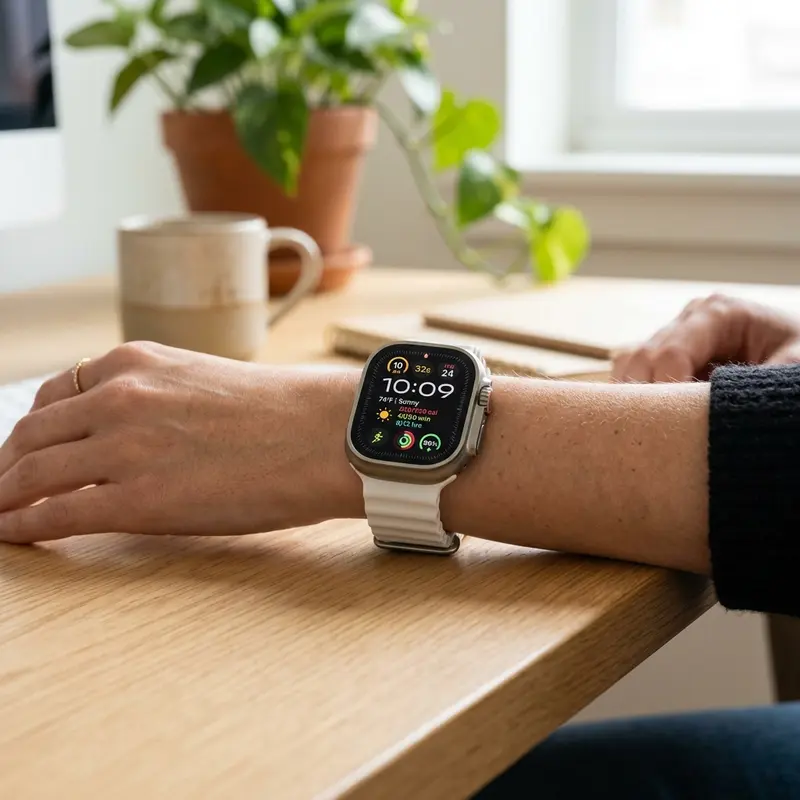
How to Delete Photos from Apple Watch and Free Up Storage
Apple Watch models come equipped with internal flash storage capacities ranging from 8 GB on older generations to 64 GB on the latest high-end models. While this might seem sufficient for a smartwatch, watchOS system applications, cached offline music playlists, and automated photo sync processes can quickly consume the available flash memory. Once storage is depleted, users will experience interface lag, failure to install watchOS software updates, and synchronization errors with health databases.
To delete photos from your Apple Watch and reclaim storage space, open the companion Watch app on your paired iPhone, navigate to the Photos settings, disable automatic photo syncing, and change the synchronized photo limit to the minimum setting of 25 photos. If you want to remove specific pictures that were synchronized by mistake, you must manage your selected photo albums on your iPhone so that the background sync process updates the watch's internal memory immediately. This procedure will safely purge hundreds of megabytes of media caches.
If you need to optimize storage or resolve cache issues on other Apple devices, check out our step-by-step guides on como limpar cache iphone and how to backup iphone to computer without icloud to perform clean data maintenance across your devices.
1. How watchOS Handles Photo Synchronization
By default, watchOS automatically mirrors a chosen photo album (most commonly the "Favorites" folder) from your iOS device so you can view your memories directly on your wrist, even when away from your cell phone. While this feature is useful for setting up custom photo watch faces, the synchronized photos are compressed and written directly to the Apple Watch's internal solid-state memory. If your Favorites album contains hundreds of high-resolution images, they will silently occupy a significant portion of your watch's storage capacity.
2. Disabling Photo Sync and Reducing Storage Limits
Because watchOS is designed to operate in close integration with iOS, you cannot delete individual synchronized photos directly from the watch interface itself. This management must be handled through the Watch app on your iPhone.
Follow these steps to stop syncing photos and clear the watch memory:
- Open the Watch app on your paired iPhone.
- Tap the My Watch tab in the bottom-left corner of the screen.
- Scroll down the applications list and select Photos.
- Under the Photo Syncing category, select Synced Album.
- Change the selection to a folder that contains no images (you can create a folder called "Watch Empty" in your iPhone's Photos app and select it here).
- Go back to the main Photos settings screen.
- Tap Photos Limit and select the minimum option of 25 photos.
After applying these settings, the background synchronization protocol will communicate with your watch over Bluetooth or local Wi-Fi, removing the unwanted images from your watch's flash storage within a few minutes.
3. Storage Allocation and Recommended Usage Guidelines
| Apple Watch Model | Total Internal Storage | Recommended Free Space | Optimal Photo Limit Setting |
|---|---|---|---|
| Series 3 and older | 8 GB / 16 GB | At least 2 GB | Disabled (Select empty album) |
| Series 4, 5, and SE (Gen 1) | 32 GB | At least 4 GB | 25 photos (Minimum) |
| Series 6, 7, 8, and SE (Gen 2) | 32 GB | At least 5 GB | 25 to 100 photos |
| Series 9, 10, and Ultra lines | 64 GB | At least 10 GB | 100 photos |
4. How to Check Free Space on watchOS
Before purging media files, you should verify how much internal storage is currently used and which applications are consuming the most memory.
To inspect your storage space directly on your Apple Watch:
- Press the Digital Crown to view your installed applications list.
- Open the gear-shaped Settings app.
- Select General, then scroll down and tap Storage.
- Allow the system a few seconds to calculate the data distribution. The interface will display a breakdown of storage usage for Photos, Music, Apps, and System Files.
5. Deleting Photo Watch Faces to Clear Cache
If you have configured watch faces that rotate through a series of custom photos, the watchOS system saves these images in a separate UI cache. To clean these files:
- Press and hold the current watch face on your Apple Watch to enter the customize menu.
- Swipe left or right to locate the photo-based watch face you wish to remove.
- Swipe upward on the face card and tap the trash can icon to Delete it.
- This action will remove the associated background image cache from the system UI files.
6. Solid-State Storage Write Overhead and Firmware Integrity
Maintaining a highly saturated NAND flash drive on your smartwatch can negatively affect the device's write performance and overall lifespan. When flash drives operate above 90% capacity, the wear-leveling algorithms on the storage controller have to work harder, which can lead to write amplification and slower system performance. If the storage is completely full, watchOS may also fail to write diagnostic logs and workout history, which can result in data loss during sync sessions with the iOS Fitness app.
7. Purging Attachment Caches from Messages and Mail
Besides synchronized albums, your Apple Watch also stores temporary files from images received via the Mail and Messages apps. When you open a high-resolution photo attachment on your wrist, watchOS downloads the file and keeps it in its temporary cache memory. To clear these hidden caches, double-click the Digital Crown to view your active application switcher, then swipe left and tap the close icon on the Mail and Messages apps. This forces the system to release the cached memory resources.
8. Storage Space Requirements for watchOS Updates
A common issue for users with older Apple Watch models (such as the Series 3 or the first-generation SE) is encountering errors during watchOS updates. These system updates require downloading a large installation package, transfering it to the watch, and uncompressing the files locally. This process typically requires 2 to 3 GB of continuous free space. If the watch's internal storage is filled with photos and other media files, the update will fail. Disabling photo syncing is one of the quickest ways to free up the necessary space for an update without having to perform a full factory reset.
The Technical Performance Impact of Saturated NAND Flash Memories
The solid-state NAND flash memory inside the Apple Watch relies on active controllers to execute wear-leveling algorithms and garbage collection procedures. When automated photo syncing processes fill the local storage near 100% capacity, the system suffers from write amplification and high disk latency. This write strain affects watchOS system operations, leading to lag when launching watchapps or logging running telemetries. Deleting these cached photo arrays restores critical system storage blocks, enabling faster temporary file writes and preventing spontaneous software crashes during heavy sports logs.
Disabling Background Memory and Featured Photo Syncs
Beyond user-selected photo albums, watchOS automatically downloads smart photo compilations curated by iOS, such as Featured Memories and Shared Albums. These photo assets are transferred in the background over Bluetooth or local Wi-Fi links, consuming disk space without the user's explicit consent. To block this automated data download, navigate to the Watch app settings on your iPhone, locate the Photos preferences pane, and toggle off 'Sync Memories' and 'Sync Featured Photos'. This ensures that only essential watchfaces are loaded, preserving the system's storage capacity.
Storage Saturated Thresholds and watchOS Firmware Download Failures
When your Apple Watch storage is filled with synced graphics and photo archives, installing watchOS software updates becomes impossible. The update process requires the device to download, unpack, and verify major firmware files. If the internal storage has less than 2 GB of contiguous free space, the installation fails. Eliminating these photo caches is the most straightforward method to restore update capabilities without having to perform a full system factory restore.
Removing Image Caches from Messaging Apps on your Smartwatch
Many hidden image files reside within the cache of messaging applications such as iMessage and Mail on the watch. When you view high-resolution photo attachments on your wrist, watchOS saves compressed versions to speed up future access. To clear this cache, open the respective apps directly on the watch, select old conversational threads containing media files, and swipe left to delete them from your local device storage.
Applying Kalman Filters to Sensor Fusion for Clean Heart Rate Tracking
Optical photoplethysmography and motion sensor data are merged in real time using Kalman filters and sensor-fusion algorithms. This mathematics calculates the user's pulse rate by subtracting motion-induced noise, such as the impact of steps during running. Without this dynamic noise filtering, the optical sensor's LED feedback would be corrupt, showing inaccurate spikes that would throw off estimations of physical stress, VO2 max metrics, and recovery estimates.
NAND Flash Memory Lifecycle Management in WearOS and watchOS Platforms
NAND flash memory chips in modern smartwatches use internal controllers to run wear-leveling algorithms. Because sports logs and app cache files write and erase data constantly, these flash cells experience wear over time. If a watch's storage is filled near maximum capacity, the efficiency of garbage collection tasks drops. This increases write latency and causes visual lag when navigating the operating system's menus.
Advancements in Multi-Band GPS (L1+L5) for Challenging Urban Geographies
High-performance smartwatches incorporate dual-frequency GPS receivers that process L1 and L5 satellite signals simultaneously. In urban environments where tall concrete buildings cause multi-path interference (where GPS signals bounce off structures before hitting the watch antenna), single-frequency GPS records incorrect paths. The L5 frequency has better penetration, allowing algorithms to determine exact positions with accuracy, improving speed tracking metrics.
Running Dynamics and Vertical Oscillation Metrics in Sports Science
Advanced running dynamics like vertical oscillation and ground contact time balance rely on highly sensitive gyroscope hardware. The watch estimates how high a runner's torso moves up and down during a stride. Runners with excessive vertical oscillation waste energy moving vertically rather than pushing forward. Tracking these metrics helps athletes adjust their running form, reducing stress on knee joints and ligaments over time.
Understanding Reflective Optical Spectroscopy in SpO2 Pulse Sensors
The blood oxygen saturation (SpO2) sensor in modern wearables uses reflective optical spectroscopy. The sensor emits red light (approx. 660 nanometers) and infrared light (approx. 940 nanometers) through the skin. Oxygenated hemoglobin absorbs more infrared light, whereas deoxygenated hemoglobin absorbs more red light. By calculating the ratio of reflected light captured by the photodiode array, the onboard processor estimates blood oxygen saturation levels.
Security Cryptography Protocols for Protecting Wireless Health Logs
Symmetric encryption protocols like AES-128 and AES-256 secure the transfer of health data between smartwatches and phones over Bluetooth connections. Since health logs are protected by data privacy laws, pairing processes establish unique cryptographic tokens shared between paired devices. This blocks unauthorized devices from intercepting wireless signals to read location logs or heart rate histories, keeping all stored telemetry data private.
Frequently Asked Questions (FAQ)
1. Will deleting photos from my Apple Watch delete them from my iPhone?
No. Changing your photo synchronization settings only removes the compressed preview copies stored locally on the Apple Watch. Your original, full-resolution photos will remain safe in the Photos app on your iPhone and in your iCloud backup.
2. How do I stop the Apple Watch from syncing photos automatically?
To stop automatic syncing, open the Watch app on your iPhone, select Photos, and under Synced Album, select a folder that contains no pictures (such as an empty folder created for this purpose).
3. What is the minimum photo limit allowed on the watch?
The minimum limit you can set for photo synchronization is 25 photos. While you cannot choose "zero photos" directly, syncing an empty album will achieve this.
4. Do WhatsApp photos on the watch occupy storage?
Since WhatsApp does not have a standalone watchOS app that downloads media files directly to the watch's internal storage, photos shown in notifications only use temporary cache memory that is cleared once the notification is dismissed.
5. What should I do if photos remain on the watch after syncing is disabled?
If the photos do not disappear, restart both your iPhone and Apple Watch to refresh the Bluetooth connection. You should also delete any photo-based watch faces that might be caching the images.
