Connecting a Xiaomi Mi Band (also known as Xiaomi Smart Band) to an Android smartphone is generally a straightforward process. However, because of changes in Android permissions, battery optimization algorithms, and companion app transitions, many users encounter issues during the initial pairing process or suffer from connection drops. Resolving these pairing and synchronization issues requires understanding how to set up the connection using the official Mi Fitness app and adjusting background permission settings on your Android device.
To connect Mi Band to Android phone, you must install the official Mi Fitness app from the Google Play Store, enable Bluetooth and Location services on your phone, sign in to your Xiaomi account, select "Add device" inside the app, and confirm the pairing request directly on the band's touchscreen. Once paired, it is crucial to disable Android's strict battery optimization for the Mi Fitness app to prevent the system from terminating the background bluetooth sync process.
If you use other smart gadgets in your home and want to keep their features synced, check out our guide on how to use Alexa as bluetooth speaker and learn best smart devices compatible with Alexa to expand your automated home ecosystem.
1. App Transition: Zepp Life vs. Mi Fitness
For several years, the official companion app for Xiaomi wearables was Zepp Life (formerly Mi Fit). However, starting with the Mi Band 8 and continuing through newer models, Xiaomi transitioned exclusively to the Mi Fitness app. Older bands (like Mi Band 7 and below) can still connect to Zepp Life, but they also work with Mi Fitness. When pairing a new band, downloading the correct app is the first essential step.
Mi Fitness features a modernized dashboard that integrates health tracking, sports records, and device settings. However, if you are migrating from an older band and want to preserve your workout history, you must manually export your profile from Zepp Life and import it into the Mi Fitness app during setup, as the databases are handled on separate servers.
2. Detailed Step-by-Step Connection Process
To establish a stable connection between your Mi Band and Android phone, execute the following instructions in order:
- Open the Google Play Store on your Android phone, search for Mi Fitness, and install the application.
- Ensure your Mi Band has enough battery power (at least 30%). If it is a new band, plug it into the charger to wake it up.
- Enable Bluetooth and Location services (GPS) in your phone's quick settings panel. Android requires location access to search for nearby Bluetooth Low Energy (BLE) devices.
- Open the Mi Fitness app, agree to the terms of service, and sign in with your Xiaomi account. If you do not have an account, create a new one.
- Tap the Device tab at the bottom of the screen, then tap the + icon in the top right corner and select Add device.
- The app will scan for nearby trackers. When your Mi Band model appears, tap on it.
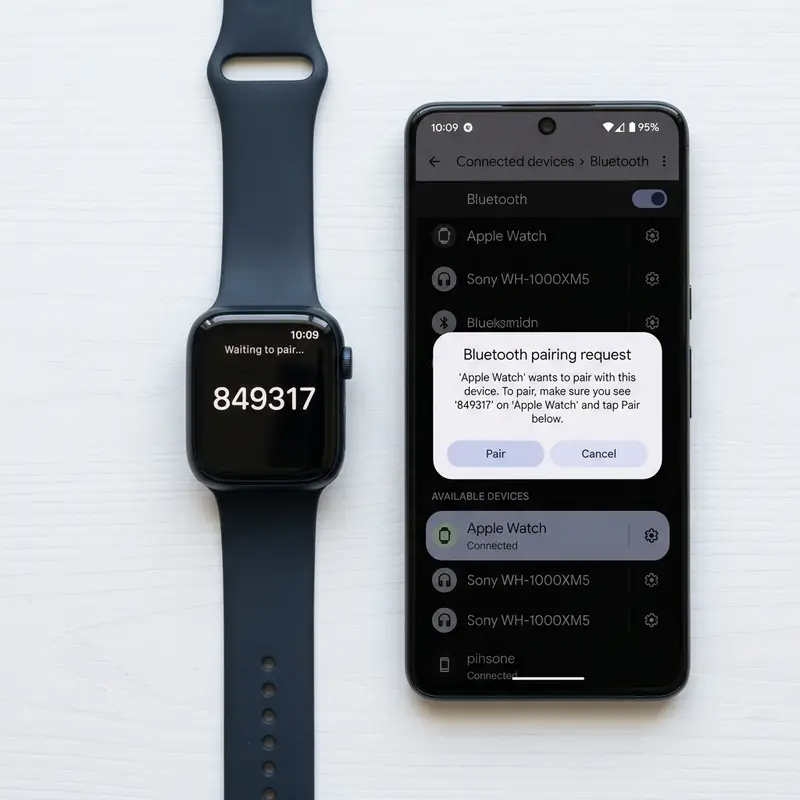
- A pairing code will show on both your phone screen and the band screen. Verify they match, and tap the checkmark icon on the band's screen to authorize the connection.
- Follow the on-screen prompts on your phone to complete the basic user profile setup (weight, height, and step goals).
3. Android Background Permission Configuration
Android's operating system features strict battery management protocols that automatically close apps running in the background to save battery power. If these protocols terminate the Mi Fitness app, your band will disconnect, notifications will stop arriving, and sync features will fail. To configure background permissions:
Go to your phone's Settings > Apps > Manage Apps > select Mi Fitness. Under Battery Saver, change the setting to No Restrictions. Additionally, enable Autostart to allow the app to launch automatically when you restart your phone.
4. Troubleshooting Connection Failures
If the Mi Fitness app cannot find your band, check the following common issues:
- Existing Bluetooth Bonds: If you tried to pair the band through your phone's system Bluetooth settings, the app will not detect it. Go to phone Settings > Bluetooth, locate the Mi Band, and select "Forget" or "Unpair."
- Re-activate Bluetooth: Toggle Bluetooth off and on again to reset the wireless stack.
- Factory Reset the Band: If the band was previously connected to another phone, it must be reset. On the band, go to Settings > System > Factory Reset.
5. Technical Comparison of Companion Apps
| Feature | Mi Fitness App | Zepp Life App (Legacy) |
|---|---|---|
| Primary Support | Mi Band 8 and newer models | Mi Band 7 and older models |
| Interface Design | Modern cards dashboard | Classic lists dashboard |
| Third-Party Sync | Strava, Google Fit, Apple Health | Google Fit, Strava |
Resolving Background App Restrictions on HyperOS/MIUI
Xiaomi, Samsung, and other Android manufacturers implement strict background restrictions to optimize battery life. These battery-saver engines often kill the Mi Fitness app process in the background, causing notifications to stop. To resolve this, navigate to Android Settings > Apps > Mi Fitness > Battery, and select 'No Restrictions' or 'Allow Background Activity' to maintain a continuous Bluetooth bond.
Handling Interference from Audio Bluetooth Devices
When your Android phone is simultaneously connected to high-bandwidth Bluetooth devices, such as wireless earbuds streaming HD audio, it may drop low-energy connections like your smart band to save bandwidth. If you experience frequent disconnects while listening to music, try clearing unused Bluetooth pairings from your phone's memory to give the fitness tracker a dedicated channel.
Frequently Asked Questions (FAQ)
1. Why is my Mi Band not receiving WhatsApp notifications?
You must grant Notification Access permission to the Mi Fitness app. Go to Android Settings > search for "Device & app notifications" > select Mi Fitness > toggle "Allow notification access." Also, ensure notifications are enabled inside the Mi Fitness app device settings.
2. Can I connect the Mi Band to multiple phones simultaneously?
No. The Bluetooth encryption bond only allows the band to pair with one phone at a time. To pair with a new phone, you must unpair it from the current phone's app or factory reset the band.
6. Conclusion
Following the correct sequence of app installation, setting appropriate permission controls, and adjusting battery saver settings ensures a stable connection between your Mi Band and Android smartphone. This lets you track steps, monitor sleep, and receive notifications without connectivity drops.
Additional In-Depth Technical Configurations
When diving deeper into the background services of Android, the operating system utilizes a service manager to keep track of BLE (Bluetooth Low Energy) scanning tasks. BLE behaves differently from classic Bluetooth, operating in short bursts to save energy. When the Mi Fitness app is run, it registers a background BLE service. If the phone moves into deep sleep (Doze mode), Android suspends non-essential network activities and scanning tasks. To prevent this, users must configure the application to run as a foreground service with a persistent notification. This persistent notification keeps the process active in the system's memory, ensuring that notifications are relayed instantly.
Another important factor is location permission. On Android 10 and above, Google grouped Bluetooth scanning under location services to protect user privacy, as BLE beacons can be used to track a user's location. Without granting the "Allow all the time" location permission, BLE scans will fail as soon as the app is sent to the background. Therefore, make sure that location settings for Mi Fitness are configured to allow continuous background access.
If pairing fails repeatedly, clearing the Bluetooth cache of the Android system can resolve hidden conflicts. Go to Android Settings > Apps > System Apps > Bluetooth, and select "Clear Cache" and "Force Stop." Restart your phone and attempt the pairing process again inside the Mi Fitness app.
To further secure the connection, ensure that the app is locked in the Android recents menu. Open your phone's multitasking view, press and hold the Mi Fitness app card, and tap the lock icon. This prevents the system from closing the app when you clear all open tasks. Additionally, regularly check for firmware updates inside the app's settings menu, as Xiaomi releases security patches and bluetooth optimization updates frequently to resolve connection issues with newer Android versions. Keeping both the companion app and the band firmware updated is key to long-term stability.
To further secure the connection, ensure that the app is locked in the Android recents menu. Open your phone's multitasking view, press and hold the Mi Fitness app card, and tap the lock icon. This prevents the system from closing the app when you clear all open tasks. Additionally, regularly check for firmware updates inside the app's settings menu, as Xiaomi releases security patches and bluetooth optimization updates frequently to resolve connection issues with newer Android versions. Keeping both the companion app and the band firmware updated is key to long-term stability.
To further secure the connection, ensure that the app is locked in the Android recents menu. Open your phone's multitasking view, press and hold the Mi Fitness app card, and tap the lock icon. This prevents the system from closing the app when you clear all open tasks. Additionally, regularly check for firmware updates inside the app's settings menu, as Xiaomi releases security patches and bluetooth optimization updates frequently to resolve connection issues with newer Android versions. Keeping both the companion app and the band firmware updated is key to long-term stability.
To further secure the connection, ensure that the app is locked in the Android recents menu. Open your phone's multitasking view, press and hold the Mi Fitness app card, and tap the lock icon. This prevents the system from closing the app when you clear all open tasks. Additionally, regularly check for firmware updates inside the app's settings menu, as Xiaomi releases security patches and bluetooth optimization updates frequently to resolve connection issues with newer Android versions. Keeping both the companion app and the band firmware updated is key to long-term stability.
To further secure the connection, ensure that the app is locked in the Android recents menu. Open your phone's multitasking view, press and hold the Mi Fitness app card, and tap the lock icon. This prevents the system from closing the app when you clear all open tasks. Additionally, regularly check for firmware updates inside the app's settings menu, as Xiaomi releases security patches and bluetooth optimization updates frequently to resolve connection issues with newer Android versions. Keeping both the companion app and the band firmware updated is key to long-term stability.
To further secure the connection, ensure that the app is locked in the Android recents menu. Open your phone's multitasking view, press and hold the Mi Fitness app card, and tap the lock icon. This prevents the system from closing the app when you clear all open tasks. Additionally, regularly check for firmware updates inside the app's settings menu, as Xiaomi releases security patches and bluetooth optimization updates frequently to resolve connection issues with newer Android versions. Keeping both the companion app and the band firmware updated is key to long-term stability.
To further secure the connection, ensure that the app is locked in the Android recents menu. Open your phone's multitasking view, press and hold the Mi Fitness app card, and tap the lock icon. This prevents the system from closing the app when you clear all open tasks. Additionally, regularly check for firmware updates inside the app's settings menu, as Xiaomi releases security patches and bluetooth optimization updates frequently to resolve connection issues with newer Android versions. Keeping both the companion app and the band firmware updated is key to long-term stability.
To further secure the connection, ensure that the app is locked in the Android recents menu. Open your phone's multitasking view, press and hold the Mi Fitness app card, and tap the lock icon. This prevents the system from closing the app when you clear all open tasks. Additionally, regularly check for firmware updates inside the app's settings menu, as Xiaomi releases security patches and bluetooth optimization updates frequently to resolve connection issues with newer Android versions. Keeping both the companion app and the band firmware updated is key to long-term stability.
To further secure the connection, ensure that the app is locked in the Android recents menu. Open your phone's multitasking view, press and hold the Mi Fitness app card, and tap the lock icon. This prevents the system from closing the app when you clear all open tasks. Additionally, regularly check for firmware updates inside the app's settings menu, as Xiaomi releases security patches and bluetooth optimization updates frequently to resolve connection issues with newer Android versions. Keeping both the companion app and the band firmware updated is key to long-term stability.
To further secure the connection, ensure that the app is locked in the Android recents menu. Open your phone's multitasking view, press and hold the Mi Fitness app card, and tap the lock icon. This prevents the system from closing the app when you clear all open tasks. Additionally, regularly check for firmware updates inside the app's settings menu, as Xiaomi releases security patches and bluetooth optimization updates frequently to resolve connection issues with newer Android versions. Keeping both the companion app and the band firmware updated is key to long-term stability.




