How to Clean HP Printer Pickup Rollers and Separation Pad
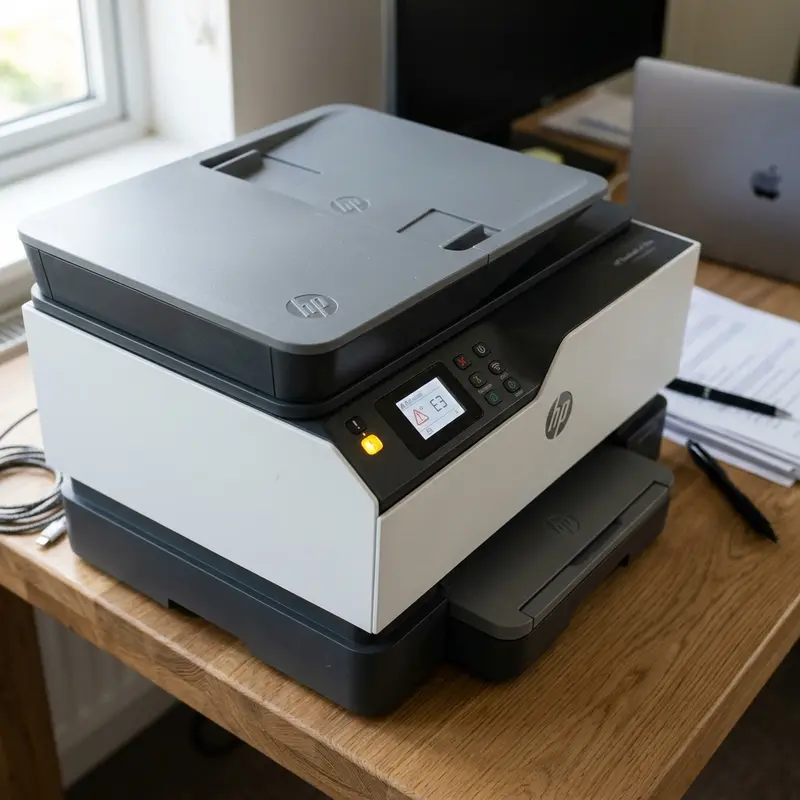
How to Clean HP Printer Pickup Rollers and Separation Pad
Pickup rollers and the pinch roller are the mechanical components responsible for pulling paper from the tray and guiding it through the print path with precision and consistency. When they accumulate dust, dried ink, paper fragments, or finger oils, printing begins showing symptoms like double-feeding, paper not picking up from the tray, skewed output, or partially printed pages. To clean HP printer pickup rollers, power off the printer, remove all paper from the tray, dampen a microfiber cloth with distilled water (avoid alcohol on rubber-coated models), and gently wipe the cylindrical surface of each roller while turning it manually — microfiber friction removes surface grease and paper deposits without damaging the rubber coating that provides grip.
1. Types of HP Printer Rollers and Their Functions
Most HP DeskJet, Smart Tank, and OfficeJet printers have three categories of mechanical rollers, each with a distinct function in the paper path:
- Main Pickup Roller: Positioned at the bottom of the front or rear paper tray. First physical contact with the paper stack — picks one sheet at a time using an oval or textured rubber profile to maximize grip.
- Pinch Roller: Works in tandem with the main feed roller. Positioned just above, it presses the sheet against the pickup roller using a calibrated spring tension, ensuring the paper advances in a straight line without lateral slippage.
- Exit Roller: Located at the output end of the print path. Guides printed paper into the output tray without smearing freshly deposited ink.
Each roller type has a different wear pattern. The pickup roller accumulates the most paper residue and suffers the most physical wear due to active friction generation. The pinch roller accumulates less dirt but can lose spring tension over time. The exit roller can accumulate dried ink when printing on inappropriate paper (e.g., highly absorbent bond paper with high-density dye ink).
2. Diagnosis: When to Clean vs Replace Rollers
Before cleaning, identify whether the problem is contamination (removable surface deposits) or physical wear (smooth or cracked rubber requiring replacement):
- Contamination issue: The printer sometimes picks paper correctly and sometimes doesn't — intermittent behavior. Paper exits slightly skewed but complete. Scraping noise during feeding.
- Wear issue: The printer never picks paper correctly regardless of guide adjustment. Visible rubber on the roller looks smooth, shiny, or cracked. The motor runs but paper doesn't move — you hear the motor but paper stays still.
3. Step-by-Step Manual Roller Cleaning for HP Printers
To manually clean rollers on most HP DeskJet and Smart Tank models:
- Completely power off the printer and unplug the power cord;
- Remove all paper from front and rear trays (if dual trays are present);
- Open the rear access panel — usually by clicking the side tabs and removing the rectangular panel providing access to the paper path;
- With a flashlight, inspect the visible rubber rollers for wrapped paper, particles, or visible surface contamination;
- Lightly dampen a clean microfiber cloth with distilled water. Do not use paper towels (which shed fibers) or isopropyl alcohol on virgin rubber rollers (repeated alcohol use hardens and dries out rubber);
- Hold the roller with the cloth and turn it manually in the paper feed direction (generally toward the output). Apply light pressure during rotation — surface deposits transfer to the cloth;
- Repeat with clean cloth sections until no dark marks transfer;
- Wait 10–15 minutes for the rubber to dry completely before reloading paper and powering on.
4. Automatic Cleaning via HP Print and Scan Doctor
HP Print and Scan Doctor is a free utility from HP's official website that includes an automatic roller cleaning function for compatible models. When run, the software sends firmware commands that cycle the feed motor while prompting you to pass clean paper sheets through the print path. The friction of clean sheets physically removes roller deposits without disassembling the printer.
To use automatic cleaning: download HP Print and Scan Doctor → run it → select your printer → click "Fix Printing" → follow instructions to pass blank A4 paper sheets through the mechanism. This method is less effective than manual cleaning for heavy deposits but adequate for regular preventive maintenance.
5. Paper Feed Symptom Troubleshooting Table
| Symptom Observed | Most Likely Cause | Recommended Action |
|---|---|---|
| Paper not picked up from tray | Pickup roller dirty or worn | Clean with damp microfiber cloth |
| Paper exits skewed | Poorly adjusted side guides or dirty pinch roller | Adjust guides and clean pinch roller |
| Two sheets pulled together | Damp paper or excessive static electricity | Use dry paper, fan sheets before loading |
| Frequent jam at the same spot | Paper fragment stuck in the mechanism | Inspect with flashlight and remove fragment |
| Motor spins but paper doesn't advance | Worn roller (smooth rubber surface) | Replace roller — HP replacement part |
For more on HP paper feeding problems, see our article on printer won't feed paper troubleshooting. After cleaning the rollers, if print quality problems like smears or blotches persist, the cartridge may also need cleaning — see our guide on how to unclog a dried HP ink cartridge.
6. Advanced Automated Cleaning via HP Print and Scan Doctor
HP Print and Scan Doctor includes a specific "roller cleaning" function that goes beyond the basic cleaning routine described in most manuals. When run with the printer connected via USB, the utility accesses the printer's motor parameters and applies a more aggressive automated cleaning protocol that spins the rollers at variable speeds while prompting the user to feed special cleaning paper sheets (sold separately as "printer roller cleaning sheets").
This special cleaning paper is treated with a mild abrasive agent that increases the efficiency of removing degraded rubber deposits and paper residue from roller surfaces. It's particularly effective on high-volume printers that have accumulated a hardened deposit layer that ordinary damp cloths can't remove. The cleaning sheets are reusable up to 3 to 5 times before becoming saturated with removed deposits.
7. When and How to Replace HP Pickup Rollers
When cleaning fails to resolve the paper feed problem — or when visual inspection reveals visibly worn, smooth, cracked, or flaking rubber — roller replacement becomes necessary. Pickup rollers are consumable parts with estimated lifespans that vary by model:
- HP DeskJet 2700 series: estimated lifespan of 20,000–30,000 pages;
- HP OfficeJet Pro 9000 series: estimated lifespan of 80,000–120,000 pages;
- HP LaserJet Pro M400 series: estimated lifespan of 150,000 pages or 5 years.
To replace the pickup roller on most HP DeskJet models: remove the rear access panel → identify the main roller axle → press the plastic side clips retaining the roller → slide the roller off the axle. Insert the new roller aligning the clips until the locking click is felt → reinstall the rear panel → print a test page to verify correct paper feeding.
Look up the correct part number at HP Parts Store by entering your printer model number. Compatible third-party rollers are also available at lower prices, but quality can vary significantly between suppliers.
8. Separation Pad Maintenance
The separation pad (also called the separation sheet) works in tandem with the pickup roller to prevent double-feeding. It's a small rubber or cork pad positioned just below the pickup roller that creates friction against sheets being pulled through, allowing only one sheet at a time to advance. When this pad wears smooth or becomes coated with paper dust and oil, multi-sheet feeding increases dramatically.
Cleaning the separation pad follows the same procedure as cleaning pickup rollers — use a microfiber cloth lightly dampened with distilled water and wipe the pad surface gently. Replacement separation pads are sold as individual parts and typically cost $3–12 depending on printer model. They're user-replaceable on most HP DeskJet and OfficeJet models without requiring special tools.
9. Paper Type's Impact on Roller Wear
The type and quality of paper used in the printer directly affects the rate of pickup roller wear. Low-quality papers with high amounts of loose fibers (recycled low-weight paper, newsprint) leave more cellulosic residue deposited on the roller surface with each sheet that passes, accelerating the need for cleaning. Coated papers (glossy, photo paper), on the other hand, deposit less cellulosic residue but may leave polymer coating residue on the rollers — appearing as whitish deposits that require a slightly damper cloth for efficient removal.
To maximize roller lifespan: use 75–90 g/m² bond paper from recognized brands for most everyday printing, store paper in a dry, ventilated location (humidity above 70% causes paper warp that increases friction on rollers), and never use damp, crumpled, or rough-edged paper that can jam in the rollers and tear fragments that remain trapped in the mechanism.
10. Cleaning Rollers Without Disassembly Using Paper Sheets
For users who prefer not to open the printer at all, there is a non-disassembly cleaning method that works for light to moderate deposits on accessible rollers. Feed 3 to 5 sheets of plain paper through the printer one at a time in quick succession without printing — just the paper feeding mechanism. Each sheet dragging through the pickup roller removes a small amount of surface dust and light paper residue through natural abrasion.
For more effective non-disassembly cleaning, lightly dampen the first 5 cm of the paper sheet's leading edge with water and allow it to dry to about 80% moisture (slightly damp but not dripping) before feeding it through the printer. The slightly damp leading edge makes contact with the roller first, softening and lifting deposits that dry paper alone cannot remove. Allow the printer's internal paper path to fully dry for 15 minutes after feeding damp sheets before running a print job. This method is suitable for routine maintenance every 2 to 3 months to prevent deposit buildup from reaching the point where disassembly cleaning becomes necessary.
11. When Professional Service Is Needed
While most roller cleaning and replacement is user-serviceable, some roller-related problems require professional service with specialized tools. Signs that indicate professional service is needed include: the carriage makes grinding or clicking noises during paper feeding that persist after cleaning, indicating internal gear or motor bearing damage rather than just roller contamination; the printer consistently jams at exactly the same point in the paper path regardless of roller cleaning or paper type change, indicating a guide rail deformation or a broken sensor tab requiring disassembly beyond the rear access panel; or the duplex unit experiences consistent misfeed that standard user-accessible rollers do not address. In these cases, the internal paper path requires access to components that are not user-serviceable without full printer disassembly. Attempting to force access beyond the intended user-serviceable panels risks breaking plastic clips and guide tabs that are expensive to replace and may void any remaining warranty coverage on the device.
Frequently Asked Questions (FAQ)
How often should I clean the rollers on an HP printer?
For moderate home use (100–300 pages per month), clean rollers every 6 months as preventive maintenance. If you notice intermittent feeding or skewed output, clean immediately regardless of the interval.
Can I use isopropyl alcohol to clean HP rubber rollers?
Avoid it. Use distilled water. Concentrations above 70% alcohol can dry out and crack rubber rollers with repeated use. If deposits are particularly oily, a 30% alcohol / 70% water solution is the maximum recommended.
Where can I buy replacement pickup rollers for HP DeskJet and Smart Tank?
Original HP replacement rollers are available at HP Parts Store and computer parts retailers. Compatible third-party versions are also available for most DeskJet models. Confirm the specific part number for your exact printer model.
Does cleaning HP rollers fix the paper jam error (2 orange blinks)?
Yes, in many cases roller cleaning eliminates recurring jams. If jams persist after cleaning, there may be a paper fragment stuck in the mechanism or a roller with irrecoverable physical wear requiring replacement.




