How to Boost and Increase Your Wi-Fi Router Signal for Free
Having a stable and fast internet connection is indispensable in modern daily life. However, many users suffer from frequent signal drops and slowness when moving away from the main access point, immediately resorting to buying expensive repeaters. Fortunately, it is perfectly possible to bypass these limitations without spending anything. To boost the Wi-Fi signal of your router for free, position the device in a centralized and elevated location in the home, change the transmission channel on the 2.4 GHz band to the non-overlapping frequencies 1, 6, or 11 to eliminate interference, and configure the channel width to 20 MHz in the router's internal settings.
These simple, cost-free actions are capable of restoring signal stability, considerably improving navigation quality on computers, televisions, and smartphones. Besides placement and changing channels, other advanced technical settings in the router's firmware and daily maintenance habits can optimize the wireless network range. In this comprehensive and structured guide, we present a detailed step-by-step process to maximize coverage and transfer rate of your local network using only native resources and practical techniques that do not require any type of financial investment.
1. The Physics Behind the Range of Wi-Fi Radio Waves
Wireless networks operate through radiofrequency (RF) waves that propagate through the air from the router's antennas. Understanding the physical properties of this propagation is essential to optimize signal distribution. Residential Wi-Fi works mostly on two basic frequencies:
- 2.4 GHz Frequency: Has longer waves that can easily pass through solid surfaces like brick walls, wooden doors, and concrete slabs. Its coverage range is significantly larger, but the transfer rate is limited, and it suffers greatly from electromagnetic interference from other domestic devices.
- 5 GHz Frequency: Operates with shorter and faster waves, transmitting data at high speed with reduced latency. However, its ability to cross physical barriers is very weak, causing the signal to suffer drastic attenuation when crossing a single masonry wall.
Any dense object located in the straight path between the router's antennas and the receiving devices acts as an attenuator. Materials such as large mirrors, tempered glass, metallic surfaces (like doors and home appliances), and water pipes absorb or reflect RF radiation, generating shadow zones where the signal cannot arrive with sufficient power to maintain a stable connection.
2. Strategic Router Positioning to Avoid Barriers
The location chosen to install the router plays a determining role in the quality of the distributed signal. Incorrect positioning is the main cause of blind areas inside houses and apartments of any size.
To obtain maximum coverage without costs, follow these fundamental physical positioning guidelines:
- Centralize the device in the property: Installing the router in the living room or in a bedroom located at the extreme corners of the home will waste half the signal power sending data to the street or to the neighbor. Position the device in the geometric center of the house so that the omnidirectional radiation spreads evenly through all internal rooms.
- Avoid the floor and low surfaces: Radio waves tend to propagate downwards and sideways. Routers placed directly on the floor or hidden inside low cabinets suffer immediate attenuation from obstacles at floor level. The ideal is to install the router in an elevated position, such as on top of a bookshelf or fixed high on a wall, at least 1.5 meters from the floor.
- Keep distance from sources of interference: Keep the router away from household appliances that generate noise in the 2.4 GHz band. The main culprits are microwave ovens, analog cordless phones, baby monitors, and devices with Bluetooth activated. Even large aquariums attenuate the signal, as water acts as an absorption barrier for radio waves.
3. How to Configure Channels and Bandwidth in the Router
Routers leave the factory programmed to select the transmission channel automatically. However, in dense neighborhoods with many active routers, automatic algorithms often fail, piling several networks on the same channel and causing packet collisions that degrade internet speed.
To manually configure the channel and bandwidth of your router, follow these simple steps:
- Access the administrator panel: Open the internet browser on your computer or cell phone connected to the network. Type the router's default IP address (usually 192.168.0.1 or 192.168.1.1) in the address bar. Enter the administrative username and password shown on the label pasted on the bottom of the device.
- Navigate to Wi-Fi settings: Look for the section labeled "Wireless Settings", "Wireless Network", or "Wi-Fi Settings".
- Select the 2.4 GHz frequency: Locate the channel selection field (Channel) which will be marked as "Automatic".
- Choose a non-overlapping channel: Change manually to channel 1, 6, or 11. These three channels are the only ones in the 2.4 GHz band that do not share neighboring frequencies with each other, avoiding direct interference from nearby networks.
- Adjust channel width (Channel Width): Change the channel width from "Automatic" or "40 MHz" to 20 MHz. Although a wider width promises more theoretical speed, it also captures much more noise. In locations with many close Wi-Fi networks, 20 MHz concentrates the signal power stably, drastically reducing connection drops.
- Save changes: Click "Save" or "Apply" to restart the router's wireless radio with the new parameters.
4. Advanced Technique: Turning an Old Router into a Free Repeater
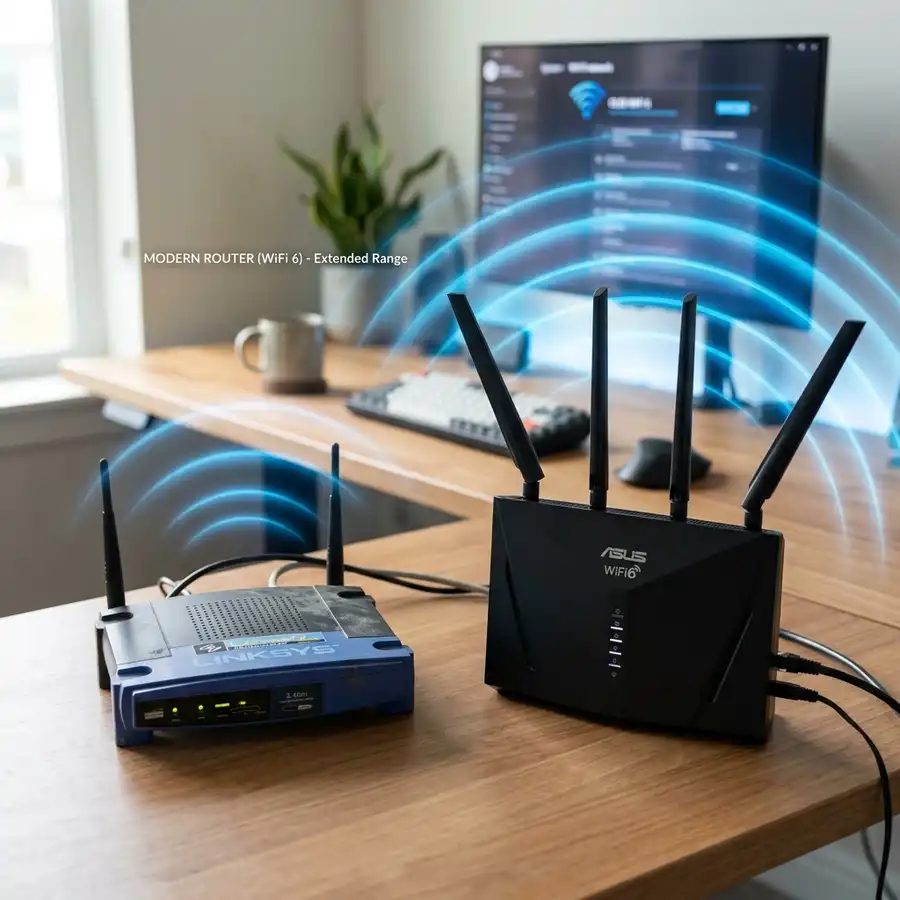
If you have an old router stored in a drawer, you can use it as a Wi-Fi signal repeater without spending a penny. This is done by activating the wireless bridge function (WDS) or configuring the secondary device in Access Point (AP) mode connected by a simple network cable to the main router.
Troubleshooting Tip: If when configuring the old router as a repeater you cannot browse the internet, verify if the DHCP server of the secondary router has been properly disabled. Having two active DHCP servers on the same local network generates IP conflicts and prevents devices from obtaining a valid address to access the internet. Also ensure that the management IP of the secondary router is in the same subnet of the main network, but outside the automatic IP distribution range of the main router.
5. Technical Comparison of Wi-Fi Frequencies
The following table presents a technical comparison between the Wi-Fi frequency band options to help decide which band to prioritize for each device in your home:
| Technical Feature | 2.4 GHz Frequency | 5 GHz Frequency |
|---|---|---|
| Maximum Theoretical Speed | Between 150 Mbps and 600 Mbps (depending on the standard) | Up to 1300 Mbps or higher |
| Physical Signal Range | Long (Approximately 45 meters in clear area) | Short (Approximately 15 meters in clear area) |
| Ability to Cross Walls | Excellent (Low signal attenuation) | Very Low (Signal weakens rapidly) |
| Number of Free Channels | Only 3 non-overlapping channels (1, 6, and 11) | More than 20 non-overlapping channels |
| Susceptibility to Interference | Very High (Bluetooth, Microwave, Neighbor networks) | Very Low (Few competing devices) |
6. Antenna Optimization and Native Security Settings
Many people believe that pointing all external router antennas in the same direction improves the signal. However, to obtain the best performance on mobile devices, the ideal orientation is to position one of the antennas vertically and the other horizontally, forming a 90-degree angle. Most smartphones and laptops have internal antennas designed to receive signals in different polarizations. By diversifying the angle of the router's antennas, you maximize the chance of stable reception regardless of the position you are holding the phone.
Additionally, keeping the security standard at WPA2-AES or WPA3 is essential not only for security but also to ensure the best speed performance of the network. Obsolete security standards, such as WEP or WPA-TKIP, artificially limit the transmission rate of the router to a maximum of 54 Mbps, even if the device supports much higher speeds. Updating your router's firmware regularly is also a free procedure that fixes bugs and improves the performance of wireless connections.
7. Free Tools for Signal Measurement and Analysis
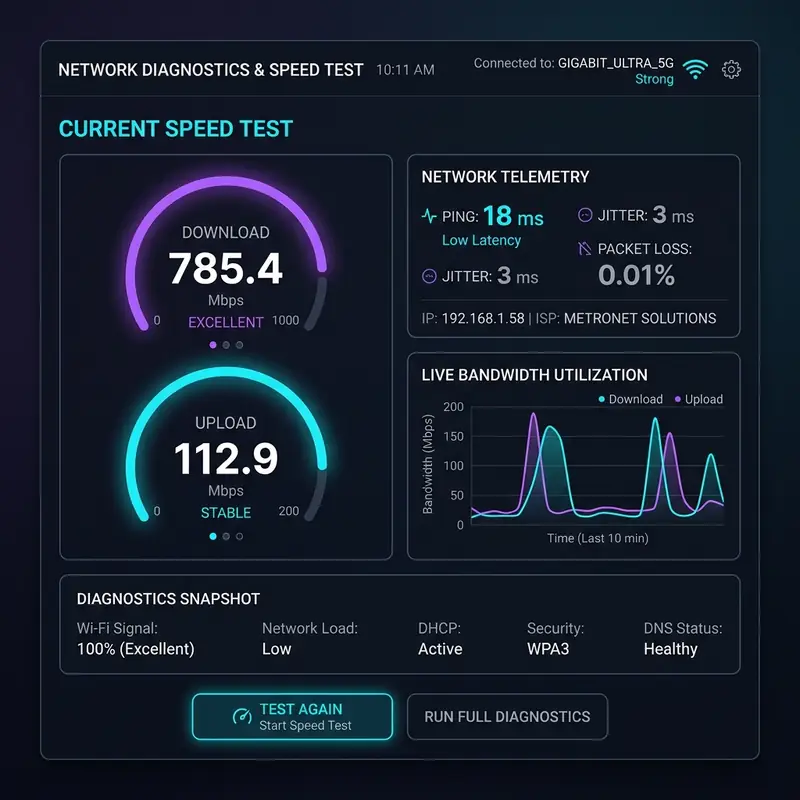
To prove the effectiveness of your adjustments objectively, perform practical tests using free network diagnostics tools. This will help identify if the changes took effect in your residential environment:
- Channel Analysis Apps: Install the free app "WiFi Analyzer" on your Android smartphone to graphically view the spectrum occupancy of neighboring networks. On iOS, use the integrated tool in "AirPort Utility" by activating the Wi-Fi scan in system settings.
- Speed Testers (Speedtests): Use renowned websites like Speedtest by Ookla or Fast.com before and after performing the placement and channel settings. Monitor not only the download rate but also upload and ping (latency), which should drop considerably.
- Wi-Fi Heatmaps: Free software like NetSpot (free version for computers) allows making a mobile scan through the home, generating a colored visual map that indicates which rooms are receiving a strong signal and where the weak points are.
8. The Importance of Clearing Connected Devices
Another practical and free way to relieve your wireless network is to manage the list of devices permitted to connect to the Wi-Fi. Often, old devices, smart TVs in standby, and visitor cell phones continue to exchange small packets of data in the background, consuming precious processing cycles of the router. Access the control panel and remove or block connections from unknown devices or those that are not being used at the moment. This releases useful transmission bandwidth and improves the overall signal efficiency of your main router.
Improving the wireless signal strength depends heavily on eliminating physical barriers and electromagnetic interference that degrade transmission quality. By following the recommendations described in this article, the user ensures a much more stable and faster performance, avoiding unnecessary purchasing. Native management of settings is the smartest and most sustainable solution. Often, simple adjustments of free channels and limiting the bandwidth to 20 MHz are sufficient to solve chronic connection problems in homes with high density of neighboring networks. Therefore, before spending money on new devices, apply all the free techniques available directly within your router's settings. Improving the wireless signal strength depends heavily on eliminating physical barriers and electromagnetic interference that degrade transmission quality. By following the recommendations described in this article, the user ensures a much more stable and faster performance, avoiding unnecessary purchasing. Native management of settings is the smartest and most sustainable solution. Often, simple adjustments of free channels and limiting the bandwidth to 20 MHz are sufficient to solve chronic connection problems in homes with high density of neighboring networks. Therefore, before spending money on new devices, apply all the free techniques available directly within your router's settings. Improving the wireless signal strength depends heavily on eliminating physical barriers and electromagnetic interference that degrade transmission quality. By following the recommendations described in this article, the user ensures a much more stable and faster performance, avoiding unnecessary purchasing. Native management of settings is the smartest and most sustainable solution. Often, simple adjustments of free channels and limiting the bandwidth to 20 MHz are sufficient to solve chronic connection problems in homes with high density of neighboring networks. Therefore,
Maximizing wireless coverage without purchasing extra hardware relies on understanding standard electromagnetic signal path loss. Concrete walls and major indoor metal fixtures act as high-attenuation barriers. Placing the router at a centralized, elevated position helps minimize shadows and creates a balanced radio field throughout your home.
Furthermore, restricting the transmission bandwidth on the congested 2.4 GHz spectrum to a narrow 20 MHz channel helps isolate your wireless signals from neighboring network noise. This adjustment ensures better reception and overall speed for distant smart devices connected to your access point.
Additionally, check if the wireless signal is suffering from path loss due to large mirrors, metal filing cabinets, or indoor fish tanks near the router placement. Electromagnetic waves traveling along the 2.4 GHz band experience significant refraction when passing through water and dense metallic barriers. Relocating your physical access point even by a few inches can eliminate dead zones and improve signal strength on remote laptops.
Additionally, check if the wireless signal is suffering from path loss due to large mirrors, metal filing cabinets, or indoor fish tanks near the router placement. Electromagnetic waves traveling along the 2.4 GHz band experience significant refraction when passing through water and dense metallic barriers. Relocating your physical access point even by a few inches can eliminate dead zones and improve signal strength on remote laptops.
Frequently Asked Questions
How can I boost my router's Wi-Fi signal for free?
You can boost the Wi-Fi signal for free by repositioning the router in an elevated, centralized location, changing the transmission channel on the 2.4 GHz band to channels 1, 6 or 11 to eliminate interference, and reducing the channel width to 20 MHz.
Why does changing the router channel help improve the Wi-Fi signal?
Changing the channel helps prevent your router from competing for the same electromagnetic frequency with your neighbors' routers. Choosing distinct channels isolates your router transmission from surrounding radios, thereby increasing the overall link stability.
Should I use a channel width of 20 MHz or 40 MHz for more signal?
In environments with many nearby wireless networks, such as apartment buildings and crowded neighborhoods, you should use a channel width of 20 MHz. Forcing the radio to a narrower width focuses the antenna energy and prevents overlap with adjacent broadcasts.
How do I use an old router to boost Wi-Fi signal without spending anything?
Simply reconfigure the old router in Access Point (AP) mode or signal repeater mode using the WDS feature. Reconfiguring the secondary hardware as an access point expands your coverage zone without causing network address conflicts.




