How to Perform Print Head Alignment on Epson L3250 Printer
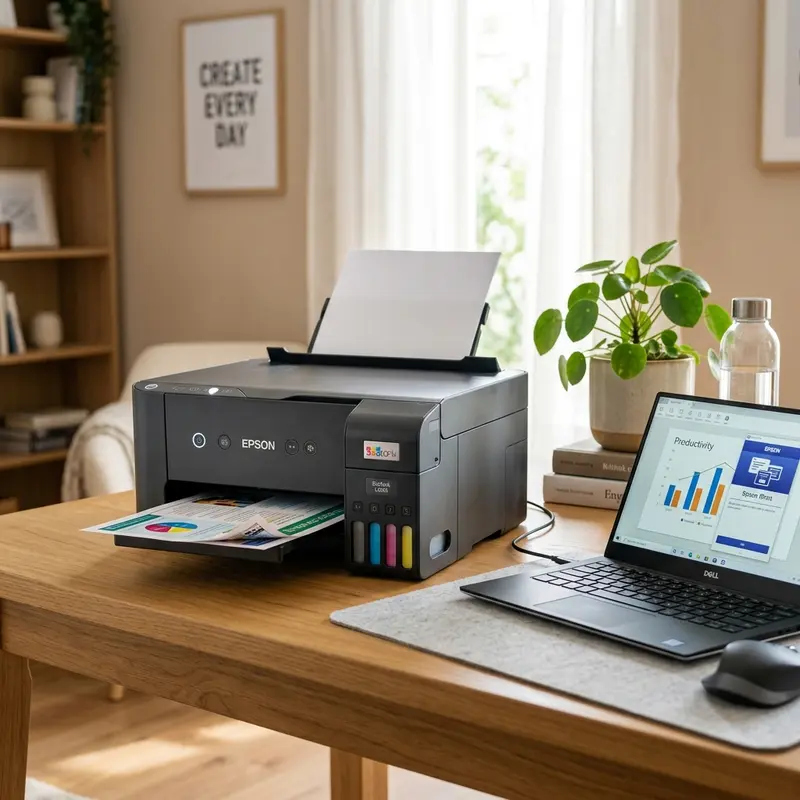
The print quality and precision of an inkjet printer rely on synchronization between the carriage movement and the paper feed mechanism. On the Epson EcoTank L3250, mechanical deviations can cause crooked text, "ghosting" effects (double characters), or misaligned horizontal and vertical lines in graphics. To align the print heads on an Epson L3250 printer and resolve crooked text, open the "Printing Preferences" menu on your Windows PC, navigate to the "Maintenance" tab, click "Print Head Alignment," and follow the wizard to print test sheets and input the number corresponding to the pattern with the fewest visible lines or gaps.
This process adjusts the ink ejection timing of the MicroPiezo print head, compensating for structural wear and tear on the drive belt and the carriage rail.
1. The Science Behind Print Head Alignment and the Encoder Strip
The print carriage of the Epson L3250 moves horizontally across a metal guide rail. To determine its exact location in real-time, the printer uses an optical sensor behind the carriage that reads microscopic vertical marks on a thin, transparent plastic strip called the encoder strip, which runs the length of the carriage path.
In high-speed (bidirectional) printing mode, the printer sprays ink droplets as the carriage travels from left to right and from right to left. If the print head alignment is off, the droplets ejected during one pass will not align with those sprayed during the return pass. This results in staggered lines, crooked characters, and a blurry appearance on text-heavy documents.
The electronic alignment utility calibrates the print head's nozzle-firing timing, correcting for physical deviations and restoring print details.
2. Step-by-Step Print Head Alignment via PC Utility
The most effective way to align the print heads on the Epson L3250 is using the official utility in the Windows printer driver. Load at least five sheets of standard A4 white paper in the rear tray before starting, as recycled or colored papers make it hard to spot the calibration patterns.
Follow these steps on your computer:
- In Windows 11, open the Control Panel, go to "Devices and Printers", right-click the Epson L3250 icon, and select "Printing Preferences".
- Navigate to the Maintenance tab.
- Click Print Head Alignment.
- The wizard will guide you through the process. Select "Vertical Alignment" for the first test sheet.
- The printer will produce a page with several numbered groups of vertical lines.
- Examine the printed patterns carefully. Identify the pattern in each group that shows the straightest, cleanest lines with no steps or overlaps. Enter these numbers into the corresponding fields in the software window.
- Click Next, then print the "Horizontal Alignment" sheet. This calibrates the paper advancement system.
- Choose the pattern block that is smooth and free of dark overlapping lines or light gaps in the center, and input the numbers in the utility. Click Finish to write these settings to the printer's EEPROM.
3. Addressing Hardware Causes of Persistent Misalignment
If you calibrate the printer through the software but find that text becomes crooked again after printing a few pages, the issue is likely a physical hardware fault rather than a software calibration problem.
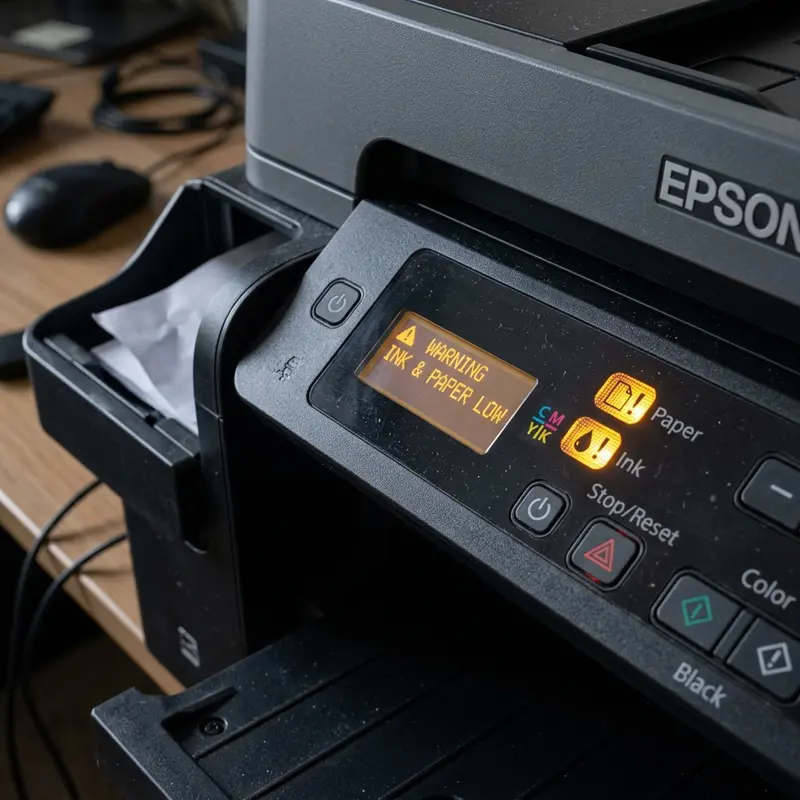
A dirty encoder strip is a frequent cause of this issue. Dust, grease from the carriage rail, or ink mist can coat the transparent strip. If the optical sensor reads a spot with grease or ink, it loses track of its horizontal position. This leads to sudden shifting mid-print, uneven lines, or the carriage crashing into the printer chassis, which triggers a paper jam or system error (flashing LEDs).
To clean the encoder strip, turn off the printer and disconnect the power cable. Open the scanner assembly to expose the print carriage path. Locate the thin, transparent plastic band running behind the metal carriage rail. Lightly dampen a cotton swab with isopropyl alcohol (do not use rubbing alcohol or water, as they can dissolve the printed lines on the strip). Gently wipe the strip on both sides. Let it dry completely for five minutes before powering the printer back on.
| Visual Defect on Paper | Likely Hardware Cause | Affected Component | Recommended Solution |
|---|---|---|---|
| Crooked lines or double characters (ghosting) | Desynchronized bidirectional firing timing | MicroPiezo Print Head | Run Software Vertical Alignment |
| White horizontal bands across images | Clogged ink nozzles or paper advancement error | Nozzles / Feed roller system | Run Head Cleaning and Horizontal Alignment |
| Sudden image shifting or grinding noise | Optical sensor reading errors from dirt | Transparent Encoder Strip | Wipe encoder strip with isopropyl alcohol |
4. Maintaining the Printer Carriage Guide Rail
The carriage assembly slides along a solid metal guide rail thousands of times during a print job. Over time, the lubricating grease on the rail dries out and mixes with paper dust, forming a thick paste that increases friction. This friction forces the carriage motor to work harder, causing speed variations that throw off the droplet placement.
If you hear a squealing or grinding noise when printing, clean the old grease from the rail using a dry paper towel. Apply a few drops of high-viscosity sewing machine oil or specialized printer guide grease to the rail. Slide the carriage manually from side to side to distribute the lubricant. Avoid multi-purpose spray lubricants like WD-40, as they break down the carriage's plastic bushings, causing loose play and permanent misalignment.
5. The Science of Piezoelectric Ink Droplet Trajectories
To understand print head alignment on a physical level, we must look at how the MicroPiezo nozzle plate functions. The Epson L3250 has 180 black nozzles and 59 color nozzles per color channel. When a voltage is applied to the piezoelectric crystal, it bends and pushes a microscopic volume of ink out of the nozzle orifice at a velocity of approximately 8 to 10 meters per second.
Because the carriage is moving at speeds up to 40 inches per second while firing, the path of the ink droplet is a diagonal trajectory relative to the paper. If the physical distance between the print head and the paper changes—due to warped paper or a worn carriage guide rail—the droplet will strike the page ahead of or behind its target coordinate. The vertical alignment utility adjusts the firing delay down to microseconds, aligning the drop trajectory with the grid on the page.
6. The Role of the Paper Feed Encoder Disk (Horizontal Calibration)
While the horizontal movement of the print carriage is managed by the long encoder strip, the vertical movement (paper feeding) is tracked by a round encoder disk on the left side of the printer. This disk is connected to the paper feed roller shaft and spins through an optical sensor that tracks the rotation of the motor.
If this disk becomes dirty from ink splashes or paper fibers, the sensor cannot read the positioning marks accurately. This leads to uneven paper movement, causing overlapping print rows or light bands across the page. To resolve this, clean the circular disk using a lint-free swab and isopropyl alcohol, ensuring the optical sensor can read the micro-steps of the feed roller correctly.
7. Step-by-Step Capping Station and Wiper Blade Maintenance
The capping station is the rubber cup where the print head rests when not in use. It seals the nozzle plate from the air, preventing the ink from drying out. Adjacent to the cap is a small rubber wiper blade that cleans excess ink from the head after cleaning cycles.
If dried ink builds up on the rubber wiper or the edge of the capping station, it will scratch the nozzle plate and deflect ink droplets as they are fired. Clean these components monthly using a foam swab dampened with print head cleaner. Gently wipe the wiper blade and the seal of the capping cup to remove ink buildup, maintaining a proper seal and preventing clogs.
8. Advanced Bi-directional Alignment Timing Adjustments
When you input the alignment numbers into the Windows utility, the software updates the print carriage's timing parameters in the EEPROM memory. These values determine how many microseconds before or after the index mark the printer should fire each color channel.
If the alignment remains off after multiple software calibrations, the carriage belt may have stretched. You can check the belt tension by opening the printer cover and inspecting the long black belt on the carriage rail. If the belt is loose, it must be adjusted using the tensioner screw on the right side of the frame, restoring proper carriage sync and resolving alignment issues.
9. Diagnosing Mainboard Logic Errors and Carriage Sensor Failures
In rare instances, print head misalignment can be caused by a failure in the printer's main logical circuit board (mainboard) rather than a mechanical issue. The mainboard processes print jobs and converts them into electrical pulses that drive the print head's piezoelectric crystals. If a capacitor or resistor on the mainboard degrades, it can cause slight voltage drops that affect the velocity of the ink droplets, resulting in crooked prints that software calibration cannot fix.
Additionally, the optical sensor on the carriage assembly that reads the encoder strip can accumulate dust or suffer from sensor drift over time. If the sensor is misaligned, it will read the lines on the encoder strip incorrectly, causing the carriage to shift unexpectedly during printing. If you experience persistent alignment issues after cleaning the encoder strip and guide rail, you may need to replace the carriage sensor or contact an authorized service center for mainboard diagnostics.
10. Disabling Bidirectional Printing to Resolve Alignment Faults
If you need to print high-quality documents quickly and cannot resolve a misalignment issue using standard calibration procedures, you can temporarily bypass the issue by disabling Bidirectional Printing.
To do this in Windows 11, open the printer's "Printing Preferences", go to the "More Options" tab, and uncheck the Bidirectional Printing box (or toggle "High Speed" to off). This limits the print head to spraying ink only when moving from left to right, returning to the start position empty. While this reduces printing speed by about half, it ensures perfect alignment of vertical lines and text borders by eliminating timing differences between directions.
11. Cleaning the Feed Rollers and Paper Tray Assembly
Skewed prints can also be caused by dirty paper feed rollers. When dust or paper fibers build up on the rubber surfaces of the rollers, they can slip, causing one side of the paper to advance slightly faster than the other, resulting in tilted text.
Clean the feed rollers by loading a sheet of heavy paper dampened with distilled water into the rear paper tray. Hold the physical cancel button to feed the paper through without printing. The damp paper will clean dust from the rollers, restoring grip and ensuring the paper feeds straight.
To avoid common print head alignment issues, make sure you always load the paper print side facing up in the rear paper feed tray. Using low-quality paper can leave fiber residues on the printhead carriage, which blocks the nozzles and causes gaps in your calibration sheets, leading to incorrect alignment calculations.
Furthermore, ensure you print in a dust-free environment. Microscopic dust settling on the wet ink during the calibration sheet printout can distort the lines and lead you to select the wrong alignment pattern numbers. Keeping the printer cover closed at all times except during physical maintenance is a simple way to maintain high calibration accuracy.
12. Updating the L3250 Firmware for Better Calibration Control
Epson occasionally releases firmware updates that optimize print head timing algorithms and improve alignment controls. These updates can resolve persistent carriage positioning issues.
To update your printer's firmware, run the "Epson Software Updater" utility on your PC. Connect the printer via a USB cable for stability. Warning: do not disconnect the power or USB cables during the firmware update, as doing so can damage the printer's logic board.
Frequently Asked Questions (FAQ)
Why is my Epson L3250 printing crooked text even after head alignment?
This is usually caused by grease or ink splashes on the transparent encoder strip. The optical sensor on the carriage misreads its position, resulting in misaligned text. Cleaning the encoder strip with isopropyl alcohol will resolve this issue.
What is the difference between vertical and horizontal alignment?
Vertical alignment calibrates the timing of the print head as it moves left and right (bidirectional printing) to ensure vertical lines are straight. Horizontal alignment calibrates the paper feed rollers to prevent white horizontal lines across pages.
How do I clean the encoder strip on the Epson L3250?
Turn off and unplug the printer, open the scanner cover to view the carriage rail, locate the thin transparent strip behind it, and wipe it gently with a cotton swab dampened with isopropyl alcohol. Let it dry for five minutes before turning the printer on.
What does disabling bidirectional printing do?
Disabling bidirectional printing makes the printer spray ink only when the carriage moves in one direction (left to right). This resolves alignment and ghosting issues, but it will slow down overall printing speed.




