How to Fix a 128GB MicroSD Card or USB Showing Only 32GB in Windows
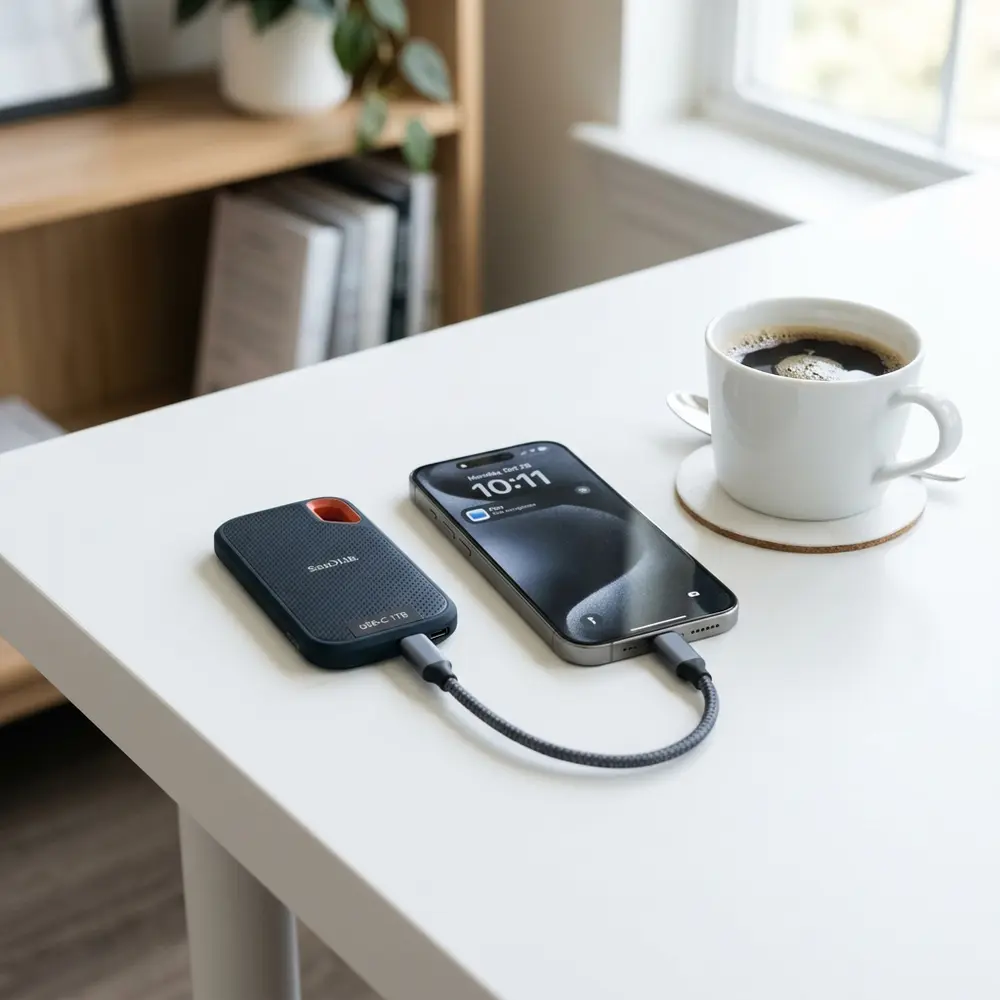
How to Fix a 128GB MicroSD Card or USB Showing Only 32GB in Windows
When a 128GB microSD card or USB drive displays only 32GB in Windows, it can be both perplexing and frustrating. This article provides a comprehensive guide on troubleshooting and correcting this issue.
Understanding the Issue
Several factors may cause a 128GB microSD card or USB to be recognized as only 32GB. These include partition errors, file system corruption, or limitations imposed by the device or operating system.
Identifying the underlying cause is crucial for an effective resolution. The following steps will guide through the troubleshooting process.
Step-by-Step Troubleshooting Guide
- Check Windows Disk Management: Access Disk Management by right-clicking on 'This PC' and selecting 'Manage'.
- Locate the Device: In the Disk Management window, find the microSD card or USB drive from the list of drives.
- Examine Partitions: Check if there are unallocated spaces or multiple partitions. A single partition should cover the entire capacity.
- Format the Drive: If partitions are incorrect, consider formatting the drive. Right-click the partition and select 'Format'.
- Change the File System: Opt for NTFS or exFAT during formatting to ensure compatibility with larger drives.
- Use Third-Party Software: If problems persist, utilize tools like MiniTool Partition Wizard or EaseUS Partition Master.
- Check for Hardware Issues: Examine the card or USB for physical damage or use on another device to isolate the problem.
- Update Drivers: Ensure that the USB drivers in Windows are up-to-date. Check Device Manager for any flagged devices.
- Test with a Different Computer: Connect the device to another computer to see if the issue persists.
- Consult Manufacturer’s Support: If all else fails, reach out to the manufacturer's customer support for specialized assistance.

HTML Table: Comparison of Popular MicroSD Card Brands
| Brand | Speed Class | Capacity | Price (Approx.) |
|---|---|---|---|
| SanDisk | UHS-I U3 | 128GB | $19.99 |
| Samsung | UHS-I U3 | 128GB | $22.99 |
| Lexar | UHS-I U3 | 128GB | $18.99 |
DomineTec Tip: Ensure compatibility with devices by checking specifications. For a better overall experience, consider investing in the best portable USB-C monitor.
Potential Causes of Capacity Issues
Understanding the potential causes of a microSD card or USB showing reduced capacity is essential. These may include:
- Incorrect formatting or partitioning during setup.
- File system errors resulting from improper ejection or corruption.
- Fake or counterfeit products that do not meet advertised specifications.
Formatting and Partitioning: Key Steps
Formatting resets the device and can restore the full capacity. Here’s how to format properly:
- Open 'This PC' and right-click on the affected drive.
- Select 'Format' and choose the desired file system (preferably exFAT for large capacities).
- Ensure that the 'Quick Format' option is checked unless a full format is necessary.
- Click 'Start' and confirm the action to proceed.
Advanced Recovery Options
For users who encounter persistent issues, advanced recovery options may be necessary. These tools can recover lost partitions and repair file system errors:
- TestDisk: A powerful open-source tool for partition recovery.
- Recuva: Useful for recovering deleted files.
- EaseUS Data Recovery Wizard: A user-friendly interface for comprehensive recovery options.
Preventive Measures
To prevent future occurrences of reduced capacity, follow these guidelines:
- Always safely eject USB drives and microSD cards.
- Regularly back up important data to avoid loss.
- Purchase storage devices from reputable retailers to avoid counterfeit products.

Conclusion
Resolving the issue of a 128GB microSD card or USB showing only 32GB in Windows involves careful examination and troubleshooting. By following the outlined steps, users can restore full functionality and capacity.
Frequently Asked Questions
1. Why is my 128GB microSD card only showing 32GB?
This issue often arises from incorrect formatting, partitioning errors, or counterfeit products.
2. Can formatting fix the capacity issue?
Yes, formatting the drive can reset its configuration and potentially restore the correct capacity.
3. What file system should be used for a 128GB microSD card?
exFAT is recommended for microSD cards with 128GB capacity for better compatibility.
4. Are there risks involved in using third-party recovery tools?
While many tools are safe, downloading from unverified sources may pose security risks.
5. How can I ensure my storage device is authentic?
Purchase from reputable retailers and check for tamper-proof packaging and warranties.
Advanced Setup Tips for MicroSD and USB Drives
Ensuring that a 128GB MicroSD card or USB is recognized properly involves advanced formatting techniques. Utilizing disk management tools in Windows can help reallocate unallocated space, allowing the full capacity to be accessible.
Using third-party partition management software can also facilitate the recovery of lost space. These applications often provide more flexibility than Windows' built-in tools, enabling users to merge or resize partitions effectively.
Common Mistakes to Avoid
A common mistake when dealing with storage devices is failing to format the card correctly. Using the wrong file system, such as FAT32, limits the storage capacity, causing larger drives to show reduced space.
Another frequent error is neglecting to check for hidden partitions. These partitions can consume a significant amount of space and may require additional steps to reveal and manage.
Model Comparisons: MicroSD vs. USB
When troubleshooting storage issues, understanding the differences between MicroSD cards and USB drives can be crucial. MicroSD cards often have a higher capacity limit and faster read/write speeds compared to many USB drives.
However, not all devices support higher capacity MicroSD cards, which can lead to confusion about available space. It is essential to check compatibility specifications before making a purchase or attempting to use a device.
Use Case Scenarios for Storage Devices
Different use cases can influence how storage devices behave and are recognized by systems. For example, using a MicroSD card in a smartphone may yield different results than using it in a laptop or desktop computer.
The application of these devices in gaming consoles or cameras can also impact performance and capacity recognition. Understanding specific requirements for each device can help in maintaining optimal functionality.
System Compatibility and File System Issues
Compatibility issues often arise when using storage devices across various operating systems. For example, Windows may not recognize a MicroSD card formatted with a file system that is primarily supported by Linux or macOS.
Ensuring that the file system used is compatible with Windows, such as exFAT or NTFS, can prevent many issues. Regular checks for system updates and driver installations can also mitigate compatibility problems.
Cost Estimates for Fixing Storage Issues
Repairing a MicroSD card or USB that shows reduced capacity may involve costs for software or professional services. While free tools are available, premium software often provides more comprehensive solutions, which can range from $20 to $100.
In some cases, purchasing a new storage device may be more cost-effective than attempting repairs. Weighing the costs against potential data recovery services can help in making a decision.
Troubleshooting Techniques for Storage Devices
Effective troubleshooting begins with basic checks, such as ensuring the device is properly connected. Using the Windows Disk Management tool can reveal whether the full capacity is recognized or if unallocated space exists.
If issues persist, running a check disk command can help identify file system errors that may be impacting storage capacity. This command can be executed via the Command Prompt and often resolves many common issues.
When to Seek Expert Help
If all troubleshooting efforts fail, it may be time to consider consulting a professional. Data recovery experts can provide specialized services that may recover lost data or restore full functionality.
Additionally, if the device is experiencing physical damage, expert assessment is crucial to prevent further data loss. Knowing when to seek help can save valuable time and resources in the long run.
How to Fix a 128GB MicroSD Card or USB Showing Only 32GB in Windows
When a 128GB MicroSD card or USB drive shows only 32GB in Windows, it can be quite frustrating. This issue often arises due to partitioning errors, formatting issues, or hardware limitations. Below is a comprehensive guide to troubleshoot and solve this problem effectively.
Verification Checklist
Before proceeding with any fixes, it is essential to verify a few things about the MicroSD card or USB drive:
- Ensure that the MicroSD card or USB drive is genuine and not counterfeit.
- Check if the card or drive is properly inserted in the card reader or USB port.
- Confirm the storage capacity using a different device or operating system.
- Look for any physical damage on the card or drive.
- Make sure the drivers for the USB ports are up to date in Windows.
Common Causes for Storage Misreporting
Understanding the common causes can help in addressing the underlying issues effectively:
- Partitioning Issues: The drive may have been incorrectly partitioned, showing only a portion of its total capacity.
- Formatting Problems: The file system might be corrupted or incompatible with Windows.
- Counterfeit Devices: Some devices may be falsely labeled with higher capacities.
- File System Limitations: Certain file systems may have limitations that prevent the full capacity from being recognized.
Step-by-Step Solutions
Here are detailed steps to fix the issue:
1. Check Disk Utility
Use Windows built-in Check Disk utility to repair any file system errors:
- Open Command Prompt as an administrator.
- Type
chkdsk E: /f(replace E: with the drive letter of your MicroSD card or USB drive). - Press Enter and wait for the process to complete.
2. Disk Management Tool
Utilize the Disk Management tool to check partitions:
- Right-click on the Start menu and select Disk Management.
- Locate the MicroSD card or USB drive. Check if there are any unallocated spaces.
- If unallocated space is found, right-click on it and choose New Simple Volume to create a new partition.
3. Format the Drive
If the above methods do not work, formatting the drive may resolve the issue:
- Right-click on the drive in File Explorer.
- Select Format.
- Choose the file system (FAT32 or exFAT) and ensure the Quick Format option is checked.
- Click Start to initiate formatting.
4. Using Third-Party Software
In cases where Windows tools are ineffective, third-party software may be necessary:
- MiniTool Partition Wizard: Can resize, move, and create partitions easily.
- EaseUS Partition Master: Offers powerful partition management features.
- Rufus: Can create bootable USB drives and handle formatting issues.
Comparison Table: File Systems
| File System | Max Volume Size | Max File Size | Compatibility |
|---|---|---|---|
| FAT32 | 2TB | 4GB | Windows, macOS, Linux |
| exFAT | 128PB | 16EB | Windows, macOS, Linux |
| NTFS | 16TB | 16TB | Windows, macOS (read-only) |
FAQs
Why does my 128GB MicroSD card show only 32GB?
This can occur due to partitioning errors, using an incompatible file system, or having a counterfeit device. It is essential to check these aspects to determine the root cause.
How can I confirm if my MicroSD card is counterfeit?
Utilize software tools such as H2testw or FakeFlashTest to verify the actual capacity of the MicroSD card. If the reported capacity is lower than expected, the device may be counterfeit.
Will formatting erase all my data?
Yes, formatting a drive will erase all the data stored on it. It is recommended to back up any important data before proceeding with formatting.
Can I recover lost data after formatting?
In some cases, data recovery software can recover lost files after formatting. However, success is not guaranteed, and it is advisable to use such software as soon as possible after the formatting.
Technical Glossary
- Partition: A section of a storage device that is treated as an individual unit.
- File System: A method used by the operating system to manage files on storage devices.
- Counterfeit: A fake product that is designed to look like a genuine item but has inferior performance and quality.
- Unallocated Space: Storage space on a drive that has not been assigned to a partition.
- Check Disk: A Windows utility that scans and repairs file system errors on storage devices.
Conclusion
Resolving the issue of a 128GB MicroSD card or USB showing only 32GB in Windows requires a systematic approach. By following the outlined steps, verifying the device's integrity, and utilizing the appropriate tools, the storage capacity can be restored effectively. Always ensure to keep backups of important data to prevent loss during troubleshooting.




