Epson L4260 Not Connecting to 5GHz Wi-Fi? Step-by-Step Setup Guide
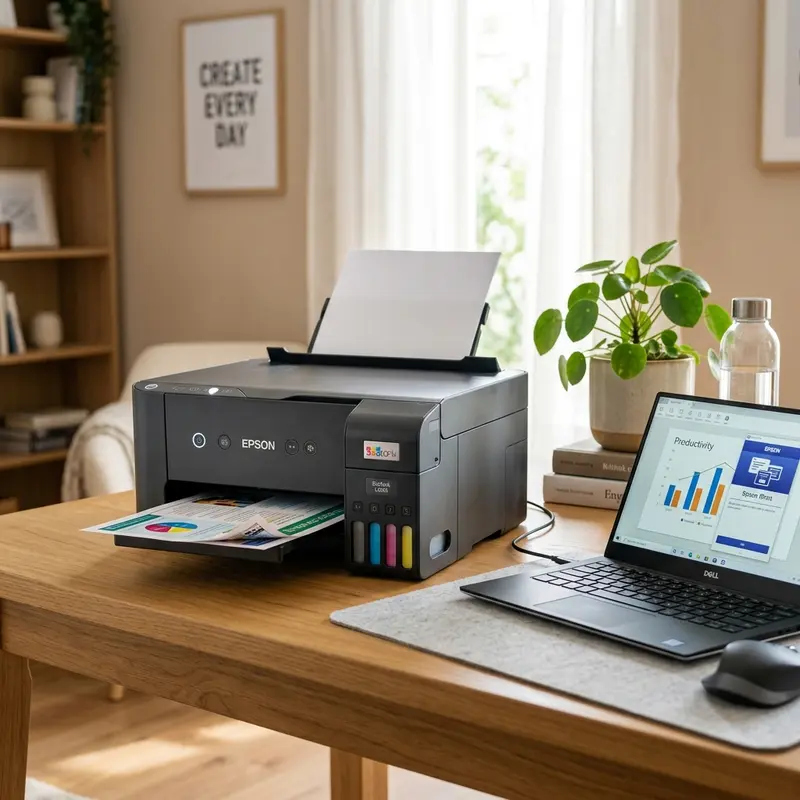
The Epson EcoTank L4260 is widely regarded as one of the best all-in-one printers for home and home-office use, largely thanks to its automatic duplex printing system and robust wireless connectivity. However, many users face technical hurdles when trying to connect the device to their home or office Wi-Fi network, encountering issues where they cannot locate the 5GHz network or face continuous connection failures. This communication failure is not a hardware defect of the printer, but rather a technical mismatch in radio frequencies and network protocols. The Epson EcoTank L4260 printer cannot connect to 5GHz Wi-Fi networks because its integrated wireless network interface card was designed to operate exclusively on the 2.4GHz frequency band (IEEE 802.11 b/g/n standards), requiring the router to have its 2.4GHz band active and the smartphone or computer to be on this same frequency during setup.
To resolve this connectivity issue once and for all and ensure stable printer operations, it is necessary to understand the physical differences between 2.4GHz and 5GHz radio waves, as well as how to adjust the internal settings of dual-band routers. For other common home appliance troubleshooting guides, you can read our technical article on the Liectroux C30B robot vacuum beeping and not moving or check our analysis on whether a Wi-Fi security camera consumes too much data.
1. The Hardware Limitation of the Epson L4260: Why Only 2.4GHz?
The integrated wireless network interface card (NIC) of the Epson EcoTank L4260 is built around a low-cost, power-efficient RF transceiver that operates solely on the 2.4GHz frequency band. This transceiver is engineered to comply with IEEE 802.11b, 802.11g, and 802.11n standards. It physically lacks the necessary hardware components — such as additional band-pass filters, specific power amplifiers for higher frequencies, and a demodulator chip compatible with IEEE 802.11a/ac/ax standards — to intercept and decode data packets broadcast on the 5GHz band.
The engineering decision to keep 2.4GHz network cards in home printers is based on the fact that radio waves in this range have a longer physical wavelength (approximately 12.5 cm). Longer radio waves experience significantly less electromagnetic attenuation when colliding with solid obstacles (such as brick, concrete, or wooden walls), providing a much wider physical range compared to the 5GHz band (which has a wavelength of about 6 cm). Since printers do not require extreme data throughput — given that print spool files are compressed into languages like ESC/P-R and rarely exceed a few dozen megabytes —, the range and signal stability of the 2.4GHz network are prioritized over the raw speed of 5GHz.
2. The Smart Connect Conflict in Modern Routers
Modern dual-band routers use an advanced feature commercially known as "Smart Connect," "Band Steering," or "Unified SSID." This feature creates a single network name (SSID) for both frequencies. The router actively monitors the received signal strength (RSSI) and noise level of each connected mobile device, dynamically switching them between 2.4GHz and 5GHz without the user's intervention.
While this technology is highly efficient for modern smartphones and laptops, it creates a persistent logical conflict on the Epson L4260's network interface card. During the WPA2 security handshake and key exchange, the configuration assistant on your smartphone sends the Wi-Fi credentials to the printer. If the smartphone is connected to the 5GHz band of the unified SSID, the printer will attempt to connect to the provided network but will fail to establish a stable physical negotiation because its network interface card cannot listen to the router's beacons on that frequency. This leads to the Wi-Fi status LEDs on the L4260's physical panel flashing indefinitely, causing DHCP timeouts or connection failure errors.
| Radio Frequency | Physical Wavelength | Attenuation by Walls | Epson L4260 Compatibility Status |
|---|---|---|---|
| 2.4 GHz (802.11b/g/n) | ~12.5 cm | Low (Better range and wall penetration) | Compatible (Only supported frequency) |
| 5.0 GHz (802.11a/ac/ax) | ~6.0 cm | High (Shorter range, highly blocked by solid structures) | Incompatible (Not supported by the hardware) |
3. Step-by-Step Guide to Connect the Epson L4260 to Your Network
To safely bypass this hardware barrier and ensure your Epson L4260 establishes a stable connection to your home network, follow this procedure to configure your router and setup the device:
Step 1: Access the Router's Administrative Panel
Open a web browser on a computer or smartphone connected to your local network. Type your router's default gateway IP address into the address bar (most common values are 192.168.1.1 or 192.168.0.1). Enter the admin username and password (which can typically be found on a sticker underneath the physical router's housing).
Step 2: Disable the Unified SSID Feature (Smart Connect)
Navigate to the "Wireless Settings" menu. Locate the "Smart Connect" or "Band Steering" option and turn it off. This will allow you to configure separate names for the two frequency bands. Rename them so they are easily distinguishable, for example:
- 2.4 GHz Network: MyHomeNetwork
- 5.0 GHz Network: MyHomeNetwork_5G
Step 3: Connect Your Phone and Configure the Printer
On your smartphone, go to Settings > Wi-Fi and make sure you are connected strictly to the 2.4GHz network (MyHomeNetwork). Open the official Epson Smart Panel app, enable Bluetooth and GPS Location permissions, and choose the option to add a new printer. Input the WPA2 password for the 2.4GHz network. The app will transmit the credentials to the L4260's microcode, and the connection will be established in less than 2 minutes. Once the Wi-Fi LED on the printer's front panel stops flashing and turns solid blue or green, the setup is complete.
4. Troubleshooting Frequent Printer Disconnections
If your Epson EcoTank L4260 continues to experience frequent buffer drops or shows up as "Offline" even after separating the 2.4GHz network band, implement these professional network adjustments:
- Set a Static IP Address: Open your printer's web configuration page by entering its IP address in a web browser. Navigate to TCP/IP IPv4 Settings and change the IP Address mode from DHCP to Manual. Set a static IP (such as 192.168.1.150) that lies outside the range of your router's automatic DHCP distribution. This avoids connection drops caused by lease time renewals.
- Choose a Fixed Wireless Channel: Routers in automatic channel selection mode switch channels frequently. Because the 2.4GHz band is highly crowded with interference from appliances, baby monitors, and neighboring networks, configure your router to stay on a fixed, non-overlapping channel: 1, 6, or 11.
- Disable Network Power Saving Mode: Some older firmware versions turn off the Wi-Fi transceiver to save power when entering deep sleep. Disable the "Power Save Mode" or "Network Sleep" option in the printer's web interface settings.
Radio Frequency Attenuation and Decibel Loss Analysis on the L4260
The physical range of a 2.4 GHz wireless signal is determined by the transmit power of your home router and the receive sensitivity of the Epson L4260 network interface card. Radio waves passing through drywall, brick walls, steel studs, or heavy wooden cabinets suffer decibel (dB) losses. A signal strength dropping below -75 dBm often causes connection drops. To diagnose signal issues, print a network status sheet from the printer's LCD panel, check the actual RSSI value, and try relocating the printer closer to the access point to reduce physical obstacles. This ensures that the wireless communication maintains a steady connection without packet dropping or buffer issues during long print jobs.
Understanding WPA3 Encryption Protocol Incompatibilities and Handshake Failures
Modern routers are increasingly configured to use the newer WPA3 security protocol by default to protect home networks from external threats. However, legacy and mid-range network cards—like the one inside the Epson L4260—were designed for WPA2-AES encryption and fail to establish a handshake with WPA3-only networks. If you see authorization errors, open your router wireless settings and adjust the encryption to WPA2/WPA3 Mixed Mode, allowing the printer to connect safely using WPA2. This configuration maintains network security for newer devices while preserving backward compatibility for the printer.
Fixing Printer Connectivity Offline Drops via Windows TCP/IP Ports
During the automatic installation of the printer driver, Windows typically assigns the printer to a WSD (Web Services for Devices) port. WSD is useful for plug-and-play detection but frequently drops connections on dual-band routers. To fix this, go to Printer Properties on Windows, select the 'Ports' tab, click Add Port, choose 'Standard TCP/IP Port', and enter the static IP assigned to your Epson L4260. This directs print queues straight to the device hardware over stable TCP/IP sockets, bypassing the unstable WSD layer completely.
Managing Dynamic Host Configuration Protocol (DHCP) Leases for Stability
By default, your home router dynamically assigns IP addresses to connected clients. If your Epson L4260 is turned off, the router DHCP server may reassign its previous IP address to another device, causing offline status issues. To prevent this, log into your router administration portal and set up a DHCP Reservation (or IP-to-MAC binding) for the printer. This guarantees that the router always reserves and assigns the exact same IP address to the printer's unique MAC address, eliminating connection dropouts.
Optimizing Router Channel Width for the 2.4 GHz Band
Many wireless routers default to an automatic channel width of 20/40 MHz. While a 40 MHz channel width provides higher speeds, it is much more susceptible to wireless noise and interference in crowded areas. Forcing your router to use a 20 MHz channel width on the 2.4 GHz band improves the signal-to-noise ratio. This change stabilizes print job transmissions and prevents buffer timeouts during large print jobs, making it highly recommended for stable printing environments.
Analyzing Wireless Router Transmit Power Levels for the L4260
Adjusting your router's wireless transmit power settings is another advanced troubleshooting method for Epson L4260 network drops. High transmit power levels can cause signal distortion near the printer, while low power levels lead to weak coverage. Setting the router's 2.4 GHz transmit power to 'Medium' or 'Auto' prevents signal saturation and ensures the printer's network interface card maintains a stable connection without drops. This helps optimize wireless communications and prevents print queue timeouts during busy hours.
Verifying DNS Settings on your Printer's Network Properties
Incorrect Domain Name System (DNS) configurations on the Epson L4260 network interface can cause connection lag. By default, the printer obtains DNS settings automatically from the router DHCP pool. However, if your router uses slow DNS servers, print jobs can hang. Configuring the printer to use public, high-speed DNS servers—such as Google's Public DNS (8.8.8.8 and 8.8.4.4)—improves communication response times, stabilizing the network.
Detailed Analysis of Multi-Path Signal Reflection and RF Interference on 2.4 GHz
In addition to standard wall absorption, wireless signals on the 2.4 GHz band are highly susceptible to multi-path interference. This occurs when radio waves bounce off metal surfaces, mirrors, and concrete structures before reaching the Epson L4260 network interface card. These reflected waves arrive at slightly different times, causing phase cancellation and signal degradation. To optimize print queue stability, avoid placing the printer near large mirrors or metallic shelving units, which can cause local wireless dead zones and connection drops.
How Modern Smart Home Appliances Cause Wireless Signal Drops
The 2.4 GHz frequency band is shared by many household appliances, including microwave ovens, baby monitors, and cordless phones. When these devices are active, they emit electromagnetic noise that can drown out the printer's wireless beacon. If you notice print spooler drops when using kitchen appliances, try changing your router's wireless channel to a static, non-overlapping channel like channel 1 or 11. This helps minimize signal conflicts, ensuring that print data packages are transmitted without timeouts.
Analyzing Firmware Updates and Wireless Communication Protocols on L4260
Firmware plays a vital role in how the Epson L4260 manages its network stack. Periodically, the manufacturer releases firmware updates that patch bugs related to DHCP lease negotiation, wireless roaming behavior, and connection stability on mixed-band routers. If your printer disconnects from the Wi-Fi network shortly after boot, download the Epson Software Updater utility on your computer, connect the printer via a USB cable temporarily, and run the firmware check. Installing the latest update ensures that the internal network card correctly interprets the beacon frames sent by dual-band access points, leading to a much more stable wireless printing experience.
Configuring Wi-Fi Multimedia (WMM) and Quality of Service (QoS) Priority Settings
Modern routers use Wi-Fi Multimedia (WMM) and Quality of Service (QoS) settings to prioritize network traffic, ensuring that real-time applications like video streaming and gaming get precedence over standard data packets. However, this prioritization can sometimes delay the broadcast packets used by the Epson print spooler to locate the L4260 on the network. To ensure your print jobs are processed without delay, log into your router's setup page and confirm that WMM is enabled, and if QoS is active, assign your printer's static IP to a medium or high-priority profile. This ensures that the print data is transmitted efficiently, preventing queue timeouts and offline errors.
Frequently Asked Questions (FAQ)
Can I print from my phone if it is connected to the 5GHz network band?
Yes. Once your Epson L4260 is connected to the 2.4GHz Wi-Fi band, any smartphone or computer connected to the 5GHz band of the same router will be able to print normally. This is because the router acts as a bridge, forwarding TCP/IP packets between the 2.4GHz and 5GHz local networks (LAN).
Does the Epson L4260 support Wi-Fi Direct simultaneously?
Yes. The Epson L4260's network interface card can maintain an active connection to your router while simultaneously generating a Wi-Fi Direct peer-to-peer network for up to 8 client devices without interference.
What should I do if the Epson Smart Panel app cannot discover the printer?
Make sure that both Location Services (GPS) and Local Network permissions are enabled for the Epson Smart Panel app in your phone's settings. Mobile operating systems block active Wi-Fi scanning for security purposes if these options are disabled.




