Epson L3250 Making Loud Clicking or Grinding Noise: How to Fix
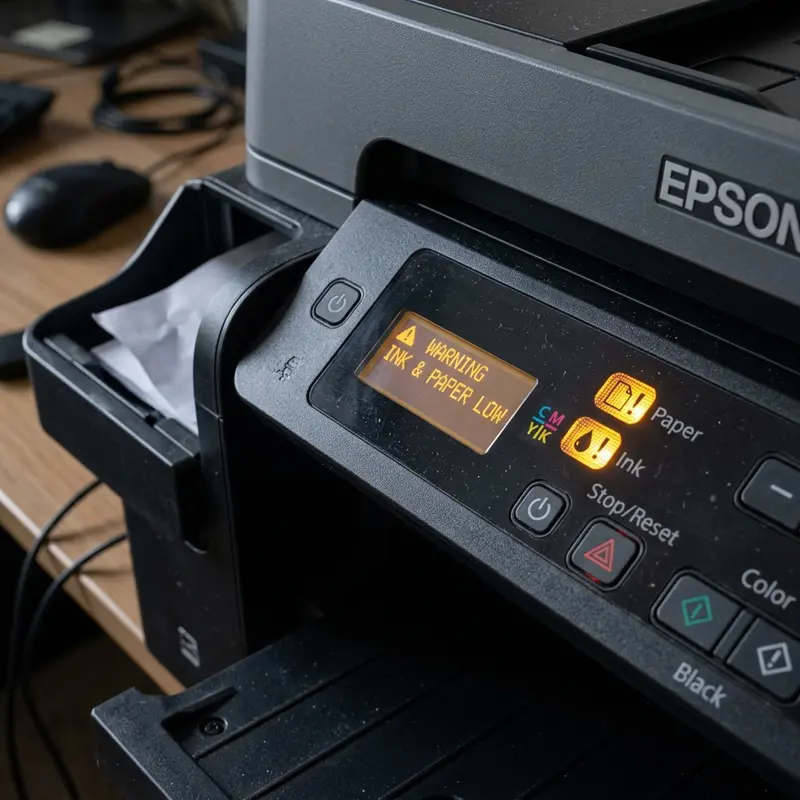
The Epson EcoTank L3250 is a popular multi-function inkjet printer celebrated for its low cost per page and overall reliability. However, with continuous operations, the physical drive parts, gears, and carriage systems can wear down, collect environmental dust, or slip out of alignment, resulting in unsettling mechanical noises. If your Epson L3250 printer is making a loud clicking, grinding, or strange noise, the primary cause is typically a foreign object blocking the carriage path, dirty or misaligned optical encoder strips, dried carriage guide rail lubrication, or worn-out stepper motor gears. Disregarding these abnormal noises can cause long-term mechanical damage, such as stretched drive belts, chipped gears, or board failures from stepper motor overload currents.
To fix these issues without immediately taking the printer to an authorized service shop, you can perform a systematic hardware evaluation. Sounds such as high-pitched squeaks, fast clicking, heavy slamming, and loud pops during boot-up point to distinct mechanical problems that require specific corrections. Understanding the physics of the carriage assembly, the paper feed mechanism (LD roller and separation pad), and the main gear train allows you to pinpoint the fault and restore quiet operations. In this comprehensive diagnostic guide, we will analyze the technical solutions for each potential noise source.
1. Common Triggers for Loud Clicking and Grinding in Epson L3250
Noises from an inkjet printer can be categorized by the physical sub-system involved: the carriage block assembly, the paper feed drive (LD roller, separation pad, and exit rollers), or the purge unit (the pump and wiper mechanism). These sub-systems are driven by plastic gear trains powered by high-precision DC or stepper motors controlled by the main logic board.
When the printer is powered on, it runs an initialization sequence called the Power-On Self-Test (POST). During this test, the mainboard sends electrical pulses to the stepper motors to verify sensor status. If the printhead carriage hits a physical obstruction along its guide rail or if the positioning encoder strip is dirty, the printer will keep driving the carriage assembly against the side frames. This generates a harsh grinding sound and loud clicking noises as the drive belt slips over the motor pulley teeth, causing premature gear wear.
Another common source of grinding is the paper feed roller (LD Roller) and its clutch. The feed roller features a textured rubber sleeve on a plastic drive shaft. If a small torn piece of paper or a small object (like paperclips, staples, hairpins, or rubber bands) falls into the top paper tray, it can lodge between the feed roller gears. When the drive motor attempts to turn the roller, the object blocks the gear teeth. The gears will jump under the pressure, producing a rhythmic clicking or grinding sound during paper loading.
2. The Optical Encoder Strip: How Dirt Causes Carriage Slamming
The encoder strip (also known as the timing fence) is a thin, semi-transparent plastic band positioned parallel to the metal carriage guide rail. It features thousands of tiny vertical lines printed on its surface that are invisible to the naked eye. An optical sensor (photointerrupter) mounted on the back of the printhead carriage wraps around this strip. As the carriage moves back and forth, the sensor reads the markings, transmitting fast positioning signals back to the mainboard processor to coordinate printhead movement down to the millimeter.
During normal operations, the high-speed piezo ink ejection process generates a fine ink mist inside the printer casing. Over time, this ink mist, mixed with paper dust and lint, settles onto the encoder strip. If a dark smudge of ink covers a section of the strip, the optical sensor will fail to read the markings. Without this feedback loop, the printer's logic board assumes the carriage hasn't moved and sends maximum voltage to the carriage motor to force it to the target position.
This reading error results in a violent collision: the carriage speeds across the rail and slams into the side frame of the chassis. This collision produces a loud pop or bang that can bend the steel guide rail or snap the rubber drive belt. If your carriage is slamming into the sides, you should clean the encoder strip with a clean, lint-free cloth or paper towel moistened with distilled water. Wipe the strip gently from one side to the other. Do not use isopropyl alcohol or harsh solvents on the encoder strip, as they can dissolve the printed timing markings, requiring a complete strip replacement.
3. Technical Breakdown of Stepper Motors and Gear Assemblies
The gears in the Epson L3250 are made of polyoxymethylene (POM), a high-durability engineering plastic selected for its rigidity and low friction. However, these gears can still suffer from abrasive wear or physical deformation under continuous stress. If clicking or grinding noises occur only when paper is pulled from the rear tray or ejected at the end of a cycle, the issue lies in the feed mechanism or the side gear train.
To inspect the gear train, disconnect the power cord and empty the paper tray. Use a flashlight to examine the left side of the printer chasis (where the main reduction gears are located). Look for chipped or broken gear teeth. If a single tooth on a drive gear is missing, it will create a distinct click or snap with every full rotation. This missing tooth also disrupts the timing of the paper advance, causing horizontal white banding across printed images and leading to frequent paper jams.
Additionally, the feed assembly includes a one-way clutch mechanism (frequently called the separation roller). This clutch ensures that only a single sheet of paper is fed into the printer path, preventing multi-sheet feeds. If paper dust accumulates inside this plastic clutch, it can bind in both directions. When the main shaft turns, the bound clutch creates excessive resistance, causing the drive gears to slip with loud clicks. Resolving this requires dismantling the feed roller assembly to clean and lightly lubricate it with plastic-safe silicone grease.
4. Inspecting the Paper Feed Path for Foreign Objects and Debris
Gravity makes the open, top-loading paper feed tray a prime target for small office items like coins, pens, paperclips, and staples. When an object falls into the rear slot, it slides down to the narrowest point, resting right against the rubber feed roller.
When the printer tries to load a sheet, the rubber roller presses the paper against the feed guide. If a foreign object is present, the roller will spin against it, generating a squealing or vibrating sound. The drive gears will click as the motor stalls under load, and the paper will immediately jam at the input point.
To safely remove these foreign objects without damaging the delicate plastic components of the L3250, follow this maintenance protocol:
- Power off the printer and disconnect the power plug and USB cable;
- Open the scanner unit and the internal access door to allow ambient light inside the printer chassis;
- Use a flashlight to look down into the rear paper slot. Gently push the plastic paper guide back to inspect the feed path;
- If you spot a foreign object, use long-reach tweezers or hemostats to lift it straight out. Do not use flathead screwdrivers to pry against the plastic guides, as this can crack them;
- If you cannot see the object, slide a sheet of heavy cardstock (around 180g or higher) down into the feed path manually. The stiffness of the thick paper will often push the trapped object through the path, dropping it out into the front output tray;
- For small, hard-to-reach objects, you may need to tip the printer upside down. Make sure to close the ink transport valve tightly and cap the ink tank vents to prevent leaks before turning the printer over to let gravity slide the object out.
If the printer displays ink-flow issues or if air bubbles form in the tubes after tilting the printer, refer to our troubleshooting guide on how to remove air from Epson L3250 ink tubes to restore steady ink delivery and prevent print quality drops.
5. Proper Lubrication and Rail Maintenance for the Carriage Block
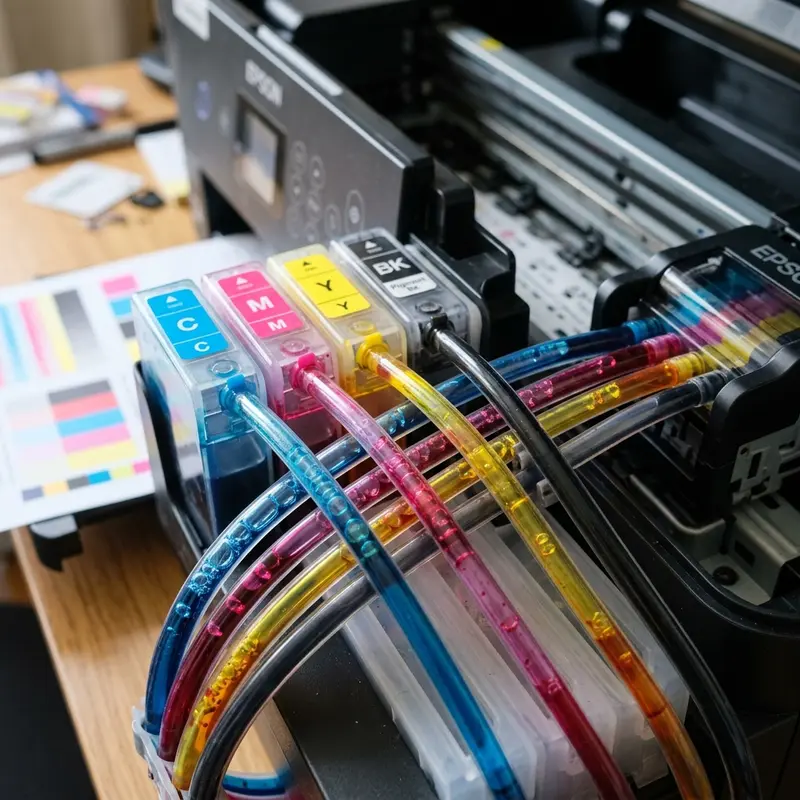
The printhead carriage moves back and forth at high speeds along a polished steel guide rail. To keep friction low, this rail must remain properly lubricated. Epson applies a high-viscosity, anti-static silicone grease at the factory, but over months of operation, paper fibers and dust mix with this grease, turning it into a dry, abrasive paste.
When the rail dries out, the carriage encounters physical resistance as it slides. This forces the carriage motor to draw more current to move the printhead. The overworked stepper motor will emit a high-pitched whine or grinding noise. This extra resistance also causes micro-vibrations in the carriage block, which can cause text and image misalignment. If friction levels exceed safety limits, the printer's firmware will trigger a carriage jam error and flash the control panel lights.
To clean and lubricate the guide rail, follow these steps:
- Turn off the printer and move the carriage manually to the center. If it is locked in the home position (on the far right), turn the printer on and unplug the power cord as soon as the carriage starts moving to the left, freeing it from the lock;
- Use a clean paper towel dampened with a few drops of high-purity isopropyl alcohol (99%) to clean the metal guide rail. Wipe away the old, darkened grease and contaminants until the steel shines;
- Apply a small dab (about the size of a grain of rice) of high-viscosity silicone grease or PTFE (Teflon) grease onto the guide rail surface. Do not use household oils, automotive grease, or spray penetrants (like WD-40), as they evaporate quickly, attract dust, and can damage the plastic bushings on the carriage block;
- Manually slide the carriage block back and forth along the rail about 10 times to spread the grease evenly across the rail and into the internal bushings;
- Plug the power cord back in and run a test print to confirm the carriage moves quietly and smoothly.
Keeping these mechanical components clean and lubricated also ensures your printer is ready for daily operations. If you need help setting up the printer on your wireless network, read our guide on how to connect the Epson L3250 to Wi-Fi from your phone for step-by-step instructions.
6. Diagnostic Matrix: Noise Types, Probable Causes, and Fixes
Use the matrix below to identify the source of the noise your printer is making and the recommended corrective action:
| Noise Description | When it Occurs | Probable Cause | Recommended Solution |
|---|---|---|---|
| Loud Bang/Slam | Right after powering on | Carriage slamming into frames due to dirty encoder strip | Gently wipe the clear encoder strip with a dry, lint-free cloth. |
| Rhythmic Clicking | During paper loading | Foreign object blocking the rear feed roller path | Use a flashlight to check the feed path and remove debris with tweezers. |
| Harsh Grinding | Throughout the print cycle | Chipped or worn teeth in the gear drive assembly | Inspect the plastic gear cluster on the left side for physical damage. |
| High-Pitch Squeak | As carriage moves back and forth | Dry steel guide rail causing high friction | Clean the metal rail with isopropyl alcohol and apply silicone grease. |
| Loud Pop at End | As paper exits the printer | Obstruction in front exit path or dislodged roller spring | Inspect the exit tray area and verify the star-wheel rollers are in place. |
Post-Maintenance Alignment and Testing Procedures
Once you have cleaned the encoder strip, lubricated the guide rail, or removed a foreign object from the paper path, you must recalibrate the printer. The friction or collisions occurred before could have thrown off the printhead alignment or modified the paper feed parameters of the logic board.
To run the printhead alignment tool, ensure you have standard paper loaded. On your computer, open the Control Panel, go to "Devices and Printers", right-click on the Epson L3250 icon, and select "Printing Preferences". Navigate to the "Maintenance" tab and click "Print Head Alignment". The utility will print a test sheet featuring numbered patterns. Select the pattern in each column that has the fewest visible lines or gaps. Repeat this for the horizontal and bidirectional alignment steps to ensure high-quality prints.
It is also a good idea to perform a nozzle check from the same Maintenance menu. If the printer was stuck for a while due to physical paper jams or collisions, ink on the nozzles might have dried. Running a nozzle check will show if all colors are flowing properly, preventing banding or gaps in post-maintenance prints.
Frequently Asked Questions
Why does my Epson L3250 make a loud banging noise when it turns on?
A loud banging noise when turning on is usually caused by the carriage slamming into the side of the printer frame. This happens when the encoder strip is dirty or smudged with ink, preventing the optical sensor from reading the position and causing the carriage motor to drive the printhead past its physical boundaries.
Where is the encoder strip on the Epson L3250 and how do I clean it?
The encoder strip is a thin, clear plastic ribbon that runs horizontally across the inside of the printer, just behind the metal guide rail. Clean it by wiping it gently with a dry, lint-free paper towel from one side to the other. Do not pull on it to avoid dislodging the tension springs.
Can I use WD-40 to lubricate the printer carriage guide rail?
No. Spray lubricants like WD-40 contain solvents that can degrade plastic components, dissolve the original lubricant in the bushings, and dry out very quickly. Always use a high-viscosity silicone grease or PTFE-based grease designed specifically for office equipment.
What should I do if a coin or paperclip falls into the rear paper tray?
Unplug the printer from the wall immediately to prevent gear damage. Use a flashlight and long tweezers to inspect the rear paper feed path. Carefully extract the object. If you cannot reach it, slide a piece of heavy cardstock through the path to push the object out into the exit tray.




