How to Print on Heavy Cardstock Paper with Epson L3250 (Feed Fix)
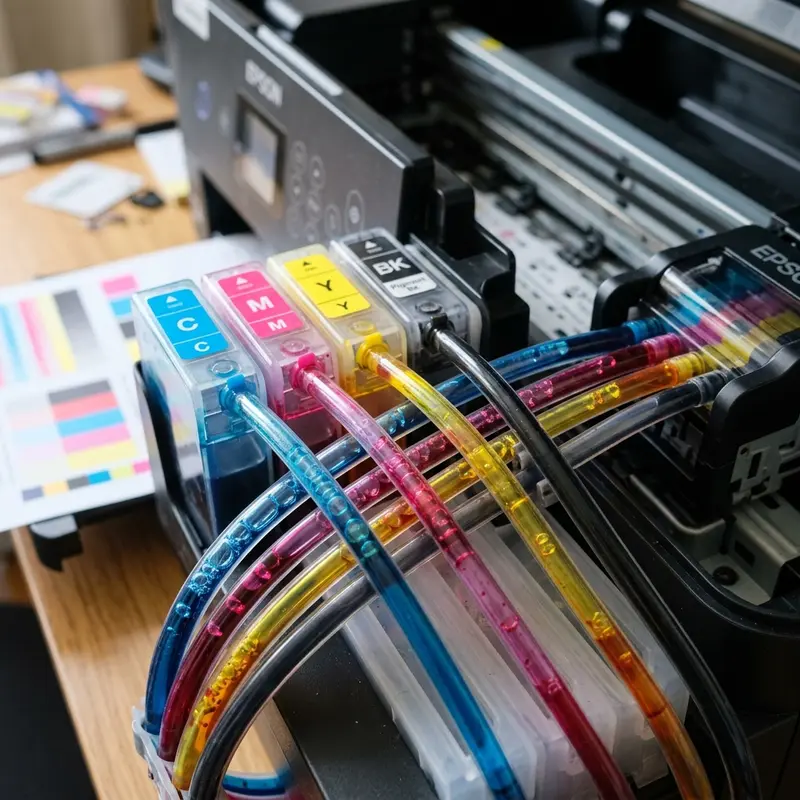
The Epson EcoTank L3250 is widely appreciated for its cost efficiency and versatility in daily document printing. However, when trying to print wedding invitations, certificates, business cards, or craft projects on thicker papers — such as opalina, cardstock, or high-grammage glossy photo paper —, users often encounter mechanical paper feed errors where the printer makes noise but fails to pull the sheet, or gets the paper stuck halfway through. This behavior is not a hardware defect, but rather a limitation of the feed roller traction friction and driver settings. To make the Epson L3250 printer pull thick, heavy-grammage cardstock paper, clean the rear rubber pickup roller with isopropyl alcohol to restore grip, slide the grey paper guide tightly against the left edge of the sheet, feed only one sheet at a time into the rear tray, and change the print settings to "Premium Presentation Paper Matte" or "Photo Paper".
Adjusting the physical alignment of the paper and tweaking the printer driver to instruct the motor to feed slower with higher torque are the key steps to resolve this. For other common home appliance troubleshooting, you can read our technical guide on the Liectroux C30B robot vacuum beeping error or check if a Wi-Fi security camera consumes a lot of data.
1. Weight Limits and Physics of the L3250 Traction Mechanism
Officially, Epson states in the technical manual that the maximum paper weight supported by the EcoTank L3250's rear feed tray is 90 g/m² (24 lb) for plain paper and up to 256 g/m² (68 lb) for Epson original photo papers. However, it is physically possible to print on flexible matte or satin sheets of up to 240 g/m² or 300 g/m² (such as heavy offset cardstock or opalina) if the surface friction coefficient is favorable and the rubber rollers are clean.
Paper traction in the L3250 is driven by a DC stepper motor, an optical rotary encoder disc, and a rubber pickup roller assisted by a spring-loaded separation pad. When the motor rotates the pickup roller, the separation pad spring presses the paper against the rubber to create friction. If the cardstock is too rigid (high longitudinal bending stiffness), the spring force cannot bend the paper sheet slightly to slide down the printer's internal plastic ramp. The rubber roller will slip on the paper's smooth surface without traction, generating heat from friction and wearing down the microscopically porous rubber surface of the roller.
2. Physical Steps to Feed Thick Paper
To bypass the mechanical friction issue and guide thick paper correctly through the Epson L3250's vertical feed path, apply these manual adjustments:
Adjustment 1: Cleaning the Pickup Roller
Over time, microscopic paper dust and cellulose residue from plain paper accumulate in the pores of the rubber pickup roller, making it smooth and slippery. Unplug the printer. Dampen a lint-free cloth or cotton swab with isopropyl alcohol (or distilled water). Reach into the rear paper tray slot and clean the grey rubber roller, rotating it manually to clean its entire surface. Let it dry for 5 minutes.
Adjustment 2: Aligning the Paper Guide and Flattening the Sheet
Place only one sheet of thick paper at a time in the tray. Never load a stack of heavy cardstock, as the separator mechanism will fail. Slide the grey plastic edge guide snugly against the left side of the paper to keep it straight. If the paper has a slight curl from humidity or storage, gently bend it in the opposite direction with your hands to make it as flat as possible before feeding.
Adjustment 3: Light Manual Assist
When you initiate printing, the printer's logic board triggers three quick feeding attempts. Stand by the printer, and as soon as the pickup roller begins to spin (making the mechanical feeding noise), apply light, constant downward pressure with your hand at the top edge of the paper. This slight manual push helps the rubber roller overcome the initial inertia of the thick cardstock and pass the internal plastic ramp.
| Paper Weight | Feeding Recommendation | Driver Setting | Requires Manual Push? |
|---|---|---|---|
| 75 g/m² to 90 g/m² (Plain Paper) | Standard batch (up to 100 sheets in tray) | Plain Paper | No |
| 120 g/m² to 180 g/m² (Light Opalina / Photo) | Small batches (up to 5 sheets in tray) | Premium Presentation Paper Matte | Rarely |
| 220 g/m² to 300 g/m² (Heavy Opalina / Kraft) | Single sheet (1 at a time) | Ultra Presentation Paper Matte or Glossy | Yes (Apply a light downward push during paper pull) |
3. Driver Configuration: Adjusting Motor Torque
The printer driver on Windows or macOS does not just handle color management; it sends control codes that regulate the stepping motor's rotation speed and torque. If you print under the "Plain Paper" profile, the printer assumes the paper is thin and runs the rollers at high speed, causing the rubber to slip on heavy cardstock and triggering a "Paper Out" error.
To avoid this, adjust the driver settings in the printing preferences before sending the job:
- Change the "Paper Type" (Media Type) from "Plain Paper" to "Premium Presentation Paper Matte" or "Ultra Presentation Paper Matte" (even if your cardstock is a standard matte sheet). This setting tells the firmware that the paper is thick. The printer will slow down the rotation of the pickup roller by 50% and increase the motor's magnetic torque, facilitating a steady grip.
- Set the Print Quality to "High". This slows down the print head carriage speed across the paper, reducing the risk of the head rubbing against the heavy sheet.
- If the paper is thick enough that the print head scrapes the edges of the sheet during printing, open the driver's "Maintenance" tab, click "Extended Settings," and check the "Thick Paper and Envelopes" box. This physically raises the carriage height by a couple of millimeters to prevent head strikes.
4. Safeguards to Protect the Print Head
Printing on high-grammage cardstock requires extra precautions to avoid clogged nozzles or physical damage to the print head:
- # Avoid Rigid Board-Like Materials: Rigid boards (like book binding boards or greyboard) cannot bend around the printer's internal curves. Feeding them will jam the feed path and strip the plastic gears. Only print on cardstock that remains flexible.
- # Do Not Pull Jammed Paper Upwards: If a sheet gets stuck halfway, never pull it backwards out of the rear tray. Always pull it forwards in the direction of output after turning off the printer to avoid stripping the separation mechanism.
- # Avoid Fibrous Papers: Cheap, textured handmade papers shed lint inside the carriage, clogging the ink nozzles and requiring extensive print head cleaning cycles.
Adjusting Feed Roller Pressure and Tension Springs for Heavy Media
The physical feed mechanism of the Epson L3250 relies on a tension spring to press the paper against the pickup roller. When feeding heavy cardstock, the thickness of the sheet pushes the spring back, reducing the grip of the rubber roller. If misfeeds occur, gently guide the paper manually from the top tray during the initial feed cycle. This provides the necessary downward force to help the rollers grab the thick cardstock, preventing feed errors.
Using Cardstock Templates and Custom Layout Profiles in Print Drivers
Standard paper presets in driver options are optimized for thin A4 paper sheets. Printing cardstock using these presets can result in printhead strikes. To fix this, create a custom layout profile in your printer driver settings. Set the paper size manually and configure the media type to 'Thick Paper' or 'Envelope'. This tells the firmware to adjust carriage speed and margin spacing, reducing printing errors and smudges.
Avoiding Drive Gear Slippage When Processing Heavy Linen Paper
Linen paper has a textured surface that requires more torque to feed. If the gears slip during feeding, check for paper dust build-up. Wipe the gear tracks with a dry cloth to ensure the motor can drive the rollers smoothly, and avoid loading too many sheets at once into the input slot. This prevents gear damage and extends the life of the feed motor.
The Role of Symmetric Rear Tray Paper Guides in Preventing Misfeeds
Successfully feeding heavy cardstock relies on the alignment of the plastic paper guides in the rear input tray of the Epson L3250. If the guides pinch the paper too tightly, the added friction stops the pickup roller from drawing the sheet down, triggering a paper out error. If they are too loose, the paper feeds at an angle, causing skewing or internal paper jams. Adjust the guides so they touch the edges of your media lightly, allowing the sheet to sit flush against the entry slot.
Environmental Humidity and Its Effect on Cardstock Surface Friction
Thick media like 240gsm cardstock absorbs ambient moisture easily in humid environments. Damp paper fibers swell, increasing surface friction and causing sheets to stick together. To prevent multi-sheet feeds or roller slippage on your Epson L3250, store your cardstock in its original plastic wrap until use. If sheets feel damp, fan the stack before placing them in the feeder to break static bonds and dissipate trapped moisture.
Regular Maintenance of the Paper Feed Separation Pad
The separation pad is a small cork or rubber strip located opposite the pickup roller that prevents multiple sheets from feeding at the same time. Over time, the pad's surface becomes smooth or coated with paper dust, reducing its effectiveness. Clean the separation pad with a dry microfiber cloth to restore its texture. If the printer continues to pull multiple sheets of cardstock, the separation pad may need replacement.
Checking Drive Gears Alignment Inside the Rear Paper Feed Tray
The physical gears inside the rear feed tray must align properly to pull cardstock. Over time, heavy sheets can put stress on these gears, causing them to slip or grind. If you hear clicking sounds, check the gear teeth for blockages. Keeping the gears clean ensures the motor can drive the rollers smoothly without jams. This preventative step extends the life of the feed gears and reduces feeding failures.
Setting Proper Separation Margins and Printing Speeds for Cardstock
Cardstock requires slower printing speeds to allow the printhead to apply ink accurately without smearing. In your printer driver properties, change the print speed setting to 'High Quality' or 'Fine'. This slows down the paper feeding rollers and carriage assembly, ensuring clean alignment and reducing mechanical stress on the paper tracionador feed wheels during printing.
Checking for Mechanical Wear on the Paper Feed Cam Assembly
The paper feed tray on the Epson L3250 uses a series of plastic cams and gears to lift the paper stack against the pickup roller. Over time, feeding heavy cardstock can cause the cam gears to slip out of alignment, reducing the lifting pressure. If you hear grinding noises during feeding cycles, inspect the tray mechanisms for worn teeth. Maintaining proper gear alignment ensures that thick cardstock is lifted correctly, allowing the rollers to grab the sheet without slipping.
Cleaning the Paper Feed Roller and Separation Pad to Avoid Cardstock Slippage
When printing on heavy cardstock sheets or thick paper media, a common issue is roller slippage, where the rubber pickup roller spins on the paper surface without pulling it down. This is usually caused by microscopic paper fibers, clay coating residue, or dust building up on the roller's surface over time, reducing its grip. To restore traction, turn off the Epson L3250 and unplug the power cable. Open the rear input tray cover and locate the rubber feed roller. Dampen a lint-free cotton swab with isopropyl alcohol and gently wipe the rubber surface, rotating it manually to clean all sides. Let the roller dry for ten minutes before reloading your cardstock. This simple maintenance task restores grip and prevents feed errors.
Configuring Custom Layout Presets and Thickness Profiles in Driver Settings
Standard print drivers are optimized for standard copier paper, which has a thin thickness and low friction coefficient. Feeding thick cardstock through these default profiles can cause alignment errors or smudges because the carriage height is not configured for thicker media. To fix this, open your print settings, select 'Custom Settings', and create a unique profile for your cardstock. Adjust the media thickness setting to its highest level and configure the paper type to 'Thick Paper' or 'Envelope'. This slows down the stepper motor and adjusts the spacing between the printhead and the paper, ensuring clean ink application and preventing carriage strikes.
Frequently Asked Questions (FAQ)
What is the absolute maximum paper weight for the Epson L3250?
The Epson L3250 officially supports up to 90 g/m² for plain paper and 256 g/m² for Epson photo papers. However, by cleaning the feed roller and setting the driver to "Ultra Presentation Paper Matte", you can print on flexible matte cardstocks of up to 240 g/m² or 300 g/m² when feeding one sheet at a time.
Why does the printer feed multiple sheets of thick paper at once?
This is usually caused by electrostatic charge or humidity making the sheets stick together. Fan the pages before loading them, or feed the cardstock one sheet at a time into the rear tray.
Can I print on 180g Opalina paper with the Epson L3250?
Yes, 180g (65 lb) Opalina paper is fully compatible with the Epson L3250. Make sure the paper guide is set snugly against the sheet and choose the Premium Matte profile in your printing preferences for a reliable feed.




