How to Use a Drawing Tablet for Office Productivity and Note-Taking
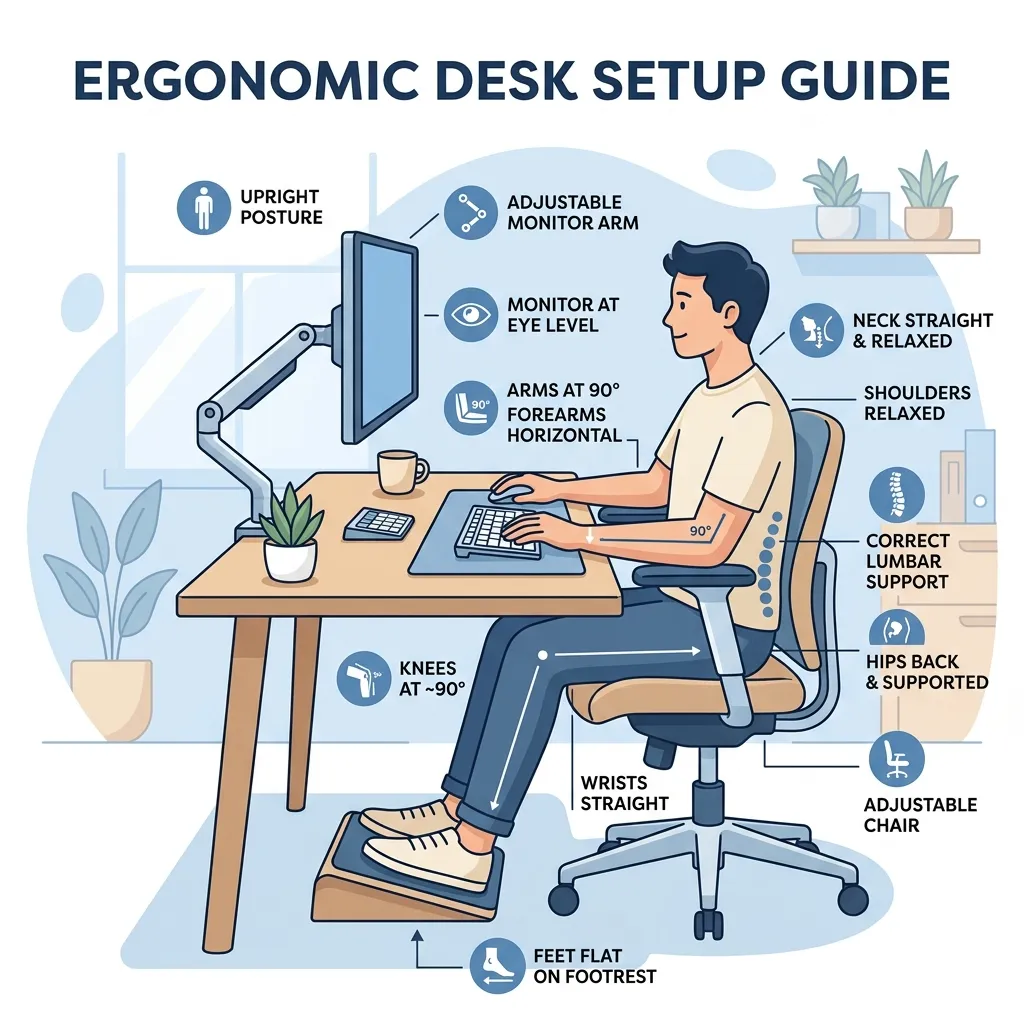
Using a drawing tablet can significantly enhance office productivity and streamline note-taking processes.
Ergonomics of Drawing Tablets
Ergonomics plays a crucial role in selecting a drawing tablet for office tasks. A tablet with an adjustable stand or a comfortable tilt can minimize wrist strain during prolonged use.
Performance Specifications
Performance metrics such as pressure sensitivity and response time are vital. Tablets with at least 2048 levels of pressure sensitivity offer more control, improving the overall user experience.
Material Composition
The materials used in tablet construction affect durability and feel. Tablets made from high-quality plastics or aluminum tend to last longer and provide a premium touch.
Design Aspects
A compact and lightweight design enhances mobility, enabling easy transport between workspaces. Tablets with customizable buttons can streamline workflows by providing quick access to frequently used tools.
Brand Comparisons
Popular brands such as Wacom, Huion, and XP-Pen offer diverse options. Wacom’s Intuos Pro series is renowned for professional use, while Huion offers budget-friendly alternatives with commendable performance.
| Brand | Model | Pressure Sensitivity | Size | Price |
|---|---|---|---|---|
| Wacom | Intuos Pro | 8192 levels | Small, Medium, Large | $199 - $379 |
| Huion | Kamvas Pro | 8192 levels | 13.3", 16" | $299 - $499 |
| XP-Pen | Artist 15.6 | 8192 levels | 15.6" | $299 |
DomineTec Tip: Adjust screen height and tablet angle to align with the natural position of the forearm to improve comfort.
- Choose a drawing tablet with appropriate size and pressure sensitivity for personal workflow.
- Ensure the tablet is compatible with note-taking and productivity software.
- Set up a dedicated workspace to maintain focus and reduce distractions.
- Utilize customizable buttons for quick access to frequently used functions.
- Regularly take breaks to avoid strain and maintain productivity.
For optimal typing experience, consider choosing mechanical keyboard switches that suit personal preferences. Also, pairing the drawing tablet with an ergonomic office chair can enhance comfort during work.
Integration with Software Tools
Drawing tablets can significantly enhance productivity when integrated with various software tools. Applications like Microsoft OneNote, Adobe Acrobat, and Notability allow users to leverage the full potential of drawing tablets for note-taking and document editing.
These software tools provide features such as handwriting recognition, customizable brushes, and layering options. Users can create detailed diagrams or annotate PDFs seamlessly, making collaboration more efficient.
Many drawing tablets come with software bundles that include useful applications for productivity. Familiarizing oneself with the shortcuts and features of these software applications can maximize productivity while using a drawing tablet.
Battery Life and Charging Options
Battery life is a crucial aspect of drawing tablets, especially for those using them for prolonged periods. Many modern tablets offer impressive battery life, allowing users to work without frequent interruptions.
Charging options vary among different models, with some featuring quick charge capabilities and others requiring more extended charging times. Understanding these options can help users plan their work sessions effectively.
It is important to consider whether the tablet uses a built-in battery or removable batteries, as this can influence how easily users can replace or upgrade their devices over time.
Customization and Personalization
Customization options are a key advantage of using a drawing tablet. Users can often adjust pen sensitivity, button functions, and display settings to suit their individual preferences and work styles.
Many tablets allow users to create personalized shortcuts for frequently used tools or commands, streamlining the workflow and significantly reducing the time spent on repetitive tasks.
Exploring the customization settings available through the tablet’s software can unlock a range of features that enhance productivity and user comfort.
Security Features and Data Protection
As drawing tablets increasingly become integral to office productivity, security features are paramount. Many modern tablets include built-in encryption and secure access options to protect sensitive data.
Users should consider devices that offer biometric authentication, such as fingerprint scanners or facial recognition. These features provide an additional layer of security for confidential work-related documents.
Establishing a routine for data backup and protection is highly recommended to ensure that important notes and projects remain secure and accessible.
Comparative Cost Analysis
When considering a drawing tablet for office productivity, it is essential to conduct a comparative cost analysis. Prices can vary widely based on features, brand, and specifications.
Budget-friendly options can still offer excellent functionality, while premium models may provide advanced features that justify their higher price tags. Assessing the cost-to-benefit ratio is vital in this decision-making process.
Exploring second-hand or refurbished options can also be a cost-effective way to acquire high-quality drawing tablets without exceeding budget constraints.
User Community and Support Resources
Engaging with the user community can provide valuable insights and tips for maximizing the use of drawing tablets. Online forums, social media groups, and dedicated websites often host discussions where users share their experiences and challenges.
Many manufacturers also offer robust support resources, including tutorials, troubleshooting guides, and customer service channels. Utilizing these resources can help users resolve issues and enhance their understanding of the device.
Future Trends in Drawing Tablet Technology
The future of drawing tablet technology is promising, with advancements expected to enhance functionality and user experience. Emerging technologies such as augmented reality (AR) and artificial intelligence (AI) are likely to play significant roles in the development of new features.
Manufacturers are focusing on improving display quality, with higher resolutions and better color accuracy becoming standard in newer models. These advancements can enhance the visual experience for users engaged in detailed work.
Staying informed about these trends can help users make strategic decisions about their drawing tablet investments, ensuring they are equipped with the latest and most effective tools for productivity.
Accessibility Features in Drawing Tablets
Accessibility features in drawing tablets can significantly enhance productivity for users with disabilities. Many models offer customizable button layouts, allowing users to configure their tablet according to specific needs.
Voice command integration and on-screen text recognition can further streamline the workflow for those who struggle with traditional input methods.
Multi-Device Connectivity
Multi-device connectivity is a crucial feature for maximizing the utility of drawing tablets in an office setting. Many tablets now support Bluetooth and Wi-Fi connections, allowing seamless switching between devices like computers, smartphones, and even smart TVs.
This capability enables users to maintain a continuous workflow, as they can easily transfer files and sync applications without interruptions.
Environmental Considerations
As sustainability becomes a focal point in technology, the environmental impact of drawing tablets is worth considering. Manufacturers are increasingly adopting eco-friendly materials and packaging, which reduces the overall carbon footprint of their products.
Some companies also engage in recycling programs, allowing users to dispose of old devices responsibly.
Learning Curve and User Training
The learning curve associated with drawing tablets can vary widely based on individual experience and the complexity of the software used. Many brands offer extensive online tutorials and user manuals to facilitate the onboarding process for new users.
Workshops and webinars are also available, providing hands-on training that can significantly shorten the learning period.
Enhancing Workflow with Drawing Tablets
Drawing tablets can significantly enhance workflow by enabling seamless transitions between tasks. Users can annotate PDFs, create diagrams, and take notes without the need for multiple devices.
The ability to use stylus pressure sensitivity allows for more precise interactions compared to traditional mouse input. This precision can lead to more efficient task completion and improved accuracy in digital documents.
Optimizing Note-Taking Techniques with Drawing Tablets
Effective note-taking is crucial for productivity, and drawing tablets provide unique advantages in this area. The ability to write directly on the screen mimics traditional pen-and-paper methods while adding digital enhancements.
Incorporating features like handwriting recognition can further optimize the note-taking process. This technology converts handwritten notes into typed text, making it easier to search and organize information later.
Creating a Personalized Digital Workspace
Personalization is an essential aspect of productivity, and drawing tablets allow users to customize their digital workspace to fit their individual needs. Users can set up multiple profiles with different settings based on specific tasks or projects.
Creating a workspace that feels personal and intuitive can lead to increased motivation and productivity. The psychological benefits of a tailored environment should not be underestimated in the pursuit of office efficiency.
Using Stylus Features for Enhanced Productivity
The stylus is a crucial component of drawing tablets, offering various features that can enhance productivity significantly. Pressure sensitivity allows users to create lines of varying thickness based on how hard the stylus is pressed against the tablet surface.
Many advanced styluses come equipped with programmable buttons that can be customized for specific tasks. These buttons can be assigned shortcuts for frequently used commands, streamlining the workflow and minimizing the time spent navigating through menus.
Collaborative Features of Drawing Tablets in Office Environments
In modern office settings, collaboration is key, and drawing tablets offer various features that facilitate teamwork. Many tablets support multi-user functionality, allowing several individuals to work on a project simultaneously.
Cloud integration is another essential feature that enhances collaboration. Most drawing tablets allow users to save their work directly to cloud services, making it accessible from any device.
Troubleshooting Common Issues with Drawing Tablets
Troubleshooting drawing tablets requires a systematic approach to identify and resolve common issues that may arise during usage. Users often encounter problems such as unresponsive stylus, driver conflicts, or connectivity issues that can hinder productivity.
The first step in troubleshooting an unresponsive stylus is to check the battery if it is a rechargeable model. For non-rechargeable styluses, replacing the battery is essential. If the stylus is charged but remains unresponsive, recalibrating the device may be necessary, often done through the tablet’s settings menu or the companion software.
Driver conflicts are another common cause of issues, particularly when multiple devices are connected to the same computer. It is advisable to uninstall any previous tablet drivers and reinstall the most current version from the manufacturer's website to ensure compatibility with the operating system.
If connection issues occur, verifying the USB or Bluetooth connection is critical. For wired connections, switching cables or ports may resolve the issue, while for wireless devices, ensuring that the tablet is paired correctly with the computer is essential.
Best Practices for Maximizing Productivity with Drawing Tablets
Maximizing productivity with drawing tablets involves strategic usage and understanding the features that enhance workflow. Establishing a consistent setup that includes optimal screen positioning and desk organization can significantly impact working efficiency.
Utilizing customizable shortcut buttons on the tablet or stylus can streamline interactions with software applications. Assigning frequently used commands, such as undo or zoom, to these buttons minimizes the need for keyboard use, allowing for a more fluid drawing and note-taking experience.
Incorporating layers and grouping in note-taking applications can also enhance productivity. This allows users to separate different aspects of their notes, making it easier to manage content and review information without clutter.
Regularly updating software and device firmware ensures that the drawing tablet operates with the latest features and improvements. Users should also take advantage of built-in tutorials or community forums to learn new techniques and software tips that can further improve their productivity.
Troubleshooting Specific Errors with Drawing Tablets
Troubleshooting errors with drawing tablets often begins with identifying the nature of the issue. Common problems include unresponsive stylus inputs, calibration issues, or software compatibility challenges.
For unresponsive stylus inputs, the first step is to ensure that the tablet is properly connected to the computer. Check the USB connection or Bluetooth pairing and make sure that all drivers are up to date by visiting the manufacturer's website for the latest software releases.
If the stylus is recognized but does not register pressure sensitivity, recalibrating the tablet may resolve the issue. This can usually be done through the tablet's settings menu or by accessing calibration options within the drawing software being utilized.
Software compatibility issues can arise when using drawing tablets with various operating systems. It is advisable to ensure that the tablet's drivers are compatible with the current OS version and to check for specific settings within the drawing software that may need to be adjusted.
In some cases, resetting the tablet to factory settings may be necessary. This process varies by manufacturer; however, it generally involves holding down a specific button or combination of buttons while powering on the device.
Best Practices for Secure Use of Drawing Tablets
Implementing secure practices while using drawing tablets can significantly mitigate risks associated with unauthorized access. One fundamental practice is to enable password protection or biometric authentication on the tablet, ensuring that only authorized users can access sensitive data.
Regularly updating firmware and driver software is another essential practice. Manufacturers frequently release updates that not only enhance functionality but also address security vulnerabilities, so keeping the tablet updated is crucial.
Utilizing secure connections is also a best practice when working with cloud storage or sharing files. Using a VPN can help encrypt data during transmission, providing an additional layer of security for sensitive projects or confidential notes.
Furthermore, regular backups should be conducted to prevent data loss. Utilizing both local storage and cloud solutions can safeguard against hardware failures or accidental deletions, ensuring that important work remains accessible.
Frequently Asked Questions
What size drawing tablet is best for office use?
A medium-sized drawing tablet typically offers a good balance between workspace and portability.
Can drawing tablets replace traditional note-taking?
Yes, with the right software, drawing tablets can effectively replace traditional note-taking methods.
Do drawing tablets require specific software?
Most drawing tablets are compatible with a range of software, including Adobe Creative Suite and note-taking applications.
Is pressure sensitivity important?
Higher pressure sensitivity allows for greater control and precision in drawing or writing tasks, making it more desirable.
How do I maintain my drawing tablet?
Regular cleaning with a soft cloth and avoiding extreme temperatures can help maintain the tablet's functionality and appearance.




