How to Connect Two Routers Wirelessly on the Same Network
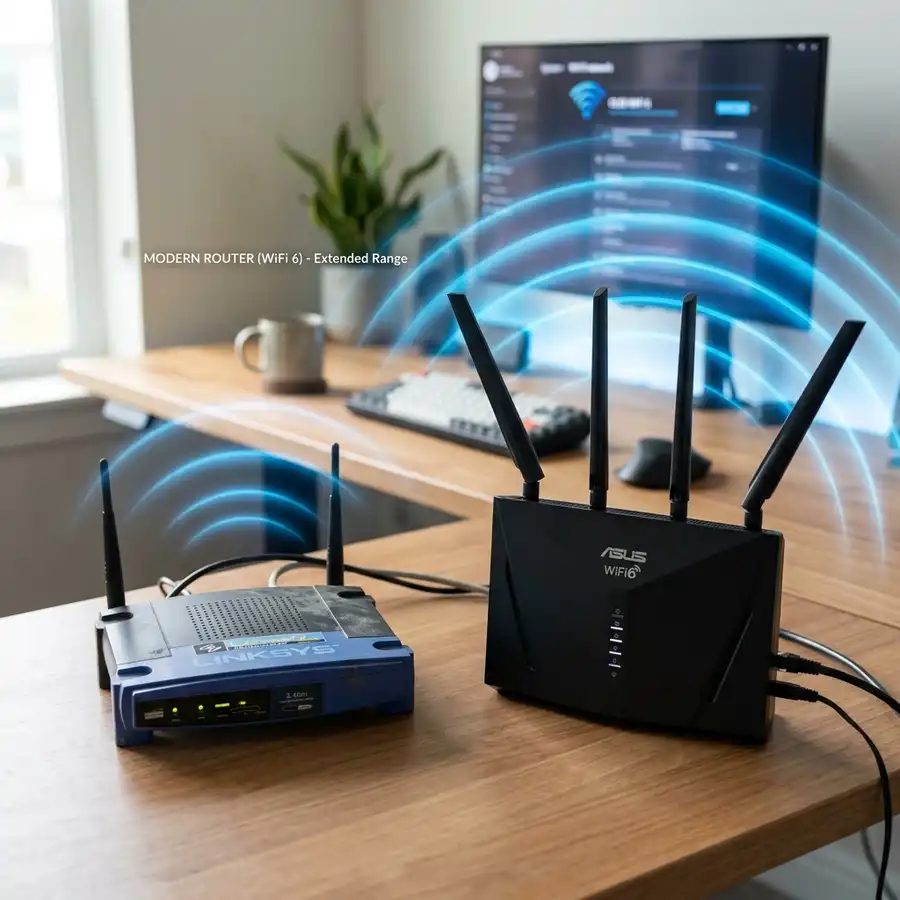
Expanding internet coverage in homes or offices is one of the most common challenges in local area networks. In many cases, the wireless signal from the primary gateway provided by the ISP cannot pass through thick walls or cover multiple floors. To resolve this issue without the hassle of running physical Ethernet cables, you can use a second wireless device. To connect two routers wirelessly on the same network without a cable, you must configure the secondary router in Universal Repeater mode or enable its WDS (Wireless Distribution System) bridge feature, assign it a static LAN IP within the primary subnet (such as 192.168.1.2), disable its DHCP server, and match the wireless channel, security protocol, and password of the primary router.
This wireless configuration is ideal for tenants in rental properties or locations where drilling walls to install conduits is not allowed. When configured correctly, the secondary device acts as a wireless bridge, receiving the radio signal from the main router and retransmitting it to previous dead zones. Throughout this guide, we will analyze the technical details, protocols, and steps required to build a stable wireless link between two routers.
1. The Challenge of Expanding Wi-Fi Coverage Without Physical Cables
Wireless local networks transmit data using high-frequency electromagnetic waves, specifically in the 2.4 GHz and 5 GHz bands. As these waves travel through a building, they encounter physical barriers. Materials commonly found in modern construction, such as solid concrete, brick walls, metal frames, and glass windows, cause significant signal attenuation or reflection. For instance, a standard brick wall can reduce signal strength by 3 dB to 5 dB, while a reinforced concrete slab can attenuate the signal by up to 15 dB or more. This creates Wi-Fi dead zones where devices suffer from low throughput and packet loss. Additionally, signal diffraction occurs when waves bend around corners, creating areas of high phase distortion and multipath interference, where the receiver gets multiple copies of the same signal at slightly different times, causing data corruption.
While installing copper Ethernet cables (such as Cat6) is the industry standard for network expansion, it is not always practical. A wireless link between two routers is a flexible alternative. It allows you to place a secondary router at a midpoint where the signal from the primary router is still strong. The secondary router receives this signal and broadcasts it to the dead zone, extending your coverage area without needing a wired connection. This method saves you the labor costs of running physical lines through walls and maintains clean aesthetics throughout your home or office space.
2. Understanding Wireless Modes: Universal Repeater, WDS, and Mesh Systems
Before configuring your hardware, it is important to understand the different wireless operation modes. Each mode has distinct performance characteristics, protocols, and hardware compatibility requirements:
- Universal Repeater Mode: In this mode, the secondary router connects to the primary router as a client device (similar to a smartphone). It then creates a new wireless network to repeat the signal. This mode is compatible with almost all router brands and models, making it a highly flexible solution.
- Wireless Distribution System (WDS): WDS is a standard that allows the wireless interconnection of access points in an IEEE 802.11 network. Unlike standard repeater mode, WDS preserves the original MAC addresses of connected client devices. This makes network management easier and avoids compatibility issues with services that track client MAC addresses. However, WDS often requires routers to use compatible wireless chipsets.
- Wireless Mesh Systems: Mesh networks use advanced dynamic routing protocols (such as 802.11s) to coordinate multiple access points. The nodes communicate with each other dynamically to find the best path for data. This provides seamless roaming and high performance. However, Mesh systems are more expensive and generally require devices from the same manufacturer.
3. Hardware Requirements and Site Survey Best Practices
Proper planning is key to a successful wireless bridge configuration. First, check the IP addresses of both routers. Most manufacturers use default IPs like 192.168.1.1 or 192.168.0.1. If both routers use the same IP address on the same network, it will cause an IP address conflict, preventing devices from communicating. You must assign the secondary router a unique static IP address within the primary subnet.
Next, determine the best physical location for the secondary router. Do not place it directly in the dead zone, as it will not receive a strong enough signal to repeat. Place it at a midpoint where the signal from the primary router is still strong (ideally around -65 dBm to -70 dBm). To accurately measure this, you can perform a professional site survey using free software tools like NetSpot, Wi-Fi Analyzer, or inSSIDer on your laptop or smartphone. These tools measure the Received Signal Strength Indicator (RSSI) in decibels relative to one milliwatt (dBm). A reading between -30 dBm and -60 dBm is excellent, while anything below -80 dBm is unusable for establishing a stable, high-throughput wireless bridge. Finding the sweet spot where the signal is strong enough, but far enough to cover the dead zone, is the most critical step of this installation process.

4. Step-by-Step Guide: Configuring a Secondary Router via WDS
Follow these steps to configure a wireless bridge using the WDS feature, which is commonly found on routers from TP-Link, ASUS, D-Link, and other brands:
- Gather Primary Router Details: Log into your primary router and note the wireless network name (SSID), password, security type (e.g., WPA2-PSK AES), and wireless channel. Set the primary router to a fixed wireless channel (such as 1, 6, or 11 for the 2.4 GHz band) rather than leaving it on auto.
- Connect to the Secondary Router: Power on the secondary router. Connect a computer to one of its LAN ports using an Ethernet cable, or connect to its default Wi-Fi network. Open a web browser, enter the router's default IP address (e.g.,
192.168.0.1), and log in. - Configure the LAN IP Address: Go to the "LAN" or "Network" settings. Change the IP address to a unique value in the same range as the primary router. For example, if the primary router's IP is
192.168.1.1, set the secondary router's IP to192.168.1.2. Save the settings and restart the router. Access the management page again using the new IP address:192.168.1.2. - Disable the DHCP Server: Log back in and locate the "DHCP Server" settings. Set the DHCP server to "Disabled" or "Off." This is crucial, as it ensures only the primary router assigns IP addresses, preventing conflicts and routing errors.
- Enable WDS Bridging: Go to the "Wireless Settings" menu. Check the box to enable WDS or wireless bridging. Click the "Scan," "Survey," or "Search" button to scan for nearby wireless networks.
- Select the Primary Network: Find your primary router's SSID in the list of scanned networks and click "Connect." The secondary router will import the SSID and MAC address. Enter the primary router's Wi-Fi password and select the matching security type.
- Set the Wireless Channel: Ensure the wireless channel on the secondary router matches the primary router's channel. Save your changes and reboot the secondary router. Once it restarts, the wireless link will be active.
5. Comparison Matrix of Wireless Expansion Methods
To help you choose the best wireless expansion method for your network, we have created a comparison table detailing the technical specifications of each option:
| Technical Specification | Universal Repeater | WDS Bridging | Mesh Wi-Fi System |
|---|---|---|---|
| Device Compatibility | High (works across different brands) | Medium (requires compatible chipsets) | Low (requires same manufacturer ecosystem) |
| MAC Address Transparency | No (replaces client MAC with router MAC) | Yes (preserves original client MACs) | Yes (fully transparent address management) |
| Bandwidth Overhead | Loss of ~50% throughput per hop | Loss of ~50% throughput per hop | Minimal (uses dedicated backhaul channels) |
| Configuration Difficulty | Easy (simple configuration wizards) | Moderate (requires manual IP and channel setups) | Easy (managed via smartphone application) |
| Hardware Cost | Low (can reuse old spare routers) | Low (compatible with standard hardware) | High (requires purchasing new Mesh nodes) |
6. Optimizing Wireless Channels and Preventing Co-Channel Interference
Wireless networks are susceptible to interference because they share a limited frequency spectrum. In areas with high network density, such as apartment buildings, neighboring Wi-Fi signals can cause packet collisions, leading to high latency and dropped connections. This is described by the Shannon-Hartley theorem, which establishes the maximum rate at which information can be transmitted over a communications channel in the presence of noise.
In the 2.4 GHz band, only channels 1, 6, and 11 do not overlap. When setting up a WDS bridge, the secondary router must use the same channel as the primary router to maintain the link. However, this means they share the same frequency band. To minimize interference, set the channel width to 20 MHz rather than 40 MHz. This reduces the frequency footprint of the network and improves stability in noisy environments. In the 5 GHz band, select channels that are far apart (such as 36 and 149) and keep the width at 80 MHz for the best performance. If you have Dynamic Frequency Selection (DFS) channels available, using them can help avoid radar signals and reduce local network congestion.
7. Troubleshooting Wireless Connectivity and Dropped Connections
If you experience connection drops or slow speeds after setting up your wireless bridge, use these troubleshooting steps to resolve the issue:
Secondary router keeps disconnecting from the primary router: This is usually caused by a weak link signal or high RF noise in the environment. Move the secondary router closer to the primary router to improve the connection. Avoid placing routers near large metal objects, mirrors, brick walls, glass panels, or microwave ovens, which block, reflect, or interfere with wireless signals. You can also log into the primary admin page and analyze the signal-to-noise ratio (SNR) for the bridge connection.
Devices connect to the secondary router but cannot access the internet: Double-check that the DHCP server on the secondary router is disabled. If the DHCP server is active, it will assign incorrect gateway IP addresses to devices, leading to internal IP conflict states. Also, verify that the secondary router's IP address is in the same subnet as the primary router, and that there are no other devices sharing the same IP address.
Technical Tip: If your connection remains unstable, configure your devices to use reliable public DNS servers, such as Cloudflare DNS (1.1.1.1 and 1.0.0.1) or Google DNS (8.8.8.8 and 8.8.4.4). ISP-provided DNS servers can sometimes be slow or drop requests, which can look like a network connection failure.
8. Preventive Maintenance and Router Lifespan Optimization
To keep your wireless network running smoothly over time, perform regular preventive maintenance. Like computers, wireless routers have processors, memory, and operating systems that build up cache and temporary files during operation. After weeks or months of continuous use, these files can cause memory leaks and slow down your network. For advanced users, installing open-source firmware like DD-WRT, OpenWrt, or Tomato can unlock advanced control over wireless transmission power (Tx Power) in milliwatts. This allows you to fine-tune the signal output to match your environment's noise floor without overloading the router's hardware chips.
We recommend restarting both routers once a week. Disconnecting them from power for 30 seconds clears the memory cache, terminates stale NAT translation tables, and forces the routers to scan for and select the least congested wireless channels in the local airspace. Additionally, check for and install firmware updates from the manufacturer's website. Firmware updates fix security vulnerabilities, improve wireless stability, address packet routing bugs, and can add new features to your router's administration interface, keeping your system safe from external cyber security exploits and network intrusion threats.
9. Frequently Asked Questions (FAQ)
Can I connect routers from different brands using WDS?
WDS is not a fully standardized protocol across all manufacturers. Connecting routers from different brands (such as TP-Link to ASUS) via WDS can sometimes fail due to compatibility issues. If WDS does not work, use Universal Repeater mode, which is designed to work across different brands.
How many routers can I connect in a wireless chain?
While you can connect multiple routers in a chain, each wireless hop reduces the available bandwidth by approximately 50%. Connecting more than two routers in a wireless chain will significantly reduce internet speed and increase latency. For larger coverage areas, a dedicated Mesh Wi-Fi system is a better choice.
Should the SSID and password match on both routers?
In a WDS or repeater setup, you can set the secondary router to use a different SSID and password. However, using the same SSID, password, and security type on both routers allows your devices to switch between them automatically as you move around, providing a better roaming experience.
Why does my internet speed drop by half when repeating a wireless signal?
This is because standard Wi-Fi communication operates in Half-Duplex mode. A single radio interface cannot transmit and receive data at the same time on the same channel. The secondary router must split its airtime: half to communicate with the primary router and half to transmit data to client devices, which cuts the available throughput in half.




