Connect Epson L3250 to Phone via Wi-Fi Direct Without a Router
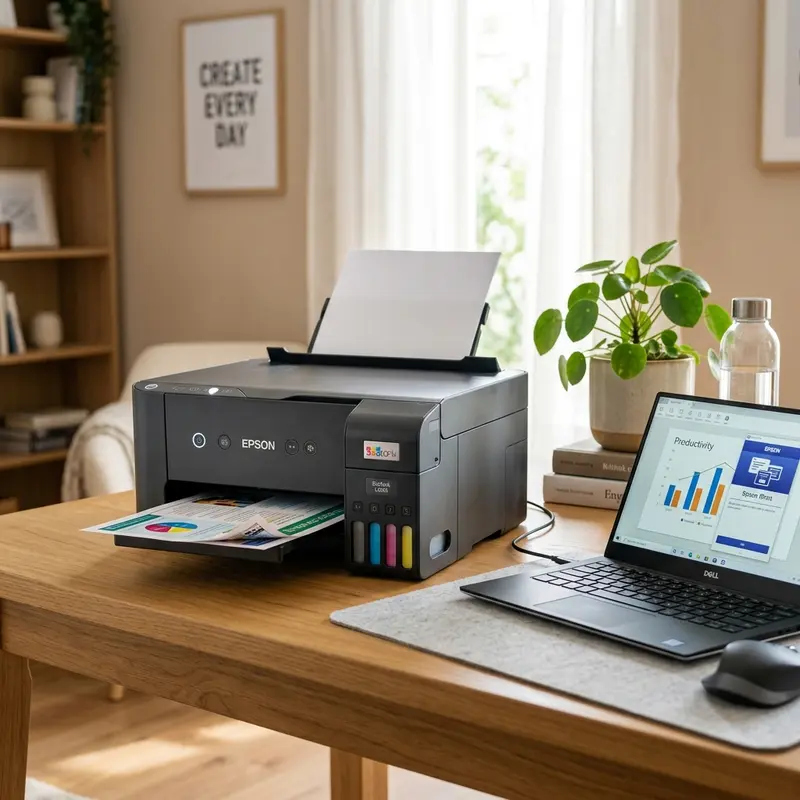
The Epson EcoTank L3250 printer is highly valued for the flexibility of its wireless networking options. One of the most useful features for those who do not have a dedicated wireless internet router at home or in the office is Wi-Fi Direct. Connecting an Epson L3250 printer directly to your phone via Wi-Fi Direct without a router requires activating the printer's ad-hoc wireless network by holding the Wi-Fi and Network Status buttons simultaneously, printing the network status page to extract the default WPA password, and connecting your mobile device directly to the printer's broadcast SSID via the Epson Smart Panel application.
This ad-hoc connection establishes a direct point-to-point wireless link between the printer and the smartphone. It eliminates the need for USB cabling or network routing hardware. However, because this is a closed local network, your smartphone will lose conventional Wi-Fi internet access while connected to the Epson L3250, relying on cellular data (3G/4G/5G) if it is configured to run concurrently in your mobile operating system settings.
How Wi-Fi Direct Technology Operates on Epson Printers
Wi-Fi Direct is a wireless communication standard developed by the Wi-Fi Alliance that enables two devices to connect directly without a shared wireless router (Access Point). On the Epson L3250, the printer operates as a software access point (SoftAP), broadcasting its own SSID, which typically begins with "DIRECT-xx-EPSON".
This technology operates on the 2.4 GHz band, which provides longer physical range through walls and obstacles, although with less throughput compared to 5 GHz frequencies. To protect document transmissions from unauthorized interception, the Epson L3250 encrypts the ad-hoc connection using the **WPA2-PSK (AES)** security protocol. This ensures that any print job sent from your smartphone to the piezo printhead remains fully secure.
IP Allocation and DHCP Range in SoftAP Mode
When the Epson L3250 initializes its Wi-Fi Direct interface, the network controller launches an internal DHCP (Dynamic Host Configuration Protocol) server. This daemon allocates IP addresses within a localized subnet, typically ranging from 192.168.223.1 to 192.168.223.10. The printer claims the static IP address 192.168.223.1, serving as the gateway and primary host of the ad-hoc link.
When your smartphone connects to the DIRECT SSID, the DHCP server assigns a client lease IP (such as 192.168.223.2) to the mobile device. Unlike standard networks that rely on complex mDNS discovery, the Wi-Fi Direct interface opens direct socket paths through designated TCP ports (port 9100 for raw data stream and port 515 for LPR services). This direct pipeline allows the Epson Smart Panel application to discover the device and transmit documents without requiring external DNS queries or cloud servers.
Wi-Fi Direct Protocol Specifications and Ad-Hoc WPA2 Handshake Analysis
The cryptographic security of the ad-hoc link established by the L3250 relies on standard WPA2 security protocols. The ad-hoc connection utilizes the Advanced Encryption Standard (AES) with Cipher Block Chaining Message Authentication Code Protocol (CCMP) to secure wireless frames. When a client device initiates pairing, a four-way handshake takes place to verify the pre-shared key (PSK) and generate temporal encryption keys.
Because the printer acts as a basic SoftAP, it does not support advanced firewall controls or active intrusion prevention. It is recommended to deactivate the Wi-Fi Direct radio when it is not needed or change the WPA2 passphrase regularly. This prevents unauthorized print queue modifications from neighboring wireless clients within the printer's 10-meter RF coverage footprint.
Resolving Android and iOS Cellular Routing Conflicts During Direct Spooling
Modern mobile operating systems are programmed to automatically route network requests through interfaces that have active internet routes. When connected to the L3250's DIRECT network, the Wi-Fi interface lacks an active internet gateway, which can cause the OS to route the print job spooler requests through cellular data (LTE/5G) instead of the local Wi-Fi link.
To resolve this conflict on iOS, navigate to Settings, select Cellular, scroll to the bottom, and disable the Wi-Fi Assist option. This forces the OS to send local print data across the active Wi-Fi link. On Android devices, when connecting to the DIRECT network, wait for the system alert notification saying "Wi-Fi has no internet access. Keep connection?" and select "Yes". This registers the printer's subnet in the local routing table, preventing the OS from dropping the connection during large document transfers.
Step-by-Step Wi-Fi Direct Activation on the Control Panel
To enable the Wi-Fi Direct broadcast on your Epson L3250, perform the following steps on the control panel:
- Verify that the printer is powered on and that standard paper is loaded in the rear sheet feeder;
- Press and hold both the Wi-Fi and the Network Status (represented by a paper icon with an "i") buttons down simultaneously for about 5 to 7 seconds;
- Release both buttons when the network status LEDs (router and mobile phone symbols) begin flashing alternately in green and orange;
- Wait for the LED corresponding to the mobile phone symbol (representing Wi-Fi Direct) to light up solid green. This indicates that the ad-hoc network is active;
- To obtain the SSID security password generated by the printer, press and hold the Network Status ("i") button alone for 10 seconds. The printer will print two or three status pages containing the SSID and WPA password.
If you prefer to connect a desktop or laptop computer rather than a mobile phone, see our technical guide on how to connect epson printer to wifi laptop. If you need help finding the printed details, view our guide on how to find epson printer ip address to locate critical network data on the printed status sheet.
Connecting Your Phone to the Printer's Wireless Network
With the printed network status sheet in hand, locate the section titled **Wi-Fi Direct**. There, you will find the SSID name, formatted as DIRECT-XX-EPSON-XXXX, and the 8-digit numeric security password.
On your smartphone, open your Wi-Fi settings dashboard and scan for available networks. Select the SSID matching your Epson L3250. Enter the 8-digit WPA password from the status sheet and tap "Connect." The device will connect. Your operating system may display a warning stating "Connected, no internet access." Keep the connection active and remain on this network.
Setting Up the Epson Smart Panel Application
Once connected to the printer's direct Wi-Fi network, launch the **Epson Smart Panel** app. If it is your first time opening the application, accept the location and local network permissions when prompted by your OS.
The app will automatically scan the network and locate the printer. Confirm the configuration by tapping "Yes, set up this device." The main dashboard of the Epson Smart Panel will load, displaying estimated ink levels and shortcuts to scan documents, print images, or run piezo printhead maintenance. If you prefer to connect the printer to your router so you do not lose internet access while printing, see our tutorial on connect epson l3250 to wifi from phone to establish a local network infrastructure connection.
Comparison of Wi-Fi Infrastructure vs. Wi-Fi Direct Mode
| Network Feature | Wi-Fi Infrastructure (Router) | Wi-Fi Direct (Ad-hoc) |
|---|---|---|
| Connection Hub | Central Wireless Router or Access Point | None (Direct device-to-printer link) |
| Mobile Internet Access | Maintained through the router's connection | Wi-Fi internet is disabled (requires cellular) |
| Maximum Range | Defined by your router's signal footprint | Limited (Within 5 to 10 meters of the printer) |
| Network Encryption | Set by the router's configuration (WPA2/WPA3) | WPA2-PSK (AES) built into the printer |
| Maximum Linked Devices | Determined by the router's hardware capacity | Limited (Usually up to 8 concurrent clients) |
Troubleshooting Wi-Fi Direct Connectivity Issues
If your smartphone cannot locate the printer's SSID or the connection drops repeatedly, inspect the following network configurations:
- 2.4 GHz Channel Congestion: The printer's SoftAP automatically selects a channel in the 2.4 GHz band. In areas with high wireless traffic (neighboring routers on channels 1, 6, or 11), electromagnetic interference can drop the link. Keep your phone within 2 meters of the printer when sending large documents;
- Smart Network Switch Features: Some mobile operating systems include a feature called "Smart Network Switch" or "Auto Network Switch." This option automatically disconnects the phone from Wi-Fi networks that do not have internet. Disable this setting to maintain the direct printer connection;
- Connected Client Limits: The wireless controller on the L3250 allows up to 8 simultaneous Wi-Fi Direct clients. If other computers, tablets, or phones are connected to the DIRECT SSID, disconnect idle devices to free up DHCP leases.
Infrastructure Mode vs. Wi-Fi Direct (Understanding the Difference)
It is essential to distinguish between wireless connection modes. Infrastructure mode links the printer to the home router, allowing any device on the network to print while maintaining internet access. On the other hand, Wi-Fi Direct establishes an ad-hoc connection between your phone and the printer. The mobile device connects to the wireless signal generated by the Epson L3250. While connected via Wi-Fi Direct, your phone may lose internet access, making it ideal for quick print jobs when no local router is available.
Tips to Resolve Connection Drops on the Epson L3250 Wi-Fi Direct
If your direct connection drops while sending high-resolution images, ensure your phone is within 10 feet of the printer. Because Wi-Fi Direct relies on the printer's internal low-power antenna, the signal range is shorter than that of a standard router. Additionally, disable features like 'Auto-switch to mobile data' in your phone's wireless settings, as smart OS layers tend to disconnect from internet-less signals automatically.
Managing Multiple Device Access Limits on Wi-Fi Direct Connections
The ad-hoc network card of the Epson L3250 can support up to 8 client devices simultaneously. However, sending print jobs from multiple phones at once can overwhelm the print buffer. If the printer stops responding, wait for the green status light to stop flashing, which indicates the buffer is empty. Clear the queue on pending devices to restore stable access.
Understanding WPA2 Encryption for Secure Ad-Hoc Direct Printing
Although Wi-Fi Direct is a temporary connection, the Epson L3250 secures the signal using WPA2-PSK encryption to prevent unauthorized access. The security key is randomly generated during initialization. Printing a network status sheet shows the security key, allowing only permitted users to connect. Keep this sheet secure to maintain network privacy.
Understanding Channel Interference in Ad-Hoc Direct Printing
Wi-Fi Direct signals generated by the Epson L3250 default to standard channels like 6 or 11 on the 2.4 GHz band. In areas with many active wireless networks, this can cause signal interference and print job timeouts. You can adjust the direct channel inside the Epson Web Config interface, selecting a less busy channel to stabilize wireless printing from your mobile device.
Optimizing Wireless Performance via Channel Boundary Tweaks
In highly congested apartment buildings, the 2.4 GHz band is crowded with active wireless networks. Forcing your Wi-Fi router to transmit strictly on channel 1, 6, or 11 prevents overlap. Additionally, restricting the channel bandwidth to 20 MHz rather than 40 MHz improves the signal-to-noise ratio, ensuring stable spooling performance.
Understanding IP Lease Operations in Ad-Hoc Wi-Fi Direct Environments
When a phone connects to the Epson L3250 via Wi-Fi Direct, the printer acts as a DHCP server, assigning a local IP address (typically 192.168.223.x) to the phone. Because this connection has no gateway to the internet, smart OS layers on some phones may disconnect from the network. Disabling mobile data temporarily ensures the phone stays connected to the printer, allowing you to print without interruptions.
Managing Device Limits and Buffer Queues on Direct Networks
The Epson L3250 network card supports up to 8 client connections simultaneously in Wi-Fi Direct mode. However, sending large print jobs from multiple devices at the same time can cause buffer overflows. If the status light flashes green rapidly, wait for the current job to finish before sending the next one. This prevents buffer errors and connection drops.
Frequently Asked Questions (FAQ)
Where is the default Wi-Fi Direct password located on the L3250?
The password is not fixed. It is randomly generated by the firmware and printed on the network status sheet. To print this sheet, hold the Network Status ("i") button down for 10 seconds with paper loaded.
Can I use Wi-Fi Direct and a Wi-Fi Router connection simultaneously?
Yes. The Epson L3250's network card supports concurrent connections in Infrastructure mode (linked to your router for home computers) and Wi-Fi Direct mode (providing a direct link for guest devices).
Does the phone lose internet access when connected via Wi-Fi Direct?
Yes, your phone's Wi-Fi interface will report no internet because the printer does not route web traffic. However, if your phone is set up to allow concurrent cellular data, it will continue to send and receive notifications over mobile networks.
How do I reset the Wi-Fi Direct password on my Epson L3250?
To clear the current network settings and generate a new SSID and password, turn off the printer. Turn it back on while holding the Wi-Fi button down until the network lights flash alternately. This restores default network settings.
How do I connect Windows 10 or Windows 11 computers via Wi-Fi Direct?
Navigate to "Settings," click "Devices," select "Printers & Scanners," and click "Add printer or scanner." Select the printer's broadcast SSID from the wireless network list, enter the WPA security PIN from the status sheet, and Windows will install the local printer port automatically.




