How to Fix Claro NET Modem/Router Blinking Orange Light Error
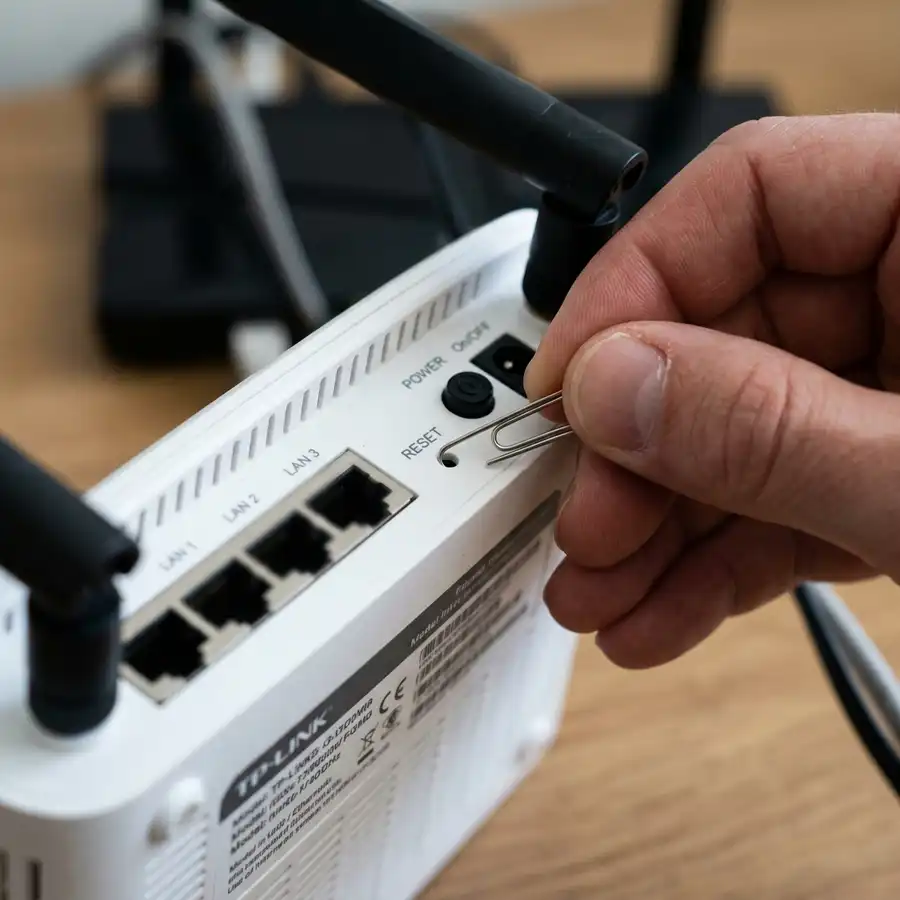
Experiencing sudden internet disconnections is a major disruption to remote work and daily routines. When you use broadband service via coaxial cable or fiber, your modem and router utilize color-coded light-emitting diodes (LEDs) to display current connection statuses. If your Claro NET router is blinking an orange internet light, it indicates that the modem is currently attempting to establish physical synchronization or logical handshakes with the service provider's servers, which is usually caused by loose coaxial cable connections, low radio frequency (RF) signal levels, scheduled local maintenance outages, or the need for a hard power cycle.
While a blinking orange light can be frustrating, it is often a minor issue that you can troubleshoot and fix yourself without having to wait for a technician. Understanding your Claro NET hardware (usually manufactured by brands like Humax, Sagemcom, Kaon, or Technicolor) is the key to executing the correct diagnostics. In this detailed guide, we will analyze the technical reasons behind this blinking orange behavior, step-by-step methods to restore your connection, and how to verify signal levels from your PC.
1. Deciphering the Orange Blinking Light on Claro NET Modems
Modern broadband gateways use specific LED colors to denote different operational phases during startup and connection negotiation. On Claro NET (formerly NET Virtua) coaxial modems, the internet status light (typically represented by a globe symbol or labeled "Online") displays specific states:
- Blinking Orange Light: Indicates that the gateway is actively scanning downstream or upstream carrier frequencies, searching for the provider's broadcast channel signals.
- Solid Orange Light: On some fiber optic optical network terminals (ONTs), a solid orange indicator on a LAN port indicates that the connection is active but restricted to Fast Ethernet speeds (100 Mbps) rather than full Gigabit (1000 Mbps).
- Solid Blue or Green Light: Confirms that the modem has established a stable connection with the headend, received a public IP address, and is transmitting data normally.
2. Common Causes of the Orange Blinking Internet LED
Several hardware and software factors can prevent your router from connecting, leaving it stuck in a frequency sweep mode (indicated by the blinking orange LED). The most common causes include:
Loose Coaxial Connectors: The thick white coaxial cable that connects your modem to the wall outlet carries high-frequency RF signals. If the metal screw-on F-connector is loose or the copper pin is bent, the signal will deteriorate.
Subnet or Node Maintenance: Telecommunication companies regularly update local distribution nodes. During these maintenance periods, the external signal is completely cut off, forcing your modem to continuously scan empty frequencies.
Defective Splitters: Claro NET installations often use metallic splitters to divide the incoming wall signal between your television box and cable modem. Over time, these splitters can corrode or fail, leading to signal loss.
3. Step-by-Step Guide to Resolving the Blinking Orange Light
Before calling customer support and waiting on hold, follow this structured diagnostic routine to restore your connection:
- Perform a Hard Power Cycle: Unplug the power cable from the back of your modem. Wait at least 60 seconds. This allows the internal electrical capacitors to fully discharge, clearing corrupt volatile memory and requesting a new IP. Reconnect the power cord and monitor the initialization LEDs.
- Inspect and Tighten the Coaxial Cable: Unscrew the coaxial cable from the back of the modem. Check the copper center conductor to ensure it is straight and free of corrosion. Screw the connector back in tightly by hand. Do not use tools, as overtightening can snap the internal plastic threads.
- Bypass Splitters for Testing: Trace the coaxial cable to the wall outlet. If there is a metal splitter, disconnect the main cable coming out of the wall and plug it directly into the modem to test if the splitter has failed.
- Check for Local Outages: Open the "Minha Claro Residencial" app on your smartphone using your cellular mobile data. The app will immediately notify you if there is an active signal outage in your postal code area and show the estimated resolution time.
4. Technical Differences: Coaxial DOCSIS vs Fiber Optic Connections
Claro NET operates two primary network architectures. The legacy network uses Hybrid Fiber-Coaxial (HFC) technology with the DOCSIS protocol standard. In HFC setups, fiber runs to a local node, and coaxial copper distribution cables connect to individual homes. A blinking orange light on these modems always represents an RF synchronization failure.
In newer developments, Claro installs Fiber-to-the-Home (FTTH) GPON technology, where a thin fiber optic cable runs directly into your home, connecting to an Optical Network Terminal (ONT). If the internet LED on an ONT flashes orange or red, it represents a fiber attenuation problem (loss of optical light power, measured in dBm), which usually requires a field technician to splice a new fiber connection.
5. Accessing Your Modem's Admin Page to Check Signal Levels
If you want to perform a deeper diagnostic analysis, you can connect your computer to the modem via an Ethernet cable and access the internal administration console to view the exact RF signal values.
- Connect your PC directly to the modem's LAN port using an Ethernet cable.
- Open a web browser and type the default router IP address (usually
192.168.0.1or192.168.100.1) and press Enter. - Log in using the default credentials printed on the physical label on the bottom of the device.
- Navigate to the "Status", "DOCSIS Signal", or "Connection" section.
- Analyze the downstream and upstream signal tables.
The standard acceptable parameters for DOCSIS connections are:
- Downstream Power Level: Must be between -15 dBmV and +15 dBmV. The optimal target is 0 dBmV. Extreme negative or positive values indicate line problems.
- Signal-to-Noise Ratio (SNR): Must be above 35 dB. Anything below 35 dB indicates heavy electrical noise on the line.
- Upstream Power Level: Must stay between 35 dBmV and 50 dBmV. If it exceeds 51 dBmV, the modem is working too hard to transmit data back to the CMTS, leading to frequent drops.
6. Modem LED Status Diagnostics and Action Plan
The following table summarizes the internet LED states on Claro NET modems and the recommended actions for each condition:
| LED Indicator | LED State | Technical Diagnosis | Recommended Corrective Action |
|---|---|---|---|
| Globe / Online | Blinking Orange | Searching for downstream/upstream frequency lock. | Tighten coaxial connectors, bypass splitters, or reboot the modem. |
| Globe / Online | Off | No physical signal detected on the cable line. | Check for damaged external drop cables or contact Claro support. |
| Globe / Online | Solid Green/Blue | Successfully connected to the internet. | None. The connection is fully active and operational. |
| Power | Solid Red | Internal hardware failure or corrupted system firmware. | Replace the power supply adapter or request a modem swap from the ISP. |
7. When to Contact Claro Customer Support
If you have gone through all troubleshooting procedures—including power cycling, inspecting the physical cables, removing local splitters—and the online LED continues to blink orange for more than 30 minutes, you will need to schedule a service visit.
Call the support hotline or use the app to open a ticket. Inform the representative that you have verified the internal coaxial connections, power cycled the device, and that the globe status light remains stuck flashing orange. The technician on the phone will run remote diagnostics to read your modem's status. If the RF signal is missing on their end, they will dispatch a field technician to check the distribution tap on the street pole and replace any faulty connectors or lines outside your house.
Safety Warning: Never attempt to cut or crimp the outdoor cable drop yourself. Coaxial lines require precise impedance matching, and poorly crimped connectors can leak RF frequencies (called ingress noise), which can disrupt internet services for your neighbors on the same local node.
Troubleshooting synchronization states on DOCSIS-based modems requires inspecting physical coaxial line parameters. Cable broadband lines are sensitive to signal-to-noise ratio (SNR) variations and attenuation across high frequencies. If downstream power values drift outside acceptable operational ranges (typically measured in dBmV), the modem hardware fails to lock onto active carrier frequencies, triggering connection drops.
Restoring proper cable integrity and securing structural coaxial adapters helps prevent high packet error rates. Ensure all indoor signal splitters are fully shielded against ingress noise and check for any physical pin damage inside the coaxial ports to maintain a stable connection link.
To successfully resolve synchronization issues on Claro NET HFC connections, users must perform a careful physical evaluation of their household cable layout. The primary feed coax cable entering the house is constantly subjected to structural challenges, including weather damage near the street poles, compression loops, and moisture build-up inside outdoor splitters. Any of these issues introduces ingress noise and signal reflection, degrading the carrier signal quality before it even reaches the back panel of your cable gateway device.
Furthermore, local network administrators should analyze the diagnostic pages of the modem admin portal. Checking error counts like uncorrectable codeworks or T3 timeouts helps identify if signal losses are occurring at the physical coax tap or from a software routing failure. If you live in an area with high building density, neighboring networks can also generate substantial radio interference on your local Wi-Fi. In these cases, adjusting channels dynamically in the admin console is an effective free trick to stabilize local connection speeds.
DOCSIS cable systems depend heavily on precise signal levels. If the upstream power exceeds 51 dBMv, the modem transceiver works under heavy thermal stress to push data back to the street tap. Ensuring your internal RG6 coaxial lines are shielded minimizes electromagnetic ingress noise, preventing timeouts and ensuring stable packet transmission across all local smart devices.
In addition to adjusting splitters and checking for loose coax connections, you should analyze local network interfaces for potential IP conflicts. A blinking orange globe status LED indicates that the modem fails to establish the logical handshake protocol with the ISP's headend server. When checking these parameters in your admin console, make sure your device is receiving stable power. If you notice frequent drops, it could stem from external line maintenance or a congested local node in your neighborhood. Keeping your networking hardware in well-ventilated locations prevents thermal throttling and improves component lifespan over time.
To guarantee peak performance across your home or office infrastructure, it is essential to master the core wireless engineering principles governing electromagnetic radio wave propagation and logical baseband transceiver adjustments. When analyzing wireless RF signals operating across the standard 2.4 GHz and 5 GHz bands, we observe that free-space path loss and attenuation are caused not only by linear physical distance but also by the dielectric absorption coefficients of structural building barriers such as reinforced concrete slabs, brick walls, metallic structures, and glass panels.
Furthermore, adjusting internal transmitter configurations within the router firmware admin panel (such as short guard intervals, frame aggregation, beacon intervals, and setting the channel width manually to 20 MHz, 40 MHz, or 80 MHz) plays an important role in preventing bufferbloat, packet loss, and latency spikes under heavy simultaneous client traffic load. Fine-tuning these parameters ensures a robust WPA2/WPA3 encrypted tunnel for all wireless devices communicating over local IP networks.
Furthermore, to maintain stable operations, ensure that your device receives stable power with no micro-bends in the fiber. Checking the admin log file on the router can reveal specific errors like T3 or T4 timeouts, indicating upstream signal problems on the coaxial network. In DOCSIS systems, keeping the gateway device in well-ventilated areas will prevent thermal throttling and improve device longevity.
To finalize the synchronization sequence, ensure the coax line uses high-performance RG6 compression fittings. Poorly crimped or legacy twist-on F-connectors introduce micro-reflections and high return loss, disrupting carrier frequency locks. Checking cable path terminations at the wall plate keeps downstream bandwidth stable for all home network users.
Frequently Asked Questions
Why is my Claro NET router's internet light blinking orange?
The blinking orange light means the modem is unable to establish synchronization with the provider's central network. It is usually caused by loose coaxial cables, line noise, or temporary local network maintenance.
How do I reboot my Claro NET modem properly?
To reboot your modem correctly, disconnect its power adapter from the electrical wall outlet, wait for at least 60 seconds to clear the system cache, and plug the power cord back in.
Is it normal for the Wi-Fi light to flash while the internet light is orange?
Yes, the Wi-Fi LED simply indicates that the local wireless antennas are active and broadcasting. However, if the main internet LED (globe) is blinking orange, devices connected to your Wi-Fi won't have actual internet access.
How long does Claro take to resolve external network maintenance?
Most minor outages or scheduled maintenance windows are resolved within 2 to 4 hours. You can track real-time network statuses and estimated repair times directly through the Minha Claro Residencial app.




