How to Check Ink or Toner Levels on HP Printer from Computer
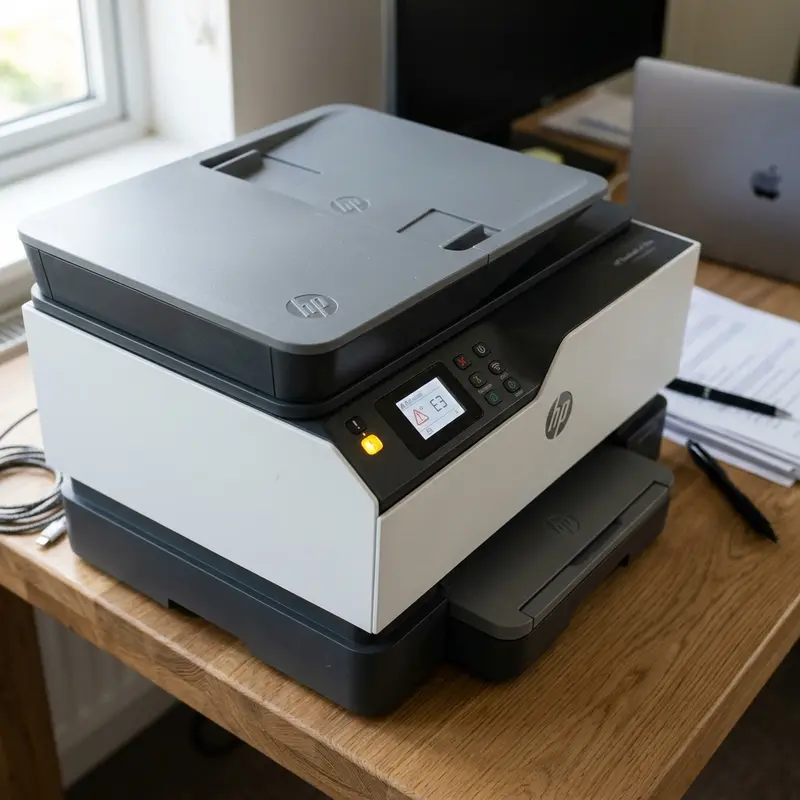
Monitoring the current levels of ink or toner in your printer is one of the most critical aspects of maintaining print quality and ensuring that your daily productivity goes uninterrupted. For inkjet devices, especially those utilizing thermal heads, operating with dried-out cartridges or empty chambers presents a physical hazard. Without ink to cool the microscopic heating elements (thermoresistors) during droplet ejection, running the printhead dry can cause immediate overheating and permanent electrical failure of the head assembly. Thus, staying informed about your consumable levels prevents costly maintenance and preserves your device's operational life.
To check the ink or toner levels on your HP printer from a computer, you can open the HP Smart app, access the HP Printer Assistant or HP Solution Center for older models, check the printer's Embedded Web Server (EWS) by typing its IP address into a web browser, or view the device status via the Windows Control Panel or macOS Printers & Scanners settings. These standard communication techniques work for USB connected models and network interfaces, providing you with real-time feedback on your supplies.
1. How Ink and Toner Measurement Works on HP Printers
Unlike what many users assume, standard HP cartridges do not contain optical float sensors or physical level metrics to measure the actual liquid volume remaining inside the cartridge chambers. Instead, the monitoring mechanism uses a consumption tracking algorithm stored on the cartridge's integrated smart chip (EEPROM). Each time the mainboard ASIC commands a micro-droplet of ink (measured in picoliters) to eject from a nozzle, the printer's firmware decrements a preset counter on the chip. As a result, the ink level reported to your computer is a calculation-based estimate rather than a physical volume reading.
For Continuous Ink Supply System (CISS) models, such as the HP Smart Tank series, the tracking system is slightly different. The external acrylic ink tanks contain no electronic sensors or level-monitoring pins. The physical check relies completely on the user visually inspecting the clear tanks on the front of the unit. For software alerts and desktop notifications, the driver uses standard page counters and printhead spittoon purge counts to estimate usage. If you refill the tanks physically but do not reset the ink level monitor when prompted, the driver might trigger false low-ink warnings despite the physical chambers being completely full of liquid dye or pigment ink.
Laser printers (HP LaserJet) operate under a different set of physical mechanics, using toner cartridges containing electrostatic, optical, or torque sensors. These sensors detect the electrical impedance or physical density of the carbon toner powder remaining inside the hopper. When the powder falls below the detection line, the cartridge's microchip relays an interrupt signal to the main logical board, which is then sent through bidirectionally mapped ports to show consumable replacement notices on the operating system. Understanding these underlying mechanics helps troubleshoot discrepancies between actual physical ink levels and computer status readouts.
2. Method 1: Using the HP Smart App (Windows 10/11 & macOS)
The HP Smart application is the modern, official utility suite provided by HP Inc. for configuring, diagnosing, and managing all consumers and home-office printing devices. It is available as a free download from the Microsoft Store on Windows and the Mac App Store on macOS, centralizing basic printer features like optical scanning, firmware updates, and local device telemetry.
To view your estimated supply levels using this modern platform, use the following operational steps:
- Ensure your HP printer is powered on and connected to the same local subnet as your PC via Wi-Fi, Ethernet, or a high-quality USB 2.0 A-to-B cable.
- Launch the Microsoft Store (Windows) or App Store (Mac), search for "HP Smart" and download the official application published by HP Inc.
- Open the application. On its initial launch, the program scans the local network and USB ports to auto-detect your printer. If your device is not found, click "Add Printer" or select the plus icon (+).
- Once the printer is linked to the home dashboard, estimated ink levels will appear as color-coded horizontal or vertical gauges right below the device image.
- Click on the printer image to open its detailed settings menu and select "Estimated Supply Levels" or "Cartridge Information" to view parts numbers, ink types, and warranty dates.
HP Smart communicates with the printing hardware using the local Multicast DNS (mDNS) protocol for device discovery and REST APIs running directly on the printer’s web daemon. If your device appears offline or unavailable in the HP Smart interface, verify your wireless router's configuration. Ensure that "AP Isolation" or "Client Isolation" is turned off, as this setting blocks local network devices from exchanging data packets with each other, which prevents the computer from reading printer telemetry.
3. Method 2: Accessing the Embedded Web Server (EWS) via IP Address
For system administrators, network engineers, or power users who prefer not to install heavy background utility suites, the Embedded Web Server (EWS) is the most direct and reliable way to check printer status. Every network-enabled HP printer (Wi-Fi or Ethernet) runs a lightweight internal HTTP/HTTPS web daemon that hosts configuration settings and device telemetry accessible via any standard web browser.
To access the EWS console on your network, use the following steps:
- Locate the Printer IP Address: Go to the printer's physical panel, open the wireless network settings to view the IP, or press the "Wi-Fi" and "Information" (i) buttons simultaneously to print a Network Configuration Page containing the device's IPv4 address (e.g., 192.168.1.150).
- Enter IP in Browser: Open a web browser on your computer (Chrome, Firefox, Safari, or Edge), type the IP address into the URL bar, and press Enter.
- Pass the Security Warning: Because printers use self-signed local SSL certificates, your browser might display a privacy warning. Click "Advanced" and select "Proceed to [IP] (unsafe)" to load the page. This is safe as it is a local device on your private home or office network.
- Locate Supply Status: The home landing page of the EWS presents a clean visual layout of your printer's physical status. Look for the "Estimated Supply Levels" graphic on the home screen, or click the "Tools" or "Supplies" tab on the top menu bar.
- Inspect Detailed Metrics: The page will load real-time status data directly from the printer's ASIC chip, bypassing local Windows or macOS driver software entirely.
The EWS console is the ultimate diagnostic check because it isolates software bugs. If the ink levels appear correctly in the EWS browser interface but show as grayed out or unavailable in your operating system, the diagnostic trail confirms that the printer hardware is communicating fine, and the issue is restricted to a corrupt local driver or spooler service.
4. Method 3: Windows Control Panel and Legacy Driver Utilities
If you are running older Windows operating systems (such as Windows 7 or 8) or prefer using the lightweight basic print driver instead of the HP Smart app, you can check your supply status using the classic Control Panel interface built directly into Windows.
Follow these standard navigation steps on your Windows PC:
- Open the Windows Run dialog box by pressing the Windows Key + R, type
control printers, and click OK to load the classic "Devices and Printers" panel. - Locate your installed HP printer in the list of hardware devices.
- Right-click on the device icon and select "Printer Properties" (make sure to choose Printer Properties rather than Printing Preferences).
- Click on the "Device Services" or "Hardware Services" tab. On many classic drivers, this tab contains a button to launch the "HP Printer Assistant" or the legacy "HP Solution Center" software.
- Select "Estimated Ink Levels" or "Supply Status" inside the assistant interface to fetch the current ink volume projections.
If you are using a basic USB driver, click on the "Ports" tab inside the Printer Properties window. Scroll down to verify that the check box labeled "Enable bidirectional support" is checked. Without bidirectional communication enabled, the computer can send raw page spool files (PCL or PostScript) to the printer, but the printing device cannot return telemetry packages (such as paper jams, cover-open states, and estimated ink metrics) back to the host operating system.
5. Method 4: Checking Ink Levels on macOS (Printers & Scanners)
On macOS, Apple implements a system architecture that relies on native, driverless printing protocols. Using AirPrint, Mac computers can interface with HP hardware over a local network to query supply status directly without installing heavy third-party management applications.
To check your ink levels natively on macOS, use these steps:
- Click on the Apple logo in the upper-left corner of the desktop and select "System Settings" (or "System Preferences" on older macOS versions).
- Scroll through the left-hand sidebar and click "Printers & Scanners."
- Select your HP printer model from the active device list.
- On the printer management interface page, click the "Options & Supplies" button or select "Open Print Queue."
- In the print queue window, click the "Utility" tab or locate the "Supply Levels" button.
- The macOS window will render graphical indicators displaying the remaining percentage for each ink channel, queried using the industry-standard Internet Printing Protocol (IPP) XML metadata format.
If your Mac displays the supply levels as "Not Available" or "Unknown," the printer might have been added using a generic PCL driver profile. Delete the printer from the list by clicking the minus (-) button, click the plus (+) button to add it again, and ensure you select the "AirPrint" profile in the "Use" dropdown selector to restore full bidirectional data transfers.
6. Troubleshooting: Ink Levels Not Displaying or Showing Incorrect Info
Users often run into problems where the computer shows grayed-out ink level indicators, throws "Ink Cartridge Not Recognized" errors, or displays yellow exclamation marks on the status menu. These communication dropouts are caused by software configuration issues or poor electrical contact on the cartridge's physical chip interface.
| Error Symptom on PC | Most Likely Cause | Recommended Troubleshooting Action |
|---|---|---|
| Grayed-Out/Unavailable Levels | Disabled bidirectional support or degraded, long USB cable. | Enable bidirectional support in the port properties. Keep USB printer cables under 6 feet (1.8m). |
| "Cartridge Error / Not Recognized" | Oxidized copper contacts on the cartridge or chip block from non-OEM parts (Dynamic Security). | Clean the copper contacts with isopropyl alcohol and lint-free wipes. Verify chip version. |
| High Ink Reported, Blank Page Output | Clogged nozzles or air locks in the ink lines from long periods of non-use. | Run a deep printhead cleaning cycle via the EWS tool or HP Smart app interface. |
| Levels Don't Update After Refill | Cartridge chip does not reset consumption logs in its EEPROM. | Acknowledge and bypass the "used cartridge" alert. Replace the cartridge chip if printer remains locked. |
To resolve electrical connection problems on the cartridge chips, shut down the printer, pull out the power cord from the wall outlet, and open the carriage door. Carefully remove the ink cartridges. Use a lint-free microfiber cloth moistened with a small drop of pure isopropyl alcohol to wipe the flat, gold-colored copper contacts on the cartridge and the spring pins inside the carriage carriage. Let the contacts air dry for two minutes, reinsert the cartridges, restore power, and boot the machine. This step resolves voltage fluctuation errors, allowing the logic board to properly read the chip data and resume reporting levels to your operating system.
Additionally, for wireless installations, packet losses over a degraded Wi-Fi link can interrupt status updates. Move the printer closer to your network router, and make sure that the network does not suffer from high interference on the 2.4 GHz frequency band, which can delay or block small UDP packet payloads containing printer telemetry.
7. How to Extend the Lifespan of HP Ink Cartridges
Properly managing your printing habits can yield significant ink savings and extend the life of your HP cartridges. The easiest way to reduce consumption is by setting your default print options to "Draft Mode" or "Fast Draft" in the Windows printer settings. This reduces the ink volume ejected per square inch by approximately 40% and speeds up carriage movement across the page, making it ideal for internal text documents and quick reading printouts.
Another crucial rule is to always use the physical Power button on the printer's front panel to turn off the machine rather than unplugging it from a power strip or smart outlet. When you power down the printer using the official button, the firmware executes a shutdown sequence that parks the printhead carriage over a rubber capping station (service station) on the far right. This rubber seal protects the microscopic printhead nozzles from exposure to air. If power is cut suddenly, the head remains unsealed, causing the remaining ink inside the nozzles to dry out and clog within 48 hours.
Finally, print at least one small color page every week to prevent ink from settling and drying in the ink tubes. Regular printing ensures the printhead channels remain clear, which saves ink by preventing the need for deep cleaning cycles, which purge massive amounts of fresh ink down the waste ink pad just to clear blockages.
8. Printhead Calibration and Preventive Maintenance
Maintaining clear ink flow is only part of the equation; printing accuracy is equally dependent on proper printhead calibration. If your printout displays jagged lines, white horizontal bands, or misaligned text, running a printhead alignment is essential. You can trigger this process through the HP Smart app or from the Tools menu in the EWS. The printer will produce an alignment sheet with test pattern grids. It will either scan this sheet to auto-calibrate its internal stepper motors or require you to select the straightest line configurations manually, adjusting ink drop coordinates for optimal print quality.
Additionally, take the time to clean the pick-up rollers inside the paper feed tray. Use a slightly damp lint-free cloth with distilled water to wipe down the rubber rollers. Over time, paper dust and static accumulate on these surfaces, causing the rollers to slip, leading to skewed prints or annoying paper jams. Regular maintenance of these mechanical components prevents printing errors and ensures your HP printer runs smoothly for years to come.
Frequently Asked Questions
How do I check ink levels on an HP printer connected via USB?
Ensure the USB cable is connected directly from the printer to your PC. Open the HP Smart app or the classic Windows Control Panel under 'Devices and Printers'. Right-click the HP printer, select Properties, and verify that 'bidirectional communication' is enabled in the Port settings to allow ink levels to display.
Why is my HP printer showing low ink after a cartridge refill?
HP cartridges contain smart chips that track ink consumption electronically. When you refill a cartridge manually, the chip's internal EEPROM counter does not reset and will continue to report the cartridge as empty. You can still print by dismissing the warning, or purchase a new cartridge with a fresh chip to restore monitoring.
How can I find my HP printer's IP address to check ink levels?
You can print a Network Configuration Page by pressing the Wi-Fi and Information (i) buttons on the printer's panel simultaneously. The IPv4 address will be listed in the network summary. Type this IP address into a web browser on your computer to open the Embedded Web Server (EWS) status page.
Does the HP Smart app work on Mac to check ink levels?
Yes, the HP Smart app is fully compatible with macOS and can be downloaded from the Mac App Store. Alternatively, you can check ink levels natively on macOS by navigating to System Settings > Printers & Scanners, opening the Print Queue, and clicking on Supply Levels without downloading third-party software.




