Best External SSDs for Video Editing: Editing Directly from the Drive
Best External SSDs for Video Editing: Editing Directly from the Drive
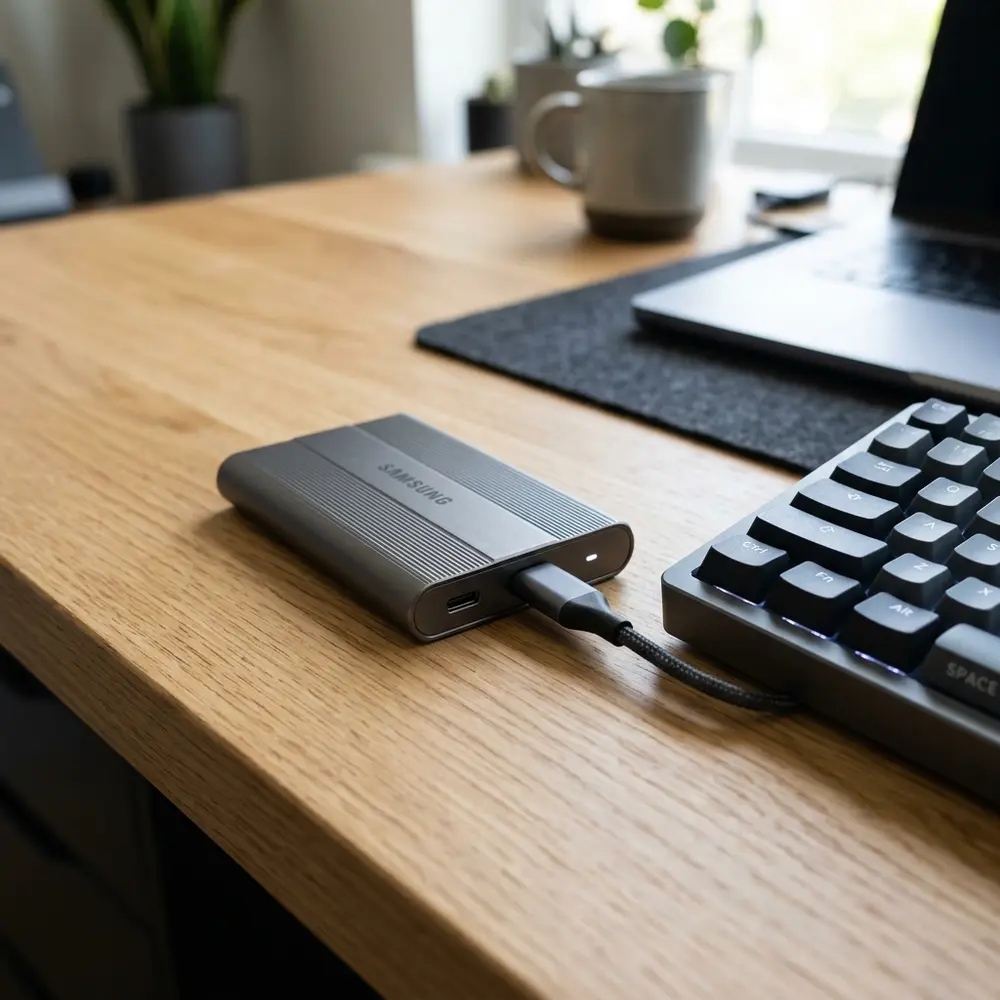
The process of editing video has evolved significantly with advancements in technology. One critical component in this evolution is the use of external SSDs, which facilitate seamless editing directly from the drive.
This article delves into the best external SSDs for video editing, emphasizing specifications, performance, and usability. Selecting the right external SSD can drastically improve workflow efficiency, especially for high-resolution projects.
Key Considerations for Selecting External SSDs
When choosing an external SSD for video editing, several key factors must be considered.
- Storage capacity: Adequate capacity is essential for large video files.
- Read/write speeds: Faster speeds enhance editing performance, particularly for 4K or higher resolutions.
- Durability: SSDs should withstand frequent transport without damage.
- Connectivity: USB-C or Thunderbolt 3 connections provide superior data transfer rates.
Comparison of Top External SSDs for Video Editing
The following table provides a comparison of leading external SSDs suitable for video editing.
| Brand | Model | Read Speed (MB/s) | Write Speed (MB/s) | Capacity Options | Price Range |
|---|---|---|---|---|---|
| Samsung | Samsung T7 | 1050 | 1000 | 500GB, 1TB, 2TB | $100 - $300 |
| SanDisk | SanDisk Extreme Pro | 1050 | 1000 | 500GB, 1TB, 2TB | $120 - $320 |
| Western Digital | WD My Passport SSD | 1050 | 1000 | 500GB, 1TB, 2TB | $110 - $310 |
| Crucial | Crucial X8 | 1050 | 1000 | 500GB, 1TB, 2TB | $90 - $280 |
| LaCie | LaCie Rugged SSD | 950 | 900 | 500GB, 1TB, 2TB | $130 - $350 |
Top Recommendations for Video Editing SSDs
For optimal performance in video editing, several SSDs stand out based on specifications and user feedback.
The Samsung T7 is frequently recommended due to its balance of speed and reliability. It offers robust performance for both 4K and 8K editing.
The SanDisk Extreme Pro also ranks highly, featuring durable construction and excellent transfer rates. This SSD excels in high-demand editing scenarios.
For those seeking a rugged option, the LaCie Rugged SSD provides substantial protection against environmental factors, making it suitable for outdoor shoots.
Step-by-Step Guide to Setting Up an External SSD for Video Editing
Setting up an external SSD for video editing involves a few straightforward steps.
- Choose an SSD with appropriate storage and speed specifications.
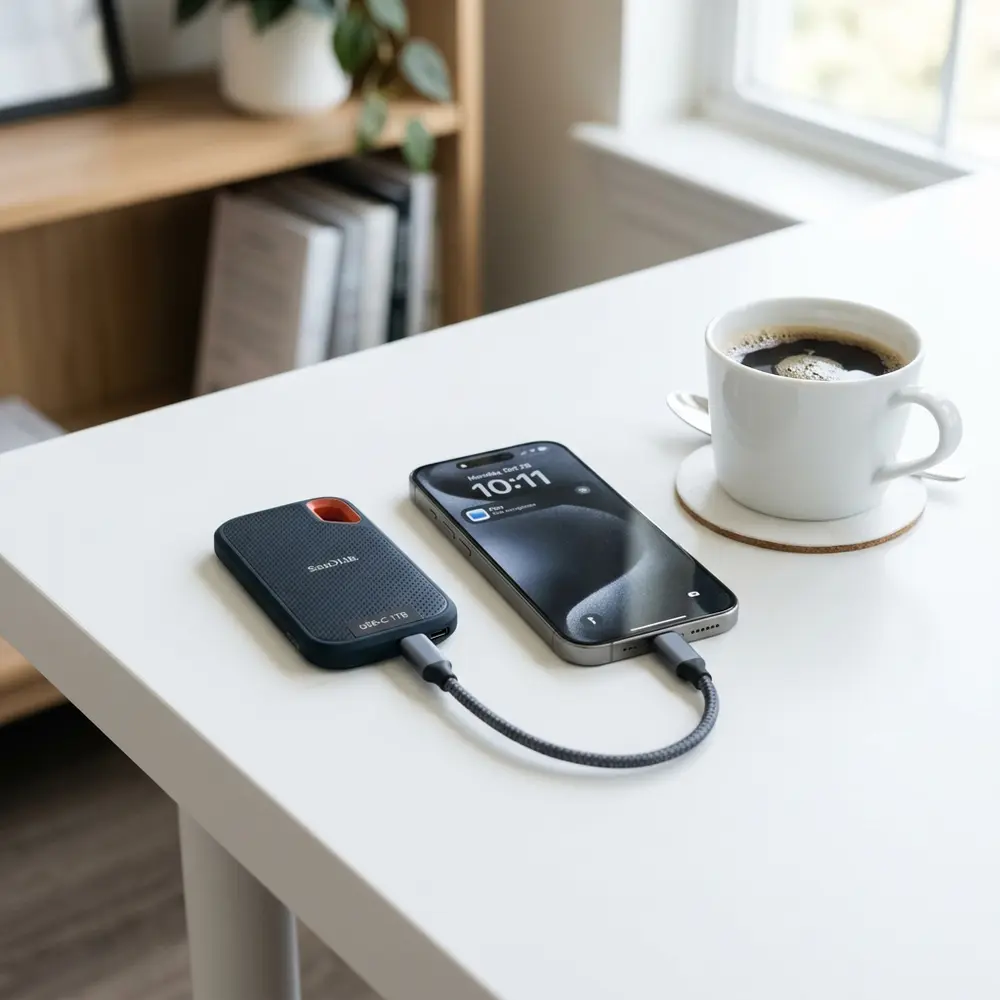
- Connect the SSD to your computer via USB-C or Thunderbolt.
- Format the SSD for your operating system (exFAT is recommended for compatibility).
- Transfer video files to the SSD, ensuring sufficient space is available.
- Launch your video editing software and set the external SSD as the primary storage location.
DomineTec Tip: To ensure data integrity, regularly backup iPhone to computer without iCloud when working with external drives.
Performance Metrics That Matter
When evaluating an external SSD, consider both read and write speeds. High read speeds facilitate quick access to files, while high write speeds enhance the speed of saving edits.
For video editing, SSDs with read/write speeds exceeding 1000 MB/s are often ideal, especially for 4K and 8K video files. Additionally, ensure the SSD utilizes NVMe protocols for optimal performance.
Common Pitfalls to Avoid
While external SSDs offer numerous advantages, certain pitfalls should be avoided.
One common mistake is opting for lower-capacity drives, which may lead to space constraints during extensive editing projects.
Another issue is selecting SSDs without adequate durability. Investing in a rugged model can prevent data loss from accidental drops or exposure to elements.
Future-Proofing Your Video Editing Setup
As video resolution continues to increase, selecting an external SSD that supports future advancements is crucial. SSDs with high read/write speeds and larger storage capacities are essential to accommodate evolving technology.
Choosing devices with USB-C or Thunderbolt 4 support ensures compatibility with upcoming hardware standards.
Frequently Asked Questions
1. What is the difference between SSD and HDD for video editing?
SSDs offer significantly faster read and write speeds compared to traditional HDDs, resulting in quicker file access and improved editing performance.
2. Can external SSDs handle 4K video editing?
Yes, external SSDs with high read/write speeds are capable of handling 4K video editing effectively, reducing lag during playback and rendering.
3. How do I format an external SSD for video editing?
Formatting can be done using disk management tools available on your operating system. It is advisable to format to exFAT for cross-platform compatibility.
4. Are there any risks to using external SSDs for video editing?
Potential risks include data loss from accidental disconnections or hardware failure. Regular backups are recommended to mitigate these risks.
5. Do 1TB USB flash drives actually exist? What should I consider before purchasing?
While 1TB USB flash drives are available, caution is advised as counterfeit drives exist. It is crucial to purchase from reputable brands to avoid issues. For more information, refer to this guide on do 1tb usb flash drives actually exist? avoid buying fake drives.
Advanced Setup Tips for External SSDs
Properly configuring external SSDs can significantly enhance video editing performance. Utilizing USB 3.1 or Thunderbolt 3 connections ensures faster data transfer rates, which is crucial for high-resolution footage.
Additionally, formatting the SSD in a file system that is compatible with your editing software, such as APFS for Mac or exFAT for cross-platform use, can prevent data loss and improve efficiency. Regularly updating firmware can also lead to improved performance and reliability.
Common Mistakes When Using External SSDs
One frequent mistake is neglecting to back up data stored on an external SSD, which can result in significant loss during unexpected failures. Ensuring regular backups to another storage solution can mitigate this risk effectively.
Another common error is using an outdated cable or port, which can limit the speed of data transfers. Always using high-quality, compatible cables will help in maintaining optimal performance during video editing tasks.
Model Comparisons: Choosing the Right External SSD
When selecting an external SSD for video editing, comparing models based on read and write speeds is essential. Options like the Samsung T7 and SanDisk Extreme Portable SSD offer varying performance levels that suit different editing needs.
Additionally, considering durability features, such as water and shock resistance, can be crucial for mobile editing professionals. Weighing these factors against cost will help determine the best fit for specific requirements.
Use Case Scenarios for External SSDs
External SSDs are ideal for mobile video editors who need to work on-the-go without sacrificing speed. For instance, filmmakers shooting on location can edit footage directly from an SSD, allowing for immediate feedback and adjustments.
Similarly, collaborative projects benefit from using external SSDs as they allow multiple users to access large files without delays. This setup fosters a more efficient and streamlined workflow for teams working on video productions.
System Compatibility Considerations
Ensuring compatibility between an external SSD and a computer system is crucial for seamless video editing. Most SSDs support both Windows and macOS, but verifying specific file system requirements is necessary to avoid compatibility issues.
Additionally, checking the available ports on your computer can help determine the best SSD type to purchase. Investing in an SSD that matches the capabilities of your system will optimize performance and prevent bottlenecks during editing tasks.
Cost Estimates for External SSDs
The cost of external SSDs varies significantly based on storage capacity and speed. Entry-level models can start around $100 for 500GB, while high-performance options may exceed $300 for larger capacities.
Budgeting for additional accessories, such as protective cases and high-quality cables, is also advisable. Understanding total costs can help in making informed decisions when investing in video editing equipment.
Troubleshooting External SSD Issues
Common issues with external SSDs include connectivity problems and slow transfer speeds. Checking cable connections and ensuring the SSD is properly formatted can often resolve these issues quickly.
If problems persist, running diagnostics software can help identify underlying issues with the drive itself. Regular maintenance and monitoring can prevent more severe complications from arising during critical editing sessions.
When to Seek Expert Help
Consulting with a professional is advisable when persistent performance issues arise with an external SSD. Technical support can provide insights into potential hardware failures or compatibility problems that may not be easily diagnosed.
Additionally, if data recovery is needed due to accidental deletions or drive corruption, seeking expert assistance is highly recommended. Professionals possess specialized tools and knowledge to recover data that may seem lost to the average user.
Best External SSDs for Video Editing: Editing Directly from the Drive
External SSDs have become an essential tool for video editors due to their speed, portability, and reliability. This document provides additional information about selecting the best external SSDs for video editing, including FAQs, a verification checklist, a comparison table, and a technical glossary.
Frequently Asked Questions (FAQ)
1. Why choose an external SSD for video editing?
External SSDs offer faster data transfer rates compared to traditional hard drives, allowing for smoother playback and quicker file transfer. This is crucial for high-resolution video editing where large file sizes are common.
2. What factors should be considered when choosing an external SSD?
- Speed: Look for SSDs with high read/write speeds, ideally above 500 MB/s.
- Capacity: Choose an SSD with sufficient storage to handle large video files and projects.
- Durability: Select a rugged model if working in demanding environments.
- Compatibility: Ensure the SSD is compatible with your editing software and operating system.
- Connection Type: USB-C/Thunderbolt 3 provides faster data transfer rates compared to USB 3.0.
3. How much storage is needed for video editing?
The amount of storage needed depends on project requirements. For standard Full HD video editing, 1TB is often sufficient, while 4K projects may require 2TB or more.
4. Can external SSDs be used for gaming as well?
Yes, external SSDs can be used for gaming, providing faster load times and improved performance in compatible games.
5. Are there any downsides to using external SSDs?
While external SSDs are faster and more reliable than HDDs, they can be more expensive per GB and may require careful handling to avoid damage.
Verification Checklist for External SSD Selection
- Speed: Check the manufacturer’s speed specifications and user reviews.
- Storage Capacity: Confirm that the SSD meets or exceeds the required capacity for current and future projects.
- Durability Rating: Look for SSDs with shock resistance or water resistance ratings if needed.
- Warranty: Verify the warranty period offered by the manufacturer.
- Portability: Assess the size and weight of the SSD for ease of transport.
Comparison Table of Featured External SSDs
| Model | Capacity | Speed (Read/Write) | Connection Type | Durability | Price |
|---|---|---|---|---|---|
| Samsung T7 | 500GB, 1TB, 2TB | 1050/1000 MB/s | USB 3.2 Gen 2 | Shock-resistant | $90 - $300 |
| SanDisk Extreme Pro | 500GB, 1TB, 2TB | 1050/1000 MB/s | USB-C/USB 3.1 | IP55 water and dust resistant | $100 - $350 |
| Western Digital My Passport SSD | 500GB, 1TB, 2TB | 1050/1000 MB/s | USB-C | Shock-resistant | $90 - $250 |
| Crucial X8 | 500GB, 1TB, 2TB | 1050/1000 MB/s | USB-C | Durable design | $80 - $200 |
| LaCie Rugged SSD | 1TB, 2TB | 950/950 MB/s | USB-C | Water and dust resistant, drop-resistant | $120 - $400 |
Technical Glossary
1. SSD (Solid State Drive)
A type of data storage device that uses flash memory to store data, providing faster access and higher durability than traditional hard drives.
2. Read/Write Speed
The speed at which data can be read from or written to the SSD, measured in megabytes per second (MB/s).
3. USB-C
A universal connector that supports various protocols and provides faster data transfer rates compared to older USB types.
4. Thunderbolt 3
A high-speed interface that allows for faster data transfer and supports daisy chaining multiple devices.
5. IP55 Rating
A standard that indicates the device is protected against limited dust ingress and water spray from any direction.
6. Shock Resistance
A feature that indicates the device's ability to withstand physical shocks and drops without losing data or functionality.
7. Rugged Design
A construction style that enhances durability, often including features that protect against water, dust, and physical impact.
8. Data Transfer Rate
The speed at which data can be copied from one device to another, critical for video editing performance.
9. Storage Capacity
The total amount of data that can be stored on the SSD, typically measured in gigabytes (GB) or terabytes (TB).
10. Warranty Period
The duration of time that the manufacturer guarantees the SSD will function without defects, usually expressed in years.




