Best External SSDs for Photographers: Storing and Editing RAW Files
Best External SSDs for Photographers: Storing and Editing RAW Files
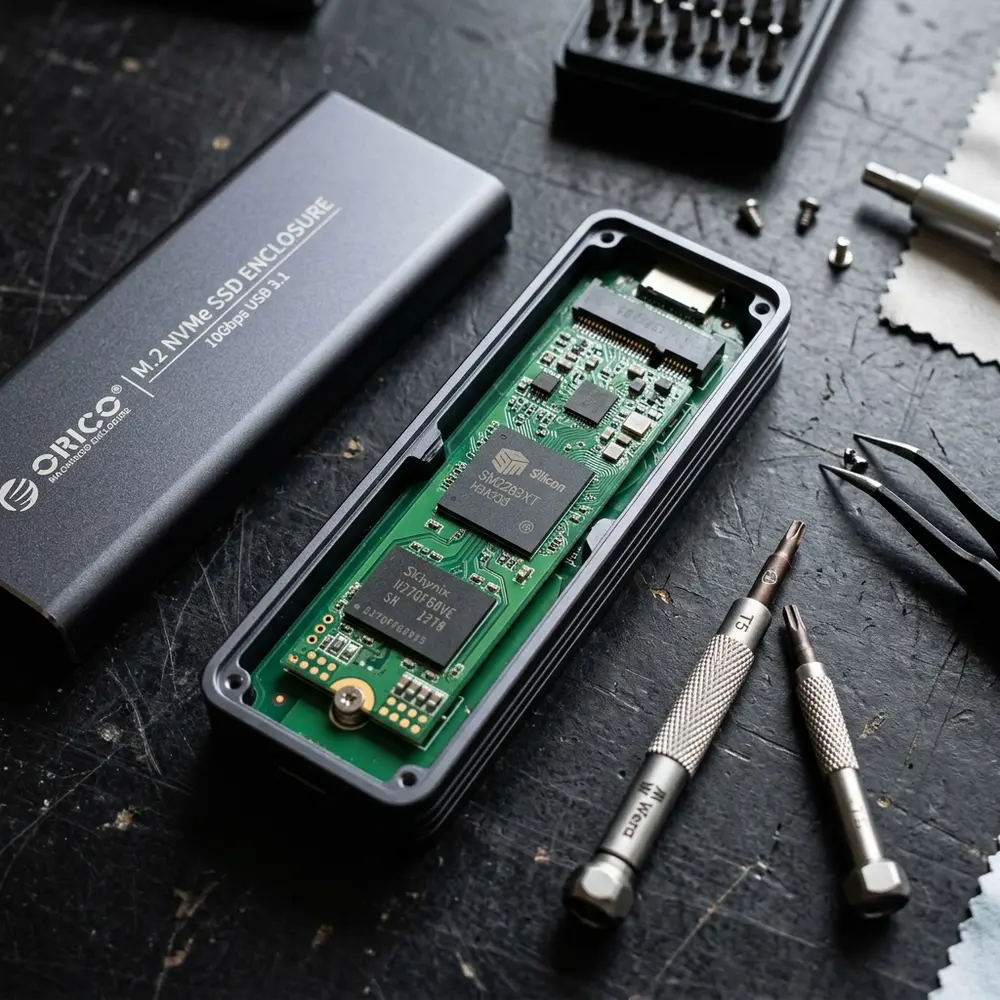
Photographers rely heavily on external SSDs for storing and editing RAW files due to the high demands of image processing and storage capacity. Selecting the best external SSDs for photographers is crucial for maintaining workflow efficiency and ensuring that data integrity is preserved.
Key Features to Consider
When evaluating external SSDs, several factors come into play. These include read/write speeds, storage capacity, durability, connectivity options, and price.
Read and Write Speeds
Read and write speeds significantly impact the efficiency of data transfer between the SSD and the computer. High-speed SSDs are essential for editing large RAW file sizes without lag.
Storage Capacity
Photographers often deal with high-resolution images that require substantial storage space. Opting for SSDs with larger capacities ensures that ample space is available for various projects.
Durability
Durability is crucial, especially for on-location shoots. External SSDs should be rugged and resistant to shock and water to safeguard data during transport.
Connectivity Options
USB-C and Thunderbolt connections offer the best performance for external SSDs. Compatibility with various devices is also a vital consideration.
Price
The price of external SSDs varies widely based on features and brand reputation. It is advisable to find a balance between performance and budget.
Comparison of Top External SSDs
| Brand | Model | Read Speed (MB/s) | Write Speed (MB/s) | Capacity (TB) | Price (USD) |
|---|---|---|---|---|---|
| Samsung | Portable SSD T7 | 1050 | 1000 | 1, 2, 4 | 99.99 - 299.99 |
| SanDisk | Extreme Portable SSD | 1050 | 1000 | 1, 2, 4 | 99.99 - 329.99 |
| Western Digital | My Passport SSD | 1050 | 1000 | 1, 2 | 99.99 - 249.99 |
| Crucial | X8 Portable SSD | 1050 | 1000 | 1, 2 | 89.99 - 199.99 |
| Sabrent | Rocket Nano | 1000 | 1000 | 1, 2 | 79.99 - 179.99 |
Step-by-Step Checklist for Selecting an External SSD
- Determine the required storage capacity based on typical RAW file sizes.
- Assess the connectivity options compatible with your devices.
- Evaluate read and write speeds for optimal performance.
- Consider durability and resistance to environmental factors.
- Set a budget and compare prices across different brands and models.
DomineTec Tip: For enhanced productivity, consider pairing your external SSD with the best portable USB-C monitor for on-the-go editing.
Notable Brands and Models
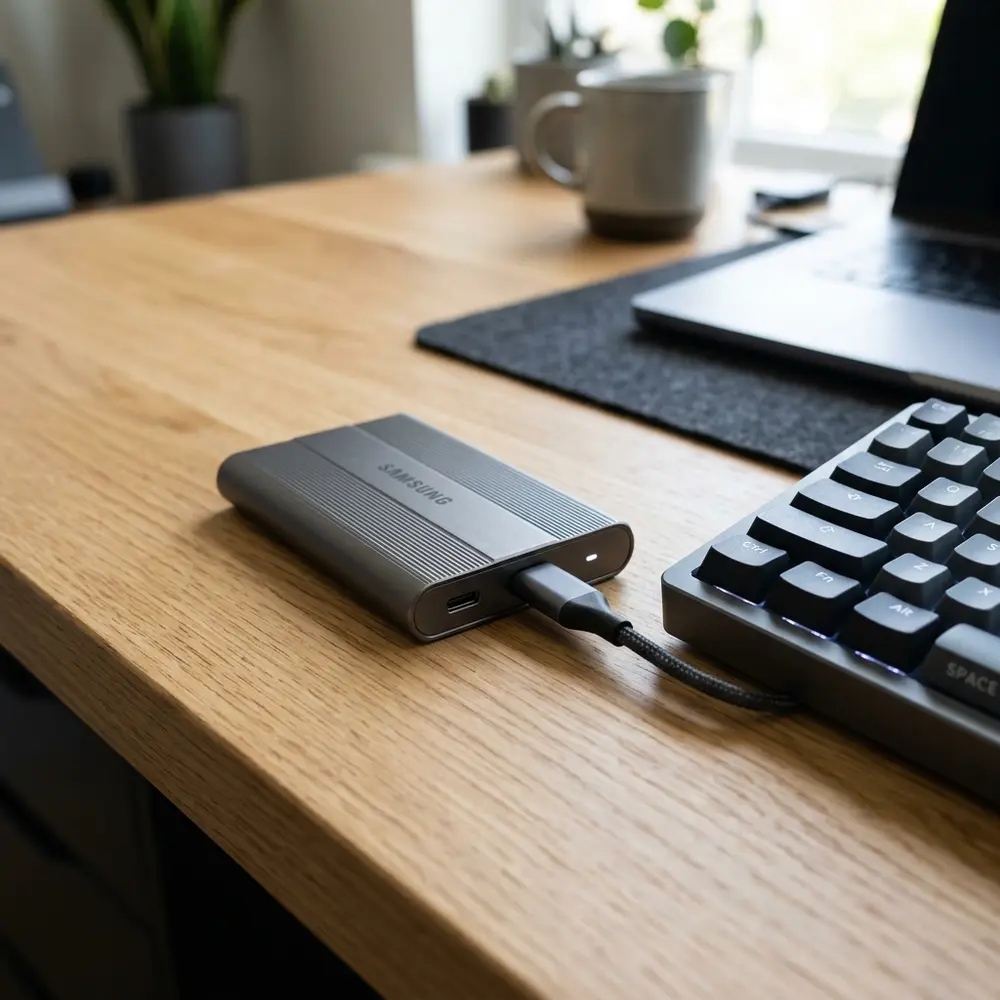
Numerous brands offer external SSDs tailored for photographers. Samsung, SanDisk, and Western Digital are among the leaders in this space.
Advantages of External SSDs for Photographers
External SSDs provide several advantages over traditional hard drives. They offer faster read/write speeds, which is critical when dealing with high-resolution images.
Additionally, their compact size makes them easy to transport, allowing photographers to work from various locations without compromise.
Common Concerns Addressed
It is common to question the longevity and reliability of external SSDs. Generally, SSDs have a longer lifespan compared to HDDs due to fewer moving parts.
Data loss prevention is another concern. Regular backups are recommended to mitigate risks associated with hardware failure.

Storage Solutions Beyond External SSDs
While external SSDs are excellent for immediate storage needs, additional solutions such as cloud storage can provide redundancy. Cloud services enhance data accessibility across devices and locations.
Hybrid storage strategies, combining local and cloud storage, often yield the best results for photographers. This approach ensures that files are secure and readily accessible.
Editing RAW Files: Best Practices
Editing RAW files requires sufficient RAM and a capable processor. Ensuring that the external SSD is connected via a high-speed interface is also critical for smooth editing.
Utilizing software optimized for RAW file processing can significantly improve workflow efficiency. Programs like Adobe Lightroom and Capture One are popular choices among photographers.
Maintaining External SSDs
Proper maintenance of external SSDs extends their lifespan. Regularly updating firmware and disconnecting the device safely can prevent data corruption.
Additionally, monitoring available space can help avoid performance degradation. Keeping the SSD’s storage below 80% capacity is advisable.
Frequently Asked Questions
1. What is the best external SSD for photographers?
The best external SSDs for photographers include models from Samsung, SanDisk, and Western Digital, known for their speed and reliability.
2. How much storage do photographers need in an external SSD?
Photographers typically require at least 1TB of storage, but higher capacities (2TB or 4TB) are recommended for extensive projects.
3. Are external SSDs faster than external HDDs?
Yes, external SSDs are significantly faster than external HDDs, making them better suited for handling large RAW files.
4. Can external SSDs be used for video editing?
External SSDs are ideal for video editing due to their high-speed data transfer capabilities, which enhance editing workflows.
5. How do I ensure data safety on my external SSD?
Regular backups and safe disconnection practices are essential for data safety on external SSDs.
Advanced Setup Tips for External SSDs
When setting up an external SSD for photography, it is crucial to format the drive according to the operating system in use. For macOS, APFS or Mac OS Extended (Journaled) is ideal, while NTFS or exFAT is recommended for Windows users.
Additionally, utilizing USB 3.1 or Thunderbolt 3 connections can significantly enhance transfer speeds, allowing for quicker access to large RAW files. Consider organizing files into folders by date or project to streamline the editing process and enhance productivity.
Common Mistakes When Using External SSDs
A prevalent mistake among photographers is neglecting to back up data stored on external SSDs, leading to potential data loss. Regularly creating a secondary backup on another drive or cloud service is essential for safeguarding valuable photographs.
Another common error is failing to safely eject the SSD after use, which can result in file corruption or loss. Always ensure that the drive is properly disconnected before removing it from the computer to maintain data integrity.
Model Comparisons for Best Performance
When selecting an external SSD, comparing models based on speed, durability, and storage capacity is vital. Drives like the Samsung T7 and SanDisk Extreme Pro are often favored for their fast read/write speeds and robust build quality.
Additionally, consider the warranty and customer reviews for each model, as these factors can provide insight into long-term reliability. Evaluating specifications against personal storage needs will aid in making an informed decision.
Use Case Scenarios for Photographers
Photographers working with high-resolution RAW files will benefit from an external SSD's fast read/write speeds during editing sessions. This setup allows for seamless playback and editing of large image files without lag, especially when using resource-intensive software.
For those who frequently travel for shoots, portable SSDs offer a lightweight and durable option for storing images on the go. Their compact size coupled with robust performance makes them ideal for fieldwork where space and reliability are paramount.
System Compatibility Considerations
Before purchasing an external SSD, it is important to confirm its compatibility with the operating system and hardware in use. Most modern SSDs support both Windows and macOS, but specific filesystem formats may differ, requiring reformatting for optimal performance.
Also, ensure that the computer has the appropriate ports for connecting the SSD, such as USB-C or Thunderbolt. Checking compatibility with editing software can further enhance workflow efficiency and avoid potential technical issues.
Cost Estimates for External SSDs
The cost of external SSDs can vary widely based on brand, storage capacity, and speed. Entry-level models may start around $100 for 500GB, while high-performance options can exceed $300 for 2TB or more.
Budgeting for an external SSD should also consider potential accessories, such as protective cases or additional cables. Allocating funds for future upgrades or backups can ensure a comprehensive storage solution.
Troubleshooting Common Issues with External SSDs
If an external SSD is not recognized by a computer, checking the connection and trying different ports can often resolve the issue. Additionally, ensuring that the drive is powered on and functioning properly will help identify if the problem lies with the device itself.
In cases of data corruption, utilizing disk repair tools or recovery software may restore access to lost files. If persistent issues occur, contacting technical support for the SSD manufacturer may be necessary to explore warranty options or further troubleshooting steps.
FAQs about External SSDs for Photographers
Understanding the right external SSD is crucial for photographers, especially when dealing with large RAW files. Below are some frequently asked questions that can help in selecting the best external SSD.
What is an SSD?
An SSD (Solid State Drive) is a type of storage device that uses flash memory to store data. Unlike traditional hard drives (HDDs), SSDs have no moving parts, which allows for faster data access and improved durability.
Why do photographers need external SSDs?
Photographers often work with large files, especially RAW images that require significant storage space. External SSDs provide portable and high-speed storage options that can handle the demands of editing and backing up these files.
What factors should be considered when choosing an external SSD?
- Speed: Look for SSDs with high read/write speeds, ideally over 500 MB/s for efficient file transfers.
- Capacity: Select a capacity that suits the needs based on the size of the RAW files. Common sizes range from 250GB to 4TB.
- Durability: Photographers may work in various environments, so choose SSDs that are rugged or have shock resistance.
- Connectivity: Ensure compatibility with devices. USB-C and Thunderbolt 3 are preferred for faster data transfer rates.
- Brand Reliability: Opt for brands known for their reliability and customer support.
Verification Checklist for External SSDs
When evaluating external SSDs, use the following checklist to ensure they meet the necessary criteria for photography work.
- Speed: Confirm specifications for read/write speeds.
- Capacity: Assess whether the available storage meets current and future needs.
- Durability: Check for rugged features, such as water and dust resistance ratings.
- Warranty: Review the warranty period and terms for the SSD.
- Portability: Evaluate the size and weight for ease of transport.
Comparison Table of Popular External SSDs for Photographers
| Model | Capacity | Read Speed (MB/s) | Write Speed (MB/s) | Durability | Price |
|---|---|---|---|---|---|
| Samsung T7 | 500GB, 1TB, 2TB | 1050 | 1000 | Shock-resistant, Metal casing | $90 - $300 |
| SanDisk Extreme Portable SSD | 500GB, 1TB, 2TB | 1050 | 1000 | Water and dust resistant | $100 - $350 |
| WD My Passport SSD | 500GB, 1TB, 2TB | 1050 | 1000 | Drop-resistant, Metal design | $90 - $290 |
| Crucial X8 | 500GB, 1TB, 2TB | 1050 | 1000 | Durable aluminum unibody | $90 - $250 |
Technical Glossary
Familiarity with specific terms can enhance understanding when selecting external SSDs. The following glossary provides definitions of key technical terms.
- Flash Memory: A non-volatile storage medium that retains data without power, commonly used in SSDs.
- Read Speed: The maximum speed at which data can be read from the SSD, typically measured in megabytes per second (MB/s).
- Write Speed: The maximum speed at which data can be written to the SSD, also measured in MB/s.
- TBW (Terabytes Written): A metric indicating the total amount of data that can be written to the SSD over its lifetime.
- Endurance: A measure of how long the SSD will last under continuous use, often expressed in TBW or years of use.
- USB-C: A universal connector standard that supports higher data transfer speeds and power delivery.
- Thunderbolt 3: A hardware interface that allows the connection of external peripherals to a computer, providing fast data transfer speeds.
- RAID: Redundant Array of Independent Disks, a technology that uses multiple storage devices to improve performance or provide redundancy.
Best Practices for Using External SSDs
To maximize the efficiency and longevity of external SSDs, consider the following best practices:
- Regular Backups: Ensure data is backed up regularly to prevent loss.
- Safe Ejection: Always safely eject the SSD from the device to avoid data corruption.
- Keep Firmware Updated: Regularly check for firmware updates from the SSD manufacturer.
- Store in a Safe Environment: Avoid exposing the SSD to extreme temperatures or physical shocks.
- Monitor Storage Usage: Keep track of storage space to manage files effectively and prevent performance issues.




