Best Budget-Friendly Ink Tank Printers for Sublimation Printing
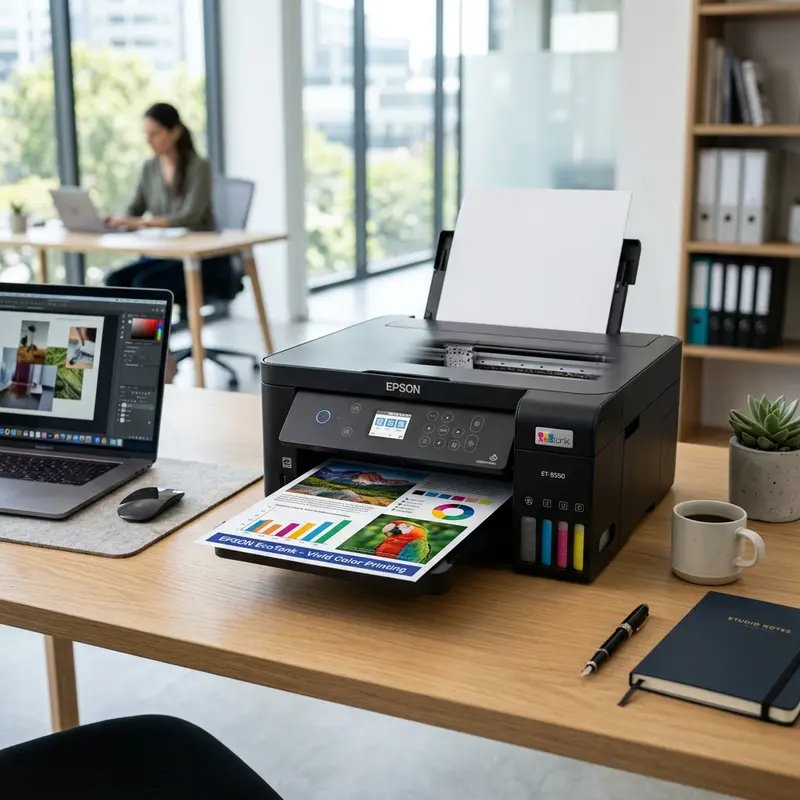
Entering the dye-sublimation craft business to create custom mugs, shirts, phone cases, and photo slates requires careful budgeting, with the printing hardware being your most critical investment. The physics of dye sublimation is straightforward: solid dye particles in specialized ink are printed onto transfer paper and then subjected to extreme heat (around 350°F to 400°F) and pressure in a heat press. Under these conditions, the solid dye transforms directly into a gas without turning into liquid first, chemically bonding with polyester fibers or polymer-coated surfaces. The best cheap ink tank printer for sublimation is the Epson EcoTank L3250 (along with budget models like the Epson L121 or L1250) because it features Epson's patented MicroPiezo cold-pressure print head technology, which prevents the heat-activated sublimation dyes from prematurely curing and clogging the print nozzle capillaries.
Understanding why other ink tank platforms fail and learning how to properly convert and maintain a budget printer will ensure your custom printing projects remain profitable and high in quality.
1. The Engineering Showdown: Piezoelectric vs. Thermal Print Heads
A common mistake for beginners in sublimation printing is purchasing budget-friendly ink tank printers from brands like HP (Smart Tank) or Canon (MegaTank) to save money. While these machines perform exceptionally well with standard pigment or dye inks, they are physically incompatible with sublimation inks due to how their print heads operate.
HP and Canon printers utilize Thermal Inkjet technology. To eject ink, an internal thin-film resistor heats the fluid to temperatures near 572°F (300°C) in microseconds. This intense heat creates a vapor bubble that forces the ink droplet out of the nozzle. Because sublimation inks contain heat-sensitive polymers designed to activate under thermal energy, this rapid heating inside the print head causes the dye to solidify and cure inside the microscopic nozzles. This results in permanent clogs and ruins the print head within days.
Epson printers, on the other hand, use MicroPiezo print head technology (piezoelectric). Instead of heat, it relies on electric currents applied to piezoelectric crystals positioned behind the nozzles. When charged, these crystals physically flex and contract, creating a mechanical pressure wave that pushes the ink droplet out. Because this process is entirely cold, the sublimation ink flows through the print head without reacting chemically, making Epson the only viable budget choice for custom sublimation conversions.
2. Step-by-Step Sublimation Conversion Guide for a New EcoTank
To convert an Epson EcoTank printer (such as the L3250, L1250, or L121) for sublimation, you should start with a brand-new printer that has never been loaded with standard desktop ink. Converting a printer that has already run dye inks is possible, but it requires a tedious flushing process to clean the system.
Follow these steps to set up your new printer for sublimation:
- Discard the Included Inks: Do not fill the printer with the standard Epson T544 dye bottles included in the box. Set them aside for another standard document printer or sell them.
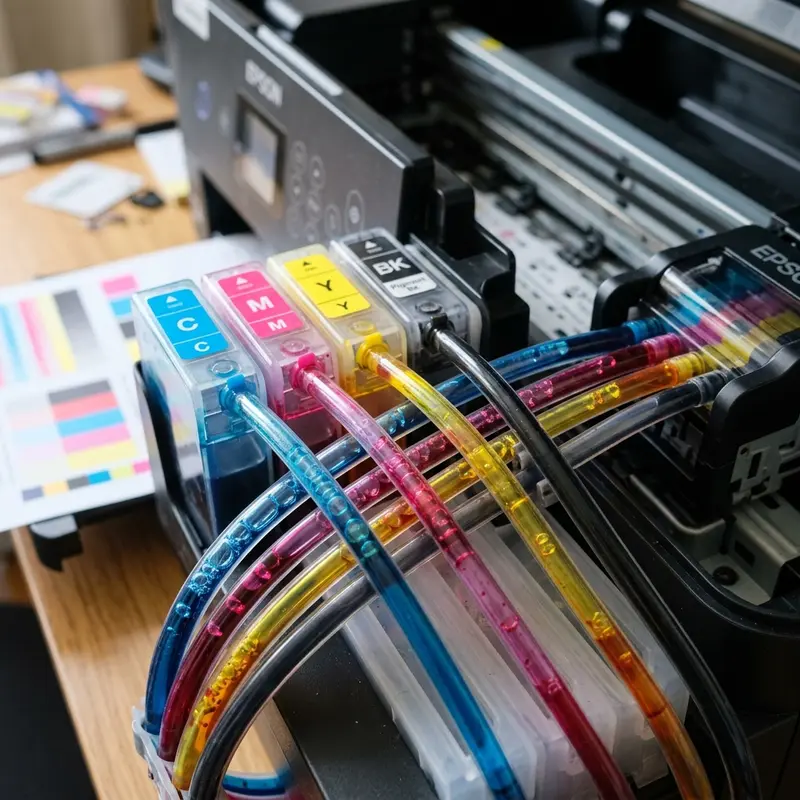
- Load Sublimation Ink: Purchase high-quality sublimation ink (such as Inktec SubliNova, Cosmos, or Printers Jack). Fill each of the four front reservoirs (CMYK) using clean syringes for each color. Refrain from overfilling past the maximum fill lines.
- Run the Ink Priming Cycle: Turn the printer on and press the physical "Cancel" button for 5 seconds to start the initial charging process. The printer will pull the sublimation ink through the silicone tubes and into the print head. This process takes about 15-20 minutes.
- Install the Custom ICC Profile: Sublimation ink has different light refraction properties than standard dye ink, meaning printouts will look muted and washed-out on paper. The true colors only develop after heat pressing. To ensure accurate colors (such as deep blacks and bright reds), install the manufacturer's custom ICC profile in your design software (Adobe Photoshop, Illustrator, or CorelDRAW) and configure the software to manage colors.
3. Recommended Budget-Friendly Epson Models for Sublimation
If you are looking for an affordable printer to start your sublimation business, consider these three models:
Epson EcoTank L3250 (The Top Recommendation)
The L3250 offers the best overall value for sublimation. It features wireless connectivity and a built-in 1200 dpi flatbed scanner. While we recommend using a USB cable for printing to avoid print queue errors with large image files, the scanner is very useful for digitalizing hand-drawn graphics or patterns.
Epson EcoTank L121 (The Cheapest Option)
The L121 is a compact, print-only model with no scanner. It prints at a lower maximum resolution (720x720 dpi compared to the L3250's 5760x1440 dpi). However, it is the most affordable Epson hardware option available. It works well for printing designs on polyester shirts and bags where ultra-high resolution is not critical.
Epson EcoTank L1250 (A Print-Only Alternative)
The L1250 is an intermediate option that removes the scanner to reduce the hardware cost while maintaining the high resolution (5760x1440 dpi) and wireless capabilities of the L3250. This model is perfect for crafters who already have a separate scanner or work solely with digital art files.
| Printer Model | Max Print Resolution | Scanner Unit | Minimum Droplet Size | Sublimation Verdict |
|---|---|---|---|---|
| Epson L3250 | 5760 x 1440 dpi | Yes (1200 dpi Flatbed) | 3 picoliters (Variable) | Best Choice (Highly recommended) |
| Epson L121 | 720 x 720 dpi | No | 3 picoliters (Fixed) | Budget/Entry (Good for basic fabric) |
| Epson L1250 | 5760 x 1440 dpi | No | 3 picoliters (Variable) | Great Alternative (Without scanner unit) |
4. Crucial Maintenance Procedures for Sublimation Inks
Unlike standard dye-based inks, sublimation ink contains suspended solid dye pigments. If the printer sits idle, the liquid solvent will slowly evaporate, and the solid particles will settle and dry inside the microscopic channels of the print head, leading to severe clogs.
To keep your converted sublimation printer running smoothly, implement these daily maintenance habits:
- Print Daily: If you don't have active print jobs, print a quick test sheet containing blocks of cyan, magenta, yellow, and black on cheap copy paper. This prevents ink stagnation in the print head nozzles.
- Keep the Capping Station Clean: The capping station is the rubber seal where the print head rests when idle. If dried ink residue accumulates here, it prevents a proper seal, allowing air to dry out the nozzles. Clean the rubber lip and the nearby wiper blade using a cotton swab moistened with specialized print head cleaning fluid (flush solution).
- Purge Air from the Dampers: Air bubbles can enter the ink lines over time, causing missing bands in your prints. To resolve this, remove the dampers from the carriage assembly and use a syringe (without a needle) to draw ink manually from the reservoirs, purging the air and filling the damper chambers with liquid ink.
5. Heat Press Physics: Time, Temperature, and Pressure Configurations
Once your design is printed, the heat transfer step is where the chemical magic of sublimation takes place. The polyester molecules in the fabric or the coating polymer on a blank mug expand and open when exposed to high heat. At the same time, the solid dye on the transfer paper turns into a gas. The pressure applied by the press forces the gas into the open polymer matrix, locking it inside as the material cools down.
Understanding the parameters for each substrate is essential for perfect transfers. Polyester shirts require a flat press set to 390°F (200°C) for 35 to 45 seconds under medium pressure. Ceramic mugs need a mug press at 375°F (190°C) for 180 seconds under heavy pressure to ensure full contact. For phone cases, use a vacuum press at 360°F (180°C) for 120 seconds. Incorrect temperatures can scorch fabrics or cause faded prints due to incomplete dye gasification.
Before pressing, always pre-press your garments for 3 to 5 seconds. This pre-press cycle removes moisture and wrinkles from the polyester fibers. If moisture is left in the fabric, it can cause the sublimation ink gas to turn into water droplets, leading to blurred details and faded colors on the final product.
6. ICC Color Management and Graphics Software Configuration
Getting accurate color prints is one of the most challenging parts of sublimation. Because sublimation ink only shows its true colors when pressed, prints on paper look dull and skewed. A design printed without color management will often have green or red tints, and blacks can print as a dark brown.
To fix this, install the custom ICC profile provided by your ink manufacturer. In programs like Adobe Photoshop or CorelDRAW, set your color settings to "Photoshop Manages Colors" or "CorelDRAW Manages Colors" and select the correct profile. In the print dialog, make sure to set the paper type to "Plain Paper/Bright White Paper" and set the quality to "High" or "Best". This tells the print driver to apply the correct ink density for sublimation paper. Also, always check the "Mirror Image" setting so your text and designs transfer in the correct orientation.
7. Common Sublimation Defect Diagnostics and Cures
Even with a proper setup, you may encounter printing issues. One common issue is 'ghosting,' where a double image or shadow appears around your design. This happens if the transfer paper shifts slightly during the press. To prevent this, secure the paper to the blank using heat-resistant tape, and lift the press handle slowly at the end of the cycle.
Another issue is 'head-strikes,' which look like dark ink smudges on the edges of the paper. This happens when the edges of thick sublimation paper curl up and hit the print head as it moves. To avoid head-strikes, store your transfer paper in a sealed bag to keep it dry, and run a horizontal head alignment to make sure the paper feeding mechanism is flat.
8. Advanced Sublimation Software Workflows (AcroRip & Silhouette Studio)
For crafters who want to push the boundaries of custom sublimation, utilizing standard print drivers might not offer the degree of ink density control required. In these cases, professional software tools like AcroRIP are utilized. AcroRIP allows you to control the exact ink drop size (small, medium, or large) and manage individual nozzle channels. This is especially helpful if one of the cyan or magenta channels is weak, as you can redirect the output to use an alternate channel, saving you from having to purchase a new print head.
Additionally, if you use Silhouette Studio, make sure you configure your registration marks correctly before printing. Sublimation paper must be cut precisely on a cutting mat to avoid alignment errors when transferring to materials like acrylic blanks. Combining your EcoTank printer with a desktop cutting plotter lets you create custom-shaped stickers, heat transfer vinyl details, and complex decals with professional-grade borders.
9. Setting Up an External Waste Ink Collector (Dispenser)
Every head cleaning cycle performed by the printer pumps a small volume of ink into the waste ink felt pads at the bottom of the printer chassis. Because sublimation ink is thicker and dries faster than standard ink, these felt pads can become saturated and overflow much earlier than the printer's software predicts.
To protect the printer's internal electronic boards from ink overflow, we recommend installing an external waste ink dispenser. Open the rear hatch of the printer, locate the black waste tube coming from the pump, pull it out of the internal pads, and route it to an external plastic bottle mounted on the back of the printer. Once the software's internal print counter reaches its limit, use a software reset tool (such as WIC Reset) to clear the electronic counter, knowing that your printer is physically protected from internal ink spills.
Frequently Asked Questions (FAQ)
Why can't I use HP or Canon printers for sublimation?
HP and Canon printers use Thermal Inkjet technology, which heats the ink to high temperatures to shoot it out of the nozzles. Sublimation ink is heat-sensitive, so this heating process causes the dye to bake and solidify inside the print head, causing permanent clogs and ruining the hardware.
Does sublimation ink damage the Epson L3250 print head?
No, sublimation ink does not damage the MicroPiezo print head of the Epson L3250. This technology uses mechanical pressure instead of heat to eject the ink. However, because sublimation ink has a higher density of solids, you must print regularly (every 1-2 days) to prevent the nozzles from drying out.
How do I remove air bubbles from EcoTank ink tubes?
To remove air from the tubes, turn off the printer, open the carriage access door, remove the plastic damper for the affected color, insert a syringe without a needle into the damper's exit valve, and pull the plunger to draw out the air until the damper is filled with ink.
Is an ICC profile necessary for sublimation printing?
Yes, using an ICC profile is essential. Sublimation ink looks dull and inaccurate when printed on paper. The ICC profile calibrates the color values in your design software so that when the printout is pressed onto a polyester surface, the final colors match your screen accurately.




