How to Align Three Monitors Perfectly on a Triple Monitor Desk Arm Mount
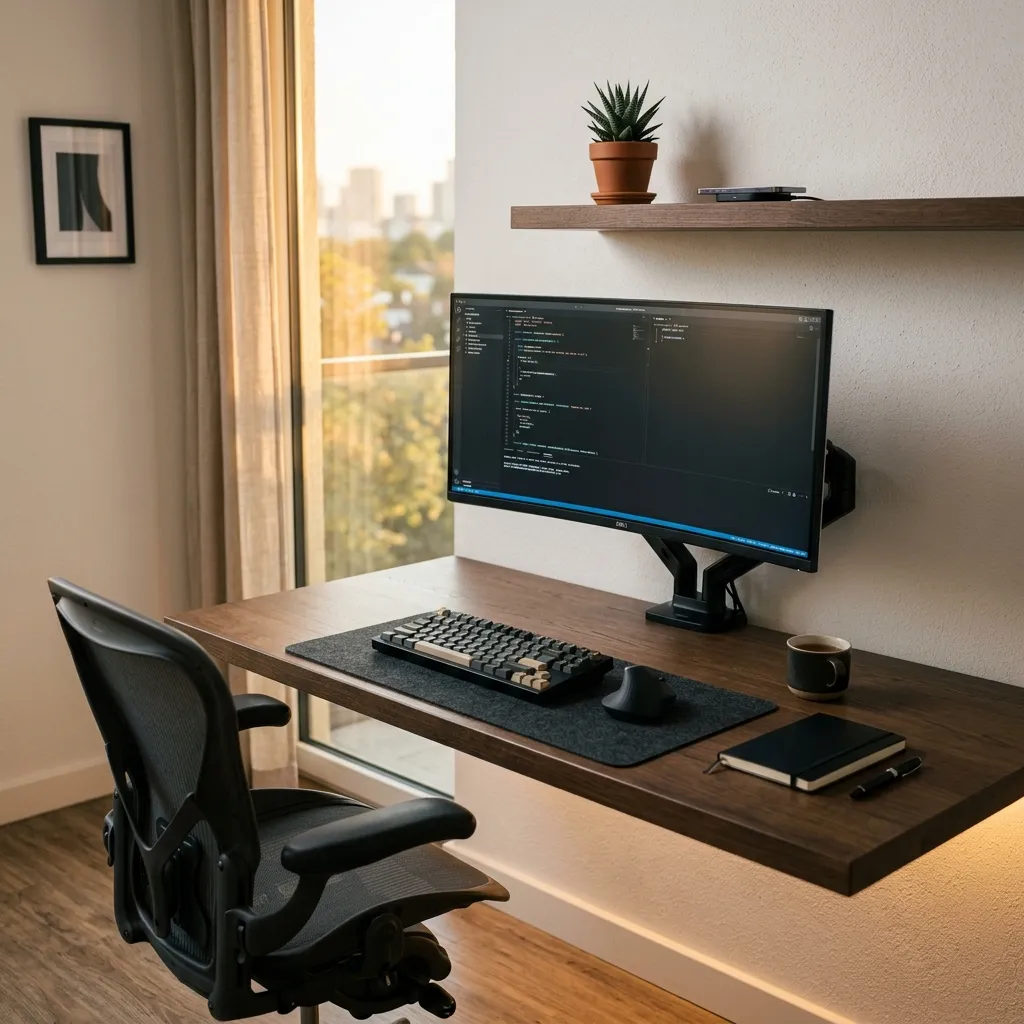
Achieving perfect alignment for three monitors on a desk arm mount is essential for optimal ergonomics and productivity.
Understanding Monitor Mount Specifications
Most triple monitor desk arm mounts support a range of monitor sizes, typically from 22 to 32 inches, with weight capacities of up to 15 kg per monitor.
Common VESA mount patterns include 75x75 mm and 100x100 mm, which must match the back of each monitor for proper installation.
Material Considerations for Durability
High-quality desk mounts often use aluminum or steel, offering superior strength and durability compared to plastic counterparts.
Aluminum arms provide lightweight and rust-resistant options, while steel arms offer enhanced stability for heavier monitors.
Ergonomic Alignment Techniques
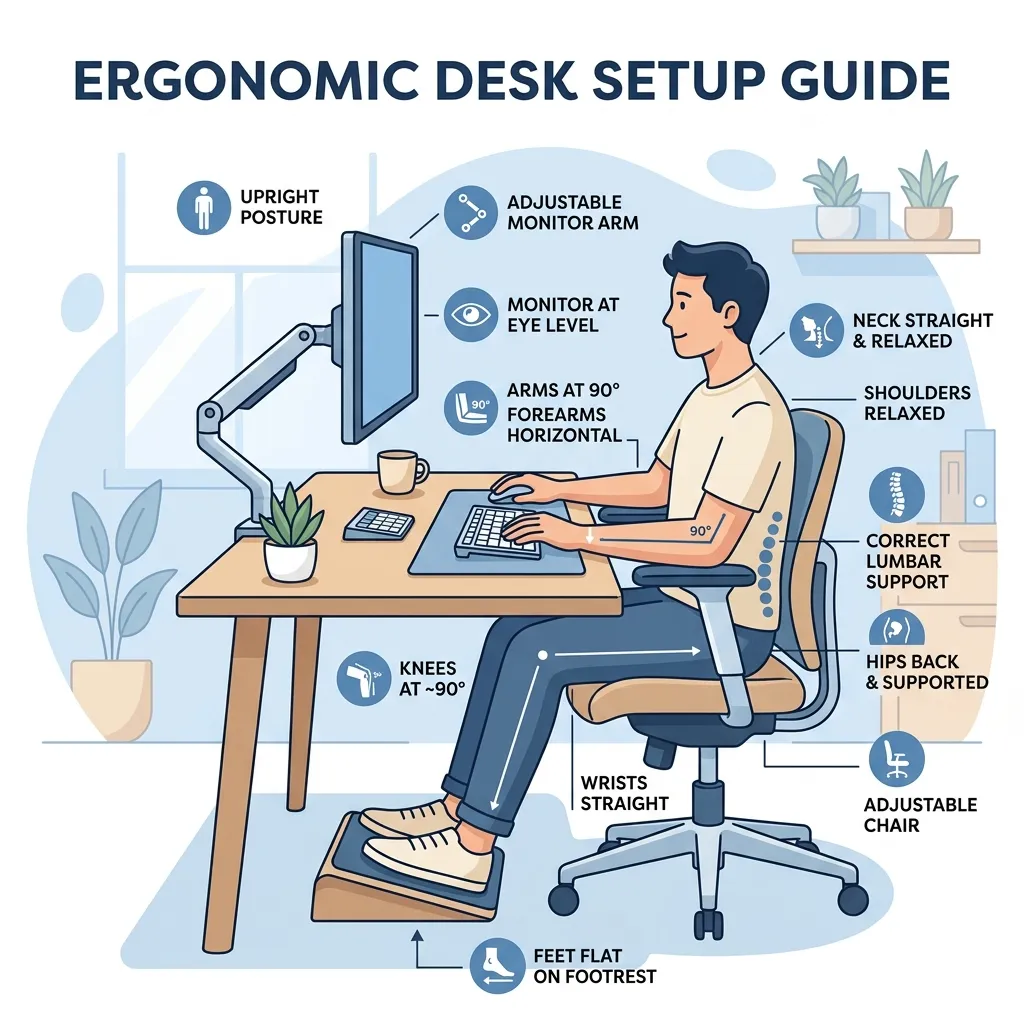
Proper ergonomic setup requires monitors to be at eye level, minimizing neck strain and promoting comfort during extended use.
The top of the monitor screens should align with eye level, and the distance should ideally be between 50 to 70 cm for optimal viewing.
Performance and Adjustability Features
Many desk mounts include adjustable tilt, swivel, and rotation features, enhancing accessibility and reducing glare.
Look for mounts with gas-spring technology for smooth height adjustments, accommodating varying user preferences quickly.
Brand Comparisons for Quality Assurance
Brands like Ergotron, AmazonBasics, and Huanuo offer reliable options with various features, catering to different user needs.
Ergotron's LX series, for instance, is known for its robust build and ergonomic design, while AmazonBasics offers cost-effective solutions.
| Brand | Material | Weight Capacity | Monitor Size Range | Price Range |
|---|---|---|---|---|
| Ergotron | Aluminum | 15 kg per monitor | 22-32 inches | $200-$400 |
| AmazonBasics | Steel | 10 kg per monitor | 23-32 inches | $100-$150 |
| Huanuo | Steel | 8 kg per monitor | 24-27 inches | $80-$120 |
DomineTec Tip: Regularly adjust monitor heights and angles throughout the day to accommodate posture changes and reduce fatigue.
- Choose a desk mount that supports the combined weight and size of your monitors.
- Install the mount according to manufacturer specifications, ensuring VESA compatibility.
- Adjust the height so that the top of the monitors aligns with eye level.
- Position monitors at an arm's length distance for optimal viewing comfort.
- Utilize the tilt and swivel features to minimize glare and maximize visibility.
For enhanced typing experience, consider how to choose mechanical keyboard switches that complement your setup.
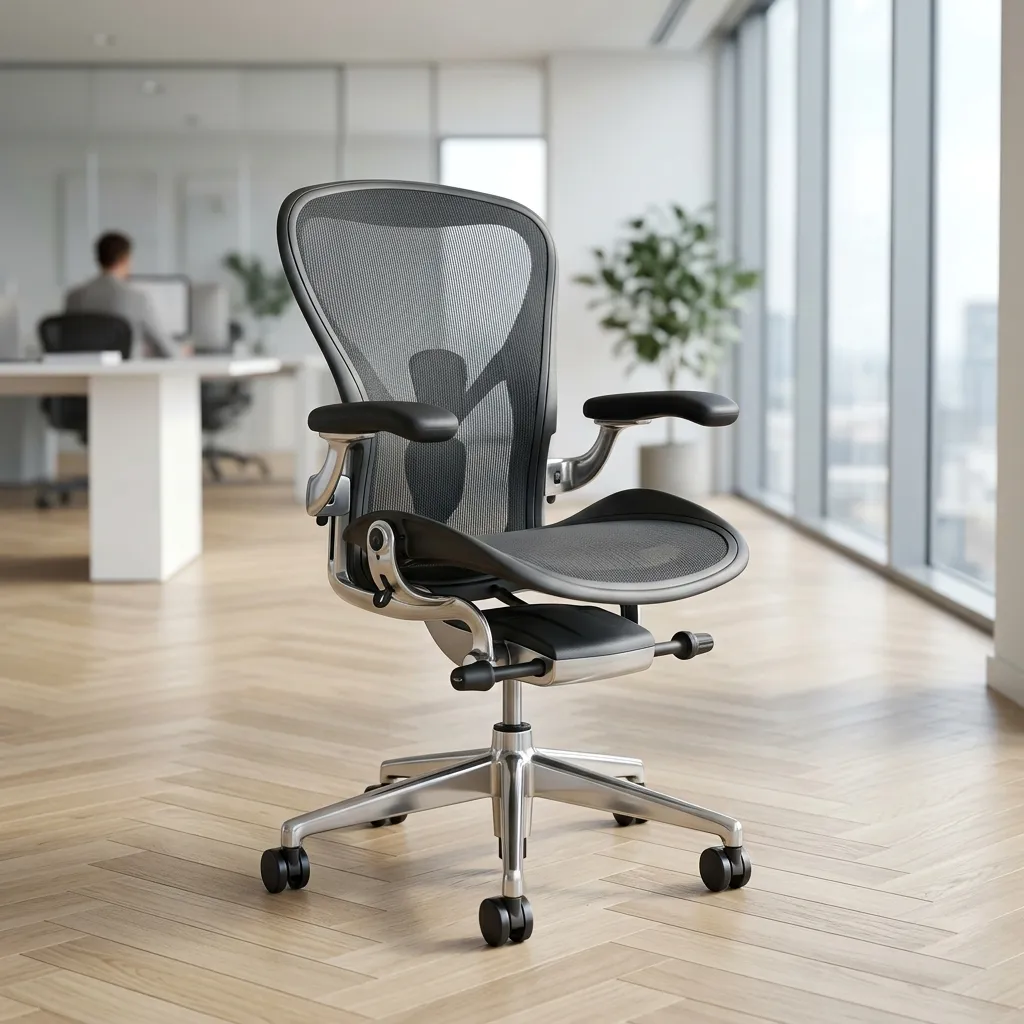
Maintain comfort by selecting an appropriate ergonomic office chair to pair with the monitor setup.
Importance of Cable Management
Effective cable management is crucial for maintaining both aesthetics and functionality in a multi-monitor setup.
Organizing cables improves the overall appearance and minimizes the risk of tangling and damage.
Utilizing cable clips, sleeves, and ties can help keep cables organized and out of sight, creating a cleaner workspace.
Investing in cable management solutions can also enhance airflow around the monitors, reducing heat buildup and improving performance.
Setting Up for Optimal Viewing Angles
Establishing the correct viewing angles is essential for reducing eye strain and enhancing productivity.
Monitors should be positioned so that the top of the screen is at or just below eye level when seated.
Adjusting the tilt and swivel of each monitor can help achieve optimal angles, ensuring that glare from windows or lights is minimized.
Consider the distance between your eyes and the screens, which should be about an arm's length away for comfortable viewing.
Calibration and Color Settings for Consistency
Calibrating the monitors ensures that color and brightness settings are consistent across all screens.
Using calibration tools or built-in settings can help achieve a uniform display, which is crucial for tasks requiring color accuracy.
Regularly checking and adjusting color settings can prevent discrepancies that may arise from different monitor models or brands.
Maintaining consistent brightness and contrast levels across monitors enhances the overall viewing experience, especially in graphic design or video editing tasks.
Choosing the Right Monitor Sizes and Resolutions
Selecting monitors of the same size and resolution is vital for a cohesive multi-monitor experience.
Uniform dimensions prevent visual distractions and allow for seamless transitions between screens.
Consider the pixel density as well; higher resolution monitors provide sharper images, which can be beneficial for detailed work.
When planning your setup, ensure that all monitors support the same refresh rates to avoid screen tearing during use.
Workspace Organization Tips for Efficiency
A well-organized workspace can significantly boost productivity and comfort in a multi-monitor setup.
Positioning frequently used items within arm's reach reduces unnecessary movements and aids in maintaining focus.
Incorporating ergonomic accessories like keyboard trays and adjustable desks can enhance comfort during long hours of work.
Regularly assessing and decluttering your workspace helps maintain an efficient environment conducive to productivity.
Maintenance and Care for Longevity
Regular maintenance of the monitor setup can extend the life of the equipment and improve performance.
Cleaning screens with appropriate tools ensures that dust and fingerprints do not interfere with visibility and display quality.
Inspecting cables and connections periodically for wear or damage helps prevent future issues and maintains operational efficiency.
Updating software and drivers for monitors can optimize performance and ensure compatibility with new technologies.
Adapting Your Setup for Different Work Scenarios
Flexibility in your monitor setup allows for adaptation to various work scenarios, from gaming to professional tasks.
Consider adjusting the height and angle of the monitors based on the activity, ensuring comfort and efficiency.
Using multi-display software can facilitate easy switching between different configurations tailored to specific tasks.
Regularly reassessing your setup based on changing work requirements ensures continued effectiveness and comfort during use.
Adjusting Monitor Heights for Seamless Viewing
When aligning three monitors, height adjustments are critical for achieving a seamless visual experience.
Utilizing a measuring tape, determine the optimal eye level based on your seating position.
The top edge of each monitor should align with this level, ensuring a consistent line of sight across all screens.
Most triple monitor desk arm mounts come with adjustable arms, allowing for precise height adjustments.
Regularly check the alignment after adjustments, as minor shifts can occur due to usage or weight distribution.
Consider using a tool or app that helps visualize the ideal setup before finalizing the height settings.
Understanding the Importance of Monitor Tilt and Rotation
Monitor tilt and rotation are essential features that enhance usability and viewing comfort.
Tilting monitors can reduce glare from overhead lighting, improving visual clarity.
Each monitor should be tilted slightly backward, typically between 10 to 20 degrees, to optimize the viewing angle.
This slight adjustment helps in reducing reflections and provides a more natural line of sight.
Rotation is also important, especially for tasks that require vertical viewing, such as coding or reading documents.
Ensure that each monitor can rotate independently for versatility depending on your work requirements.
When adjusting tilt and rotation, make sure to lock the settings in place to prevent accidental changes during use.
Utilizing Software for Multi-Monitor Management
Software solutions play a vital role in managing multiple monitors effectively.
Programs such as DisplayFusion or Ultramon can enhance the functionality of a triple monitor setup by providing advanced management features.
These tools allow users to configure taskbars, wallpaper, and window behaviors across all screens, creating a more cohesive and organized workspace.
Additionally, some software options enable color calibration and resolution settings that can be applied across all monitors for consistency.
Regularly update your software to access the latest features and improvements.
Integrating Productivity Tools for Enhanced Workflow
Incorporating productivity tools into a triple monitor setup can significantly enhance workflow efficiency.
Consider using applications that facilitate task management, note-taking, or collaboration across multiple screens.
Tools such as Trello or Asana can be displayed on one monitor while work documents and communication platforms are on the others.
This arrangement allows for a streamlined workflow without constantly switching between applications.
Utilizing keyboard shortcuts and macros can further expedite task completion, allowing for a fluid interaction between the monitors.
Considering Aesthetic Elements in Monitor Arrangement
Aesthetic considerations in a triple monitor setup can enhance both the visual appeal and functionality of the workspace.
A well-organized and visually pleasing arrangement can improve focus and creativity.
Choose monitor stands or mounts that complement your desk and existing décor.
Additionally, consider uniformity in monitor frames and sizes to create a cohesive look.
Incorporating decorative elements, such as plants or artwork, around the monitors can also enhance the aesthetic without causing clutter.
Exploring Different Mounting Configurations
When setting up a triple monitor desk arm mount, understanding various mounting configurations is crucial for achieving an efficient workspace.
Options such as horizontal alignment, vertical stacking, or a staggered arrangement can dramatically influence both aesthetics and functionality.
Horizontal alignment is the most common choice for a triple monitor setup, providing a wide panoramic view ideal for multitasking and gaming.
Vertical stacking can be beneficial for users who prioritize vertical screen real estate, such as programmers or financial analysts.
Staggered arrangements present a hybrid approach, where monitors are placed at varying heights or angles, providing both horizontal and vertical benefits.
Enhancing User Experience with Multi-Monitor Accessories
To further enhance the user experience in a triple monitor setup, consider incorporating various accessories designed for multi-monitor use.
Items such as monitor risers, anti-glare filters, and screen protectors can significantly improve usability and longevity.
Monitor risers can help elevate the screens to eye level, reducing the risk of neck strain and improving posture.
Anti-glare filters are particularly useful for users working in brightly lit environments, as they reduce reflections and enhance screen visibility.
Screen protectors safeguard monitors from scratches and damage while improving visibility.
Understanding the Role of Monitor Positioning in Multi-Monitor Setups
Proper monitor positioning is crucial for optimizing comfort and productivity in a multi-monitor setup.
The arrangement of monitors can significantly influence user ergonomics, affecting posture and reducing the risk of strain injuries.
When arranging three monitors, the central display should be directly in front of the user, with the side monitors slightly angled towards them.
Utilizing a triple monitor arm mount allows for precise positioning adjustments, beneficial for individuals who switch between tasks frequently.
Setting Up a Seamless Multi-Monitor Workflow
A seamless workflow in a multi-monitor setup requires careful planning and organization of both digital and physical elements.
Start by identifying the primary tasks performed and how each monitor can best support those tasks.
Utilizing productivity software can streamline the user experience across multiple screens.
Maintaining a clutter-free workspace is essential for maximizing productivity.
Regularly reassessing the effectiveness of the multi-monitor setup is key to ensuring continued productivity.
Troubleshooting Common Multi-Monitor Setup Issues
Multi-monitor setups can significantly enhance productivity, but they are not without their challenges. Common issues include display recognition failures, resolution mismatches, and color discrepancies, which can hinder the seamless integration of multiple monitors.
One prevalent issue is when a monitor fails to be recognized by the operating system. This can often be resolved by checking the connections; ensure that all cables are securely connected and that the monitors are powered on. Running the "Display Settings" or "Screen Resolution" utility in the operating system can help identify if the monitor is detected.
If the monitor is recognized but displays incorrectly, it may be due to a resolution mismatch. Right-click on the desktop, select "Display Settings," and adjust the resolution settings for each monitor to ensure they match their native resolutions. This can prevent distortions and provide a more cohesive viewing experience.
Color discrepancies are another common issue in multi-monitor setups. To address this, users can utilize color calibration tools available in the operating system or third-party software to ensure that all monitors display colors consistently. This involves adjusting brightness, contrast, and color balance settings, which can usually be accessed through the monitor’s on-screen display (OSD) menu.
Best Practices for Multi-Monitor Security and Privacy
In a multi-monitor environment, security and privacy considerations become paramount. With multiple screens displaying sensitive information, it's essential to implement measures to protect data from unauthorized access and visual hacking.
One effective practice is to use privacy screens, which limit the viewing angles of the monitors. This is particularly useful in shared or public spaces, as it helps prevent onlookers from viewing sensitive data without the user’s knowledge.
Additionally, implementing user authentication protocols is crucial. Utilize strong passwords and consider biometric authentication options where possible. Configuring user accounts with specific access permissions can also ensure that only authorized personnel can view sensitive information on specific monitors.
Regularly updating software and firmware for both the operating system and the monitors can help protect against potential vulnerabilities. This includes applying security patches and updates from the manufacturer, which can mitigate risks associated with outdated systems.
Advanced Troubleshooting for Multi-Monitor Setups
Troubleshooting multi-monitor setups can often be a complex process, but systematic approaches make it manageable. Common issues include monitors not being detected, display resolution mismatches, or flickering screens.
The first step in troubleshooting is to ensure all physical connections are secure. This includes checking that all cables are firmly connected to both the monitors and the computer. For DisplayPort connections, make sure that the cables are not damaged, as these can lead to intermittent connections.
If monitors are still not detected, access the Display Settings in the operating system. In Windows, right-click on the desktop and select "Display Settings," then click on "Detect." This action prompts the system to search for connected monitors that may not be recognized automatically.
For persistent issues, updating graphics drivers is crucial. Navigate to the device manager, locate the graphics adapter, and select "Update Driver." Keeping drivers updated ensures compatibility with the latest display technologies and can resolve many display-related errors.
Best Practices for Multi-Monitor Security and Privacy
Security and privacy considerations are paramount in a multi-monitor setup, particularly in shared workspaces. One effective strategy for enhancing security is using privacy filters on monitors.
These filters reduce the viewing angle, making it difficult for onlookers to see sensitive information. Installing them is straightforward; they can be affixed using adhesive strips or magnetic frames, depending on the monitor design.
Additionally, software solutions can be employed to lock screens after a short period of inactivity. Configuring a screen lock can be done through system settings, ensuring that unauthorized users cannot access sensitive information left on display.
Regularly updating security software is another essential practice. This includes antivirus programs and firewall settings, which protect against malware and unauthorized access attempts that may target multi-monitor environments.
Frequently Asked Questions
What is the best height for triple monitor setup?
The best height aligns the top of the monitors with your eye level, minimizing neck strain and promoting comfort.
How do I adjust the tilt on a monitor arm?
Most monitor arms have a tilt adjustment mechanism, typically a knob or lever, that allows for easy angle changes.
Can all monitors be mounted on a triple monitor arm?
Not all monitors are VESA compatible; ensure the monitors have the required mounting holes to fit the desk arm.
What is the weight limit for most monitor arms?
Typical weight limits range from 8 kg to 15 kg per monitor, depending on the arm's design and materials used.
Are there any specific brands recommended for durability?
Brands like Ergotron and Huanuo are highly recommended for their durable construction and ergonomic features.




