Wall Plug WiFi Extender vs Router in Access Point Mode: Which is Better?
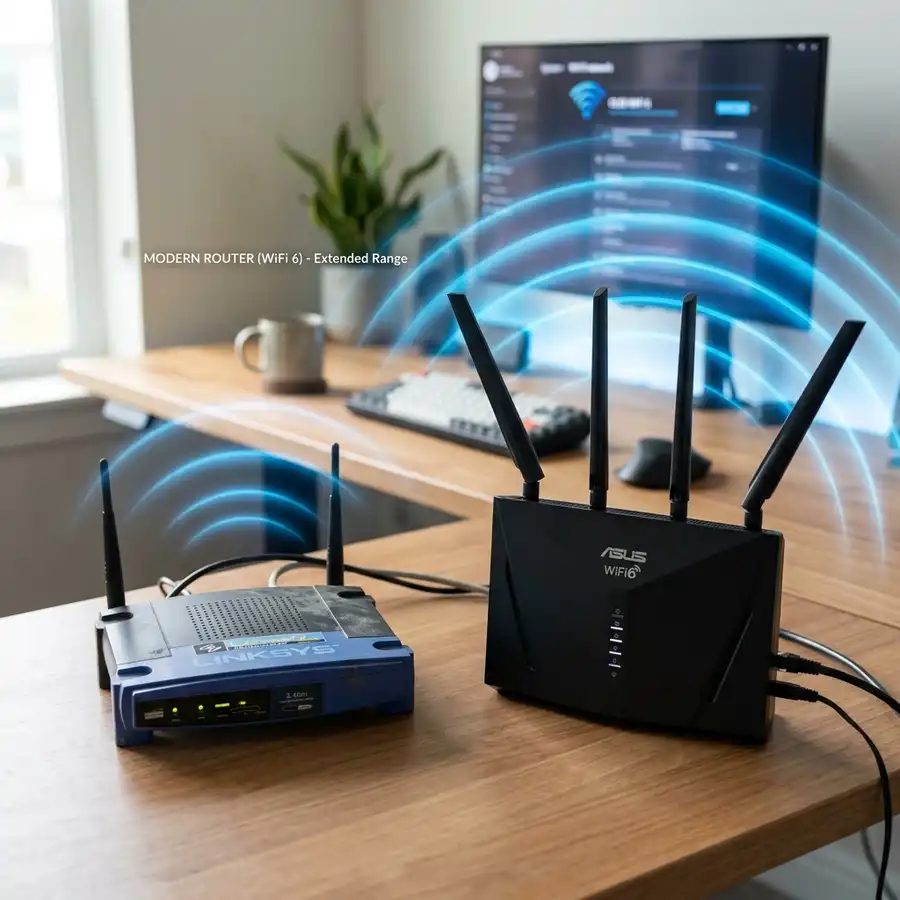
Router in Access Point mode is generally better.
When deciding between a Wall Plug WiFi Extender and a Router in Access Point mode, several factors come into play, including network topology, device capabilities, and intended use case.
Introduction to WiFi Extenders and Access Points
WiFi extenders are designed to amplify and rebroadcast WiFi signals to extend coverage, while routers in Access Point mode can offer more robust networking capabilities.
Understanding the differences and applications of each device is crucial for making an informed decision.
WiFi Extender Capabilities
WiFi extenders are typically simple devices with a single Ethernet port and limited configuration options, making them easy to set up but less versatile than routers in Access Point mode.
Their primary function is to extend WiFi coverage to areas where the signal is weak, improving overall network accessibility.
Router in Access Point Mode Capabilities
Routers in Access Point mode, on the other hand, offer advanced features such as multiple Ethernet ports, support for the latest WiFi standards, and extensive configuration options.
This makes them more suitable for applications requiring better network performance, security, and manageability.
Technical Specifications and Configurations
Key considerations include WiFi standards supported, Ethernet ports, and the ability to configure settings such as channel width and transmission power.
A comparison of technical specs can help determine which device best suits specific networking needs.
| Device | WiFi Standard | Ethernet Ports | Configuration Options |
|---|---|---|---|
| Wall Plug WiFi Extender | 802.11ac | 1 | Limited |
| Router in Access Point Mode | 802.11ax | 4 | Advanced |
Detailed Technical Comparison
A detailed comparison of the technical specifications reveals that routers in Access Point mode support more advanced WiFi standards, such as 802.11ax, which offers better performance and capacity.
Additionally, the presence of multiple Ethernet ports on routers in Access Point mode allows for the connection of wired devices, enhancing overall network flexibility.
Setting Up a Router in Access Point Mode
To set up a router in Access Point mode, connect it to the main router via Ethernet, configure the IP address, and disable DHCP server functionality.

This process varies depending on the router model, so consulting the device's documentation is recommended.
Step-by-Step Configuration Guide
The configuration process involves several steps, including accessing the router's web interface, navigating to the LAN settings, and configuring the IP address to be in the same subnet as the main router.
It is also essential to disable the DHCP server to prevent IP conflicts and ensure seamless integration with the existing network.
Advanced Configuration Options
Advanced configuration options, such as setting the channel width and transmission power, can further optimize the performance of the router in Access Point mode.
Understanding these options and how to configure them is crucial for achieving the best possible network performance.
Security Considerations
Ensuring the security of the network is paramount, whether using a WiFi extender or a router in Access Point mode.
Implementing strong passwords, keeping firmware up to date, and using features like guest networks can enhance security.

For applications requiring low latency, such as online gaming, using the fastest VPN for gaming can also be beneficial.
Network Segmentation and Isolation
Network segmentation and isolation are critical security measures that involve dividing the network into smaller, isolated segments to limit the spread of malware and unauthorized access.
Routers in Access Point mode often support advanced security features, including VLANs and firewall rules, which can be used to implement network segmentation and isolation.
Regular Firmware Updates
Regular firmware updates are essential for maintaining the security and performance of networking devices.
Manufacturers often release firmware updates to patch security vulnerabilities, improve performance, and add new features, making it crucial to stay up to date with the latest firmware versions.
Advanced Networking Scenarios
In complex networking scenarios, such as those involving multiple access points, a UniFi network controller can provide a centralized management solution.
Additionally, for outdoor or temporary networking needs, learning how to power WiFi router with a battery can be useful.
DomineTec Tip: Regularly updating the firmware of networking devices is crucial for maintaining security and ensuring compatibility with the latest standards and features.
UniFi Network Controller Benefits
A UniFi network controller offers several benefits, including centralized management, real-time monitoring, and automated firmware updates, making it an ideal solution for complex networking scenarios.
The controller also provides detailed analytics and insights, enabling network administrators to optimize network performance and identify potential issues before they become critical.
Outdoor and Temporary Networking Solutions
For outdoor or temporary networking needs, solutions such as battery-powered WiFi routers and portable access points can provide reliable and secure connectivity.
These solutions are often designed to be rugged and weather-resistant, making them suitable for use in challenging environments.
Step-by-Step Configuration
To configure a router in Access Point mode, follow these steps:
- Connect the router to the main network using an Ethernet cable.
- Access the router's web interface and navigate to the LAN settings.
- Configure the IP address to be in the same subnet as the main router.
- Disable the DHCP server to prevent IP conflicts.
- Save the changes and reboot the router.
After completing these steps, the router should be functioning in Access Point mode, extending the network coverage without managing IP addresses.
Configuring Wireless Settings
Configuring wireless settings, such as the SSID, channel, and encryption method, is also essential for securing and optimizing the wireless network.
It is recommended to use a unique and strong SSID, enable WPA2 encryption, and set the channel to a less congested frequency to minimize interference.
Troubleshooting Common Issues
Common issues, such as connectivity problems or poor network performance, can often be resolved by checking the physical connections, restarting the router, or updating the firmware.
Using network diagnostic tools, such as ping and traceroute, can also help identify and troubleshoot more complex issues.
Command-Line Interface (CLI) Configuration for Router in AP Mode
Setting up an Access Point via the Command Line Interface (CLI) provides precise control over the network bridge interface. This method bypasses the resource-heavy graphical user interface on OpenWrt-compatible routers.
You must first disable the internal DHCP server to prevent IP address conflicts on the primary network. Execute the following commands to disable DHCP on the LAN interface and commit the changes:
uci set dhcp.lan.ignore='1'
uci commit dhcp
/etc/init.d/odhp3d stop
/etc/init.d/odhp3d disable
/etc/init.d/dnsmasq restart
Next, configure the LAN interface to act as a bridge with a static IP address within your primary subnet. This ensures you can always access the management portal of the access point.
uci set network.lan.proto='static'
uci set network.lan.ipaddr='192.168.1.2'
uci set network.lan.netmask='255.255.255.0'
uci set network.lan.gateway='192.168.1.1'
uci set network.lan.dns='192.168.1.1'
uci commit network
/etc/init.d/network restart
RF Channel Allocation and BSSID Basic Rate Tuning
Wall plug extenders and AP-mode routers handle radio frequency (RF) spectrum management in fundamentally different ways. While extenders often dynamically copy the host channel, dedicated access points allow manual channel and width configuration.
To avoid co-channel interference (CCI), you must configure non-overlapping channels for adjacent wireless nodes. For the 2.4 GHz band, only channels 1, 6, and 11 should be utilized with a strict 20 MHz channel width.
For the 5 GHz band, utilizing a 40 MHz or 80 MHz channel width requires careful planning to avoid Dynamic Frequency Selection (DFS) radar channels. You can reference the following channel allocation matrix for optimal deployment planning:
| Bandwidth | Non-DFS Channel Choices (US) | Non-DFS Channel Choices (EU) | Recommended Deployment Scenario |
|---|---|---|---|
| 20 MHz | 36, 40, 44, 48, 149, 153, 157, 161, 165 | 36, 40, 44, 48 | High-density residential areas with severe interference. |
| 40 MHz | 38, 46, 151, 159 | 38, 46 | Standard residential environments balancing speed and stability. |
| 80 MHz | 42, 155 | 42 | Low-density detached housing requiring maximum throughput. |
To assist client roaming, you should also adjust the minimum basic rate on your AP-mode router. Setting the minimum rate to 12 Mbps or 24 Mbps forces sticky legacy clients to disconnect and roam to a stronger node.
Troubleshooting Latency Spikes and Packet Loss via Console
Wireless range extenders often suffer from a 50% throughput penalty due to their half-duplex single-radio architecture. You can diagnose this performance degradation by executing an iperf3 throughput test from a wireless client to a wired server.
iperf3 -c 192.168.1.10 -t 10 -i 1High latency spikes and packet loss are often caused by excessive frame retransmissions in congested environments. You can monitor real-time wireless frame statistics on your AP-mode router using the wireless tools interface.
iw dev wlan0 station dump | grep -E "station|inactive time|rx bytes|tx failed|signal"If the Tx retry rate exceeds 15%, you must adjust the physical placement or reduce the channel width to improve signal quality. High retry rates indicate physical obstructions or severe local radio frequency interference.
Advanced 802.1Q VLAN Integration and Security Isolation
Standard wall-plug extenders rarely support 802.1Q Virtual Local Area Network (VLAN) tagging, which exposes your main network to IoT vulnerabilities. A router configured in access point mode can trunk multiple VLANs to segregate guest and smart home traffic.
To implement this, you must configure the uplink port of the AP-mode router to accept tagged VLAN frames from your managed switch. Below is the configuration syntax for defining tagged VLAN interfaces on a Linux-based router interface:
ip link add link eth0 name eth0.10 type vlan id 10
ip link add link eth0 name eth0.20 type vlan id 20
ip link set dev eth0.10 up
ip link set dev eth0.20 up
You must then bind each virtual interface to a distinct SSID to maintain total traffic isolation. This prevents a compromised IoT device on the guest network from accessing sensitive resources on your private LAN.
EIRP Calculations and Antenna Radiation Patterns
The physical design of wall plug extenders severely limits their antenna size and orientation. Most wall units utilize integrated omnidirectional PCB antennas with a modest gain of 1.5 to 3 dBi.
In contrast, standalone routers configured as access points feature external dipole antennas with gains ranging from 5 to 9 dBi. These external antennas can be physically oriented to optimize the radiation pattern for multi-floor coverage.
You can calculate the Equivalent Isotropically Radiated Power (EIRP) to ensure compliance with local regulatory limits. The standard formula for calculating EIRP is expressed as follows:
EIRP (dBm) = Transmitter Power (dBm) - Cable Loss (dB) + Antenna Gain (dBi)
Because wall plug extenders lack external cabling, their cable loss is zero, but their low antenna gain limits their overall signal penetration. AP-mode routers allow you to adjust transmitter power manually to achieve the perfect balance between coverage and interference.
Performance Metrics and Throughput Analysis
When comparing a wall plug WiFi extender to a router in access point mode, performance metrics play a crucial role in determining which option is superior. Key metrics include throughput, latency, and signal strength, all of which directly impact user experience.
Throughput defines the maximum rate at which data can be transmitted over the network. Extenders typically have lower throughput due to the double processing of signals, while access points often provide stable and higher throughput values.
| Feature | Wall Plug WiFi Extender | Router in Access Point Mode |
|---|---|---|
| Maximum Throughput | Up to 300 Mbps | Up to 1200 Mbps |
| Latency | Higher due to signal relay | Lower with direct connection |
| Signal Strength | Varies significantly | Consistent and strong |
It is essential to conduct performance tests in the intended environment, as real-world conditions may affect these metrics. Tools such as network analyzers can provide insights into actual throughput and latency values.
Deployment Scenarios and Coverage Considerations
Choosing between a wall plug WiFi extender and a router in access point mode also depends on specific deployment scenarios. Factors such as the size of the coverage area and the number of connected devices must be taken into account.
For large homes or offices, a router in access point mode is often more effective due to its ability to cover extensive areas without significant signal degradation. Conversely, a wall plug WiFi extender may suffice in smaller spaces but could struggle in multi-level or complex layouts.
- Small Apartments: Wall plug WiFi extenders can provide adequate coverage.
- Large Homes: A router in access point mode is recommended for consistent coverage.
- Office Environments: Access points are preferable for managing multiple connections.
Conducting a site survey can help identify dead zones and optimal locations for deployment. This ensures that either solution selected will meet the coverage needs effectively.
Frequently Asked Questions
What is the primary difference between a WiFi extender and a router in Access Point mode?
The primary difference lies in their functionality and capabilities, with routers in Access Point mode offering more advanced features and better performance.
This difference is crucial for deciding which device to use based on specific networking requirements.
Can a WiFi extender improve internet speed?
A WiFi extender can improve internet speed by reducing signal degradation over distance, but it does not increase the overall bandwidth of the internet connection.
The actual speed improvement depends on the quality of the extender and the environment in which it is used.
How do I secure my WiFi network?
To secure a WiFi network, use strong and unique passwords, enable WPA2 encryption, keep the router's firmware up to date, and use features like guest networks and firewall settings.
Regularly monitoring network activity can also help in identifying and addressing potential security issues.
What are the advantages of using a router in Access Point mode?
The advantages include better network performance, more configuration options, and the ability to connect wired devices, making it suitable for a wider range of applications.
This flexibility and enhanced capability make routers in Access Point mode a preferred choice for many users.
Can I use a WiFi extender with a router in Access Point mode?
Yes, it is possible to use a WiFi extender with a router in Access Point mode, but this setup may not be necessary or efficient in all scenarios.
Evaluating the specific networking needs and device capabilities is essential before deciding on such a configuration.




