How to Set Up a Tenda Router in Access Point (AP) Mode Using Ethernet Cable
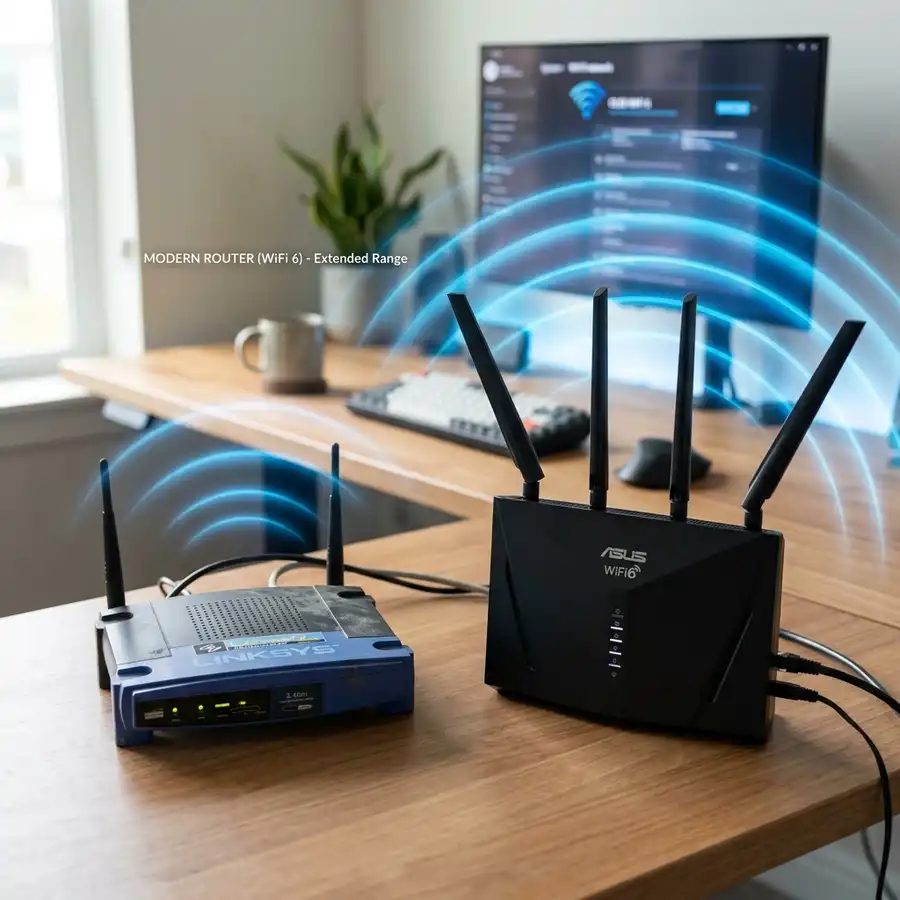
Learn to set up a Tenda router in Access Point mode using an Ethernet cable for extended connectivity.
Understanding Access Point Mode
Access Point (AP) mode transforms a router into a network bridge, allowing it to extend an existing network. This is particularly useful for eliminating dead zones in larger spaces.
Required Equipment
A Tenda router, an Ethernet cable, and an existing network with internet access are required to complete this setup. Ensure that the Tenda router is powered on and functioning properly.
Physical Connections
Connect one end of the Ethernet cable to a LAN port on the existing router and the other end to the WAN port on the Tenda router. Ensure that the Ethernet cable used meets the specifications for optimal performance.
Configuration Steps
Follow these steps to configure the Tenda router in AP mode:
- Connect to the Tenda router's network using a device.
- Open a web browser and enter the default IP address, typically
192.168.0.1. - Log in using the default credentials (username: admin, password: admin).
- Navigate to the "Operation Mode" section.
- Select "Access Point" mode and save the settings.
- Reboot the router to apply the changes.

Advanced Configuration Options
For optimal performance, configure SSID and security settings. Use WPA2 encryption and a strong password to secure the network.
DomineTec Tip: Consider using a CAT6 Ethernet cable for improved speed and reduced interference.
Technical Specifications
| Feature | Tenda Router | Standard Ethernet |
|---|---|---|
| Max Speed | 1200 Mbps | 1 Gbps |
| Frequency Bands | Dual-band | N/A |
| Ports | 4 LAN, 1 WAN | Varies |

Troubleshooting Common Issues
If unable to access the router's configuration page, ensure the device is connected to the Tenda network. Verify physical connections and restart the router if necessary.
Configuring the Tenda Router in AP Mode: Step-by-Step Process
To configure the Tenda router in AP mode, it is essential to start with a stable Ethernet connection between the Tenda router and the main router. The Ethernet cable should be connected to the LAN port of the Tenda router and a LAN port of the primary router.
Once the physical connections are established, power on the Tenda router and connect a computer or mobile device to the Tenda router's Wi-Fi network. Access the router's web interface by entering its default IP address into a web browser.
Upon entering the router's interface, log in using the default credentials, typically found on the router or in the user manual. Once logged in, navigate to the 'Operation Mode' settings and select the 'Access Point' mode, followed by saving the changes to apply the new configuration.
After applying the settings, the router will reboot, and it's crucial to verify the connection by checking if the Tenda router is properly broadcasting the Wi-Fi network. Testing the connection strength and speed at various distances from the router will ensure optimal performance in the designated coverage area.
Configuring IP Addressing for Efficient Network Segmentation
In an Access Point (AP) setup, proper IP addressing is crucial to ensure seamless communication between devices on the network. The Tenda router typically defaults to a specific IP address range, which may conflict with existing devices or routers in a typical home or office environment.
To rectify potential conflicts, it is advisable to manually assign a static IP address to the Tenda router within the subnet of the existing network. For instance, if the primary router operates on a 192.168.1.X range, the Tenda AP can be configured to use 192.168.1.2, ensuring it remains accessible without overlapping with other devices.
In addition to setting a static IP, the subnet mask should be appropriately configured, generally set to 255.255.255.0 for home networks. This configuration allows the Tenda router to communicate effectively with other devices within the same network segment, enhancing overall performance.
Furthermore, it is recommended to reserve the IP address assigned to the Tenda router within the primary router’s DHCP settings. This reservation prevents the DHCP server from assigning the same address to another device, ensuring that the Tenda router remains consistently reachable.
Understanding Wireless Security Protocols and Best Practices
When configuring a Tenda router in AP mode, selecting the right wireless security protocol is essential to safeguard network integrity. The most commonly used protocols are WPA2-PSK and WPA3, with WPA3 being the latest standard offering enhanced security features.
WPA2-PSK uses a pre-shared key for authentication, providing strong encryption via AES (Advanced Encryption Standard). However, for networks requiring higher security, enabling WPA3 is recommended, as it includes features like improved cryptographic strength and protection against offline dictionary attacks.
In addition to selecting the proper security protocol, it is crucial to use a robust and complex password for the wireless network. A password that combines upper and lower case letters, numbers, and special characters significantly enhances security by making it more resistant to brute-force attacks.
Regular monitoring of connected devices through the Tenda router’s management interface can also help identify unauthorized access attempts. Enabling MAC address filtering allows only specified devices to connect to the network, adding an additional layer of security against intruders.
Advanced Console Commands and Performance Tuning
Optimizing a Tenda router in Access Point (AP) mode can significantly enhance network performance. Utilizing advanced console commands provides granular control over network settings, allowing for tailored configuration that meets specific user requirements.
Accessing the router's command-line interface (CLI) typically requires an SSH or Telnet connection, which can be enabled through the web interface. Once connected, several commands can be executed to fine-tune performance, such as adjusting the transmission power, configuring Quality of Service (QoS) settings, and modifying the channel width.
Transmission power can be adjusted to optimize coverage; however, increasing it excessively may lead to interference with adjacent networks. Commands such as "set txpower" allow for fine-tuning, where values can be set according to the physical layout of the environment.
Implementing QoS settings ensures that bandwidth is allocated effectively across different types of traffic. Commands like "set qos enable" followed by rules that prioritize video streaming or gaming can greatly enhance user experience during peak usage times.
Integrating Network Security Features
Securing a Tenda router in AP mode is critical to protect the network from unauthorized access. Implementing robust security protocols can mitigate risks associated with data breaches and unauthorized usage.
Enabling WPA3 encryption is highly recommended, as it offers enhanced security over previous standards. This can be configured through the web interface under the Wireless Security settings, ensuring that the latest encryption methodologies are deployed to safeguard user data.
In addition to encryption, implementing MAC address filtering adds an additional layer of security. By configuring the router to only allow specified MAC addresses, unauthorized devices are denied access, thereby enhancing control over connected clients.
Regular firmware updates are also essential for maintaining security. Tenda routers typically include an auto-update feature, but manual checks should be performed to ensure that the latest security patches are applied, reducing vulnerabilities associated with outdated software.
Network Management and Monitoring Tools
Effective network management in Access Point mode can be achieved through various monitoring tools integrated into the Tenda router’s firmware. These tools empower users to keep track of network performance, bandwidth usage, and connected devices in real-time.
Features such as device management allow users to view a list of all devices connected to the network, including their MAC addresses and IP assignments. This capability aids in identifying unauthorized connections and managing bandwidth distribution among devices.
Bandwidth monitoring tools provide insights into the data consumption of individual devices, enabling users to pinpoint devices that may be consuming excessive bandwidth. Such insights can inform decisions about QoS settings or highlight devices that may require restrictions to optimize overall network performance.
Additionally, implementing logging features can assist in tracking connection attempts and network activity over time. Logs can provide valuable information for troubleshooting connectivity issues and assessing the security posture of the network by highlighting unusual access patterns or attempts to breach the network.
Understanding Network Configuration and IP Address Management
Setting up a Tenda router in Access Point (AP) mode requires a solid understanding of network configuration, particularly regarding IP address management. The router, when configured as an AP, will not perform routing functions, but will instead extend the existing network by wirelessly connecting to it.
To ensure proper IP address management, it is crucial to understand the concept of subnetting. Subnetting allows you to partition a larger network into smaller, manageable sections, thereby optimizing performance and security.
Typically, a home network uses the private IP address space, such as 192.168.1.0/24. In this scenario, the main router often assigns IP addresses dynamically via DHCP, which must be considered when setting a static IP for the Tenda AP.
When configuring the Tenda AP, assign an IP that lies within the same subnet but outside the DHCP range of the main router. For example, if the primary DHCP range is set from 192.168.1.2 to 192.168.1.100, an appropriate static IP for the Tenda could be 192.168.1.200.
Access the Tenda configuration interface by entering the static IP address in a web browser. The default login credentials are typically “admin” for both the username and password unless changed during the initial setup.
Once logged in, navigate to the “Network” section to set the IP address. Select “Static IP” and enter the chosen static IP, subnet mask (usually 255.255.255.0), and the gateway, which will be the primary router’s IP address (e.g., 192.168.1.1).
After configuring the IP settings, it is essential to verify connectivity to the main router. This can be done by pinging the primary router’s IP from a terminal or command prompt using the command: ping 192.168.1.1.
In the instance of connectivity issues, check the Ethernet cable connection and ensure that the Tenda AP is properly powered. A faulty cable or incorrect configuration can lead to communication breakdowns, hampering network performance.
Optimizing Wireless Settings for Enhanced Performance
Once the Tenda router is successfully configured as an AP, optimizing wireless settings is crucial for ensuring robust network performance and coverage. The default wireless settings may not be ideal for every environment, and adjustments can significantly enhance connectivity.
Start by accessing the wireless settings under the “Wireless” section of the Tenda interface. Here, the SSID (network name) should be set to match the primary router’s SSID for seamless roaming and to allow devices to connect without needing to switch networks.
Choosing the correct wireless channel is essential in reducing interference from neighboring networks. Employ tools like Wi-Fi Analyzer to identify the least congested channel within the 2.4GHz or 5GHz bands, typically selecting channels 1, 6, or 11 for 2.4GHz.
On the Tenda interface, adjust the wireless channel accordingly, ensuring to save the settings after making changes. Additionally, enabling features such as WPA3 security will enhance network security and is highly recommended.
Furthermore, consider adjusting the transmit power settings if available. Increasing transmit power can extend range but may also lead to interference; therefore, a balance should be struck based on the physical layout of the space.
To further optimize performance, enabling Quality of Service (QoS) features can prioritize bandwidth for specific devices or applications. This ensures that critical services, such as video streaming or online gaming, receive necessary bandwidth during peak usage times.
Lastly, perform regular speed tests using tools like Ookla or Fast.com to gauge network performance post-configuration. A consistent monitoring approach will help identify issues and allow for timely troubleshooting, ensuring optimal network performance.
In summary, careful attention to both IP address management and wireless settings can significantly enhance network performance when setting up a Tenda router in Access Point mode. Implementing best practices will lead to a stable and efficient wireless networking environment.
Monitoring Network Traffic and Performance Metrics
Monitoring network traffic is vital for maintaining optimal performance in an Access Point (AP) environment. Utilizing tools such as Wireshark or PRTG Network Monitor can provide real-time insights into bandwidth usage and packet transmission.
Wireshark allows for deep packet inspection, enabling the identification of bottlenecks and anomalous behavior in network traffic. By capturing packets, network administrators can analyze communication between devices and the Tenda router, assisting in troubleshooting issues related to bandwidth consumption.
To use Wireshark effectively, capture packets on the interface connected to the Tenda router. Filters can be applied, such as ip.addr==192.168.0.1 to focus on traffic between the router and connected devices.
PRTG Network Monitor offers a comprehensive monitoring suite, including bandwidth utilization sensors that provide visual and statistical data. This tool can be configured to alert network administrators to unusual traffic patterns, indicating potential intrusions or misconfigurations.
Setting up PRTG involves installing the software on a dedicated server and configuring it to monitor specific IP ranges. Alerts can be configured based on thresholds to ensure prompt responses to potential issues.
Regular analysis of network performance metrics, such as latency and packet loss, is critical for maintaining a reliable AP setup. Consistent monitoring helps in identifying trends that may suggest the need for network upgrades or adjustments.
Implementing VLANs for Enhanced Network Segmentation
Virtual Local Area Networks (VLANs) are essential for segmenting network traffic and enhancing security in an Access Point environment. By creating separate VLANs for different types of traffic, administrators can control access and reduce broadcast traffic.
Configuring VLANs on a Tenda router requires accessing the web interface and navigating to the VLAN settings. For instance, assigning VLAN IDs (e.g., 10 for guest access and 20 for internal corporate traffic) allows for clear segmentation.
Each VLAN can be assigned its own subnet, which also enhances security. Assigning a separate subnet mask, such as 255.255.255.0, can isolate traffic, preventing unwanted access from one segment to another.
To support VLANs, the router's Ethernet ports must also be configured accordingly. This involves setting the ports to either tagged or untagged mode, depending on whether they will carry traffic for multiple VLANs or just one.
Monitoring VLAN traffic can be achieved using SNMP (Simple Network Management Protocol). By enabling SNMP on the Tenda router, administrators can gather statistics on traffic volumes across VLANs, allowing for proactive management.
Implementing VLANs not only improves security but also enhances performance by reducing congestion on the network. Properly configured, VLANs can lead to a more efficient use of resources and better overall network performance.
Frequently Asked Questions
What is the purpose of Access Point mode?
Access Point mode extends an existing network, allowing more devices to connect. It bridges wireless and wired connections.
Can other devices connect to the Tenda router in AP mode?
Yes, devices can connect to the Tenda router wirelessly or via Ethernet. Ensure proper SSID and password settings are configured.
Is there a limit to the number of devices connected?
The number of devices that can connect depends on the router's specifications. Typically, most routers support more than 20 devices.
Does the router need to be reset before configuration?
A factory reset is not necessary unless prior configurations are causing issues. Default settings can be used for initial setup.
Can this setup be used with other router brands?
While the steps may vary slightly, most routers can be configured in AP mode similarly. Refer to the specific brand's documentation for details.




