How to Set Up a D-Link Router in Access Point (AP) Mode Using Ethernet Cable
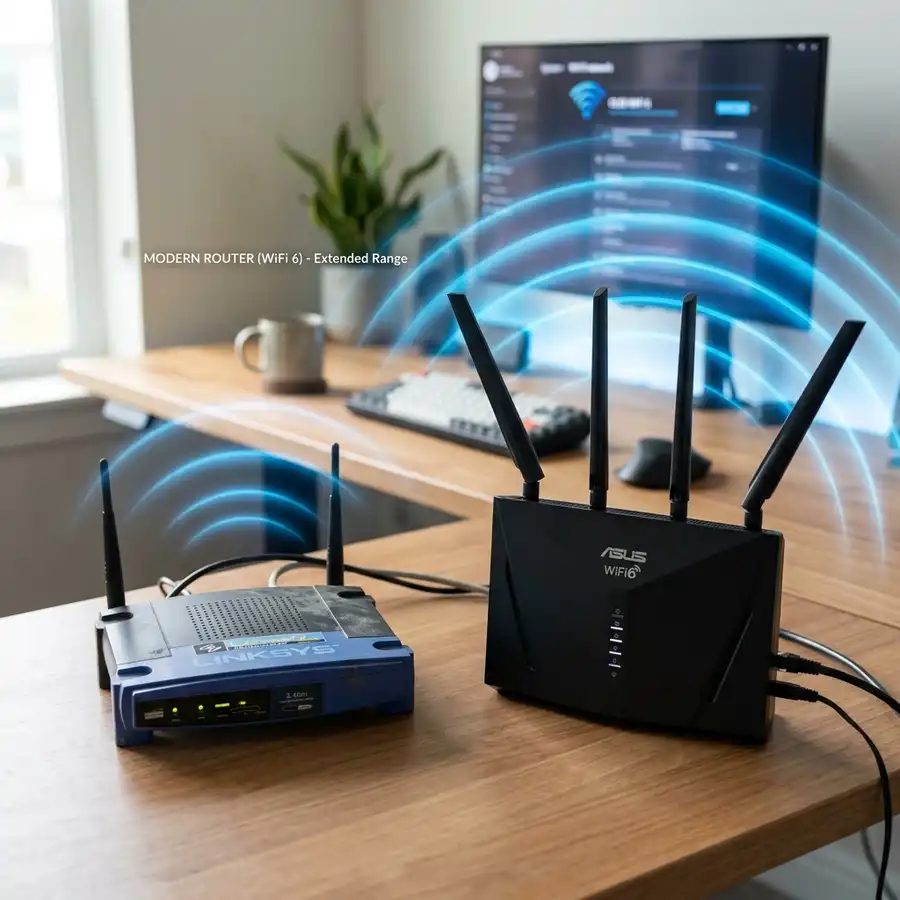
Setting up a D-Link router in Access Point mode using an Ethernet cable enhances your network's coverage and performance.
Understanding Access Point Mode
Access Point (AP) mode transforms a router into a device that extends the existing network.
This setup allows multiple devices to connect to the same network, enhancing wireless coverage.
Benefits of Using a D-Link Router in AP Mode
Utilizing a D-Link router in AP mode provides several advantages.
These include improved signal strength, extended range, and simplified management of connected devices.
Required Equipment for Setup
Before starting the setup, ensure the following items are available.
- D-Link router capable of AP mode
- Ethernet cable
- Access to the main router for connection
- Computer or mobile device for configuration
Step-by-Step Setup Process
The following steps outline how to set up the D-Link router in Access Point mode.
- Connect the D-Link router to the main router using an Ethernet cable.
- Plug the power adapter into the D-Link router and switch it on.
- Connect a computer or mobile device to the D-Link router's Wi-Fi network.
- Open a web browser and enter the router's IP address in the address bar.
- Log in using the default credentials (usually found on the router's label).
- Navigate to the settings menu and select the option for AP mode.
- Enter the SSID and password for the network, matching it with the main router.
- Save the settings and reboot the router.

Configuring the Network Settings
Proper network configuration is crucial for optimal performance.
Ensure the D-Link router has a unique IP address within the main network's range.
Technical Specifications Comparison
| Model | Wi-Fi Standard | Max Speed | Ports | AP Mode Support |
|---|---|---|---|---|
| D-Link DIR-615 | 802.11n | 300 Mbps | 4 x LAN, 1 x WAN | Yes |
| D-Link DIR-878 | 802.11ac | 1300 Mbps | 4 x LAN, 1 x WAN | Yes |
| D-Link DIR-890 | 802.11ac | 3200 Mbps | 4 x LAN, 1 x WAN | Yes |
Securing the Connection
Security is a vital aspect when setting up a network.
Utilize WPA2 encryption to secure the Wi-Fi connection and protect against unauthorized access.

Common Troubleshooting Tips
Encountering issues during setup is not uncommon. Here are some tips to resolve potential problems.
If the D-Link router fails to connect, confirm that the Ethernet cable is securely connected to both devices.
DomineTec Tip: Regularly update the router's firmware to enhance performance and security.
Understanding Access Point Mode
Access Point (AP) mode allows a D-Link router to extend an existing wireless network rather than create a new one. This functionality is critical for improving network coverage in larger areas or buildings.
Preparing the Ethernet Connection
An Ethernet cable must be connected from the primary router to the D-Link router’s LAN port before configuration. Ensure that the cable is securely plugged in at both ends to avoid connectivity issues.
Configuring the D-Link Router's IP Address
The default IP address of the D-Link router is typically 192.168.0.1, which should be changed to avoid conflicts with the main router. Assign a static IP address within the same subnet, such as 192.168.0.2, if the primary router uses 192.168.0.x.
Disabling DHCP on the D-Link Router
To prevent IP address conflicts, the DHCP server on the D-Link router must be disabled. This setting can usually be found under the “Network Settings” or “DHCP” section of the router’s web interface.
Connecting to the D-Link Router's Web Interface
Access the D-Link router’s web interface by entering its IP address in a web browser. User credentials, typically “admin” for both username and password, are required unless changed during initial setup.
Adjusting Wireless Settings for AP Mode
Wireless settings, including SSID and security type, should be configured to match the primary router for seamless connectivity. Selecting WPA2 encryption is recommended for enhanced security.
Testing Connectivity and Performance
After completing the setup, perform a connectivity test by connecting a device to the D-Link router’s Wi-Fi. Use speed test tools to evaluate network performance and ensure that the AP mode is functioning correctly.
Understanding Access Point Mode
Access Point mode allows a D-Link router to extend an existing network by connecting wirelessly to the main router, enabling multiple devices to connect to the same network. This mode is beneficial in areas where Wi-Fi signals are weak or non-existent.
Essential Hardware Requirements
To set up a D-Link router in Access Point mode, an Ethernet cable is required to connect the router to the main router or switch. Additionally, a power adapter is necessary to ensure the router is powered on during the setup process.
Configuring IP Address Settings
Before enabling Access Point mode, it is crucial to configure the D-Link router's IP address to avoid conflicts with the main router. Assign a static IP address within the same subnet as the main router, but outside its DHCP range.
Disabling DHCP on the D-Link Router
To prevent IP address conflicts, the DHCP server on the D-Link router must be disabled. This can be done by navigating to the DHCP settings in the web interface and selecting the option to disable the DHCP server functionality.
Connecting Devices to the AP
Once the D-Link router is configured in Access Point mode, devices can connect via Wi-Fi or Ethernet. Ensure that the SSID and security settings match the main router if a seamless transition between access points is desired.
Monitoring and Performance Optimization
Regularly monitor the performance of the D-Link router in Access Point mode to ensure optimal connectivity. Adjusting the wireless channel and frequency band settings can help minimize interference from other networks.
Network Configuration and Static IP Address Assignment
Before switching the D-Link router to Access Point mode, it is advisable to assign a static IP address to the device to avoid conflicts within the network.
Access the router’s web interface and navigate to the LAN settings section, where the static IP address can be set within the same range as the main router but outside its DHCP pool.
Firmware Upgrade Procedures
Ensure the D-Link router's firmware is up to date before configuration, as outdated firmware can lead to functionality issues in AP mode.
The firmware can be upgraded by downloading the latest version from the D-Link support website and uploading it through the router's web interface under the firmware upgrade section.
Wireless Settings Optimization
In Access Point mode, adjust the wireless settings such as SSID, security type, and password to match the settings of the primary router for seamless connectivity.
Consider selecting a different channel to minimize interference with the main router, enhancing overall network performance.
Security Protocol Configuration
Configure the security protocols to WPA2 or WPA3 for optimal protection, as these protocols offer stronger encryption compared to older standards.
Regularly update the Wi-Fi password to maintain network security and prevent unauthorized access to the AP.
Monitoring and Performance Metrics
Utilize the router’s built-in logging features to monitor connected devices and assess network performance, ensuring optimal functioning of the Access Point.
Check for any unusual traffic patterns or unauthorized devices in the network logs, which can indicate potential security breaches or performance issues.
Configuration of IP Addressing for D-Link Router in Access Point Mode
Setting up a D-Link router in Access Point mode requires proper configuration of the IP addressing to avoid conflicts with the primary router in the network.
When the D-Link router is configured as an Access Point, it needs a static IP address that falls within the subnet of the main router but outside its DHCP range.
For instance, if the main router has a DHCP range of 192.168.1.2 to 192.168.1.100, it is advisable to assign the D-Link router an IP address like 192.168.1.200.
This can be accomplished by navigating to the D-Link's web interface, typically accessible at 192.168.0.1 or 192.168.1.1, depending on the model.
Once logged in, go to the "Network" section and select "LAN" settings.
Here, input the chosen static IP address in the appropriate field and ensure that the subnet mask is set to 255.255.255.0.
After setting up the IP address, it is crucial to disable the DHCP server on the D-Link router.
This action prevents the D-Link router from distributing IP addresses within the network, thereby avoiding conflicts with the primary router's DHCP server.
To disable DHCP, navigate to the "DHCP" settings section and select the option to disable the DHCP server.
Save these changes and reboot the router to apply the new settings.
Once the D-Link router restarts, it should be reachable at the static IP address assigned earlier.
Testing the connectivity can be done by pinging the new IP address from a device connected to the network.
This step ensures that the Access Point has been successfully integrated into the existing network infrastructure.
Wireless Settings Optimization for Enhanced Access Point Performance
After the D-Link router has been set up in Access Point mode, optimizing wireless settings is essential for enhancing performance and ensuring stable connectivity.
Access the wireless settings section of the D-Link router’s web interface to begin the optimization process.
In this section, the SSID (Service Set Identifier) should be customized to differentiate the Access Point from other networks in the vicinity.
Choosing a unique SSID enhances user experience by making it easier for users to identify and connect to the network.
Next, it is important to select the appropriate wireless security settings to safeguard the network.
Using WPA2 (Wi-Fi Protected Access II) with a strong passphrase is recommended for encrypting wireless communications.
Additionally, it is beneficial to choose the correct wireless channel to minimize interference from neighboring networks.
Utilizing a Wi-Fi analyzer tool can help identify the least congested channels, allowing for optimal channel selection.
Once the channel is selected, the bandwidth should also be configured; setting it to 20/40 MHz can provide a good balance between coverage and performance.
Moreover, enabling the 2.4 GHz and 5 GHz bands allows for greater flexibility in device connectivity.
Advanced settings, such as enabling beamforming technology, can further enhance performance by focusing the wireless signal towards connected devices.
After making these adjustments, saving and applying the settings is crucial for them to take effect.
Subsequently, it is advisable to perform speed tests and connectivity checks to evaluate the effectiveness of the optimized settings.
Monitoring the network performance over time can provide insights into any further adjustments necessary for maintaining optimal operation.
Understanding IP Addressing and DHCP Configuration
When setting up a D-Link router in Access Point (AP) mode, it is crucial to comprehend the basics of IP addressing and the Dynamic Host Configuration Protocol (DHCP).
The router operating in AP mode typically receives its IP address from the main router via DHCP, which assigns an IP address dynamically based on the predefined range set in the main router.
To ensure seamless communication within the network, the IP address assigned to the D-Link router must be in the same subnet as the main router.
This can be verified by accessing the main router's settings interface, often located at its default gateway, typically 192.168.1.1 or 192.168.0.1, depending on the router model.
Once logged into the main router's interface, navigate to the DHCP settings to view the range of IP addresses that can be allocated.
For example, if the DHCP range is configured from 192.168.1.100 to 192.168.1.200, the D-Link router should be assigned an IP address outside this range, such as 192.168.1.50, to avoid any conflicts.
To set a static IP address on the D-Link router, access its web interface by entering its default IP address, usually 192.168.0.1, into a web browser.
After logging in with the appropriate credentials, navigate to the LAN settings and manually input the static IP address, subnet mask (typically 255.255.255.0), and the default gateway (the main router's IP address).
Save these settings and reboot the D-Link router to apply the static IP configuration, ensuring it consistently communicates with the main router.
In addition to configuring the IP address, it is advisable to disable the DHCP server on the D-Link router to prevent it from assigning IP addresses that may conflict with those allocated by the main router.
This can be done in the DHCP settings section of the D-Link router's interface, where the DHCP server option can be unchecked or disabled.
After making these changes, it is essential to test the network connectivity to ensure that devices connected to the D-Link AP can access the internet through the main router.
This can involve using the ping command from a command prompt or terminal to verify connectivity to the main router’s IP address and external sites.
Advanced Wireless Settings and Security Configuration
In addition to the basic setup of the D-Link router in AP mode, advanced wireless settings play a vital role in optimizing network performance and ensuring security.
Accessing the wireless settings of the D-Link router involves navigating to the Wireless section of the web interface after logging in.
Here, the SSID (Service Set Identifier) can be customized to identify the wireless network distinctively, which is crucial for user experience and brand identity.
It is recommended to choose a unique SSID to prevent confusion with other nearby networks, especially in densely populated areas.
Next, setting the wireless channel can significantly impact performance, particularly in environments with multiple networks.
Manually selecting a less congested channel, such as channels 1, 6, or 11 for 2.4 GHz networks, can enhance signal quality and reduce interference from neighboring networks.
For 5 GHz networks, channels are less crowded, and selecting a channel based on the local RF environment using tools like Wi-Fi Analyzer can yield optimal results.
Once the channel is set, configuring the wireless security settings is paramount to protect the network from unauthorized access.
Utilizing WPA3 encryption, if available, offers the highest level of security; otherwise, WPA2 is still robust and widely used.
It is imperative to set a strong passphrase, ideally consisting of at least 12-16 characters, combining uppercase, lowercase, numbers, and special characters to enhance security.
Furthermore, enabling features such as MAC address filtering can add an extra layer of security by allowing only specified devices to connect to the AP.
Maintaining awareness of firmware updates is critical, as D-Link periodically releases updates that enhance security and performance.
Regularly checking the D-Link support website for the latest firmware ensures the router operates with the latest features and security patches.
Finally, after configuring all settings, conducting a thorough network assessment, including testing the connection speed and stability, is essential to guarantee optimal performance.
Frequently Asked Questions
What is the advantage of using Access Point mode?
Access Point mode allows for better network coverage and the ability to connect more devices seamlessly.
Can a D-Link router function as both a router and an access point?
Yes, many D-Link routers can operate in both modes, offering flexibility based on user needs.
How can connection issues be diagnosed?
Check the physical connections first, then verify the configuration settings in the router's interface.
Is it possible to connect multiple D-Link routers in AP mode?
Yes, multiple routers can be connected in AP mode to extend coverage across larger areas.
What if the D-Link router does not have a dedicated AP mode?
In such cases, manual configuration through the LAN settings may allow for similar functionality.




