How to Recover Deleted Files from a USB Flash Drive for Free Using Recuva
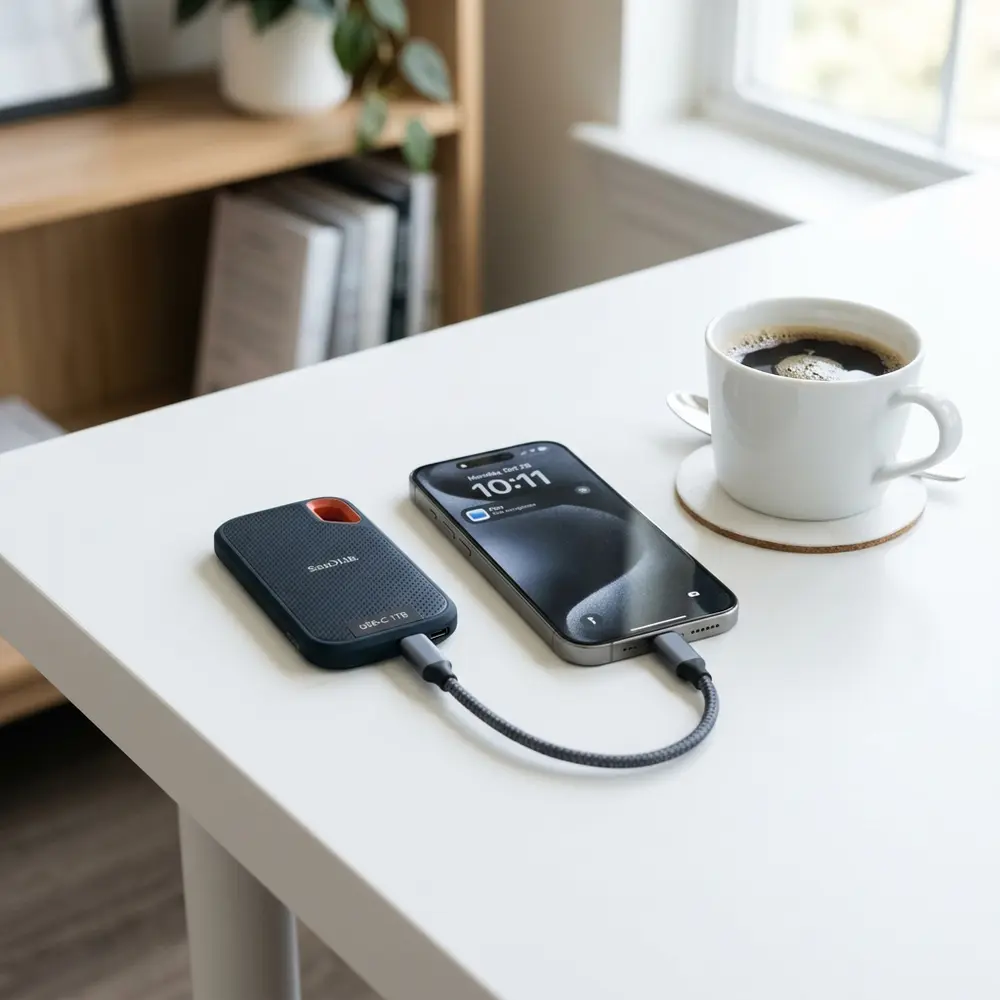
How to Recover Deleted Files from a USB Flash Drive for Free Using Recuva
Recovering deleted files from a USB flash drive can be a daunting task. Fortunately, Recuva offers a free and effective solution.
Recuva, developed by Piriform, is a data recovery tool that specializes in recovering deleted files from various storage devices, including USB flash drives. This article provides a detailed, step-by-step guide on utilizing Recuva to restore lost data.
Understanding How Recuva Works
Recuva scans storage devices to locate remnants of deleted files. It utilizes advanced algorithms to identify recoverable data, even after the files have been emptied from the recycle bin.
The tool operates on the principle that deleted files are not immediately erased from the storage medium. Instead, the data remains until it is overwritten by new information.
System Requirements for Recuva
| Component | Minimum Requirement |
|---|---|
| Operating System | Windows 7 or later |
| RAM | 512 MB |
| Hard Drive Space | 1 MB for installation |
| Processor | Intel Pentium 4 or later |
Step-by-Step Guide to Recover Deleted Files
- Download and install Recuva from the official website.
- Insert the USB flash drive into the computer.
- Launch Recuva. The wizard will open to guide the recovery process.
- Select the type of files to recover or choose "All Files" for a comprehensive scan.
- Choose the USB drive where the files were deleted from.
- Opt for "Enable Deep Scan" if a standard scan does not yield results.
- Click "Start" to begin the scanning process.
- Review the list of recoverable files and select the desired items.
- Click "Recover" and specify a location for saving the restored files, preferably not on the same USB drive.
DomineTec Tip: For optimal performance in data recovery, ensure that the USB drive is not used after file deletion to avoid overwriting data. For further enhancement of productivity, consider investing in the best portable USB-C monitor.
Common Issues and Troubleshooting
During the recovery process, several common issues may arise. These include software errors, incomplete scans, or an inability to find files.
Ensure that the USB drive is properly connected and functional. In cases of persistent issues, reinstalling Recuva may resolve software-related problems.
Alternative Recovery Software
While Recuva is a robust option for data recovery, several alternatives exist. These include EaseUS Data Recovery Wizard, Disk Drill, and PhotoRec.
Each software has unique features and recovery capabilities. Conducting a comparative analysis can aid in selecting the most suitable tool for specific needs.
Comparison of USB Flash Drive Features
| Brand | Speed (Read/Write) | Capacity | Price Range |
|---|---|---|---|
| SanDisk | 150 MB/s / 100 MB/s | 16GB - 1TB | $5 - $250 |
| Samsung | 400 MB/s / 300 MB/s | 32GB - 1TB | $10 - $300 |
| Kingston | 100 MB/s / 70 MB/s | 8GB - 512GB | $4 - $150 |
| Lexar | 150 MB/s / 70 MB/s | 16GB - 1TB | $5 - $200 |
Best Practices for Data Management
Implementing effective data management practices can mitigate the risks of data loss. Regular backups to multiple locations are crucial.
Utilizing cloud storage alongside physical devices ensures redundancy. Moreover, keeping devices in optimal conditions prolongs their lifespan and functionality.
Conclusion
Recovering deleted files from a USB flash drive for free using Recuva is a straightforward process. Following the outlined steps increases the likelihood of successful recovery.
Utilizing tools like Recuva, while practicing diligent data management, can significantly reduce the impact of accidental deletions.
Frequently Asked Questions
1. Is Recuva safe to use?
Yes, Recuva is considered safe and has been used by millions for data recovery.
2. Can Recuva recover files after a long time?
Recuva may recover files deleted a long time ago, but success depends on whether the data has been overwritten.
3. What types of files can Recuva recover?
Recuva can recover various file types, including documents, images, videos, and music files.
4. Is there a limit to the size of files Recuva can recover?
No, Recuva does not impose a size limit on recoverable files, as long as the data remains intact on the device.
5. Will using Recuva damage my USB flash drive?
Using Recuva will not damage the USB flash drive; however, continued use of the drive post-deletion may lead to data overwriting.
Advanced Setup Tips for Recuva
To maximize the effectiveness of Recuva, it is essential to configure the settings properly before initiating a scan. Utilizing the deep scan option can significantly increase the likelihood of recovering deleted files from a USB flash drive.
Additionally, connecting the USB drive directly to the computer rather than through a hub can improve data transfer speeds and enhance recovery performance. Ensuring that no new data is written to the USB drive after deletion is crucial to avoid overwriting lost files.
Common Mistakes to Avoid
One common mistake when using Recuva is failing to select the correct drive for recovery, which can lead to wasted time and frustration. Always double-check that the USB flash drive selected in the program is indeed the one containing the deleted files.
Another frequent error is using the quick scan option without exploring the deep scan feature. Users may miss recovering files that are not easily indexable, which could be crucial to their recovery efforts.
Model Comparisons: Recuva vs. Other Recovery Tools
When evaluating file recovery software, comparing Recuva to alternatives such as EaseUS Data Recovery Wizard or Stellar Data Recovery can provide valuable insights. Recuva is often praised for its user-friendly interface and free version, while other tools may offer more advanced features at a cost.
While Recuva excels in basic recovery tasks, other models might provide better support for complex file systems or larger data sets. Understanding these differences can help in selecting the most suitable software for specific needs.
Use Case Scenarios for Recuva
Recuva is particularly effective in scenarios where files have been accidentally deleted from a USB flash drive. Examples include recovering important documents, images, or videos that were mistakenly removed during file management.
It can also be beneficial in cases where a USB drive has been formatted, allowing users to retrieve files that were lost during the reformatting process. Knowing when to apply Recuva can save valuable time and prevent data loss.
System Compatibility Considerations
Recuva is compatible with various versions of Windows, including Windows 10, 8, 7, and even older versions like XP. However, it is not available for macOS or Linux systems, which limits its use for users of those operating systems.
Ensuring that the system meets the software requirements can prevent installation issues and ensure optimal performance. Checking for the latest updates before running the program can also enhance compatibility and functionality.
Cost Estimates for File Recovery Solutions
Recuva offers a free version, which is adequate for most basic recovery needs, while the professional version comes at a reasonable one-time cost. Users should weigh the benefits of investing in the paid version against their specific recovery requirements.
Comparing Recuva's costs with other recovery tools can provide a clearer picture of value. Some premium solutions may offer greater recovery capabilities but come with higher price tags, which may not be justifiable for all users.
Troubleshooting Common Issues
When encountering problems using Recuva, such as software crashes or failure to detect the USB drive, restarting the computer can often resolve these issues. Ensuring that the USB drive is securely connected and recognized by the operating system is essential for successful recovery.
If issues persist, checking for software updates or reinstalling Recuva may help address bugs or compatibility problems. Consulting the user manual or online forums can also provide additional solutions for troubleshooting.
When to Seek Expert Help
If Recuva fails to recover lost files, it may be time to seek professional data recovery services. This is especially true for critical files or data that cannot be recreated, as experts possess advanced tools and techniques for recovery.
Additionally, if the USB flash drive shows signs of physical damage or corruption, attempting recovery without professional assistance may exacerbate the problem. Knowing when to consult with experts can prevent further data loss and increase the chances of successful recovery.
How to Recover Deleted Files from a USB Flash Drive for Free Using Recuva
Recovering deleted files from a USB flash drive can be a daunting task, especially if the correct procedures are not followed. Recuva is a powerful tool designed for file recovery. This article delves deeper into the recovery process, providing additional FAQs, a verification checklist, a comparison table, and a technical glossary to enhance understanding.
Frequently Asked Questions (FAQ)
What types of files can Recuva recover?
Recuva can recover a variety of file types, including:
- Documents (e.g., .doc, .pdf, .txt)
- Images (e.g., .jpg, .png, .gif)
- Audio files (e.g., .mp3, .wav)
- Video files (e.g., .mp4, .avi)
- Compressed files (e.g., .zip, .rar)
Is Recuva safe to use?
Yes, Recuva is safe to use. It is developed by Piriform, a well-known software company. However, it is recommended to download the software from the official website to avoid potential malware.
Can Recuva recover files from a formatted USB drive?
Yes, Recuva can recover files from a formatted USB drive, provided the data has not been overwritten. It is advisable to stop using the drive immediately after formatting to maximize recovery chances.
How long does the recovery process take?
The duration of the recovery process depends on the size of the USB drive and the number of files to be scanned. Typically, the process can take anywhere from a few minutes to several hours.
What should be done after recovering files?
After recovering files, it is essential to save them to a different storage location to prevent overwriting any remaining data on the USB drive.
Verification Checklist
Before performing a file recovery using Recuva, follow this checklist to ensure the process runs smoothly:
- Check if the USB drive is properly connected to the computer.
- Ensure that Recuva is installed on the computer.
- Verify that the USB drive is recognized by the operating system.
- Close unnecessary applications to free up system resources.
- Back up any remaining data on the USB drive to prevent loss during recovery.
Comparison Table of Data Recovery Software
| Software | Free Version | Supported File Formats | Ease of Use | Recovery Rate |
|---|---|---|---|---|
| Recuva | Yes | Multiple (documents, images, audio) | Very Easy | High |
| EaseUS Data Recovery Wizard | Yes (limited to 2GB) | Multiple (documents, images, audio) | Easy | High |
| Disk Drill | Yes (limited features) | Multiple (documents, images, audio) | Moderate | Moderate to High |
| PhotoRec | Yes | Multiple (images, documents) | Complex | Moderate to High |
Technical Glossary
File Recovery
File recovery is the process of restoring data that has been deleted or lost due to various reasons, such as accidental deletion, formatting, or corruption.
Overwriting
Overwriting occurs when new data is written to the same storage space previously occupied by deleted files, making recovery difficult or impossible.
Data Loss
Data loss refers to the loss of stored data due to accidental deletion, hardware failure, or software corruption.
Recovery Rate
Recovery rate is the percentage of successfully recovered files compared to the total number of files that were deleted.
File Formats
File formats are the specific types of files that determine how data is stored and organized on a computer. Different formats include text files, image files, audio files, and video files, among others.
USB Flash Drive
A USB flash drive is a portable storage device that uses flash memory to store data. It connects to computers via USB ports and is commonly used for data transfer and backup.
Additional Tips for Successful File Recovery
- Always remove the USB drive safely to avoid corruption.
- Regularly back up important files to multiple locations.
- Consider using a file recovery tool immediately after data loss for better chances of recovery.
- Keep the software updated to benefit from the latest features and improvements.
Conclusion
Recovering deleted files from a USB flash drive using Recuva is a straightforward process that can yield excellent results. By following the guidelines outlined in this article, users can maximize their chances of successful data recovery while understanding the underlying concepts and terminologies associated with file recovery.




