How to Fix Mi Band Battery Draining Fast: A Complete Troubleshooting Guide
Xiaomi's smart bands, widely known as the Mi Band series (recently rebranded as the Xiaomi Smart Band), are celebrated worldwide for their affordability, sleek profile, and, most importantly, legendary battery life. Over the years, models ranging from the Mi Band 4 to the newer Mi Band 7, 8, and 9 have consistently promised an impressive 10 to 21 days of autonomy on a single charge. However, many users have experienced a frustrating issue: the battery begins to drain at an alarming rate, barely lasting one or two days, or sometimes dying in less than 24 hours.
If you find yourself in this situation, do not panic. In most cases, rapid battery drain does not mean your smart band is permanently broken or that you need to buy a replacement. Instead, the culprit is usually a combination of aggressive monitoring settings, temporary bugs introduced during firmware updates, or poor charging habits that affect the operating system's power management. In this comprehensive guide, we will explore all the potential reasons why your Mi Band battery is draining fast and provide practical, step-by-step solutions to restore your tracker's original battery performance.
Understanding Your Mi Band's Battery and Power Consumption
To fix the issue, it is helpful to understand the hardware. Xiaomi uses compact lithium-polymer (Li-Po) batteries to maintain the sleek form factor of the Mi Band. For instance, the Mi Band 6 features a 125 mAh battery, the Mi Band 7 has 180 mAh, and the Mi Band 8 includes a 190 mAh capacity. While these capacities are tiny compared to a smartphone (which usually exceeds 5,000 mAh), they are perfectly adequate to power a small AMOLED display and low-energy sensors for weeks under optimized conditions.
The energy consumption of a fitness tracker is primarily determined by three factors: display settings (brightness, timeout duration, and screen features), active sensors (heart rate, blood oxygen SpO2, stress, and sleep monitoring), and connectivity (Bluetooth sync and background notifications). When one or more of these elements demand continuous energy, the battery drain accelerates dramatically. Pinpointing which feature is causing the drain is the first step toward reclaiming your device's multi-day battery life.
Top Causes of Excessive Battery Drain on Mi Band
Here are the most common factors that lead to quick battery depletion on Xiaomi smart bands:
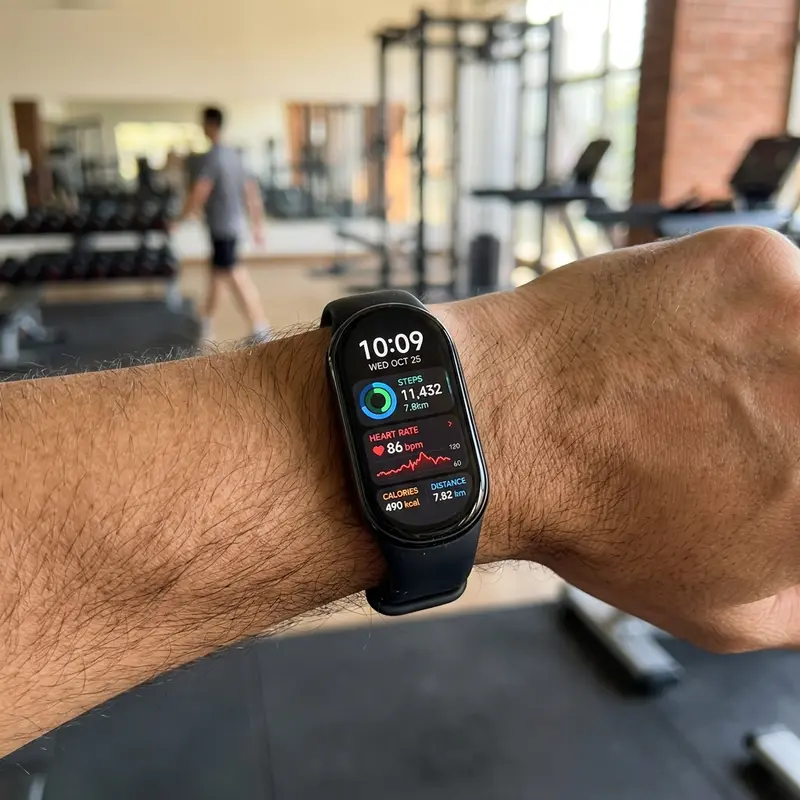
- Continuous, High-Frequency Health Monitoring: Measuring your heart rate every minute, monitoring your stress levels 24/7, and running continuous blood oxygen (SpO2) tracking are the heaviest battery drains. These sensors use optical PPG green and red lights that process data continuously, requiring a constant stream of power.
- Advanced Sleep Tracking (Sleep Assistant & Breathing Quality): Features like REM sleep tracking and sleep breathing quality analysis run intensive biometric checks throughout the night. This can lead to a significant drop in battery charge while you sleep.
- High Brightness and Always On Display (AOD): The AMOLED screen looks vibrant, but higher brightness levels require more power. Furthermore, newer models (Mi Band 7 and newer) feature an Always On Display mode. When active, this feature can easily cut battery life in half.
- Screen Wake-Up on Wrist Raise: While convenient, the "raise to wake" gesture can be triggered hundreds of times a day by accidental movements while working, driving, exercising, or sleeping, constantly turning the screen on.
- Too Many Notifications and Strong Vibration: Receiving notifications for every single app message, social media alert, or promotional email causes the screen to light up and activates the internal vibration motor. Vibration is a mechanical action that consumes substantial power.
- Firmware Bugs and Bluetooth Sync Loops: Sometimes, a firmware update introduces minor bugs that prevent the tracker's processor from entering low-power "deep sleep" mode. Persistent Bluetooth connectivity issues can also cause the device to drain its battery trying to reconnect to the phone.
Step-by-Step Solutions to Fix Fast Battery Drain
Follow these practical troubleshooting steps in your companion app (Mi Fitness or Zepp Life) and on your device to optimize battery consumption:
1. Optimize Heart Rate and Health Monitoring Frequency
Adjusting the frequency of automatic health measurements is the most effective way to save power:
- Open your companion app (Mi Fitness or Zepp Life) on your smartphone.
- Go to the Device tab and select your paired Mi Band.
- Navigate to the Health Monitoring section.
- Change the heart rate monitoring frequency from "1 minute" to "10 minutes" or "30 minutes". Alternatively, switch to manual monitoring.
- Disable continuous All-day Stress Monitoring and automatic SpO2 (Blood Oxygen) tracking. Switch to manual checks when you actually need them.
2. Turn Off Advanced Sleep Features
Unless you suspect sleep apnea or need precise sleep stage details, basic sleep tracking is usually sufficient:
- Under the health monitoring menu in your app, locate the Sleep settings.
- Turn off the Sleep Assistant (which increases heart rate sampling frequency during sleep).
- Disable Sleep Breathing Quality monitoring. This turns off the SpO2 sensor at night, saving significant battery capacity.
3. Adjust Screen Brightness and Disable Always On Display (AOD)
Managing how and when your screen turns on will immediately yield battery gains:
- Reduce Brightness: Lower the display brightness to about 30-40%, or enable Auto-Brightness if your model supports it.
- Shorten Screen Timeout: Set the screen duration to 5 seconds so it turns off quickly after you finish reading a notification.
- Disable Always On Display: Go to the band's settings, find the display settings, and turn off AOD. While aesthetically pleasing, it keeps pixels active continuously.
- Schedule "Raise to Wake": Set an active schedule for the wrist raise gesture (e.g., 7:00 AM to 10:00 PM) to prevent the screen from turning on in the dark when you roll over in bed.
4. Filter App Notifications and Adjust Vibration
Prevent unnecessary vibrations and screen wakeups by filtering your incoming alerts:
- In your companion app, tap on App Notifications.
- Deactivate notifications for non-essential applications (like shopping apps, games, or general social media updates).
- Enable notifications only for critical apps, such as WhatsApp, text messages, and incoming calls.
- If your band supports customizable vibration patterns, choose shorter vibration alerts to save mechanical energy.
5. Recalibrate the Smart Band Battery
Sometimes, the battery indicator gets out of sync, displaying a low percentage when the physical battery actually has charge. To resolve this, calibrate your battery:
- Use the Mi Band until the battery drains completely to 0% and the device shuts down.
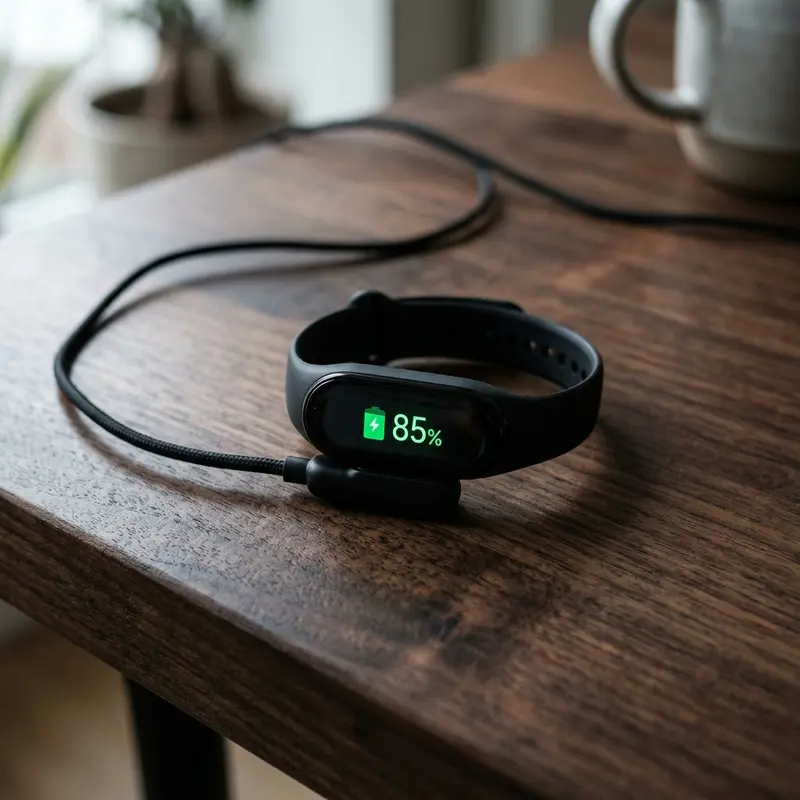
- Plug the magnetic charger into the band and charge it to 100% without interruption.
- Once it reaches 100%, leave it on the charger for an additional 1 to 2 hours to ensure all battery cells are fully charged.
- Unplug the device and use it as usual. Repeat this process every few months.
6. Perform a Factory Reset and Re-pair
If software optimizations do not help, there might be a corrupted system file or a Bluetooth sync loop. A clean reset will clear temporary files:
- Swipe on your Mi Band to access the Settings menu.
- Tap on System and select Factory Reset. Confirm your decision.
- On your phone, go to Bluetooth settings and forget or unpair the Mi Band.
- Open the Mi Fitness or Zepp Life app, remove the band, and then pair it again from scratch.
- Check for any pending firmware updates in the app and install them.
| Feature | High-Drain Setting | Recommended (Eco-Friendly) Setting | Estimated Battery Impact |
|---|---|---|---|
| Heart Rate Interval | 1 minute | 10 or 30 minutes | High (Saves up to 20%) |
| Always On Display (AOD) | On all day | Off | Very High (Saves up to 50%) |
| SpO2 Monitoring | Continuous all day | Manual measurements only | Medium (Saves up to 15%) |
| Raise to Wake Gesture | Active 24/7 | Scheduled hours | Medium (Saves up to 10%) |
| App Notifications | All apps enabled | Essential apps only | Medium (Saves up to 12%) |
Hardware Guidelines and Safe Charging Practices
Beyond settings, physical care plays a vital role in battery health. One of the most common mistakes users make is charging their Mi Band with high-wattage fast chargers (turbo chargers) intended for modern smartphones. These chargers supply higher currents that can cause the tiny battery cells to overheat. Excessive heat accelerates chemical degradation and can permanently shorten battery capacity.
For safe charging, always plug your magnetic cable into a low-power USB port, such as those found on computers, laptops, game consoles, or dedicated low-output (5V/1A) wall adapters. Additionally, clean the copper contacts on the back of the band regularly with a soft cloth and a drop of rubbing alcohol. Sweat, lotion, and soap residue can form a layer that increases electrical resistance, forcing the charging process to generate excess heat and charge inefficiently.
When is it Time to Replace the Device?
If you have tried calibrating the battery, performing a factory reset, disabling all health tracking sensors, and the battery still drains completely in less than a day, the battery cell itself has likely reached the end of its life cycle. Like all lithium-based batteries, smart band batteries lose their capacity after 300 to 500 charge cycles. Because the Mi Band is hermetically sealed to maintain water resistance, replacing the internal battery is not feasible for most users. In this case, upgrading to a newer model like the Mi Band 8 or Mi Band 9 is the most practical and cost-effective option.
Conclusion
Maximizing your Mi Band's battery life is all about finding the right balance between smart biometric tracking and efficient device settings. By adjusting the frequency of the heart rate monitor, setting boundaries for screen activation, and practicing safe charging, you can easily restore your smart band's battery to its legendary multi-week capacity. Implement these simple tweaks today and enjoy the freedom of wearing your tracker without constant charging anxiety!
Vibration Motor Energy Draw Analysis
Every time your Mi Band vibrates to alert you of a message, call, or app notification, its internal linear resonant actuator (vibration motor) spins up. This motor draws significantly more current than the OLED display or heart rate sensors. If you receive hundreds of notifications daily, this motor acts as a constant battery drain. Configuring notification profiles to only alert you for priority contacts or lowering vibration intensity in companion apps can reclaim up to 25% of battery life.
Bluetooth Connection Reconnect Loops
If you frequently walk away from your paired phone, your Mi Band enters a high-power search state to re-establish the connection. The Bluetooth transceiver increases its broadcast power to seek the phone's MAC address. This loop is extremely taxing on the tiny battery. If you work in a large office and leave your phone at your desk, toggling off Bluetooth on your phone or disabling background link checks will prevent unnecessary drain cycles.
Frequently Asked Questions (FAQ)
1. How long should a Mi Band battery last under normal conditions?
Under moderate usage, popular models like the Mi Band 6, 7, and 8 should last between 10 and 14 days. If configured with power-saving settings, the battery life can easily extend up to 20 days.
2. Can I use a fast charger to charge my Mi Band?
It is not recommended. Fast chargers designed for smartphones output high currents that can overheat the small lithium-polymer battery of the Mi Band, accelerating wear. Stick to 5V/1A standard USB chargers or laptop USB ports.
3. Does Always On Display (AOD) affect battery life significantly?
Yes, AOD is one of the most power-hungry features. Because it keeps the screen active at all times, enabling it can cut your total battery life by up to 50%.
4. How do I know if my Mi Band battery is degraded?
If your band drains in less than a day even after performing a factory reset, cleaning the charging pins, and turning off all automatic tracking, the physical battery has likely failed or reached the end of its lifespan.
5. Can firmware updates cause sudden battery drain?
Yes. Bugs in new software updates can cause synchronization loops or prevent the internal processor from entering its sleep state. Doing a factory reset after an update usually resolves these issues.




