Logitech MX Master 2S vs MX Master 3S: Is It Worth Upgrading?
Upgrading from the Logitech MX Master 2S to the MX Master 3S is recommended for significant ergonomic and performance enhancements.
Ergonomics: Comfort and Design
Both models offer an ergonomic design, but the MX Master 3S features a refined shape that better supports the hand during prolonged use.
The thumb rest on the MX Master 3S has been improved to reduce strain, making it suitable for long hours of work without discomfort.
Performance: Sensor and Battery Life
The MX Master 2S features a Darkfield sensor with a DPI range of 200 to 4000, while the MX Master 3S extends this range to 200 to 8000 DPI for improved precision.
Battery life is also enhanced in the MX Master 3S, boasting up to 70 days on a single charge with a shorter charging time.
Materials and Build Quality
The MX Master 2S utilizes high-quality plastics, while the MX Master 3S incorporates sustainable materials, enhancing its environmental footprint.
Both mice feature a soft-touch rubber coating, but the MX Master 3S has a more textured surface, leading to improved grip and durability.
Button Customization and Features
Button customization options are abundant in both models, but the MX Master 3S includes additional programmable buttons, enhancing usability for power users.
The inclusion of a MagSpeed scroll wheel in the MX Master 3S provides a smoother scrolling experience, particularly beneficial for document navigation.
Connectivity and Compatibility
Both mice support Bluetooth and USB receiver connectivity, but the MX Master 3S introduces a more stable connection with reduced latency.
Compatibility extends across multiple devices, with easy-switch technology allowing seamless transitions between three paired devices in both models.
| Feature | MX Master 2S | MX Master 3S |
|---|---|---|
| Sensor DPI Range | 200 - 4000 | 200 - 8000 |
| Battery Life | 70 days | 70 days (fast charging) |
| Weight | 145g | 101g |
| Material | Plastic | Sustainable Materials |
| Customizable Buttons | 7 | 8 |
DomineTec Tip: Position the mouse at elbow height and keep the wrist straight to minimize strain and enhance productivity.
- Evaluate your current usage and comfort level with the MX Master 2S.
- Consider the specific features of the MX Master 3S that may benefit your workflow.
- Test both mice, if possible, to assess ergonomic feel and customization options.
- Check for software updates that may enhance performance on your current device.
- Decide based on budget and the potential productivity gains from upgrading.
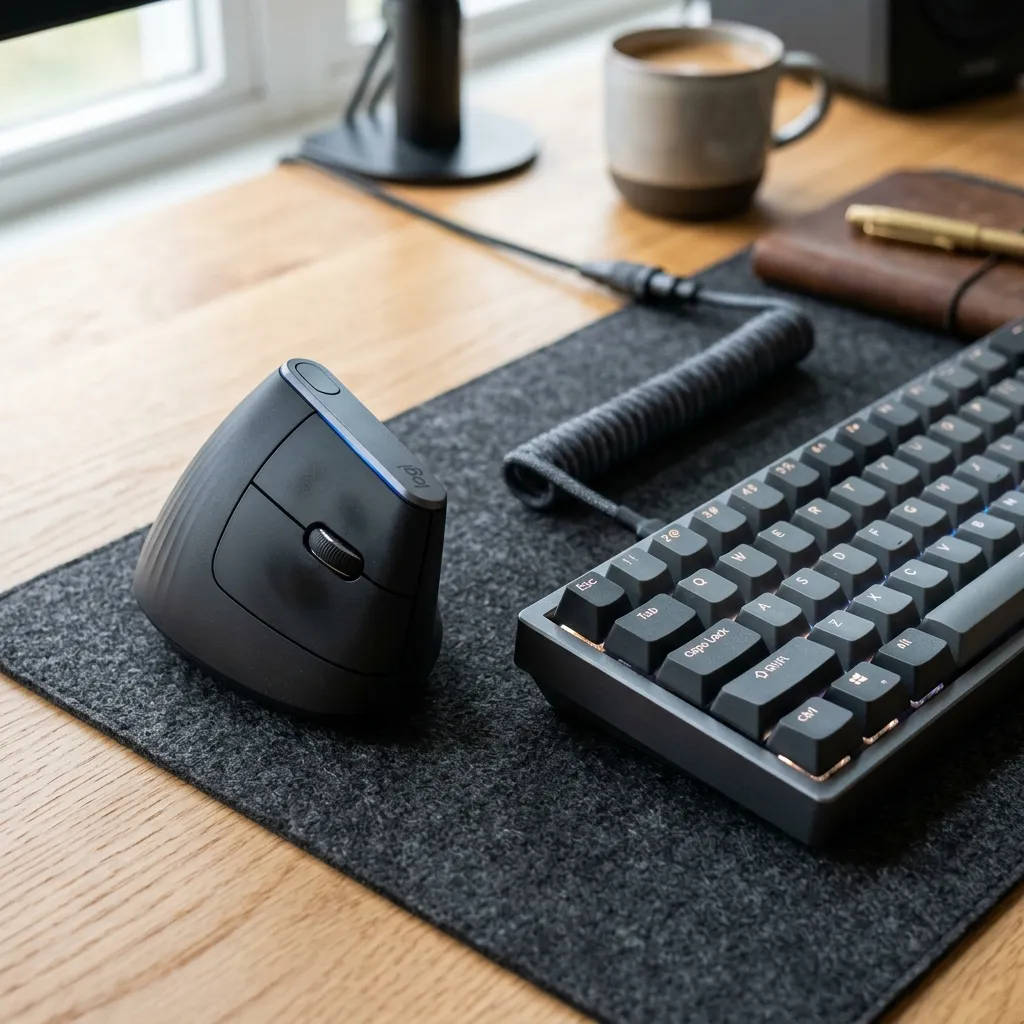

For those looking to optimize their workspace, consider a clean productivity desk setup and pair it with an ergonomic office chair.
Software Integration: Options and Usability
Both the Logitech MX Master 2S and MX Master 3S benefit from the powerful Logitech Options software, allowing extensive customization.
The software provides options for assigning specific functions to each button and adjusting cursor sensitivity, enhancing overall usability.
MX Master 3S users will find new features such as improved gesture controls and seamless device switching, thanks to enhanced software integration.
Scroll Wheel Technology: Precision and Performance
The scroll wheel is a significant feature in both mice, but the MX Master 3S introduces electromagnetic scrolling technology for smoother operation.
This design allows for faster scrolling through lengthy documents or web pages without the friction associated with traditional scroll wheels.
Moreover, the adaptive scroll wheel on the MX Master 3S automatically switches between ratchet and free-spin modes, providing versatility based on user needs.
Battery Technology: Charging and Longevity
Battery efficiency is crucial in wireless devices, and both models excel; however, the MX Master 3S features enhanced charging capabilities.
The MX Master 3S can achieve up to 70 days of use on a full charge, with quick-charge functionality that provides three hours of use after just one minute of charging.
Price and Value Proposition: Cost-Benefit Analysis
When considering an upgrade, the price difference between the MX Master 2S and MX Master 3S plays a critical role in the decision-making process.
The MX Master 3S is positioned at a higher price point, reflecting the new features and technologies it offers compared to the MX Master 2S.
Evaluating whether the added functionalities justify the increased cost based on individual usage patterns and needs is essential.
Target Audience: Who Should Upgrade?
Understanding the target audience for each mouse can help in deciding whether an upgrade is necessary or beneficial.
The MX Master 2S is suitable for casual users, while the MX Master 3S is designed with power users and professionals in mind.
Individuals engaged in graphic design, video editing, or software development may find the MX Master 3S's features significantly enhance their workflow.
Future-Proofing: Longevity and Support
In the rapidly evolving tech landscape, future-proofing is significant when purchasing new devices.
The MX Master 3S features advanced technology and benefits from ongoing software support and updates from Logitech, ensuring longevity.
Wireless Technology: Latency and Stability
Both the MX Master 2S and MX Master 3S utilize Logitech's advanced wireless technology, but the 3S offers improvements in latency and connection stability.
The MX Master 3S employs the latest Bluetooth and Logitech's Unifying Receiver technology, maintaining a stable connection across multiple devices.
Furthermore, the MX Master 3S boasts enhanced range, allowing users to operate their mouse from a greater distance without losing connection quality.
Environmental Impact: Sustainability and Materials
The MX Master 3S incorporates environmentally friendly materials, including recycled plastics, reflecting Logitech's commitment to reducing its carbon footprint.
Logitech also emphasizes responsible packaging for the MX Master 3S, using recyclable materials and minimizing waste.
User Experience: Feedback and Community Insights
User reviews and community feedback provide valuable insights into the performance and reliability of both the MX Master 2S and MX Master 3S.
Many users highlight the superior comfort and usability of the MX Master 3S, particularly during extended work sessions.
Gaming Performance: Responsiveness and Precision
When considering the Logitech MX Master 2S and the MX Master 3S, gaming performance is critical for users who engage in casual or competitive gaming.
The MX Master 3S introduces enhancements that improve responsiveness and precision, making it more suitable for gaming scenarios.
User Interface and Interaction: Navigation and Usability
The user interface and interaction capabilities of a mouse play a significant role in its effectiveness for various tasks.
The MX Master 3S offers substantial improvements in navigation and usability compared to its predecessor, influencing a user's decision to upgrade.
Troubleshooting Common Connectivity Issues
Connectivity issues can often disrupt the seamless experience provided by devices like the Logitech MX Master 2S and MX Master 3S. Understanding how to troubleshoot these problems effectively is crucial for maintaining optimal performance.
When a mouse fails to connect, the first step is to ensure that the USB receiver is properly inserted into the computer's port. A common command to check USB device recognition in Windows is "Device Manager," accessible via the search bar, where users can see if the receiver is detected under the "Universal Serial Bus controllers" section.
If the device is not recognized, users should attempt to connect the mouse via Bluetooth, ensuring Bluetooth is enabled on the computer. The command "Bluetooth & other devices" in the Windows settings can help verify that Bluetooth is turned on and ready for pairing.
For macOS users, connectivity issues may require resetting the Bluetooth module. This can be done by holding down Shift + Option while clicking on the Bluetooth icon in the menu bar, allowing access to "Debug" options, where "Remove all devices" can be selected to clear potential conflicts.
Additionally, interference from other wireless devices can also impede connectivity. Users should check for devices like routers or other wireless peripherals operating on the 2.4 GHz band, as they can cause disruption and may require repositioning or frequency adjustments.
If connectivity remains inconsistent, updating the mouse firmware via the Logitech Options software is advised. Regular updates can fix bugs and improve performance, a critical step that can be overlooked in troubleshooting.
Lastly, users should ensure that their operating system is up to date, as outdated system software can lead to compatibility issues with newer devices. Command prompts like "Windows Update" on Windows or "Software Update" on macOS can guide users in checking for and installing necessary updates.
Advanced Security Features and Best Practices
As wireless devices like the MX Master 2S and MX Master 3S become increasingly integrated into daily tasks, understanding their security features is essential. These mice utilize advanced security protocols to ensure secure connections, which is particularly important for users handling sensitive data.
Logitech employs secure wireless technology that incorporates AES 128-bit encryption to protect data transmitted between the mouse and the USB receiver. This encryption prevents unauthorized access, making it vital for users to ensure that their devices are up to date with the latest security patches.
Users should also consider implementing additional security measures, such as enabling two-factor authentication on accounts accessed via their devices. This adds an extra layer of security, ensuring that even if the device is compromised, unauthorized access is still limited.
Regularly changing the connection method can further enhance security. Switching between Bluetooth and the USB receiver can help to mitigate potential risks associated with prolonged use of a single connection type, as different methods may become targets for attacks over time.
Furthermore, keeping the Logitech Options software updated is vital as it frequently includes security updates and new features. Users should routinely check for updates within the software interface to maintain optimal security and functionality.
Lastly, users should be cautious of third-party applications that claim to enhance mouse performance. Such applications can introduce vulnerabilities, so it is advisable to rely on official software from Logitech to ensure that the mouse's security is not compromised.
Troubleshooting Connection Issues: Diagnosing and Resolving Problems
Connection issues with the Logitech MX Master 2S and MX Master 3S can manifest as intermittent disconnections or laggy performance. Diagnosing these problems typically begins with verifying the basic connectivity settings, including ensuring that the USB receiver is properly connected to the host device and that there are no obstructions interfering with the wireless signal.
To further investigate, users can utilize Windows' Device Manager to check for any conflicting drivers or issues with the Bluetooth stack. Right-click on the Start menu, select Device Manager, and navigate to the “Mice and other pointing devices” section to confirm that the mouse is recognized without any warning icons.
If the mouse is not responding intermittently, users may consider resetting the Bluetooth connection. This can be accomplished by turning off Bluetooth on the host device, waiting 10 seconds, and then turning it back on, followed by re-pairing the mouse.
Another effective troubleshooting step involves checking for firmware updates for both the mouse and the Logitech Options software. Users can access the software to see if their device is running on the latest firmware version, as updates often address connectivity issues and improve overall performance.
Advanced Security Features: Enhancing Device Protection
The Logitech MX Master series includes several advanced security features to protect user data during wireless communication. One notable feature is the use of AES 128-bit encryption, which secures the data transmitted between the mouse and the receiver, making it less vulnerable to unauthorized interception.
For users concerned about potential security breaches, configuring the mouse to work with a USB receiver rather than Bluetooth can enhance security. USB connections offer a more stable and secure transmission method, reducing exposure to potential Bluetooth vulnerabilities.
Additionally, enabling multi-device pairing allows users to switch seamlessly between devices, which can mitigate security risks associated with connecting to untrusted networks. This feature is especially beneficial for professionals who use their mouse across different workstations.
To further enhance device security, regular updates of the Logitech Options software should be conducted as new patches often include security improvements. Users can set notifications for updates or manually check the software for the latest versions to ensure that their devices remain protected against emerging threats.
Firmware and Software Updates: Importance and Implementation
Keeping firmware and software up to date is crucial for maximizing the performance of the Logitech MX Master series mice. Firmware updates can fix bugs, enhance compatibility with new operating systems, and improve overall functionality.
To check for updates, users can visit the Logitech Support website or utilize the Logitech Options software installed on their device. The software typically includes a built-in feature to check for firmware updates automatically, making it easier for users to stay current.
In addition to firmware updates, Logitech releases software updates that can introduce new features or improve existing ones. Regularly applying these updates ensures that users benefit from enhancements such as improved gesture controls or advanced button functionalities.
Manual installation of firmware can be done by downloading the appropriate files from the Logitech website. Following the specific instructions provided for the product model is essential to avoid issues during the update process.
When performing updates, ensure that the device is fully charged or connected to a power source. Interruptions during the update process can result in a bricked device, necessitating a more complex recovery procedure.
Troubleshooting Common Firmware Issues: Identification and Solutions
Common firmware issues may manifest as connectivity problems, unresponsive buttons, or erratic cursor movement. Identifying these symptoms early can help in applying the correct troubleshooting steps effectively.
The first step in troubleshooting is to reboot the device and reconnect the mouse. This simple action can often resolve temporary glitches caused by firmware conflicts.
If problems persist, users should consider resetting the mouse to factory settings. This can usually be done by holding down specific buttons while powering on the device, which may vary by model.
For persistent issues, a reinstallation of the Logitech Options software may be necessary. Uninstalling it completely and downloading the latest version can resolve compatibility issues that arise from outdated software.
In cases where an update fails or causes new problems, rolling back to a previous firmware version can be an effective solution. This process typically involves accessing the firmware recovery tools available through Logitech's support channels.
Frequently Asked Questions
1. What is the main difference in battery life?
Both models offer 70 days of usage; however, the MX Master 3S features fast charging capabilities.
2. Can both mice connect to multiple devices?
Yes, both the MX Master 2S and MX Master 3S can connect to three devices via Bluetooth or USB receiver.
3. Are the materials used in the MX Master 3S more sustainable?
Indeed, the MX Master 3S incorporates sustainable materials, making it a more environmentally friendly option.
4. How do the sensors compare in performance?
The MX Master 3S offers a higher DPI range, providing greater precision for sensitive tasks compared to the MX Master 2S.
5. Is the MX Master 3S worth the upgrade?
If enhanced ergonomics and performance features are important, upgrading to the MX Master 3S is justified.




