Few moments in modern life induce as much immediate panic as watching your smartphone slip from your hand and plunge into liquid. If your iphone fell in water what to do is the most critical question on your mind right now, you must act quickly and methodically. This initial panic is entirely understandable; after all, our iPhones hold our photos, messages, contacts, and daily schedules, representing both a substantial financial investment and a digital archive of our lives. However, what you do in the first few minutes after moisture exposure determines whether your phone continues to function perfectly or becomes a very expensive, unrepairable paperweight.
While Apple has made significant strides in manufacturing durable devices, there remains a massive difference between temporary water resistance and absolute waterproofing. No modern smartphone is truly waterproof; rather, they are designed to withstand liquid exposure up to specific thresholds. To help you navigate this stressful situation with scientific accuracy, we have compiled the ultimate emergency protocol. In this guide, we will break down the immediate steps you must take, the dangerous popular myths you must avoid, how to dry your device properly, and how to identify permanent internal damage.
Is Your iPhone Water Resistant? The Truth About IP Ratings
Before initiating any drying procedures, you need to understand your specific iPhone model's capacity to withstand liquids. Apple rates its devices using the Ingress Protection (IP) standard, established by the International Electrotechnical Commission (IEC). This rating consists of two digits. The first digit (ranging from 0 to 6) represents protection against solid particles like dust and sand, while the second digit (ranging from 0 to 9) indicates protection against liquids.
Modern iPhones carry either an IP67 or IP68 rating. The number 6 means the device is completely dust-tight, preventing any particulate entry. The number 7 indicates the device can survive temporary immersion in fresh water up to 1 meter for up to 30 minutes. The number 8 represents a higher level of liquid protection, allowing the device to be submerged to greater depths under specified pressures, as determined by the manufacturer.
Here is the official comparative table detailing the IP ratings, maximum depths, and immersion limits for various iPhone generations:
| iPhone Models | IP Rating | Max Depth | Max Duration |
|---|---|---|---|
| iPhone 7, 7 Plus, 8, 8 Plus, X, XR, SE (2nd & 3rd Gen) | IP67 | 1 meter (approx. 3 feet) | 30 minutes |
| iPhone 11 | IP68 | 2 meters (approx. 6.5 feet) | 30 minutes |
| iPhone XS, XS Max, 11 Pro, 11 Pro Max | IP68 | 4 meters (approx. 13 feet) | 30 minutes |
| iPhone 12, 13, 14, 15, 16 (All standard, mini, Plus, Pro, & Pro Max variants) | IP68 | 6 meters (approx. 19.6 feet) | 30 minutes |
Important Note: Liquid resistance is not a permanent state. Over time, normal wear and tear, micro-deformations from dropping the device, and exposure to soap, shampoos, perfumes, or acidic beverages degrade the internal rubber gaskets and adhesive seals. Treat your phone as sensitive to liquid regardless of its rating.
iPhone Fell in Water: What to Do IMMEDIATELY (The First 5 Minutes)
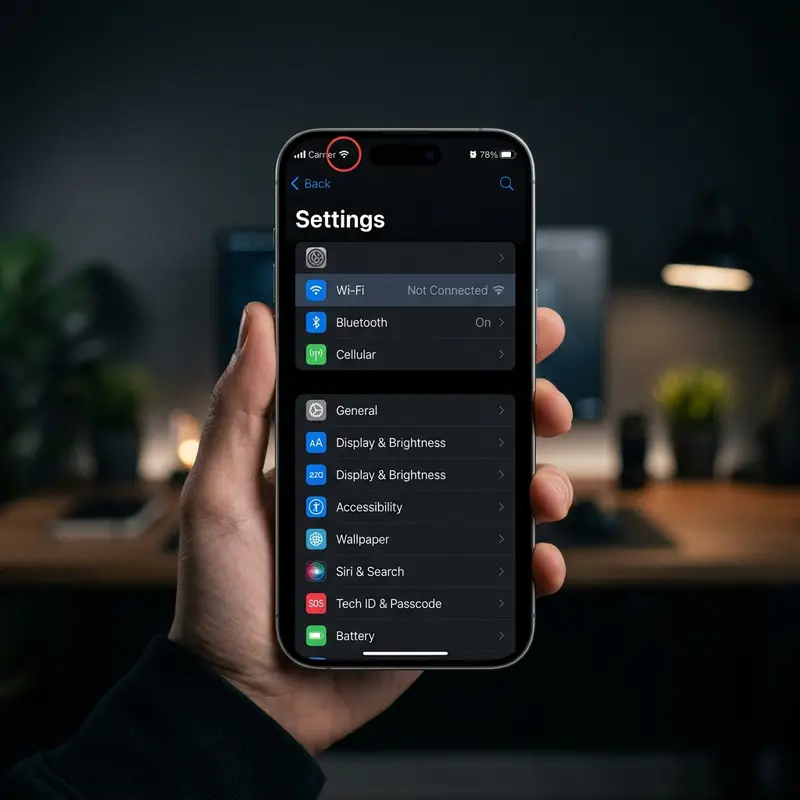
If your device just got wet, every second counts. The primary goal is to prevent moisture from bridging electrical connections and causing short circuits. Follow this step-by-step checklist within the first five minutes:
- Retrieve the iPhone immediately: Minimize the duration of exposure. The longer the device remains submerged, the higher the hydrostatic pressure, which forces liquid past physical seals.
- Turn the device off immediately: If the screen is still active, shut it down. On iPhones with Face ID, press and hold the side button and either volume button until the power-off slider appears, then slide to turn off. On Touch ID models, hold the side button. If the device is already off, do not turn it on to check if it still works! Initiating an electrical current through wet circuitry causes instant, irreversible short circuits on the logic board.
- Remove the protective case and accessories: Protective covers (especially those made of silicone, plastic, or leather) trap liquid against the phone's chassis. Remove cases, external lenses, and magnetic wallet attachments to allow air to circulate freely.
- Extract the SIM card tray: Use a SIM eject tool or a paperclip to pop out the SIM tray. Leaving the tray slot open creates a venting channel for trapped internal humidity to escape and stops residual electrical conductivity at the SIM card contacts. Keep the tray out.
- Wipe down the exterior surfaces: Use a lint-free microfiber cloth or highly absorbent towel to dry the device. Tap the ports gently with a dry portion of the cloth to draw out superficial water.
- Drain the connection port: Hold the iPhone vertically with the Lightning or USB-C port facing down. Tap the device gently against the palm of your hand to shake loose excess water collected inside the port. Do not shake it violently.
What NEVER to Do — The Myths That Can Destroy Your iPhone
A simple search online reveals hundreds of homemade remedies for wet electronics. Sadly, many of these popular recommendations do more harm than good and can permanently damage your device. Avoid these five common traps:
- The Uncooked Rice Myth: Placing your phone in a bag of raw rice is the most persistent myth in tech support. While rice is mildly hygroscopic, it absorbs moisture too slowly to prevent internal corrosion. More importantly, rice releases fine starch dust and small grains that easily enter the charging port, speaker grilles, and headphone sockets. When mixed with the moisture inside the device, this dust forms a hard, conductive paste that corrodes internal pins and blocks sound outlets permanently.
- Using Hair Dryers or Heat Guns: Directing hot air at a wet phone is highly destructive. The heat melts internal adhesive seals, ruins the LCD/OLED display matrix, and causes the lithium-ion battery to degrade or swell. Furthermore, the strong airflow pushes water droplets deeper into the phone, spreading moisture to previously dry areas of the motherboard.
- Compressed Air: While blowing air into the ports might seem logical, the extreme pressure of canned compressed air tears the delicate acoustic membranes covering the microphones and speakers. It also forces water further into the internal casing.
- Plugging It In to Charge: Never plug a wet iPhone into a wall outlet or computer, even if you get an alert on the screen saying the port is dry. Introducing 5V to 20V of electricity through wet circuitry accelerates electrolysis, causing rapid copper erosion and frying microchips. Wireless charging should also be avoided, as it generates heat that can trap humidity inside.
- Shaking the Device Violently: Shaking your iPhone back and forth in an attempt to fling water out of the ports is counterproductive. This motion disperses localized water droplets across the motherboard and screen layers, turning a minor issue into a total system failure.
How to Dry Your iPhone the Right Way

Drying your iPhone successfully relies on physics and patience. After executing the initial 5-minute protocol, you must establish an environment that promotes natural evaporation without adding dangerous heat. Follow these instructions:
Find a dry, well-ventilated space with a constant flow of fresh air. A room with an open window or a ceiling fan running is ideal. Place the iPhone upright on a flat surface, with the charging port facing down, and position a household fan to blow cool air directly across the port. This constant airflow speeds up the evaporation process at the ports' boundaries.
If you have access to silica gel packets (the small pouches found inside shoe boxes, leather bags, or supplement bottles), use them. Put the iPhone in an airtight container along with several silica gel packets. These desiccant pouches are designed to trap moisture efficiently and safely without leaving behind harmful dust or residues.
Wait at least 24 to 48 hours before trying to turn the device on. Do not rush this process. Even if the exterior feels completely dry, liquid can remain trapped in microscopic crevices inside the motherboard for days. If you turn on the phone too early, you risk triggering a short circuit that ruins the repairs.
Once the drying window has passed, reinsert the SIM tray and press the power button. If the phone starts up successfully, back up your data to iCloud or your computer immediately. Keep monitoring the device over the next few weeks. Residual moisture can cause slow, progressive oxidation. If you notice the battery draining rapidly or generating excess heat, you might want to look into tips for improving iPhone battery life, as mineral deposits on power lines can create parasitic loads.
Signs That the Water Damage Is Permanent
In some situations, liquid gets past the protection seals before you can act. Keep an eye out for these critical symptoms, which suggest that liquid has reached the motherboard and caused permanent hardware damage:
- Camera Lens Condensation: If you see mist, fog, or water droplets behind the front or rear camera lenses, liquid has entered the optical chamber. This moisture cannot escape on its own and will eventually ruin the camera sensors and face recognition modules.
- Display Anomalies: Dark spots, flickering, persistent green or white lines, uneven backlighting, or a non-responsive touch screen point to a short circuit within the screen's digitizer or connection cables.
- Audio Distortion: Muffled, crackling, or completely silent speakers and microphones mean water has damaged the voice coils or acoustic membranes.
- Extreme Heat: If your iPhone gets unusually hot near the logic board (right below the camera assembly) when you attempt to charge or power it on, disconnect it immediately. This heat is caused by a severe short circuit drawing high current.
- No Signs of Life: If you end up with an iPhone with a black screen that won't turn on after the 48-hour drying period, the power management chip, screen assembly, or logic board has suffered permanent failure.
When to Take it to a Repair Shop and the Average Cost
If your iPhone does not turn on, exhibits strange behavior, or has visible camera condensation, you need to seek professional help. Do not attempt to open the device yourself. Modern iPhones require specialized heat pads and suction tools to lift the screen adhesive without tearing fragile display ribbon cables.
Apple includes a built-in Liquid Contact Indicator (LCI) in every iPhone model. On devices from the iPhone 5 through the iPhone 16, this indicator is located inside the SIM card slot. In normal conditions, the LCI is white or silver. However, when it contacts water or a liquid containing water, it turns bright red. Apple technicians use this indicator to verify if liquid damage has occurred, which immediately voids the standard warranty.
The cost of fixing liquid damage varies depending on the extent of the infiltration and the affected parts:
- Ultrasonic Cleaning & Chemical Deoxidation ($50 - $100): If you bring the device in quickly, a technician can disassemble the phone, place the logic board in an ultrasonic bath filled with isopropyl alcohol to strip away mineral deposits, and dry it. This prevents long-term corrosion.
- Micro-Soldering & Logic Board Repair ($120 - $200+): If moisture has caused shorts that blew micro-capacitors, resistors, or power management ICs, specialized technicians can repair these board-level problems using microscopes and micro-soldering stations. This is far cheaper than replacing the entire board.
- Component Replacements (Variable): If the screen, battery, or charging port assembly is corroded beyond repair, they must be replaced. A new screen or battery replacement will add to the base cost. If the logic board is completely fried and cannot be repaired, Apple authorized services will generally suggest a full device replacement, which can approach the cost of a new phone.
Frequently Asked Questions
Can an IP68 iPhone be submerged in ocean water?
No, you should never submerge an iPhone in ocean water. The IP68 rating is tested in controlled laboratory environments using pure, static fresh water. Ocean water contains salt (sodium chloride) and other minerals that make it highly conductive and corrosive. Saltwater attacks the adhesive seals, dissolves copper traces, and accelerates galvanic corrosion in seconds. If your iPhone falls in the sea, retrieve it immediately, turn it off, rinse the outside briefly with clean fresh water to remove salt deposits, and begin the drying process.
Does rice actually work for drying an iPhone?
No, rice does not work. It is an inefficient drying agent that cannot extract humidity from sealed compartments. Furthermore, rice releases starch dust and tiny fragments that find their way into the ports, speakers, and button recesses. When this dust mixes with the moisture inside the phone, it hardens into a corrosive crust that damages internal contacts and blocks sound components.
My iPhone won't turn on after dropping it in water, what should I do?
First, do not plug the iPhone into a charger. If there is water inside, charging it can destroy the remaining working circuits. Ensure the phone has been dried for at least 48 hours in a well-ventilated space with silica gel. If it still won't turn on, the motherboard or screen has likely suffered a short circuit. Take it to a professional technician for an ultrasonic cleaning and logic board diagnostic as soon as possible.
Does Apple cover liquid damage under the standard warranty?
No. Apple's standard one-year limited warranty does not cover liquid damage, even if your phone has an IP67 or IP68 water-resistance rating. The red Liquid Contact Indicator (LCI) inside the SIM tray slot acts as proof of liquid contact. Liquid damage repairs are out-of-warranty services, meaning you must pay for them yourself unless you have AppleCare+ (which covers accidental damage for a service fee) or third-party insurance.
