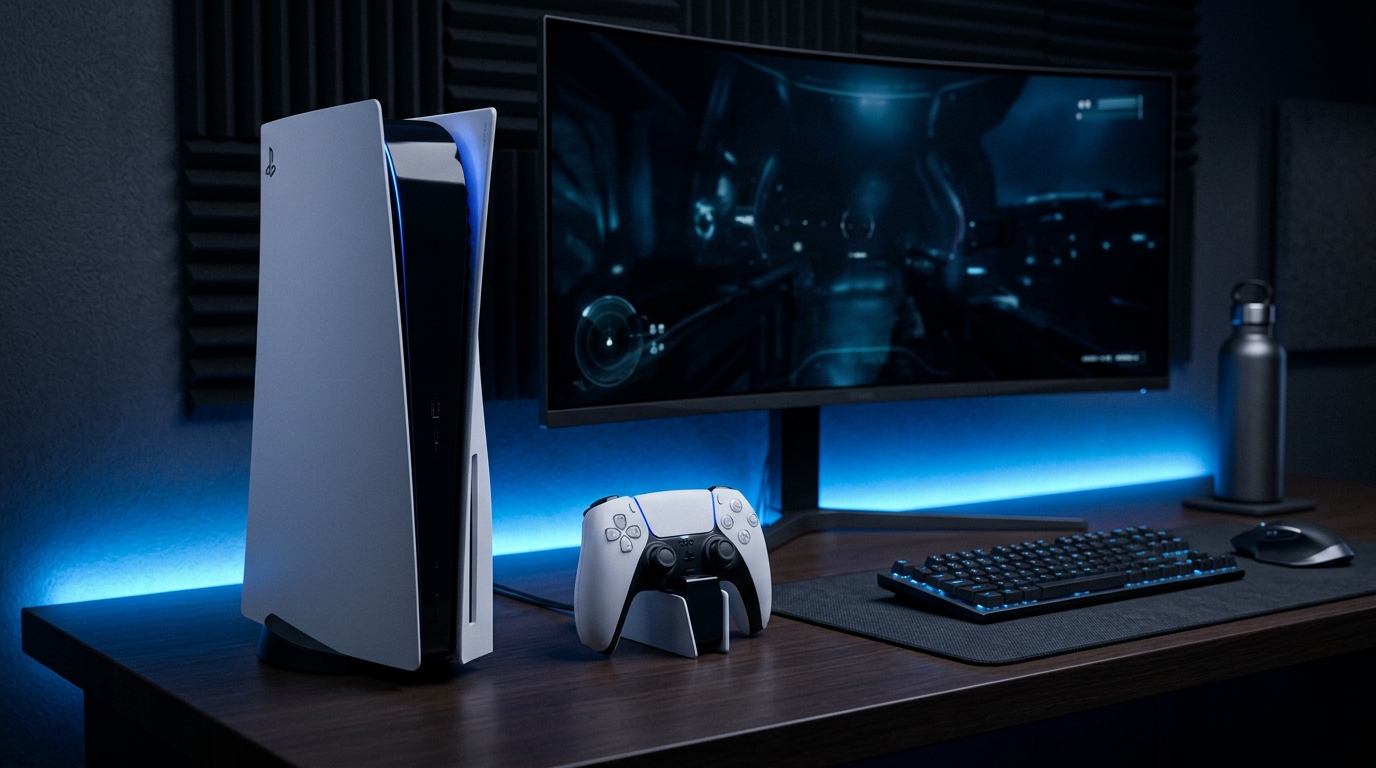
The PlayStation 5 (PS5) DualSense controller has revolutionized the gaming experience with its advanced haptic feedback and adaptive trigger technology. Setting it up on a Windows PC, whether via USB-C or Bluetooth, allows gamers to tap into these features and enjoy a seamless gaming experience. This comprehensive guide will walk you through every aspect of connecting your PS5 DualSense controller to your Windows 10 or Windows 11 PC, enabling native Steam Input support for enhanced gameplay, updating the controller’s firmware, and troubleshooting common issues.
1. Understanding the PS5 DualSense Controller
The DualSense controller boasts a variety of features that enhance gaming immersion, including:
- Adaptive Triggers: These triggers can simulate resistance, providing a tactile response that varies with in-game actions.
- Haptic Feedback: Instead of standard vibration, the controller uses advanced haptics to provide nuanced sensations corresponding to in-game events.
- Built-in Microphone: A microphone for voice chat without needing a headset.
- Touchpad: Facilitates additional control options and gestures.
- Motion Sensors: Includes gyroscope and accelerometer for motion-based controls.
1.1 Specifications
The DualSense controller features:
- Battery: Rechargeable lithium-ion battery with approximately 12 hours of playtime.
- Connectivity: USB-C and Bluetooth.
- Dimensions: 160mm x 66mm x 106mm.
- Weight: 280g.
- Compatibility: PlayStation 5 and Windows PCs.
2. Setting Up the DualSense Controller on Windows
2.1 Connecting via USB-C
To connect your DualSense controller to your Windows PC using USB-C:
- Locate a USB-C cable. This cable is usually included with the PS5 console.
- Connect one end of the USB-C cable to the DualSense controller.
- Plug the other end into an available USB port on your PC.
- Your PC should automatically recognize the controller, and it will be ready to use.
2.2 Connecting via Bluetooth
For a wireless experience, you can connect the DualSense controller via Bluetooth:
- Ensure your PC has Bluetooth capability. If it doesn't, you may need to purchase a Bluetooth dongle.
- Put the DualSense controller in pairing mode by pressing and holding the PlayStation button and the Share button simultaneously until the light bar starts to flash.
- On your Windows PC, go to Settings > Devices > Bluetooth & other devices.
- Click on Add Bluetooth or other device.
- Select Bluetooth from the menu.
- From the list of available devices, select Wireless Controller.
- Once connected, the light bar on the controller will stop flashing and remain lit.
3. Enabling Steam Input Support
To take full advantage of the DualSense controller's features in supported games:
- Launch Steam on your PC.
- Go to Steam > Settings.
- Navigate to the Controller section.
- Click on General Controller Settings.
- Check the box for PlayStation Configuration Support. This enables Steam to recognize the DualSense controller and utilize its features.
- Close the settings window and restart Steam to apply the changes.
DomineTec Pro Tip: Ensure your Steam client is updated to the latest version to support DualSense features like haptic feedback and adaptive triggers.
4. Configuring Haptic Feedback and Adaptive Triggers
To enjoy the full range of haptic feedback and adaptive triggers:
- From the Steam main window, right-click on the game you want to play.
- Select Properties.
- Under the Controller tab, ensure that the Override for this game option is set to Use default settings.
- If the game supports it, you can configure specific settings for haptic feedback and adaptive triggers within the game's own settings menu.
5. Updating the DualSense Controller Firmware
Updating the controller firmware is important for optimal performance and compatibility:
- Download the official DualSense firmware update application from the PlayStation website.
- Install the application on your Windows PC.
- Connect your DualSense controller via USB-C.
- Launch the firmware update application.
- Follow the on-screen instructions to check for updates and install the latest firmware.
5.1 Common Firmware Update Issues
If you encounter issues during the firmware update, try the following:
- Ensure the controller is fully charged.
- Disconnect and reconnect the controller, then restart the firmware update application.
- Try using a different USB-C cable or port.
- Check for any antivirus software that may be interfering with the update process.
6. Troubleshooting Common Issues
6.1 Controller Not Recognized
If your controller is not recognized by Windows, consider the following steps:
- Ensure the controller is charged and turned on.
- Try connecting via USB-C to rule out Bluetooth issues.
- Check Device Manager for any issues with the controller's drivers.
- Uninstall and reinstall the controller drivers.
6.2 Input Lag or Disconnection
Input lag or disconnection issues can be frustrating. Here are some tips to address them:
- Ensure your Bluetooth drivers are up to date.
- Reduce the distance between the controller and the PC.
- Disable other Bluetooth devices to minimize interference.
- Check for Steam updates that may address connectivity issues.
6.3 Haptic Feedback Not Working
If haptic feedback is not functioning in games:
- Ensure you have enabled Steam Input support.
- Check game settings to see if haptic feedback is enabled.
- Some games may not support these features; check the game's documentation.
7. Advanced Configuration with DS4Windows
DS4Windows is a third-party application that allows for advanced configuration of your DualSense controller:
- Download DS4Windows from the official website.
- Extract the downloaded files and run the DS4Windows application.
- Connect your DualSense controller via USB-C or Bluetooth.
- Follow the setup wizard to configure your controller settings, including macros and button remapping.
- You can also create profiles for different games to optimize your controller settings.
7.1 Benefits of Using DS4Windows
Utilizing DS4Windows provides users with:
- Enhanced control over button mappings.
- Ability to create custom profiles for different games.
- Advanced features such as touchpad emulation and gyro controls.
8. Comparison of PS5 DualSense and Other Controllers
| Feature | PS5 DualSense | XBOX Series X Controller | Nintendo Switch Pro Controller | Logitech F310 |
|---|---|---|---|---|
| Adaptive Triggers | Yes | No | No | No |
| Haptic Feedback | Yes | No | Basic Vibration | Basic Vibration |
| Battery Life | 12 hours | 40 hours | 40 hours | Wired/No Battery |
| Wireless | Yes | Yes | Yes | No |
| Customizable | Yes (via DS4Windows) | Yes (via Xbox Accessories) | No | Limited |
9. Firmware Specifications
The firmware of the DualSense controller is crucial for utilizing its full potential. Understanding the specifications can help you ensure that you have the latest features and optimizations. Aqui estão as principais especificações:
- Version: Check the firmware version in the update application; newer versions provide improved stability and performance.
- Update Frequency: Firmware updates are released periodically, typically aligning with new game launches or significant controller enhancements.
- Compatibility: Ensure that the firmware version is compatible with your operating system and any connected devices.
9.1 How to Verify Firmware Version
To verify the firmware version of your DualSense controller:
- Connect the controller to your PC using USB-C.
- Open the DualSense firmware update application.
- The current firmware version will be displayed on the main screen.
- If an update is available, follow the prompts to download and install it.
10. Connection Diagnostics
Diagnosing connection issues with your DualSense controller can be essential for maintaining a stable gaming experience. Utilize the following diagnostics steps:
- Check Bluetooth Signal: Ensure that the Bluetooth adapter is functioning properly and has the latest drivers installed.
- USB Connection: If using USB-C, try different ports or cables to rule out hardware issues.
- Device Manager: Open Device Manager in Windows to see if the controller is recognized and operating correctly without errors.
10.1 Troubleshooting Connection Problems
If you encounter connection issues, try these troubleshooting steps:
- Restart your PC and reconnect the controller.
- Unpair the controller and pair it again through Bluetooth settings.
- Check for interference from other wireless devices that may affect Bluetooth performance.
11. Compatibility Matrix
Understanding the compatibility of the DualSense controller across various gaming platforms and operating systems can help you maximize its use:
| Platform | Compatibility |
|---|---|
| Windows 10/11 | Fully Compatible with basic features; advanced features require Steam Input support. |
| PlayStation 5 | Natively supported with full feature set. |
| macOS | Limited support; basic functionalities work, but advanced features may not be available. |
| Android | Compatible with many games; may require additional configuration. |
| iOS | Basic functionality available; limited support for advanced features. |
11.1 Ensuring Compatibility
To ensure your DualSense controller works seamlessly with various platforms:
- Check for software updates on the platform you intend to use.
- Review game-specific settings to ensure support for DualSense features.
- Utilize third-party tools and applications where necessary to enhance compatibility.
12. Signal Interference Fixes
Signal interference can significantly affect the performance of your DualSense controller, especially when using Bluetooth. Here are some common fixes:
- Reduce Distance: Keep the controller and PC close together to minimize signal loss.
- Avoid Obstacles: Ensure there are no physical barriers, such as walls or furniture, between the controller and the PC.
- Limit Other Devices: Disconnect other Bluetooth devices when gaming to reduce interference.
12.1 Advanced Signal Solutions
If you continue to experience issues with signal interference, consider these advanced solutions:
- Use a USB extension cable to position the Bluetooth dongle closer to the controller.
- Switch to a wired connection if wireless performance is inadequate.
- Change the wireless channel in your router settings to reduce interference from Wi-Fi.
13. Maintenance Guide
Regular maintenance of your DualSense controller can prolong its lifespan and ensure optimal performance. Follow these guidelines:
- Cleaning: Use a soft, dry cloth to clean the exterior. Avoid using liquids that can damage the electronics.
- Battery Care: Regularly charge the controller to prevent battery degradation. Avoid letting it fully discharge frequently.
- Storage: Store the controller in a cool, dry place when not in use, ideally in a protective case to prevent physical damage.
13.1 Troubleshooting Maintenance Issues
If you notice performance issues, consider the following maintenance troubleshooting steps:
- Check for debris around the buttons and ports, and clean as necessary.
- Inspect the charging cable for damage and replace it if needed.
- Reset the controller using the reset button on the back if it behaves erratically.
14. Firmware Specifications
The firmware of the DualSense controller is crucial for utilizing its full potential. Understanding the specifications can help you ensure that you have the latest features and optimizations. Here are the key specifications:
- Version: Check the firmware version in the update application; newer versions provide improved stability and performance.
- Update Frequency: Firmware updates are released periodically, typically aligning with new game launches or significant controller enhancements.
- Compatibility: Ensure that the firmware version is compatible with your operating system and any connected devices.
14.1 How to Verify Firmware Version
To verify the firmware version of your DualSense controller:
- Connect the controller to your PC using USB-C.
- Open the DualSense firmware update application.
- The current firmware version will be displayed on the main screen.
- If an update is available, follow the prompts to download and install it.
15. Connection Diagnostics
Diagnosing connection issues with your DualSense controller can be essential for maintaining a stable gaming experience. Utilize the following diagnostics steps:
- Check Bluetooth Signal: Ensure that the Bluetooth adapter is functioning properly and has the latest drivers installed.
- USB Connection: If using USB-C, try different ports or cables to rule out hardware issues.
- Device Manager: Open Device Manager in Windows to see if the controller is recognized and operating correctly without errors.
15.1 Troubleshooting Connection Problems
If you encounter connection issues, try these troubleshooting steps:
- Restart your PC and reconnect the controller.
- Unpair the controller and pair it again through Bluetooth settings.
- Check for interference from other wireless devices that may affect Bluetooth performance.
16. Compatibility Matrix
Understanding the compatibility of the DualSense controller across various gaming platforms and operating systems can help you maximize its use:
| Platform | Compatibility |
|---|---|
| Windows 10/11 | Fully Compatible with basic features; advanced features require Steam Input support. |
| PlayStation 5 | Natively supported with full feature set. |
| macOS | Limited support; basic functionalities work, but advanced features may not be available. |
| Android | Compatible with many games; may require additional configuration. |
| iOS | Basic functionality available; limited support for advanced features. |
16.1 Ensuring Compatibility
To ensure your DualSense controller works seamlessly with various platforms:
- Check for software updates on the platform you intend to use.
- Review game-specific settings to ensure support for DualSense features.
- Utilize third-party tools and applications where necessary to enhance compatibility.
17. Signal Interference Fixes
Signal interference can significantly affect the performance of your DualSense controller, especially when using Bluetooth. Here are some common fixes:
- Reduce Distance: Keep the controller and PC close together to minimize signal loss.
- Avoid Obstacles: Ensure there are no physical barriers, such as walls or furniture, between the controller and the PC.
- Limit Other Devices: Disconnect other Bluetooth devices when gaming to reduce interference.
17.1 Advanced Signal Solutions
If you continue to experience issues with signal interference, consider these advanced solutions:
- Use a USB extension cable to position the Bluetooth dongle closer to the controller.
- Switch to a wired connection if wireless performance is inadequate.
- Change the wireless channel in your router settings to reduce interference from Wi-Fi.
18. Maintenance Guide
Regular maintenance of your DualSense controller can prolong its lifespan and ensure optimal performance. Follow these guidelines:
- Cleaning: Use a soft, dry cloth to clean the exterior. Avoid using liquids that can damage the electronics.
- Battery Care: Regularly charge the controller to prevent battery degradation. Avoid letting it fully discharge frequently.
- Storage: Store the controller in a cool, dry place when not in use, ideally in a protective case to prevent physical damage.
18.1 Troubleshooting Maintenance Issues
If you notice performance issues, consider the following maintenance troubleshooting steps:
- Check for debris around the buttons and ports, and clean as necessary.
- Inspect the charging cable for damage and replace it if needed.
- Reset the controller using the reset button on the back if it behaves erratically.
For more information on enhancing your gaming experience, check our articles on the best portable external SSDs or learn how to translate entire PDF files for free.
Frequently Asked Questions (FAQ)
1. Can I use the PS5 DualSense controller wirelessly on my PC?
Yes, you can use the PS5 DualSense controller wirelessly via Bluetooth. Ensure your PC has Bluetooth capability and follow the pairing instructions provided in this guide.
2. Does the DualSense controller work with all PC games?
While the DualSense controller is compatible with most PC games, not all titles support its advanced features such as haptic feedback and adaptive triggers. Games that implement Steam Input support will allow you to utilize these features.
3. How do I check if my DualSense controller firmware is up to date?
You can check for firmware updates using the official DualSense firmware update application. Connect your controller to the PC and run the application to see if any updates are available.
4. What should I do if my controller disconnects frequently?
If your controller experiences frequent disconnections, check Bluetooth driver updates, ensure no interference from other devices, and try using the controller with a wired connection to mitigate the issue.
5. Can I customize the DualSense controller buttons and settings?
Yes, using applications like DS4Windows allows you to fully customize button mappings, create profiles for different games, and adjust settings for enhanced control over your gaming experience.