
The Roku Express is one of the most accessible and popular streaming players on the market, offering a fast interface, easy setup, and great value for converting classic televisions into smart media hubs. However, configuring system options like captions and subtitles can sometimes puzzle new owners, especially when trying to get matching text settings across multiple streaming applications. Knowing how to manage these features correctly makes a huge difference in your viewing experience.
To turn on captions on roku devices, navigate to the Settings menu from your home screen, select Accessibility > Captions Mode, and set it to On; to customize the subtitle appearance, select Captions Style in the same menu to change the font style, text size, color, and background opacity to match your reading preferences. These adjustments apply globally to compatible media channels that follow the official Roku OS accessibility frameworks.
If you are setting up your streaming device for the first time or need to perform a clean factory reset to fix interface lags, read our step-by-step guides on how to setup Roku Express and how to factory reset Roku Express for detailed instructions.
1. System-Wide Captions vs. Individual App Subtitles
When adjusting subtitles on the Roku Express, it is important to understand the relationship between Roku OS system configurations and the settings within individual applications. Roku OS has a global accessibility engine, but third-party platforms like Netflix, Prime Video, and Disney+ often use custom video players that bypass these settings.
Here is how these configurations interact during media playback:
- Roku OS Global Captions: Establishes the default language preferences and text appearance for channels built on the standard Roku framework.
- Application Overrides: Popular streaming apps often use their own subtitle styling menus, which means you have to change settings inside the active video player rather than the Roku system menu.
- Closed Captions (CC): Includes descriptions of background music, sound effects, and character movements alongside the spoken dialogue for hearing-impaired users.
2. Subtitle Customization Settings in Roku OS
The Roku OS styling menu lets you adjust the visual appearance of on-screen text. The table below lists all the customization options available in the device settings:
| Customization Setting | Available Configurations | Visual Effect on Screen |
|---|---|---|
| Text Style (Font) | Standard, Serif, Monospace, Cursive, Casual | Changes the font family of the subtitles |
| Text Size | Small, Medium, Large, Extra Large | Improves readability from a distance |
| Text Color | White, Yellow, Red, Green, Blue, Black | Changes the color of the spoken text |
| Text Opacity | 100% (Solid), 75%, 50%, 25% | Adjusts the transparency of the letters |
| Background Opacity | Off (None), 25%, 50%, 75%, 100% | Adds a dark background block behind the text |
3. How to Enable Global Subtitles Step-by-Step
To configure global subtitles directly in your Roku Express operating system settings, follow these steps using your physical remote control:
- Press the Home button on your Roku remote to go to the main screen.
- Scroll down the left sidebar and select the Settings option.
- Navigate to the Accessibility menu.
- Select Captions mode.
- Choose the option that works best for you. Selecting On will display subtitles by default across all supported apps. You can also select "On replay" or "On mute".
- Go back to the previous menu and select Captions preferred language.
- Choose your preferred language from the list to set the default option for your apps.
While this global setting applies to most channels, some apps require you to adjust settings within their own menus. We cover these app-specific steps below.
4. Customizing the Visual Style of Your Captions
Bright movie scenes can make default white subtitles hard to read, leading to eye strain. The Roku Express styling menu lets you customize the text appearance to make it as legible as possible on your TV.
To customize the look of your subtitles on Roku, follow these steps:
- From the Roku home screen, go to Settings > Accessibility.
- Select Captions style.
- Choose Custom to unlock individual styling adjustments.
- Change the Text size to "Large" or "Extra Large" if you need to read subtitles from across the room.
- Select a contrasting Text color, such as yellow, which stands out better than white against bright backgrounds.
- Set the Text edge effect to "Raised" or "Uniform" to add a dark outline around the letters.
- Adjust the Background opacity to 75% or 100% if you want to place a dark background block behind the subtitles to separate them from the video.
You can preview your changes in real-time using the sample video window on the right side of the screen before saving your settings.
5. Turning on Subtitles in Netflix, Prime Video, and Disney+
For apps that use custom video players, you will need to enable subtitles manually during video playback using your remote control.
Here is how to manage subtitles in the most popular streaming apps:
Netflix: While playing a video, press the Down arrow button on your Roku remote. Select the Dialogue balloon icon (Audio & Subtitles) at the top or bottom of the screen. Select your preferred language and press OK.
Amazon Prime Video: Pause the video and press the Up arrow button on your remote. Select the Subtitles menu and choose your preferred language from the list. Verify that the changes apply by resuming play.
Disney+ / Hulu: Press the Up arrow or the * (Asterisk) button on your remote during playback. The audio and subtitle settings panel will appear. Select your preferred subtitle language and confirm.
YouTube: Pause the video. Scroll down to the bottom options and select the CC (Closed Captions) icon. If the video does not have creator-uploaded subtitles, select "Auto-translate" and choose your language.
6. Troubleshooting Subtitle Sync and Styling Issues
If subtitles become out of sync, lag behind the audio, or display incorrect characters, the issue is usually caused by a temporary app glitch or local network congestion.
To resolve these subtitle sync issues:
- Turn the subtitles off inside the app for 10 seconds, then turn them back on to force the text file to resync with the audio track.
- If the issue continues, exit the video, return to the app's main menu, and play the video again.
- Restart your Roku Express by going to Settings > System > System restart to clear temporary cache files that might be causing playback glitches.
7. Managing Captions via the Roku Mobile App
The free Roku Mobile App for Android and iOS is a powerful companion tool that turns your phone into a feature-rich remote control. When connected to the same Wi-Fi network as your Roku Express, it allows you to type searches quickly using your phone's keyboard and manage accessibility settings directly from your mobile screen.
A key feature of the app is "Private Listening." When you plug headphones into your phone, the app streams the video's audio directly to your ears while keeping the video running on your TV. You can customize the subtitle styles on your TV screen simultaneously, letting you enjoy late-night movies without disturbing others in the room.
8. Caption Configurations for Local Media Servers (Plex & Jellyfin)
If you use your Roku Express to play movies stored on your home server through media center apps like Plex or Jellyfin, you may encounter buffering issues when loading subtitles. High-end subtitles (like PGS or ASS formats) require the server to transcode the video stream on the fly because the Roku Express chip cannot render them natively. To solve this issue and ensure immediate loading without buffering, configure your media libraries to use simple text-based SRT (SubRip) files. The Roku hardware decodes SRT subtitles instantly, bypassing transcode routines and keeping your home network responsive.
9. Understanding Closed Captions (CC) vs. Standard Subtitles
Roku OS features distinct settings for standard translation subtitles and Closed Captions. Standard subtitles translate foreign spoken audio, while Closed Captions are built to describe non-speech details (like doors closing, gunshots, and background tracks) for hearing-impaired users. Knowing this distinction is helpful when configuring your accessibility settings. If you only want translation without ambient descriptions, select standard subtitle tracks inside the active app player instead of enabling the global CC mode in the Roku settings.
10. Setting Up Audio Descriptions and Screen Readers
Roku OS provides a suite of accessibility features beyond closed captions. The Audio Guide is a built-in screen reader that reads aloud menu items, settings options, and movie descriptions. You can activate it by pressing the Star (*) button on your remote four times quickly. While this feature is helpful for visually impaired users, it can be annoying if enabled accidentally. Knowing how to quickly toggle the Audio Guide, along with understanding closed captions configurations, gives you full control over your Roku Express's audio and visual output, letting you tailor your media center to your exact needs.
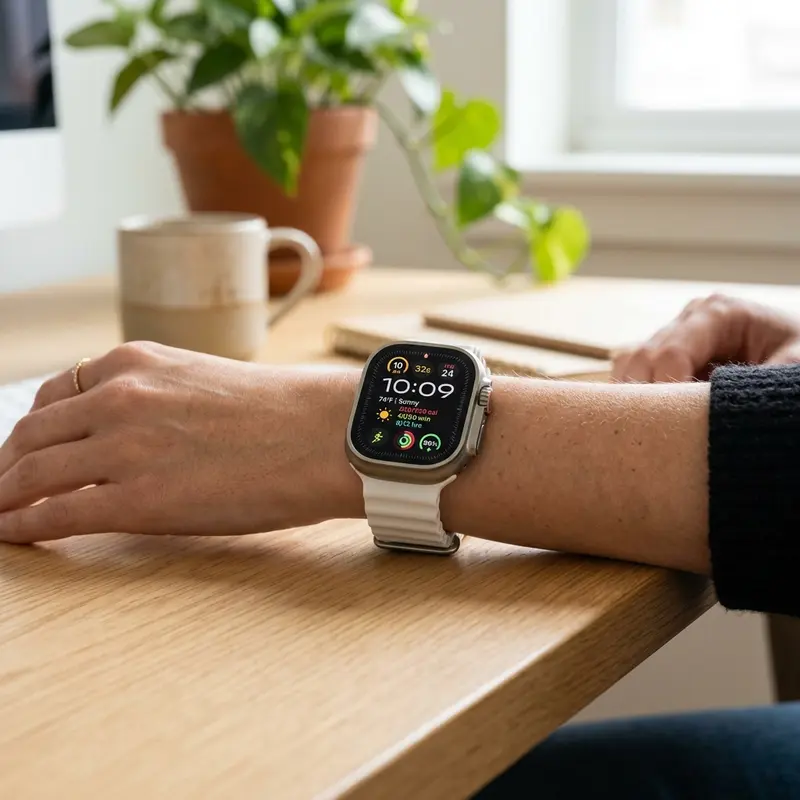
Importance of Preventive Maintenance and Device Calibration
To ensure long-term performance and reliability for any tech device—be it a Kindle e-reader, an Amazfit/Apple Watch smartwatch, a Wi-Fi security camera, or a router—routine maintenance and sensor calibration are critical. Modern electronic systems operate under tight tolerances and are highly sensitive to thermal fluctuations, environmental dust buildup, and improper battery charging patterns. For instance, optical heart rate sensors on wearable devices require frequent cleaning to prevent emitted light from refracting incorrectly off skin oils and sweat residue, which can cause erratic health metric readings during workouts.
Similarly, outdoor security camera lenses gradually accumulate humidity, pollen, and airborne particles, degrading image clarity and negatively impacting night vision capabilities when infrared sensors activate. Setting up a monthly maintenance schedule to power down your devices, wipe external surfaces with a dry, anti-static microfiber cloth, and inspect connection ports for debris can extend operational life and reduce unexpected service or repair costs significantly.
Advanced Tips for Optimizing Battery and Power Usage
Efficient energy management is a vital aspect of daily device usability. Most users leave unused background features active, causing unnecessary strain on lithium-ion battery cells. Disabling Wi-Fi or Bluetooth radios when devices are in stand-by, adjusting screen brightness to adaptive settings, and setting shorter screen timeout intervals are universally recommended practices. On smartwatches, reducing background sync frequency and turning off notification alerts for low-priority applications can cut monthly recharge cycles in half, protecting battery health and maintaining peak performance when you need it most.
Frequently Asked Questions (FAQ)
1. Why are my subtitles still in English after turning them on in the Roku settings?
This happens because the settings inside the individual streaming app take priority over the global Roku OS settings. To fix this, open the audio and subtitle options inside the app's video player during playback and select your language manually.
2. What does the "On mute" caption option mean?
This is a convenience feature in Roku OS. When enabled, subtitles remain hidden during normal viewing but appear automatically on screen whenever you mute your TV volume or turn it down to zero.
3. How do I remove the black box behind the subtitles?
To remove the background box, go to Settings > Accessibility > Captions style > Background opacity and set the value to Off or 0%. This will display the subtitle text directly on top of the video without any background shading.
4. Can I upload custom fonts for subtitles on the Roku Express?
No. For security and copyright reasons, Roku OS does not support installing custom font files (such as .ttf or .otf files) via USB or external downloads. You can only use the default font styles provided in the Captions style menu.
11. Subtitle Settings for Live TV and Free Channels
When watching live TV or free streaming channels on your Roku Express, the subtitles are usually generated in real-time as Closed Captions. Because these captions are created on the fly, you may notice occasional spelling errors or a slight delay compared to the audio.
To improve readability during live broadcasts, enable high-contrast text outlines in your accessibility settings. This helps keep the real-time text clear and easy to read against fast-moving live video backgrounds.
12. Troubleshooting Missing Subtitles on Specific Channels
If you notice subtitles are missing on a specific channel while they work perfectly on others, the channel's developer might not have configured their player to support Roku's global accessibility settings. In this case, check the channel's help center or settings page for subtitle toggles. Additionally, some older free movie channels on Roku only support standard stereo audio tracks, which can occasionally conflict with multi-channel audio setups and prevent captions from rendering. Switching your Roku's audio output under Settings > Audio > Audio Mode from Auto to Stereo can solve this conflict and force subtitles to display.
13. Summary and Final Thoughts
Setting up and customizing subtitles on your Roku Express is a simple process that can significantly improve your viewing experience. By configuring both the global system settings and individual app menus, you can ensure that your captions are always easy to read and perfectly formatted on screen. Whether you are using translation subtitles to learn a new language, utilizing closed captions for hearing accessibility, or setting up a high-contrast yellow style with custom dark background blocks for movie nights, Roku OS offers all the customization tools necessary to tailor your television entertainment exactly to your requirements. If you encounter persistent issues across multiple apps, checking for a general Roku OS system update under Settings > System > System Update is highly recommended, as new firmware builds frequently fix accessibility-related rendering bugs. If you ever want to start over from scratch, you can restore all accessibility defaults easily via the settings panel reset option.