How to Test and Fix an Ethernet Cable Capped and Limited to 100 Mbps Speed
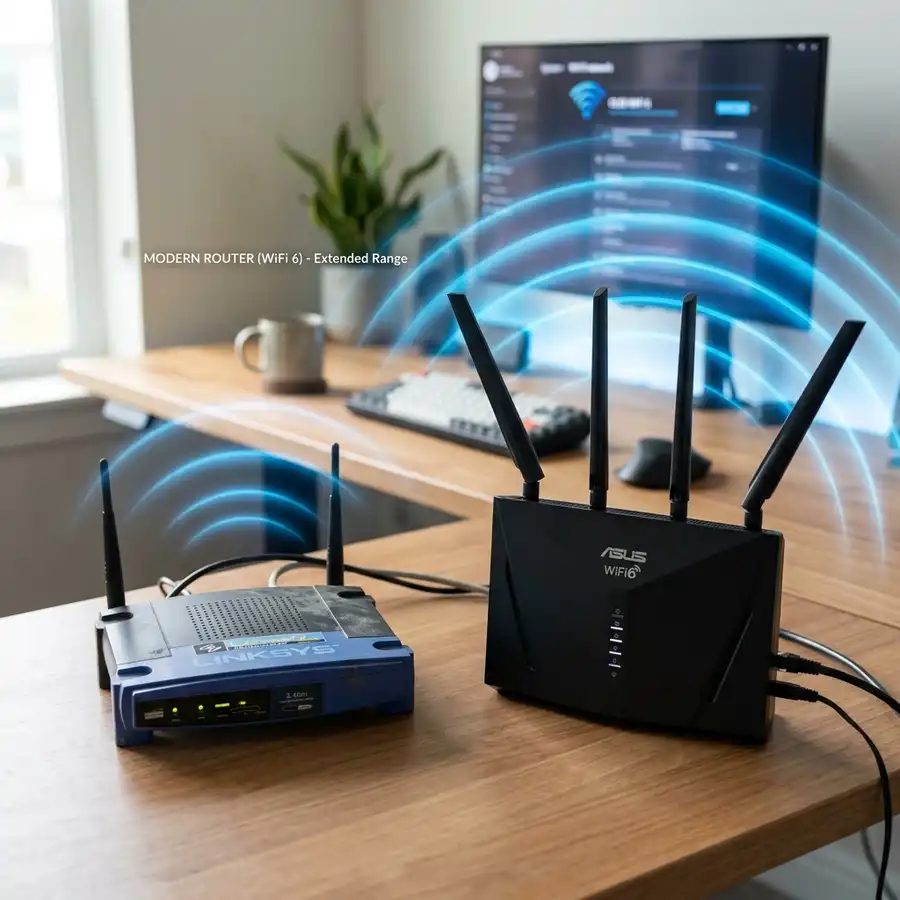
Test and fix by checking cable quality and replacing if necessary.
To troubleshoot an Ethernet cable capped and limited to 100 Mbps speed, you need to follow a series of steps that involve checking the cable quality, the network setup, and the device configurations.
Understanding Ethernet Cable Speed Limitations
Ethernet cables can be limited to 100 Mbps speed due to various reasons, including the cable quality, the network setup, and the device configurations.
The cable quality is the most critical factor, as a low-quality cable can significantly reduce the speed of the network connection.
Factors Affecting Ethernet Cable Speed
Several factors can affect the speed of an Ethernet cable, including the type of cable used, the length of the cable, and the presence of any damage or interference.
A high-quality Ethernet cable, such as a Cat 5e or higher, can support speeds of up to 1 Gbps, while a lower-quality cable may be limited to 100 Mbps.
Cable Quality and Speed
The quality of the Ethernet cable is directly related to its speed, with higher-quality cables supporting faster speeds.
A damaged or low-quality cable can cause signal loss, which can reduce the speed of the network connection.
Checking the Cable Quality
To check the cable quality, you need to inspect the cable for any signs of damage, such as cuts, cracks, or bends.
A damaged cable can cause signal loss, which can reduce the speed of the network connection.
Visual Inspection of the Cable
A visual inspection of the cable can help identify any signs of damage or wear, such as cuts, cracks, or bends.
It is also important to check the cable for any signs of corrosion or water damage, as these can also affect the cable's quality.
Using a Cable Tester
A cable tester can be used to test the quality of the Ethernet cable and identify any issues, such as shorts or opens.
A cable tester can help ensure that the cable is functioning properly and can support the desired speed.
Network Setup and Configuration
The network setup and configuration can also affect the speed of the Ethernet connection.
A misconfigured network setup can limit the speed of the connection to 100 Mbps, even if the cable quality is good.

Configuring the Network Setup
To configure the network setup, you need to ensure that the router, switch, and other devices are properly configured to support the desired speed.
This may involve updating the firmware or software on the devices, as well as configuring the network settings to support the desired speed.
Network Configuration Best Practices
Following best practices for network configuration can help ensure that the network is properly set up and configured to support the desired speed.
This may include using a high-quality router and switch, as well as configuring the network settings to support the desired speed.
Troubleshooting Steps
To troubleshoot the issue, you can follow these steps:
- Check the cable quality and replace it if necessary
- Check the network setup and configuration
- Check the device configurations, such as the router and the switch
- Use a network tester to test the cable and the network connection
- Reset the router and the switch to their default settings
Step-by-Step Troubleshooting Guide
A step-by-step troubleshooting guide can help you identify and resolve the issue, by following a series of steps to check the cable quality, network setup, and device configurations.
Using a network tester to test the cable and the network connection can also help identify the cause of the problem.
Troubleshooting Tools and Techniques
Various troubleshooting tools and techniques can be used to identify and resolve the issue, including cable testers, network analyzers, and protocol analyzers.
These tools can help identify the cause of the problem and provide detailed information about the network connection and configuration.
Device Configurations and Settings
The device configurations and settings can also affect the speed of the Ethernet connection.
For example, if the router is configured to limit the speed of the connection to 100 Mbps, you need to change the configuration to allow for faster speeds.
Additionally, you can power WiFi router with a battery to ensure a stable connection.
Configuring Device Settings
To configure device settings, you need to access the device's configuration interface and update the settings to support the desired speed.
This may involve updating the firmware or software on the device, as well as configuring the device settings to support the desired speed.
Best Practices for Device Configuration
Following best practices for device configuration can help ensure that the devices are properly configured to support the desired speed.
This may include using a high-quality router and switch, as well as configuring the device settings to support the desired speed.
DomineTec Tip: Use a high-quality Ethernet cable and ensure that the network setup and device configurations are properly configured to allow for faster speeds.
Technical Specifications and Configurations
The technical specifications and configurations of the devices can also affect the speed of the Ethernet connection.
The following table shows the technical specifications and configurations of a typical Ethernet connection:
| Parameter | Value |
|---|---|
| Cable Type | Cat 5e or higher |
| Connection Speed | Up to 1 Gbps |
| Network Setup | Properly configured |

Technical Specifications for Ethernet Cables
The technical specifications for Ethernet cables include the cable type, length, and quality, as well as the presence of any damage or interference.
A high-quality Ethernet cable, such as a Cat 5e or higher, can support speeds of up to 1 Gbps.
Technical Specifications for Network Devices
The technical specifications for network devices, such as routers and switches, include the device's configuration, firmware, and software, as well as the presence of any damage or interference.
A high-quality router and switch can support speeds of up to 1 Gbps and provide a stable connection.
You can also consider using smart home devices that do not require an internet connection to function.
Additionally, ensuring the security of your network is crucial, and you can change the default admin username on Mikrotik to prevent unauthorized access.
Identifying Cable Standards and Specifications
Understanding the specifications of Ethernet cables is crucial for troubleshooting speed limitations.
Common standards include Cat5e, Cat6, and Cat6a, each supporting different maximum speeds and frequencies.
- Cat5e: Supports up to 1 Gbps at 100 meters.
- Cat6: Handles 10 Gbps over shorter distances, typically up to 55 meters.
- Cat6a: Offers 10 Gbps over 100 meters with improved shielding.
Check the cable's outer jacket for specification information, as using an outdated or inappropriate cable type can result in speed caps.
Testing Ethernet Cable Performance with Specialized Tools
Utilizing specialized tools can help accurately diagnose potential issues affecting Ethernet cable performance.
Tools such as cable testers and network analyzers provide insights into cable integrity and network configuration.
- Cable Tester: Determines if all pairs are correctly wired and can identify breaks in the cable.
- Network Analyzer: Analyzes data packets to pinpoint bottlenecks and latency in network traffic.
These tools can assist in verifying whether the cable meets the required performance standards for higher bandwidth applications.
Advanced Router and Switch Configuration for Optimal Throughput
Router and switch settings play a significant role in achieving optimal Ethernet performance.
Configuring Quality of Service (QoS) settings can prioritize bandwidth for critical applications, reducing latency.
- Enable Jumbo Frames: Supports larger packet sizes, improving efficiency in data transmission.
- Adjust MTU Size: Setting appropriate Maximum Transmission Unit (MTU) sizes can prevent fragmentation.
- Firmware Updates: Regularly check and update router and switch firmware for performance enhancements.
Proper configuration can eliminate unnecessary speed limitations and enhance the overall network experience.
Signal Integrity and Cable Quality Assessment
Verifying signal integrity is crucial in ensuring Ethernet cables operate optimally. Poor cable quality or damage can significantly limit speed and reliability.
Use a cable tester to measure parameters such as attenuation, crosstalk, and return loss. These metrics provide insights into the cable's performance capabilities.
- Attenuation: Indicates signal loss over distance; values should ideally be below manufacturer specifications.
- Crosstalk: Measures interference between pairs; lower values are preferable to maintain data integrity.
- Return Loss: Reflects how much signal is lost due to impedance mismatches; higher values indicate better performance.
If any of these parameters exceed acceptable limits, consider replacing the cable with a higher-quality option. CAT6 or CAT6a cables are recommended for higher speed requirements.
Router and Switch Configuration for Optimal Throughput
Configuring network devices correctly is essential for maximizing Ethernet cable performance. Access the router or switch settings to adjust parameters that impact speed and efficiency.
Key settings to review include duplex mode, speed settings, and Quality of Service (QoS) configurations. These adjustments can significantly influence network performance.
| Configuration Parameter | Recommended Setting | Description |
|---|---|---|
| Duplex Mode | Full Duplex | Allows simultaneous send and receive, improving performance. |
| Speed Settings | Auto-Negotiation | Ensures optimal speed is negotiated between devices. |
| Quality of Service (QoS) | Enabled | Prioritizes critical traffic, reducing latency. |
After making these adjustments, restart the router and switch to apply the changes. Regular monitoring of network performance will help identify further optimization opportunities.
Identifying Cable Quality and Category
Determining the quality and category of the Ethernet cable is vital for achieving desired speeds. Ethernet cables are categorized into various classes, with Cat5e and higher supporting speeds beyond 100 Mbps.
The following table outlines the performance specifications of different Ethernet cable categories:
| Category | Maximum Speed | Maximum Length |
|---|---|---|
| Cat5 | 100 Mbps | 100 meters |
| Cat5e | 1 Gbps | 100 meters |
| Cat6 | 10 Gbps | 55 meters |
| Cat6a | 10 Gbps | 100 meters |
When testing Ethernet cable quality, utilize a cable tester to measure continuity and performance. Poor quality cables may also suffer from crosstalk, which can impede speed.
Router and Switch Configuration for Optimal Performance
Router and switch settings can significantly affect Ethernet speed. Configuring Quality of Service (QoS) can prioritize traffic and enhance performance for specific applications.
Access the router's web interface to adjust the following settings:
- QoS Settings: Enable QoS and prioritize bandwidth for essential devices.
- Duplex Settings: Ensure the duplex settings are set to Auto-Negotiation for optimal speed.
- MTU Size: Adjust the Maximum Transmission Unit (MTU) size to 1500 bytes for standard Ethernet.
Additionally, firmware updates on routers and switches should be performed regularly to enhance performance and security. Outdated firmware can lead to inefficiencies and speed limitations.
Identifying Cable Standards and Compatibility Issues
Understanding the standards associated with Ethernet cables is crucial for achieving optimal performance.
Ethernet cables are categorized into different types, such as Cat5, Cat5e, Cat6, and Cat6a, each supporting varying speeds and bandwidth.
For instance, Cat5 cables can handle speeds up to 100 Mbps, while Cat5e and Cat6 can support Gigabit speeds.
To identify the cable type, check the outer sheath for printed specifications.
If a Cat5 cable is being used, consider replacing it with at least a Cat5e or Cat6 cable for improved performance.
Compatibility issues may also arise from the network devices in use; ensure that both the network switch and router support the desired speed.
- Cat5: Up to 100 Mbps, 100 MHz
- Cat5e: Up to 1 Gbps, 100 MHz
- Cat6: Up to 10 Gbps, 250 MHz
Utilizing Network Monitoring Tools for Real-Time Analysis
Employing network monitoring tools can provide insights into network performance and help identify bottlenecks.
Tools such as Wireshark, SolarWinds, or PRTG can assist in analyzing traffic and diagnosing issues related to speed limitations.
Using these tools allows for real-time packet analysis, which can reveal whether the issue lies with the cable, configuration, or external interference.
For effective analysis, look for parameters such as latency, packet loss, and bandwidth utilization.
Monitoring tools can also help in pinpointing specific times when speed drops occur, aiding in troubleshooting.
Consider setting alerts for performance metrics that exceed defined thresholds to enable proactive management.
| Tool | Features | Best For |
|---|---|---|
| Wireshark | Packet capture and analysis | Detailed traffic analysis |
| SolarWinds | Network performance monitoring | Comprehensive network oversight |
| PRTG | Real-time bandwidth monitoring | Performance alerts and reporting |
Frequently Asked Questions
What is the maximum speed of an Ethernet connection?
The maximum speed of an Ethernet connection depends on the cable quality and the network setup, but it can be up to 1 Gbps.
A high-quality Ethernet cable and a properly configured network setup are necessary to achieve faster speeds.
How can I check the quality of my Ethernet cable?
You can check the quality of your Ethernet cable by inspecting it for any signs of damage, such as cuts, cracks, or bends.
A damaged cable can cause signal loss, which can reduce the speed of the network connection.
What are the common causes of a slow Ethernet connection?
The common causes of a slow Ethernet connection include a low-quality cable, a misconfigured network setup, and device configurations that limit the speed of the connection.
Other factors, such as interference from other devices, can also affect the speed of the connection.
How can I troubleshoot a slow Ethernet connection?
You can troubleshoot a slow Ethernet connection by checking the cable quality, the network setup, and the device configurations.
Using a network tester to test the cable and the network connection can also help identify the cause of the problem.
Can I use a WiFi router with a battery to improve the speed of my Ethernet connection?
Using a WiFi router with a battery can help ensure a stable connection, but it may not directly improve the speed of your Ethernet connection.
However, a stable connection is necessary to achieve faster speeds, and a WiFi router with a battery can help provide a stable connection.
Risks of Poor Network Configuration
Poor network configuration can pose significant risks to the security and integrity of the network, including unauthorized access, data breaches, and network downtime.
It is essential to follow best practices for network configuration to minimize these risks and ensure a stable and secure connection.
Best Practices for Network Security
Following best practices for network security can help minimize the risks associated with poor network configuration, including using strong passwords, updating firmware and software regularly, and configuring firewalls and intrusion detection systems.
Regularly monitoring the network for signs of unauthorized access or malicious activity can also help identify and respond to security threats.




