How to Setup Xiaomi Mi Wi-Fi Pro Repeater Step-by-Step Guide
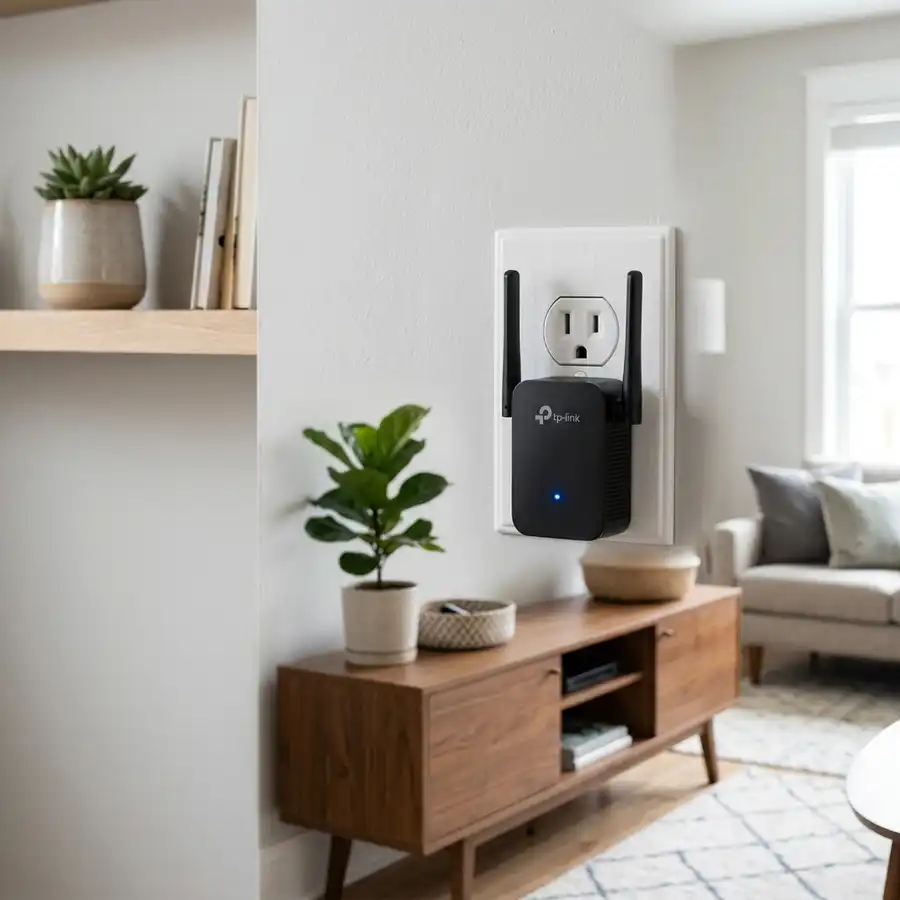
Expanding the range and stability of wireless internet in residential or corporate settings is a basic necessity to ensure proper performance for smartphones, Smart TVs, gaming consoles, and smart home automation devices. The range extender manufactured by Xiaomi stands out in the global market for its excellent value, minimalist design, and simple installation into standard electrical wall outlets. To set up the Xiaomi Mi Wi-Fi Pro signal repeater, plug the device into an outlet close to your main router, download and open the Mi Home app on your phone, enable Bluetooth and location services, log into your Xiaomi account (setting the region to your location or China), click the "+" icon to add a device, select your 2.4 GHz network, enter the password, and wait until the indicator LED changes from flashing yellow to solid blue.
Although the initial pairing process is designed to be intuitive through the visual interface of Xiaomi's smart ecosystem app, many users face technical hurdles due to region conflicts in registered accounts, routers operating on unsupported frequencies, or signal interference issues. This step-by-step guide covers how to set up the Xiaomi Mi Wi-Fi Pro range extender using your mobile phone, best practices for placing the device, solutions for common pairing errors, and how to read the indicator LED states. We will also look at hardware variations between different global models and how to configure custom networks safely.
1. Important Requirements Before Starting Your Xiaomi Extender Setup
Before plugging your extender into the outlet and launching the management app, it is essential to pay attention to certain technical specifications to prevent errors during the pairing flow. Proper hardware synchronization avoids constant dropouts and ensures maximum bandwidth delivery.
Make sure you meet the following essential prerequisites for a successful setup:
- Wi-Fi Signal Frequency: The Xiaomi Mi Wi-Fi Pro extender operates exclusively on the 2.4 GHz frequency band. If your main router broadcasts unified 2.4 GHz and 5 GHz networks under the same name (SSID) using Smart Connect, we recommend temporarily disabling this feature or separating the bands into two distinct network names to avoid authentication issues.
- Updated Mi Home App: Download the latest version of the official Mi Home (Xiaomi Home) app available on the Google Play Store for Android or the App Store for iOS.
- Active Location and Bluetooth Services: The Mi Home app requires both Bluetooth and GPS (location services) to be active on your phone to scan and detect the range extender hardware nearby.
- Correct Xiaomi Account Region: Many Xiaomi Mi Wi-Fi Pro extenders sold are imported models (Chinese version). If the app fails to auto-detect the hardware, you must change the region in your Mi Home profile settings to "Mainland China" or "Brazil", matching the origin of your extender.
2. How to Set Up the Xiaomi Mi Wi-Fi Pro Using the Mi Home App
Follow these steps to synchronize the extender with your home router using your phone:
- Place the extender in an outlet: For the initial setup phase, plug the Xiaomi extender into an outlet that is at most 2 to 3 meters away from your main router. Once paired, you can move it to its final location.
- Check the LED status: Once powered on, the front LED light will start flashing yellow slowly, indicating the device is ready to connect.
- Open the Mi Home app: Log in with your email and password. If you do not have an account, click register and create one.
- Scan for new devices: Tap the "+" button in the upper-right corner of the home screen and choose "Add a device". The app will search via Bluetooth, and within a few seconds, a notification with the icon for "Mi Wi-Fi Range Extender Pro" will appear. Tap it to proceed.
- Enter main Wi-Fi credentials: The app will prompt you to confirm the name of your home 2.4 GHz Wi-Fi network. Type the wireless password exactly as it is. Double-check for typos, as the extender will not validate the password until the final connection step.
- Wait for data transmission: Your phone will send the configuration details directly to the Xiaomi extender using a temporary local signal. Keep your phone close to the device and do not close the app. The progress bar will load to 100%.
- Confirm successful pairing: The status LED on the extender will flash yellow rapidly, then switch to flashing blue, and finally turn to solid blue. When the blue light is steady, the setup is complete. You can customize the extended network name (by default, it will copy your main SSID and add "_Plus") or set it to share the same name as your main network.
3. Positioning Tips for Your Xiaomi Pro Extender
One of the most common issues that degrades wireless extender performance is putting the device in the wrong spot. If you place the extender too far from your main router, it will receive a weak and slow signal, retransmitting poor-quality internet to the rest of the house.
For the best speeds and connection stability, follow these guidelines:
- Midway point: Position your Xiaomi Mi Wi-Fi Pro extender exactly halfway between your main router and the area with weak Wi-Fi coverage.
- Strong signal area: At the location where you plug in the extender, your phone should show at least 2 to 3 bars of stable Wi-Fi signal from the main router. If the original signal is too weak, move the extender closer to the router.
- Avoid physical barriers: Do not place the extender behind furniture, bookshelves, inside cabinets, or in outlets near the floor. Avoid thick concrete walls, steel structures, pipes, or mirrors, which block Wi-Fi radio waves.
- Reduce signal interference: Keep the extender away from other electrical appliances that generate noise on the 2.4 GHz band, such as cordless phones, microwaves, baby monitors, and active Bluetooth devices.

4. Troubleshooting Common Xiaomi Mi Wi-Fi Pro Pairing Errors
If you encounter issues during setup, technical glitches might prevent the extender from completing the connection. Here are the most common pairing errors and how to solve them:
"Connection Timed Out" error in the Mi Home app: This error typically happens when the main Wi-Fi password was typed incorrectly or the extender is placed too far from the router during configuration. Move the extender closer to the main router and retry setup, checking your password input carefully.
Mi Home app won't detect the extender: This is often caused by an incorrect account region. If you bought an imported version, go to your Mi Home Profile settings, select Region, and change it to "Mainland China". The app will restart and locate the device. For official international models, select "Brazil" or "United States" as the region. Make sure you clear your phone's app cache if the region change doesn't trigger immediately.
IP conflict or freeze during local connection: Some ISP modems limit the automatic assignment of IP addresses via DHCP. Check your router settings to ensure DHCP is enabled and that there are available IP addresses in your local pool for new network hardware.
5. How to Factory Reset the Xiaomi Mi Wi-Fi Pro Extender
If you change your main router's password, switch ISPs, or move the extender to a new home, you must reset the device to clear its memory and pair it with the new network details.
To perform a physical factory reset on the Xiaomi Mi Wi-Fi Pro, follow these steps:
- Keep the device powered: Plug the extender into an electrical outlet and ensure the power is active.
- Locate the Reset pinhole: On the bottom panel of the extender, next to the electrical pins, find the small hole labeled "Reset".
- Use a thin tool: Use a paperclip or a mobile SIM card ejector pin to press the internal button.
- Hold down the button: Keep the internal button pressed for about 5 to 8 seconds.
- Watch the LED indicator: The blue LED light will turn off and start flashing yellow slowly. Release the button. The extender has been successfully reset and is ready for a fresh setup.
6. Advanced Setup: Cascading and Daisy Chaining Extenders
For larger multi-story homes, a single range extender might not be enough to cover all dead zones. Some advanced users attempt to "daisy chain" multiple extenders—connecting one extender to another extender instead of directly to the main router. While technically possible, this layout degrades internet speeds by at least 50% for each hop in the chain. This performance loss occurs because the extender must use the same single 2.4 GHz radio band to receive data from the first node and retransmit it to client devices. For large properties, we highly recommend using a dedicated Wi-Fi Mesh system rather than cascading multiple simple repeaters.
If you must daisy-chain two extenders, ensure the secondary node is placed in a location where it receives a strong signal from the primary extender, and set different channels manually on your main router to avoid packet collisions. Keep the SSID names distinct (e.g., "Home_Wi-Fi_Ext1" and "Home_Wi-Fi_Ext2") so your client devices can bind to the strongest physical access point without constantly bouncing back and forth between signals.
7. How to Secure Your Extended Wireless Network
Once your Xiaomi range extender is up and running, implementing correct security policies is vital to prevent neighbors or malicious actors from hijacking your bandwidth or sniffing local packet transmissions. By default, the extender copies the security settings of your main router. However, you can configure additional protective layers within the router's admin interface to safeguard extended devices. First, verify that your network uses WPA2-PSK with AES encryption, which is the standard protocol supported by the Xiaomi extender. Avoid selecting legacy Mixed Mode options that allow WEP or WPA-TKIP connections, as these protocols contain security vulnerabilities that make them easy to crack.
Secondly, you can configure MAC address filtering on your router. A MAC address is a unique hardware identifier assigned to every device's network interface card. By creating a whitelist of authorized MAC addresses in your router's administration panel, you instruct the access points to block connection requests from any unrecognized hardware, even if the user possesses the correct Wi-Fi password. This adds a critical security layer for smart cameras, mobile devices, and IoT peripherals connected through the Xiaomi range extender.
8. Status Guide for Xiaomi Extender LED Indicator Lights
The LED indicator light on the front panel of the extender is the primary tool for diagnosing hardware issues. Understanding what the light patterns mean helps you identify network or placement problems without opening the app.
The following table explains the meaning of each LED indicator behavior:
| LED Indicator Status | Meaning / Extender Status | Recommended User Action |
|---|---|---|
| Flashing Yellow (Slow) | Hardware is ready for pairing or reset is complete. | Open the Mi Home app and add the device. |
| Flashing Yellow (Fast) | Connecting to the network or downloading firmware updates. | Wait for the process to finish. Do not unplug the device. |
| Flashing Blue | Synchronizing security details with the main router. | Keep the device close to the router until the LED turns solid blue. |
| Solid Blue | Connected successfully. Wireless extension is active. | You can now move the extender to its permanent outlet. |
| Solid Red or Off | System error, power loss, or complete disconnection. | Try a different outlet or perform a factory reset. |
Frequently Asked Questions
Can I set up the Xiaomi extender without the Mi Home app?
No. Setting up the Xiaomi Mi Wi-Fi Pro range extender requires the official Mi Home (Xiaomi Home) app to pair the device and input security keys with your main router.
Why does my Xiaomi extender's blue light change to flashing yellow?
This happens when the extender loses its network connection to the main router (for instance, if the router reboots or experiences interference). Move the extender closer to the router if this continues.
Does the Xiaomi Mi Wi-Fi Pro support 5 GHz networks?
No. The Xiaomi Mi Wi-Fi Pro range extender only works on the 2.4 GHz frequency band. It is not compatible with and cannot scan 5 GHz wireless networks.
How do I change the region in the Mi Home app?
In the Mi Home app, go to Profile > Settings > Region, and change the location (use "Mainland China" for imported models or "Brazil" for local stock).




