How to Setup and Install a Wi-Fi Range Extender from Your Phone
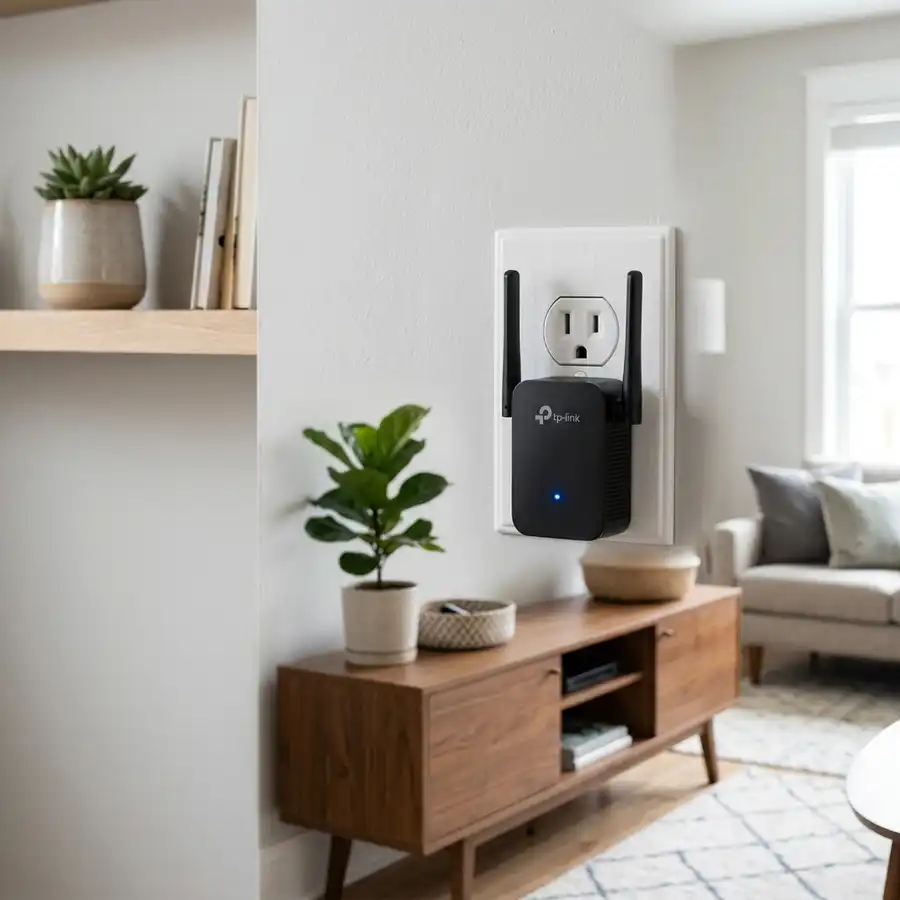
Having a stable and fast internet connection in every room of the house is one of the main challenges of home infrastructure nowadays. In many properties, the wireless signal of the main router supplied by the internet service provider does not have enough physical range to cross thick concrete walls and reach distant bedrooms or home offices with high quality. To quickly set up and install a Wi-Fi range extender from your phone, plug the extender into a wall outlet near your router, connect your phone to the extender's default open Wi-Fi network (usually named after the brand, such as TP-Link_Extender or Xiaomi_Repeater), open a web browser and navigate to the default IP address (such as 192.168.0.254 or 192.168.10.1) or use the manufacturer's dedicated mobile app (like Tether or Mi Home), select your main Wi-Fi network, and type its security password to complete the link.
Buying a Wi-Fi range extender (or signal repeater) is one of the most cost-effective solutions to eliminate these annoying wireless dead zones without the necessity of running long network cables through the house. The configuration of these network devices used to require a desktop computer or advanced networking knowledge, but today the entire setup process can be completed in just a few minutes directly from the screen of your Android mobile phone or iOS iPhone. In this comprehensive guide, we at DomineTec detail the steps for physical installation, the different software configuration methods, physical performance reviews, and crucial positioning guidelines.
1. Preparing the Network Device and Making the First Wireless Connection
Before opening any configuration application or web browser on your smartphone, the initial physical positioning of the range extender is vital to ensure that the configuration process completes without errors. If you attempt to set up the extender in the final room where the Wi-Fi signal is already weak, the pairing process will likely fail due to packet loss.
Follow the physical preparation protocol described below:
- Plug the extender into power: Insert the range extender into a power outlet located in the same room as your main router, at a distance of no more than 2 meters from it.
- Wait for firmware initialization: Observe the device's LED indicators. Wait until the Wi-Fi or system light begins to blink slowly or remains in a state showing it is ready for pairing (usually yellow or blue flashing slowly).
- Access Wi-Fi settings on your mobile phone: On your smartphone, open the Settings menu and navigate to the list of available Wi-Fi networks.
- Connect to the default network SSID: Locate an open wireless network (no password required) containing the brand name of the extender (for example:
TP-LINK_Extender_XXXXorxiaomi-repeater-pro_miapXXXX). Connect to it. Your phone will warn you that this network has no internet access, which is completely normal at this stage.
2. Configuration via Mobile Web Browser (The Universal Method)
This method works for any brand or model of wireless signal extender available on the hardware market, requiring no download of heavy applications onto your smartphone's storage. It is the recommended technical approach to ensure complete compatibility across different operating systems.
Execute the following actions to configure the network through your mobile web browser:
- While connected to the extender's default password-free network, open your web browser (such as Google Chrome or Safari).
- Type the configuration IP address in the address bar at the top (check the label on the back of the product, with
192.168.0.254or192.168.10.1being very common) and press Go. For TP-Link models, you can also use the friendly addresshttp://tplinkrepeater.net. - Create a local administrator password to manage the extender settings in the future. Write down this credential in a safe place.
- The Quick Setup Wizard will automatically perform a scan of the wireless spectrum to list all active 2.4 GHz and 5 GHz networks in the area.
- Select the SSID (name) of your main home Wi-Fi network (the one broadcast by your ISP router).
- Type the exact security password of your main Wi-Fi network. An incorrect character will prevent the extender from authenticating.
- Define the name of the new extended network. By default, many manufacturers append the suffix "_EXT" to your original network name to ease identification. Click Save or Finish.
3. Configuration via Dedicated Manufacturer Apps (Tether, Mi Home, etc.)
For users seeking an intuitive user interface and real-time traffic monitoring features, major network equipment brands provide dedicated applications on the Google Play Store and Apple App Store.
To configure your extender using the brand's official application, proceed as follows:
- Download the corresponding application for your extender's brand (such as TP-Link Tether for TP-Link devices or Mi Home / Xiaomi Home for Xiaomi products).
- Open the application on your phone and log in with your manufacturer account (or create a quick profile).
- Tap the addition button (usually a '+' icon in the top right corner) to start searching for new smart devices.
- The app will detect the extender via Bluetooth (if supported by the model) or scan the default open Wi-Fi network automatically.
- Follow the interactive steps on the screen, selecting your main home wireless network and typing its security key.
- Wait for the configuration data write sequence on the extender's flash memory to finish. The status LED will turn solid blue or green, indicating successful pairing.

4. Important Technical Details: How Extenders Process Network Data
Unlike a primary router connected directly to the physical fiber optic cable of your internet service provider, a standard Wi-Fi range extender operates in half-duplex mode. This means that the extender's wireless antenna cannot send and receive data packets at the exact same nanosecond. The device must use a slice of time to listen to the packets transmitted from your smartphone, and immediately after, retransmit those same packets to the source router, repeating the process in reverse for downloads.
This physical limitation of the wireless communication protocol results in a natural reduction of approximately 50% of the maximum available bandwidth at the repeater location. For example, if your primary router transmits 100 Mbps on the 2.4 GHz frequency, an extender positioned at the edge of reception will deliver a maximum of 50 Mbps to the devices connected to it. To bypass this performance drop, modern Dual-Band extenders utilize a technology called High Speed Mode or Cross-Band, where the device uses the 5 GHz frequency to communicate exclusively with the main router, and the 2.4 GHz frequency to communicate with local phones, eliminating the transmission time bottleneck.
5. Table of Operational Modes for Wireless Extenders
Many devices marketed as signal extenders feature physical ethernet ports and support different logical modes of operation. Understanding the difference between these modes is essential to obtain maximum performance:
| Selected Mode | Input Connection | Speed Loss | Recommended Use Case |
|---|---|---|---|
| Range Extender (Repeater) | Wireless (Wi-Fi) | High (~50% speed drop) | When there is no physical possibility of running network cables between rooms in your home. |
| Access Point (AP Mode) | Ethernet Cable (LAN) | None (Full Speed) | Ideal for offices or distant rooms requiring maximum speed for online gaming and 4K streaming. |
| Client Mode (Client) | Wireless (Wi-Fi) | Medium (Variable) | Used to connect older Smart TVs, game consoles, or desktops without native Wi-Fi via an ethernet cable. |
6. Where to Place the Extender After Setup?
The biggest mistake made by users after completing the logical configuration on their mobile phone is placing the Wi-Fi extender in the exact room where the signal is already dead. The extender does not generate internet by itself; it only amplifies the signal it receives. If you place it in a room with no signal, it will repeat a weak and unstable connection, resulting in constant drops.
The ideal location to plug your Wi-Fi extender into the wall is exactly midway between your main router and the dead zone (the room where you want to have internet). For instance, if your router is in the living room and your bedroom has no signal, the extender should be installed in the hallway or dining room, where the living room signal still arrives with good strength. Most extenders feature signal indicator LEDs. The connection indicator light should remain a solid blue or green. If it turns red or orange, it means the extender is too far from the router and the signal is too weak for reliable data transmission.
7. DHCP and IP Conflicts in Extender Installation
Another aspect of extreme relevance in home network support is logical IP conflicts generated by incorrect DHCP configurations. DHCP (Dynamic Host Configuration Protocol) is the service responsible for assigning a unique IP address to each mobile phone, Smart TV, and computer connected to the local network. In a healthy computer network, there should be only a single active DHCP server, which is the main router supplied by the internet provider.
Many low-cost extenders from generic brands come out of the box with their own internal DHCP server enabled. If you connect this extender to your network without disabling this function, the extender will begin to distribute competing IP addresses to devices in the same physical space. This generates an IP conflict, where two devices attempt to use the same network identification simultaneously, causing both to lose their internet connection immediately. Modern extenders from major brands disable their internal DHCP automatically when detecting the main router network, but on budget models you may need to access the web setup page on your phone and manually disable the 'DHCP Server' option to avoid unexplained browsing disconnects.
8. Troubleshooting: Resolving Configuration Failures
Troubleshooting Tip: If the extender does not appear in your phone's list of wireless networks or if the setup application fails to locate it after multiple attempts, the device may be retaining configurations from previous failed pairing attempts. To resolve this, use a paperclip or pin to press and hold the physical button labeled "Reset" (located on the side or bottom of the device) for about 10 seconds while the extender is plugged into the wall. All LED lights will flash together, indicating that the extender has successfully restored to factory defaults and is ready for a fresh configuration.
Home networking infrastructure has been evolving at a very rapid pace with the arrival of smart home devices. The presence of signal extenders in modern households has become standard due to the construction layout of houses. Many of these extenders suffer from channel interference if they are not configured correctly from the start. To obtain the maximum bandwidth available, prefer Dual-Band models that operate on both standard frequencies. Using category six network cables ensures lossless connections even at distances exceeding thirty meters. Devices requiring extremely low latency to function properly, such as gaming consoles, should be connected via cable. In commercial office spaces, installing multiple wireless extenders can lead to severe speed bottlenecks due to roaming issues. For these business environments, Mesh network technology is highly recommended to maintain a single unified SSID. Mesh systems allow devices to transition between nodes seamlessly without any visible drop in active connections. Many users report that their extender disconnects frequently, but this is almost always due to physical placement errors. Avoid placing your Wi-Fi extender close to large mirrors or metal surfaces that reflect radio wave signals. Microwave ovens also cause temporary interference on the two point four gigahertz band while they are running. To configure the best wireless channel on your router, check for free frequencies in your area using a smartphone. When setting up the security of your wireless extender, always use strong WPA2 or WPA3 encryption protocols. Avoid using open Wi-Fi networks without password authentication to transfer banking info or sensitive work data. When changing your main router password, remember that all associated extenders will need to be configured again. Many initial setup problems are easily resolved by simply rebooting all your networking equipment. We also recommend disabling the WPS feature on your router to keep your network fully protected from intrusion.
Frequently Asked Questions
What is the default IP address to configure most range extenders?
The most common access IP addresses for home range extenders are 192.168.0.254, 192.168.1.254, 192.168.10.1, or 192.168.15.1. This diagnostic IP or domain string is typically printed on the physical identification sticker located on the underside of the physical hardware.
Can I use the WPS button to set up the extender without a phone?
Yes. Yes. The WPS feature enables rapid setup by pressing the hardware WPS key on both devices within a brief window, allowing them to exchange secure credentials without entering any manual settings.
Why does the extender's internet speed drop at certain times?
This usually occurs due to electromagnetic interference from other home appliances, such as microwave ovens, cordless phones, and neighboring Wi-Fi networks operating on the same 2.4 GHz frequency. This drops issue usually stems from locating the device too far from the base station or because of channel interference from multiple adjacent networks.
Does a Wi-Fi range extender work with any internet service provider?
Yes. Yes, wireless extenders interact at the physical and link layer of standard Wi-Fi systems, making them compatible with all routers regardless of the internet provider.




