How to Setup and Remove Supports When Printing with Flexible TPU Filament
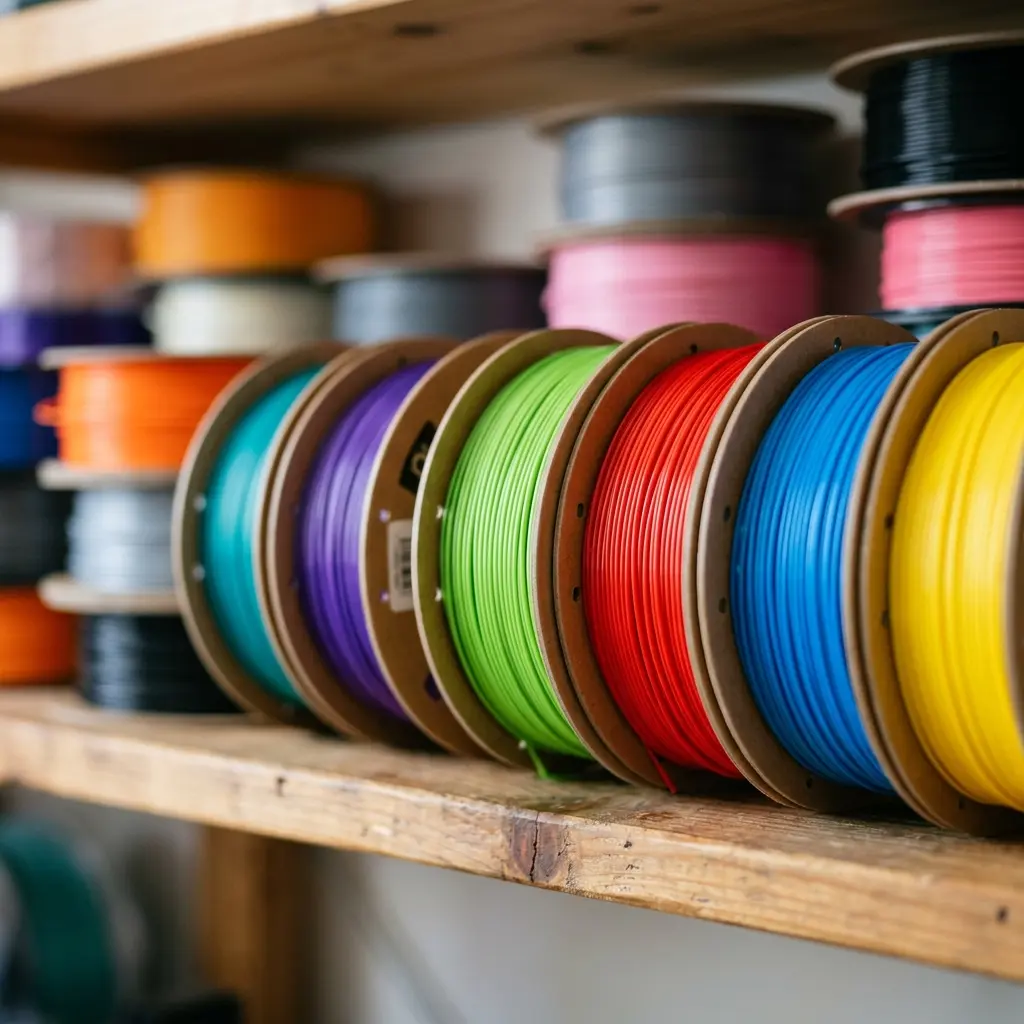
Setting up and removing supports when printing with flexible TPU filament requires careful planning and technique to ensure successful prints.
Understanding TPU Filament and Its Unique Properties
Flexible TPU (Thermoplastic Polyurethane) filament is popular in 3D printing due to its elasticity and durability. Unlike rigid filaments such as PLA or ABS, TPU allows for the creation of flexible parts that can withstand stress and deformation.
This flexibility, however, poses challenges, especially when it comes to support structures during printing. Understanding the material's characteristics is crucial for optimal results.
Choosing the Right Printer Settings for TPU
When working with TPU filament, specific printer settings must be optimized to achieve desirable print quality. The following parameters are essential:
- Print Speed: Slower speeds, typically between 15-30 mm/s, help in better layer adhesion.
- Extrusion Temperature: A temperature range of 220-250°C is generally recommended for TPU.
- Retraction Settings: Minimal retraction settings reduce the risk of filament jams.
These settings may vary based on the specific TPU brand used, so always refer to the manufacturer's guidelines for the best results.
Creating Effective Support Structures
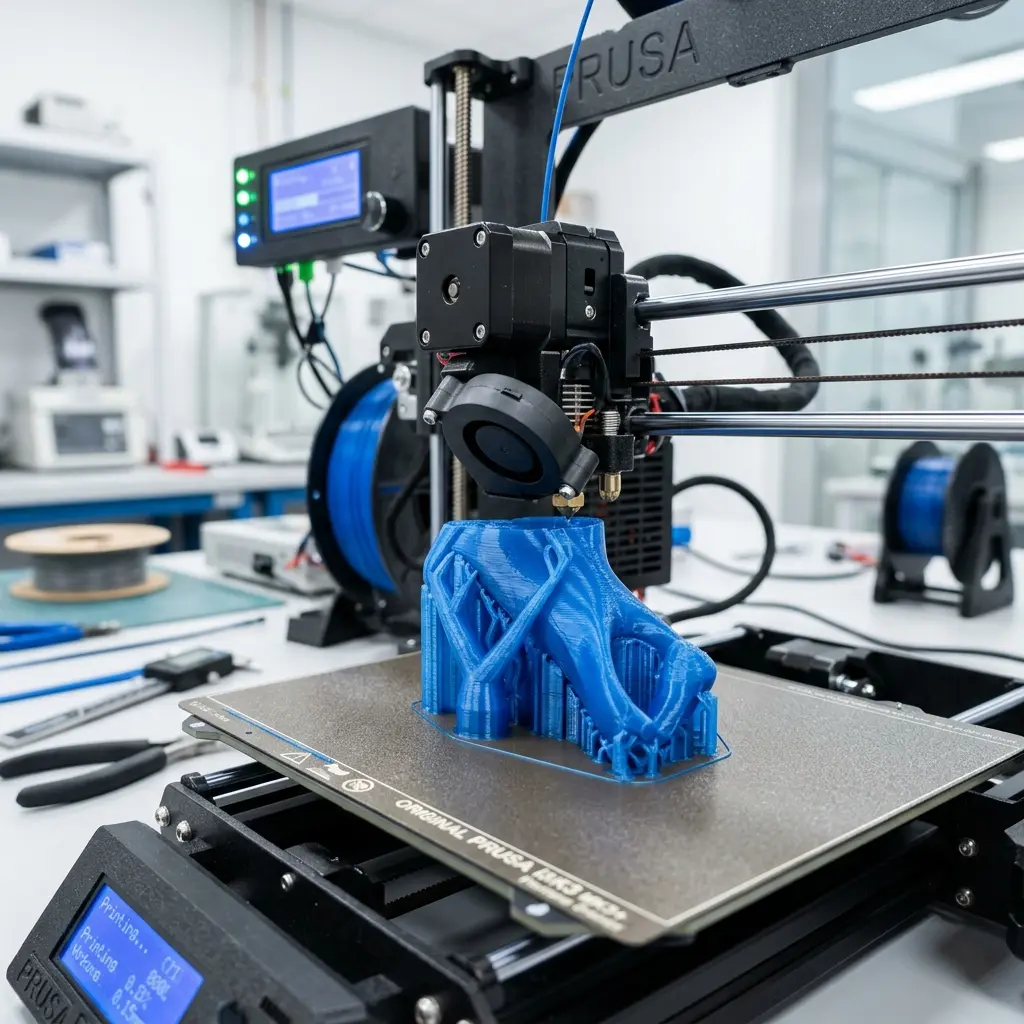
Support structures are vital for successful prints with complex geometries or overhangs. The choice of support type and placement can significantly impact print quality.
Here are common support types:
| Support Type | Description | Best Use Case |
|---|---|---|
| Grid | A network of lines creating a grid pattern. | General use with moderate overhangs. |
| Tree | Branch-like structures that minimize material use. | Complex shapes with significant overhangs. |
| Dense | Solid supports providing maximum strength. | Heavy parts requiring robust support. |
Utilizing the right support type will ensure the finished product meets quality and strength expectations.
How to Setup Supports in Your Slicing Software
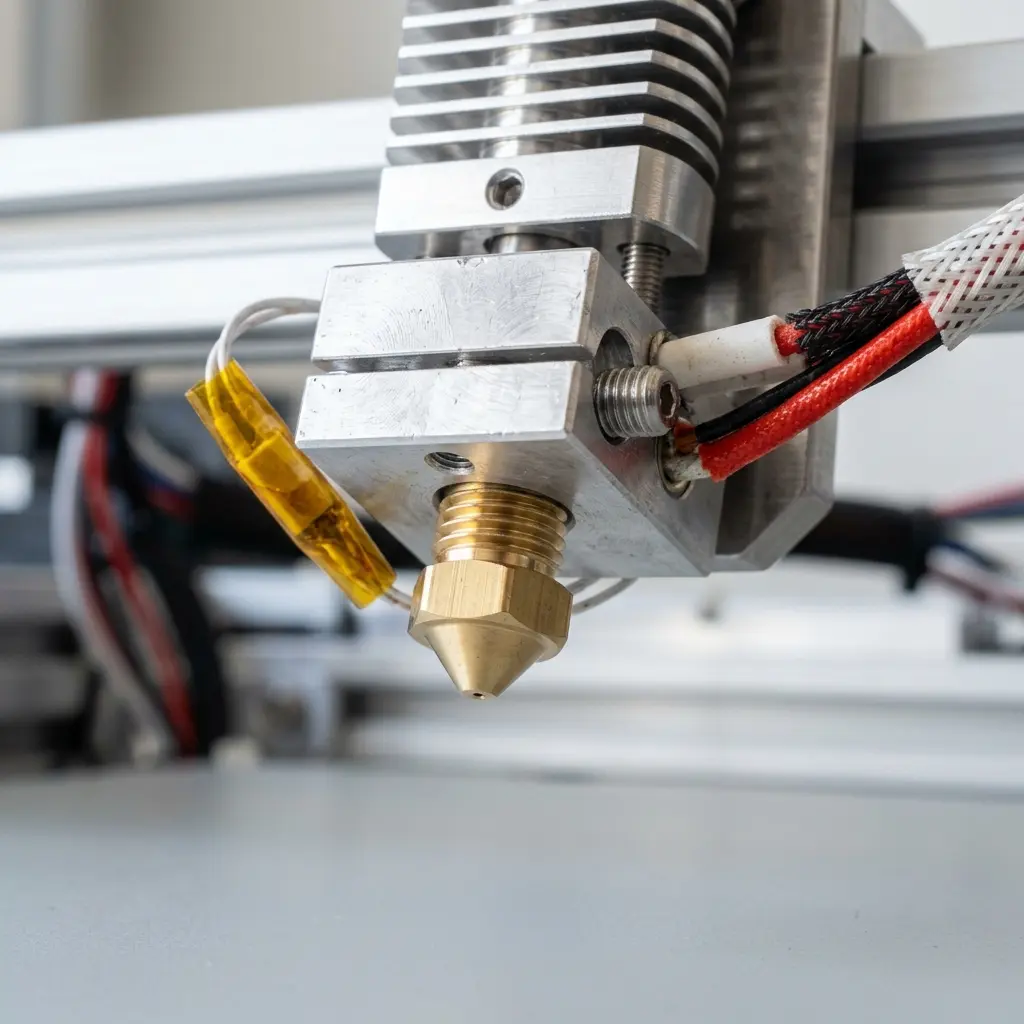
The slicing software plays a pivotal role in configuring support structures. Follow these steps to set up supports effectively:
- Open the 3D model in your preferred slicing software.
- Navigate to the support settings section.
- Select the desired support type (grid, tree, or dense).
- Adjust the support density based on the model's complexity.
- Configure support placement to either “Everywhere” or “Touching Build Plate.”
Once the settings are adjusted, preview the layer view to ensure supports are correctly placed before slicing.
Removing Supports Safely After Printing
Removing supports from a TPU print requires care to avoid damaging the model. Here are effective methods for safe support removal:
- Manual Removal: Gently twist or pull the supports off, utilizing pliers for hard-to-reach areas.
- Heat Gun: A heat gun can soften the support material, making it easier to remove.
- Water Soluble Supports: If using water-soluble filaments for support, soaking the print in warm water will dissolve the supports.
Each method should be chosen based on the print's design and the type of support material used.
Post-Processing Tips for a Clean Finish
Post-processing is crucial for achieving a polished appearance on TPU prints. Here are some tips:
Start by removing any residual supports, then consider sanding rough edges for a smoother finish. A light application of acetone vapor can enhance the surface finish, but be cautious as it can also affect the TPU's properties.
Additionally, painting or applying a clear coat can provide extra protection and enhance the aesthetics of the printed object. Always choose paints compatible with TPU to avoid chemical reactions.
Common Issues When Printing with TPU and Their Solutions
Even experienced users may encounter issues when printing with TPU. Here are some common problems and potential solutions:
- Stringing: Reduce print speed and increase retraction settings to minimize stringing.
- Lifting Corners: Ensure the print bed is properly leveled and consider using a brim or raft.
- Clogged Nozzle: Regularly clean the extruder nozzle and ensure proper filament path.
Addressing these issues promptly ensures a more successful and satisfying printing experience.
Frequently Asked Questions
What is the best bed temperature for printing TPU?
The recommended bed temperature for TPU is typically between 50°C and 60°C. This helps with adhesion while preventing warping.
Can TPU be printed without supports?
TPU can be printed without supports for simple models with small overhangs. However, complex designs may require supports for optimal results.
How do I store TPU filament properly?
Store TPU filament in a cool, dry place, ideally in a vacuum-sealed bag with desiccants to prevent moisture absorption. This ensures filament quality is maintained.
What slicer settings are important for TPU?
Key slicer settings for TPU include adjusting print speed, retraction distance, and layer height. These parameters directly impact print quality and success.
Is TPU filament flexible in all temperatures?
TPU maintains its flexibility in a range of temperatures but can become brittle in extreme cold. It is essential to consider the application environment when using TPU.
Advanced Techniques for Working with TPU
Advanced users often implement several techniques to enhance their TPU printing results. Exploring these techniques can lead to improved print quality and efficiency:
Using a Direct Drive Extruder
Direct drive extruders provide more control over filament feeding, which is beneficial for flexible filaments like TPU. This setup minimizes the distance the filament travels before reaching the nozzle, reducing the chances of jamming.
Adjusting Cooling Settings
Cooling settings should be adjusted for TPU to avoid warping and ensure layer adhesion. A cooling fan can be useful, but excessive cooling may lead to poor layer bonding.
Experiment with fan speeds to find an optimal balance.
Experimenting with Layer Heights
Layer height can significantly affect the appearance and strength of a TPU print. Thinner layers will provide more detail but may increase print time.
Consider using thicker layers for larger, less detailed prints to save time.
Checklist for Successful TPU Printing
Before starting a print with TPU filament, use the following checklist to ensure all settings are correctly configured:
- Is the printer calibrated and leveled?
- Are the nozzle and bed temperature set within the recommended range for TPU?
- Are the retraction settings optimized to prevent jamming?
- Have you selected the appropriate support type based on your model?
- Is the cooling fan set to an appropriate speed for TPU?
Conclusion
Successfully printing with flexible TPU filament involves understanding its unique properties, optimizing printer settings, and effectively managing support structures. By following the guidelines and techniques outlined in this article, users can achieve high-quality prints with TPU while minimizing common issues.
Furthermore, regular experimentation and adjustment of settings can lead to even better results in future projects.




