How to Configure Retraction Settings for PETG Filament in Ultimaker Cura
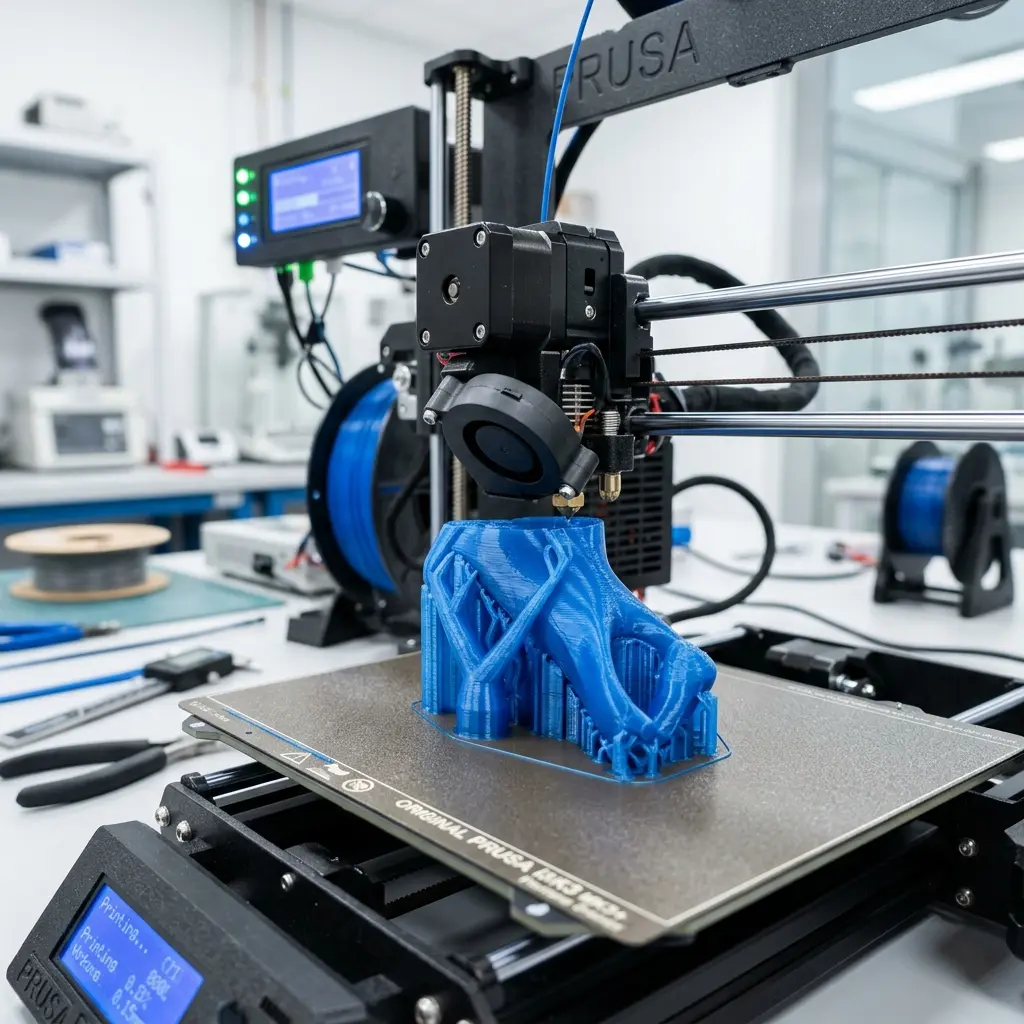
Configuring retraction settings for PETG filament in Ultimaker Cura can significantly enhance your print quality and reduce stringing.
Understanding PETG Filament Characteristics
PETG (Polyethylene Terephthalate Glycol) is known for its excellent balance of strength, durability, and flexibility. Unlike PLA and ABS, PETG is less prone to warping, making it a preferred choice for various applications.
However, PETG can be prone to stringing during printing due to its sticky nature. Properly configuring retraction settings in Ultimaker Cura is crucial for minimizing this issue.
Why Retraction Settings Matter
Retraction settings control the movement of the filament when the print head moves between different areas of the print. When retraction is properly configured, the filament is pulled back into the nozzle to prevent oozing.
This becomes particularly important when printing with PETG, as its tendency to string can lead to unwanted artifacts on the final print.
Essential Retraction Settings in Ultimaker Cura
Ultimaker Cura provides several key settings that influence retraction. Understanding and adjusting these parameters can improve print outcomes with PETG.
- Retraction Distance: The distance the filament is pulled back into the nozzle. A typical starting point for PETG is 6 mm.
- Retraction Speed: The speed at which the filament is retracted. A speed of around 30 mm/s is generally effective for PETG.
- Combing Mode: This controls how the print head moves between areas. Using "Within Infill" can reduce the chances of stringing.
Step-by-Step Guide to Configure Retraction Settings
Follow these steps to effectively configure retraction settings for PETG filament in Ultimaker Cura:
- Open Ultimaker Cura and load your 3D model.
- Go to the Print Setup panel.
- Switch to Custom Settings if not already selected.
- Locate the Retraction settings section.
- Set the Retraction Distance to 6 mm.
- Adjust the Retraction Speed to 30 mm/s.
- Set Combing Mode to "Within Infill."
- Enable Z Hop When Retracted if your model has fine details.
- Save the settings and start the print.
Testing and Fine-Tuning Retraction Settings
After configuring initial settings, conducting test prints is essential for fine-tuning. Observe the results and adjust the settings based on your findings.
Consider adjusting the retraction distance slightly if stringing persists, or tweak the speed for better results. Each printer and filament combination may require unique settings.
Common Issues with PETG and Retraction
Even with proper settings, issues may still arise during printing with PETG. Identifying these problems is vital for achieving optimal results.
Stringing can occur even with correct retraction settings if the temperature is too high or the cooling system is inadequate. Adjusting the nozzle temperature and ensuring effective cooling can mitigate these challenges.
Comparative Analysis of Retraction Settings for Different Filaments
To better understand how to adjust retraction settings, a comparative analysis of PETG, PLA, and ABS is useful. The table below highlights key differences:
| Filament Type | Retraction Distance | Retraction Speed | Ideal Printing Temperature |
|---|---|---|---|
| PETG | 6 mm | 30 mm/s | 220-250°C |
| PLA | 5 mm | 40 mm/s | 190-220°C |
| ABS | 5-7 mm | 30 mm/s | 220-250°C |
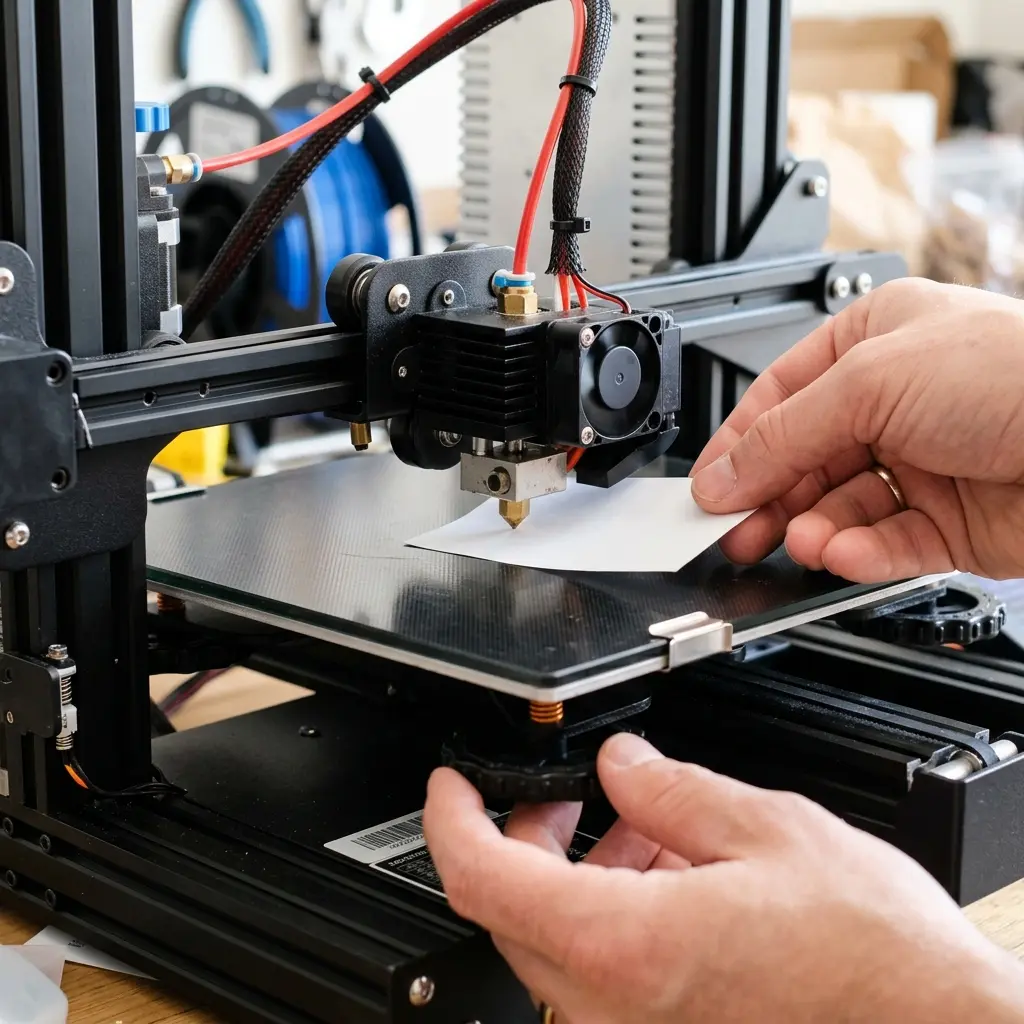
DomineTec Tip: Always experiment with small test prints to fine-tune settings before committing to larger projects.
Final Considerations for PETG Printing
Printing with PETG can yield exceptional results when proper retraction settings are employed. Always ensure the printer is calibrated and the filament is stored correctly to prevent moisture absorption.
Regular maintenance of the printer, such as cleaning the nozzle and checking the print bed level, can further enhance printing quality.
Frequently Asked Questions
What is the best retraction distance for PETG?
A retraction distance of 6 mm is often recommended for PETG, but it may vary based on the printer and specific filament brand.
How can stringing be minimized when printing with PETG?
Stringing can be minimized by adjusting the retraction settings, lowering the printing temperature, and ensuring adequate cooling during printing.
Is Z Hop necessary when using PETG?
Z Hop can be beneficial when printing with PETG, especially for intricate designs, as it helps prevent the nozzle from hitting the print.
Can PETG be printed at high speeds?
While PETG can be printed at higher speeds, it is generally advisable to start at lower speeds and gradually increase to find the optimal setting for your printer.
What maintenance is required for a 3D printer using PETG?
Regular maintenance includes cleaning the nozzle, checking the extruder gears, and ensuring the print bed is leveled for optimal adhesion.
Advanced Retraction Techniques
In addition to basic retraction settings, advanced techniques can further improve print quality with PETG. These techniques include:
- Adaptive Retraction: Some slicers offer adaptive retraction settings that change based on specific print areas. This can help optimize for both speed and quality.
- Multi-Retraction: For complex models, setting multiple retractions can prevent stringing across different sections of the print.
- Temperature Adjustments: Testing different nozzle temperatures can help determine the optimal range for reducing stringing while maintaining adhesion.
Checklist for Setting Up Your 3D Print with PETG
Use the following checklist to ensure your 3D print setup is optimized for PETG:
- Filament is dry and stored properly.
- Print bed is clean and leveled.
- Correct retraction distance (6 mm) is set.
- Retraction speed is adjusted to 30 mm/s.
- Combing mode is set to "Within Infill."
- Enable Z Hop if necessary.
- Cooling settings are optimized for PETG.
- Test prints are conducted for fine-tuning.
Conclusion
Proper configuration of retraction settings in Ultimaker Cura can drastically improve your PETG printing experience. By understanding the unique characteristics of PETG and implementing the recommended settings, users can achieve high-quality prints with minimal stringing.
Continual testing and adjustment of settings are key to mastering 3D printing with PETG. As always, document your settings and results to build a personal database for future projects.




