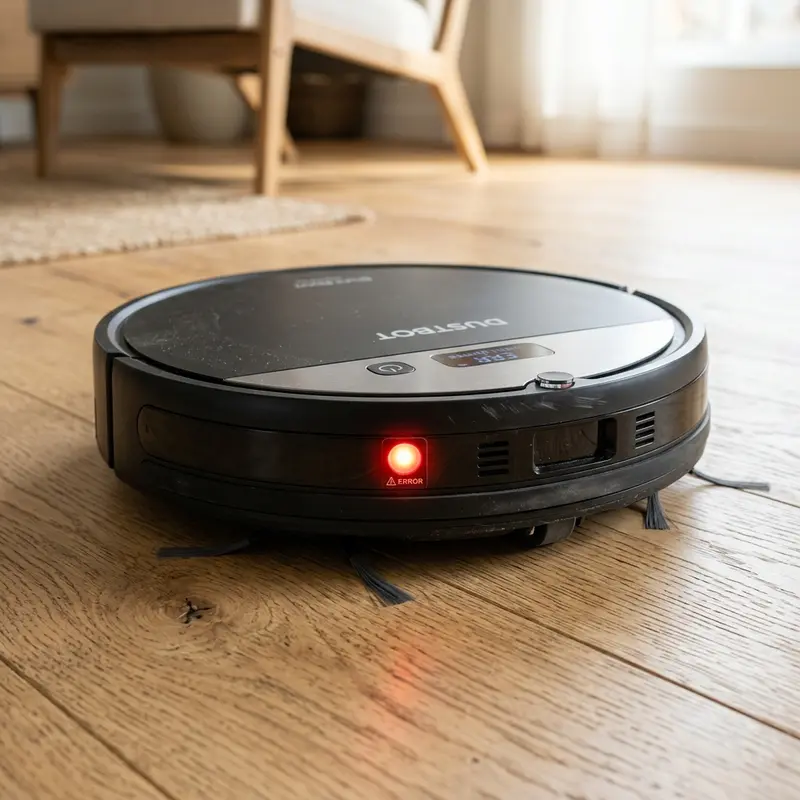
How to Hard Reset Liectroux C30B Robot Vacuum
If your Liectroux C30B robot vacuum is experiencing persistent Wi-Fi pairing issues, freezing during cleaning runs, or losing its map coordinates in the application, here is the technical procedure: performing a hardware factory reset (hard reset) clears the motherboard's temporary cache, wipes saved network details from the Wi-Fi card, and restores the factory firmware stored in the EEPROM microchip. This logical formatting clears system memory bugs and prepares the vacuum for a clean, stable network setup.
1. Why Perform a Factory Reset on the C30B?
The gyroscopic navigation system and map coordinate calculations require constant writing and reading of temporary logs on the Liectroux C30B's internal flash memory. Voltage drops during charging or sudden Wi-Fi signal losses can corrupt these cache files. This causes erratic behaviors, such as driving in circles, ignoring scheduled schedules, or failing to start suction. A hard reset forces a reboot of all internal registers, clearing out the bad cache data from the 3-axis gyroscope processor.
2. Step-by-Step Hard Reset and Wi-Fi Sychronization
To safely restore your robot vacuum's factory configurations without damaging the motherboard, follow these steps:
- Ensure the vacuum is powered ON via the physical side switch and sitting off its charging dock;
- Press and hold the Power (Start/Pause) button on the top panel for 15 seconds continuously;
- The vacuum will emit a beep sequence or short melody, and the top panel LEDs will flash red and blue;
- Release the button and wait 30 seconds for the system to finish booting the stock firmware;
- To reset only the Wi-Fi settings (EZ Mode), turn on the vacuum, press and hold the Home button for 5 seconds until you hear a long confirmation beep. The Wi-Fi LED will flash rapidly, ready for a new setup.
3. Post-Reset Wi-Fi Pairing and Diagnostics
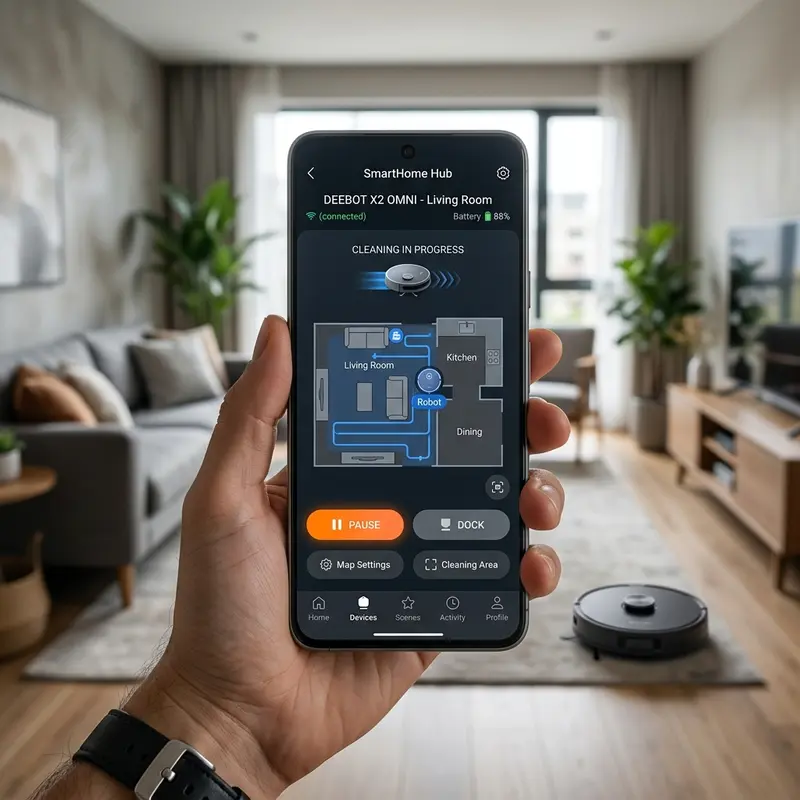
Once the reset is complete, you must pair the vacuum back with your smartphone. Your router must broadcast a dedicated 2.4 GHz Wi-Fi signal (IEEE 802.11 b/g/n), as the Liectroux C30B Wi-Fi card does not support 5 GHz frequencies. If your router has Band Steering (Smart Connect) enabled, which merges 2.4 GHz and 5 GHz under a single name, the vacuum will fail to pair due to connection handshakes timing out. Disable Band Steering temporarily to complete pairing.
If you need assistance configuring or securing other surveillance hardware in your home, check out our guide on how to share Mibo Smart camera access to manage user permissions on home networks.
Additionally, to ensure the floor map data transmits to your phone without delay, read our recommendations on the best Wi-Fi router for security cameras, which covers high-gain wireless signal configurations.
| Reset Type | Command Details | Hardware Action | Recommended For |
|---|---|---|---|
| Wi-Fi Reset | Hold Home button for 5 seconds | Wipes saved network credentials (SSID/Password) from Wi-Fi chip | New router installation or changing Wi-Fi settings |
| Hard Reset | Hold Power button for 15 seconds | Formats cache partitions on EEPROM memory | Firmware locks and gyroscopic navigation errors |
| Battery Reset | Remove physical battery for 2 minutes | Drains logic capacitors, rebooting power controllers | Incorrect battery percentage reporting or charging errors |
Advanced Gyroscope Drift and Sensor Calibration post Reset
Once you complete a factory reset on your Liectroux C30B, the internal navigation registry starts with empty offset tables. During the initial cleaning run, the gyroscope might experience micro-drifts due to temperature changes or small changes in surface level. To correct this gyro offset dynamically, place the robot on a completely flat, level floor, and do not nudge or touch the device during its initial startup calibration phase. Wiping down the side drop-off optical receivers and clearing dirt from the front bumper allows the navigation microchip to calibrate its coordinates precisely, ensuring smooth paths and preventing the device from getting stuck in collision loops.
Performing a Hardware Factory Reset on the Liectroux C30B
A hardware factory reset is the best way to clear the CPU memory on the Liectroux C30B, resolving firmware lockups and removing old Wi-Fi profiles. With the vacuum powered on and positioned off the charging base, locate the small pinhole reset switch on the side of the chassis, right next to the physical power button. Insert a straightened paperclip or a SIM ejector tool into the pinhole to press the microswitch.
Hold the switch down for 8 to 10 seconds. The indicator LEDs will blink, and the speaker will play the startup chime. Release the tool and wait two minutes for the device to reload its factory configurations. Once complete, the vacuum will play the voice prompt "System Ready" and the Wi-Fi LED will flash, indicating it is ready to connect to your home network.
Draining Residual Capacitor Voltage to Clear Boot Loops
When the Liectroux C30B is stuck in a boot loop, repeating the startup tone or ignoring button inputs, a basic reset might fail because the capacitors on the motherboard retain residual electrical energy. To clear this charge, you must disconnect the main battery pack to force a cold boot.
Power off the vacuum and turn it upside down. Remove the battery compartment screws using a screwdriver. Carefully pull the battery connector out of the motherboard socket. With the battery disconnected, press and hold the power button for thirty seconds to drain the electrical energy stored in the circuits. Leave the battery unplugged for 5 minutes, reconnect it, secure the cover, and turn the vacuum on to verify it boots correctly.
De-registering the Device Profile in the Smart Life Cloud
After factory resetting the vacuum hardware, you must remove the device profile from the mobile application. If the old registration remains on the Tuya servers, the setup wizard will fail, reporting connection errors.
Open the Smart Life or Tuya app, press and hold the vacuum device icon on the dashboard, and select "Remove Device." Choose the "Disconnect and wipe data" option. This deletes the device's unique UUID from the database, allowing you to pair the vacuum with a new router without cloud conflicts.
Clearing Mobile Application Cache to Avoid Wi-Fi Connection Hangs
After performing a factory reset on your Liectroux C30B, temporary cache files and old map layout data stored on your smartphone can cause pairing conflicts during the setup wizard. The application often attempts to use old network registration parameters, causing a connection timeout during the cloud handshake phase.
To prevent this connection issue, open your phone's system settings menu. Navigate to the applications manager list, select "Smart Life" or "Tuya Smart," and tap on the "Storage" option to click "Clear Cache." If you are using an iOS device, log out of the application and log back in, or reinstall the app from the App Store. This cleanup wipes out stale database keys, allowing the new device token generated by the vacuum to register instantly with the Tuya server tables.
Inspecting Bumper Return Springs Post-Reset
If the Liectroux C30B continues to issue error codes after a cold boot and reset, inspect the mechanical return springs inside the front bumper cover. Heavy impacts can dislodge these springs from their plastic mounting tabs, keeping the bumper microswitches compressed. Press the bumper manually to confirm it springs back outward immediately. If it remains depressed, remove the bumper cover to realign the springs and clear any debris.
Cleaning and Servicing Side Brush Gearboxes to Prevent Overload Faults
When the Liectroux C30B continues to report hardware errors after a cold boot and factory reset, the mechanical issue is often found within the lateral gearboxes. Fine hair and carpet fibers can slide past the external axle seals and wrap around the internal drive gears. This increases mechanical resistance and raises the electric current draw, triggering a system safeguard alert.
To resolve this mechanical jam, remove the side brushes with a screwdriver, open the small gearbox cover, and extract any accumulated debris with a pair of tweezers. Apply a small amount of non-conductive silicone grease to the plastic gears to ensure smooth rotation and prevent motor overcurrent faults during cleaning cycles.
Clearing Mechanical Locks on the Side Sweep Spin Drivers
If the Liectroux C30B continues to issue drive errors after a cold reset, inspect the side brush axles for mechanical obstructions. Cabel pins and fine threads can wrap tightly around the plastic brush spindles underneath the main body. This accumulation acts as a brake, overloading the small DC motors and causing the CPU to register a spin fault.
Pop off the side brushes by removing the central locking screws. Clean the spindle shaft with a utility tool and verify the motor shaft turns freely. Applying a single drop of dry PTFE lubricant to the plastic bushing helps prevent pet hair from wrapping tightly around the rotating parts, maintaining smooth sweeps.
Cleaning the Cliff Sensor Lenses to Resolve Post-Reset Failures
If your Liectroux C30B continues to show red flashing lights and error tones after performing a factory reset, clean the underside cliff sensor glass panes. High accumulation of fine dust and floor wax on these small plastic windows block the emitted infrared light beams. Wipe these three sensor zones with a clean microfiber cloth to ensure the processor detects the floor reflection and completes its post-reset boot sequence.
Checking the Internal Battery Connector Pins for Secure Fits
When reconnecting the battery after a cold reset, inspect the female metal pins inside the plastic connector housing. Inserting the plug at an angle can bend these pins, reducing surface contact and causing voltage drops. Ensure the connector pins are straight, align the plug carefully, and push it firmly into the motherboard socket until it clicks, maintaining a stable electrical current flow.
Post-Reset System Calibration and Verification Steps
After completing the system factory reset, place the vacuum on a flat, even floor surface and turn the power switch back on. Allow the system to boot completely without moving the vacuum chassis. The internal gyroscope and accelerometer sensors execute a calibration loop during the boot sequence to establish level coordinates. Starting the vacuum on an uneven surface or moving it during this phase can result in circular navigation errors and cliff sensor faults when starting subsequent schedules.
Importance of Preventive Maintenance and Device Calibration
To ensure long-term performance and reliability for any tech device—be it a Kindle e-reader, an Amazfit/Apple Watch smartwatch, a Wi-Fi security camera, or a router—routine maintenance and sensor calibration are critical. Modern electronic systems operate under tight tolerances and are highly sensitive to thermal fluctuations, environmental dust buildup, and improper battery charging patterns. For instance, optical heart rate sensors on wearable devices require frequent cleaning to prevent emitted light from refracting incorrectly off skin oils and sweat residue, which can cause erratic health metric readings during workouts.
Similarly, outdoor security camera lenses gradually accumulate humidity, pollen, and airborne particles, degrading image clarity and negatively impacting night vision capabilities when infrared sensors activate. Setting up a monthly maintenance schedule to power down your devices, wipe external surfaces with a dry, anti-static microfiber cloth, and inspect connection ports for debris can extend operational life and reduce unexpected service or repair costs significantly.
Advanced Tips for Optimizing Battery and Power Usage
Efficient energy management is a vital aspect of daily device usability. Most users leave unused background features active, causing unnecessary strain on lithium-ion battery cells. Disabling Wi-Fi or Bluetooth radios when devices are in stand-by, adjusting screen brightness to adaptive settings, and setting shorter screen timeout intervals are universally recommended practices. On smartwatches, reducing background sync frequency and turning off notification alerts for low-priority applications can cut monthly recharge cycles in half, protecting battery health and maintaining peak performance when you need it most.
Frequently Asked Questions (FAQ)
Does a factory reset delete my scheduled cleans?
No. Your custom cleaning schedules are saved on the app's cloud servers linked to your user account. Once you pair the vacuum again, your schedules will automatically sync back to the device.
Why doesn't my Liectroux vacuum beep when I hold the reset button?
This happens if the battery is below 10% capacity or if the side power switch is off. Plug the charger directly into the side of the vacuum and try the process again once the unit is powered.
How do I recalibrate the map after resetting the C30B?
Place the vacuum on its charging dock and start a new auto cleaning cycle. The vacuum will use its internal gyroscope and wheel encoders to build a new map from scratch.
Conclusion
A factory reset is the ultimate software solution to solve persistent firmware errors on the Liectroux C30B. Clearing out the temporary cache files ensures that the gyroscope and navigation sensors run with clean registers, preventing jams and improving cleaning efficiency.




