How to Reduce Lag and Improve Stream Quality on Xbox Cloud Gaming
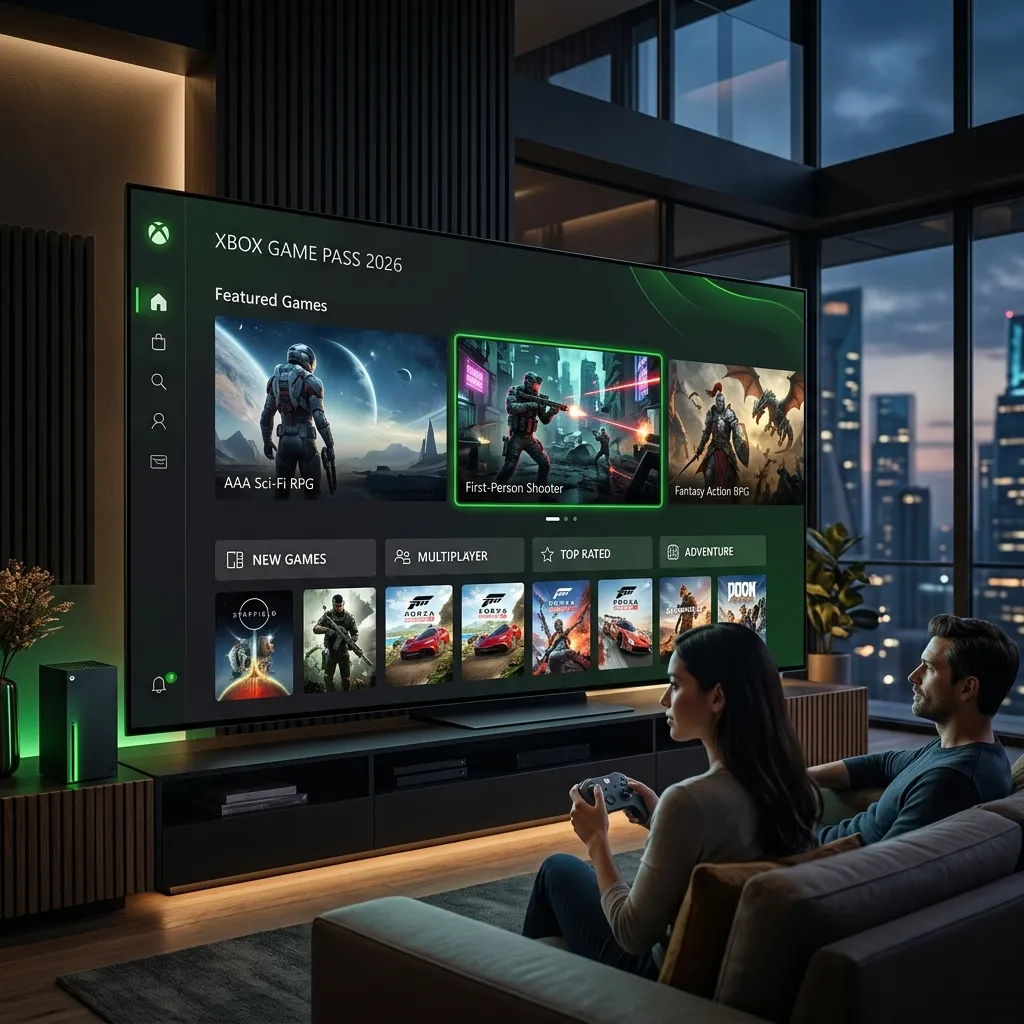
Lag and poor stream quality on Xbox Cloud Gaming can be minimized with optimized settings and network adjustments.
Understanding Lag and Stream Quality
Lag refers to delays between your input and the game's response, while stream quality indicates the clarity and fluidity of the visuals. Both can significantly impact gaming experiences, especially in fast-paced scenarios.
Lag can manifest as a delay in character movement, input response time, and overall gameplay fluidity, which can be frustrating for gamers. Stream quality, on the other hand, affects how visually engaging a game is, as lower quality can lead to pixelation, blurriness, and stutter.
Assessing Your Internet Connection
A stable and fast internet connection is crucial for Xbox Cloud Gaming. Start by checking your current internet speed using a reliable speed test tool.
Internet speed is a key factor in determining the quality of your gaming experience. A consistent connection ensures that data packets are transmitted quickly, reducing the likelihood of lag and buffering.
Recommended Internet Speeds for Cloud Gaming
| Activity | Minimum Speed (Mbps) | Recommended Speed (Mbps) |
|---|---|---|
| Cloud Gaming | 10 | 20 |
| HD Streaming | 5 | 10 |
| 4K Streaming | 25 | 50 |
Optimizing Your Network Setup
Ensure your router is positioned in a central location within your home. A central position allows the WiFi signal to reach all areas of your home more effectively.
Avoid physical obstructions like walls that can weaken the WiFi signal. If possible, elevate your router to minimize interference caused by furniture and appliances.
Wired vs. Wireless Connection
Using a wired Ethernet connection can offer more stability than WiFi. Wired connections generally provide lower latency and higher speeds, making them ideal for gaming.
If a wired connection is not feasible, ensure your wireless setup is as strong as possible. This can include using dual-band routers that support both 2.4GHz and 5GHz frequencies, allowing you to choose the best band for your device.
Adjusting Xbox Cloud Gaming Settings
Access the Xbox Game Pass app to adjust streaming quality settings. If you're experiencing lag or buffering issues, selecting a lower resolution can help alleviate some of these problems.
Consider adjusting the frame rate settings as well, as a lower frame rate can reduce the amount of data needing to be sent over your connection, helping to improve stability.
Improving Device Performance
Ensure your gaming device is updated to the latest software version. Updates often include performance improvements and bug fixes that can enhance your gaming experience.
Additionally, close any unnecessary applications running in the background that may consume resources. Background applications can hog bandwidth and processing power, leading to lag and reduced stream quality.
Using a VPN for Better Performance
A Virtual Private Network (VPN) can sometimes reduce lag by providing a more stable connection to gaming servers. However, not all VPNs offer the same performance; select one that is optimized for gaming.
Look for VPNs with low latency and high speeds, as these factors are crucial for maintaining a smooth gaming experience. Be aware that while a VPN can help in some cases, it can also introduce additional latency, so testing different options is essential.
DomineTec Tip: To maintain optimal performance, regularly reset your router and consider using a mesh WiFi system for larger homes. Mesh systems can provide better coverage and eliminate dead zones, ensuring that you have a strong signal wherever you game.
Steps to Resolve Streaming Issues
- Test your internet speed and ensure it meets the minimum requirements.
- Consider using a wired connection for better stability.
- Adjust the streaming quality settings in the Xbox Game Pass app.
- Update your device’s firmware and close background applications.
- If needed, configure a gaming-optimized VPN.
Common Issues and Troubleshooting
If lag persists, consider the following common issues:
- Network congestion during peak hours. Many households have multiple devices connected during the evening, leading to potential slowdowns.
- Interference from other electronic devices. Microwaves, cordless phones, and other wireless devices can disrupt WiFi signals.
- Server issues from Xbox Cloud Gaming itself. Occasionally, the issue may not be on your end, but rather with Xbox’s servers. Checking their status page can provide insight.
Maintaining Your Network Equipment
Regularly updating router firmware can help maintain optimal performance. Router manufacturers often release updates that improve performance and security.
Additionally, consider rebooting your router periodically to clear potential issues. A simple reboot can resolve many connectivity problems and enhance overall performance.
Using Quality of Service (QoS) Settings
Many modern routers offer QoS settings that prioritize gaming traffic. Access your router’s settings to enable QoS and prioritize Xbox Cloud Gaming traffic.
This ensures that gaming packets are prioritized over other types of internet usage, reducing lag during gameplay.
Checking for Interference
Wireless interference from other networks or devices can affect your connection. Use a WiFi analyzer tool to identify crowded channels and switch to a less crowded one.
This can significantly improve your WiFi signal and reduce lag.
External Factors Affecting Game Streaming
Consider the time of day when gaming, as network traffic can impact performance. Playing during off-peak hours may provide a smoother experience.
Additionally, weather conditions can sometimes affect internet performance, particularly if you are using satellite internet.
Improving the Home Network Environment
Minimize the number of connected devices while gaming to allocate more bandwidth. Disconnect devices that are not in use to improve overall performance.
For example, pause downloads or streaming on other devices while gaming to ensure that your connection is focused on your Xbox Cloud Gaming experience.
In-Depth Technical Analysis
Understanding the technical aspects of network performance is crucial for gamers. Xbox Cloud Gaming relies heavily on the existing infrastructure of the internet.
The latency (measured in milliseconds) is the time taken for data to travel from your device to the gaming server and back. A latency of under 20ms is typically ideal for online gaming, while values above 50ms may start to introduce noticeable lag.
Moreover, packet loss—when data packets traveling across the network fail to reach their destination—can cause stuttering in gameplay. A packet loss rate of less than 1% is generally acceptable for gaming, but anything higher can severely disrupt the gaming experience.
To measure these metrics, tools such as PingPlotter can be employed to visualize the performance of your network connection over time.
Additionally, the routing path your data takes can influence both speed and latency. Data may traverse multiple hops across various servers before reaching its final destination, each introducing potential delay.
Understanding this routing can help gamers identify optimal settings and configurations for their specific location and ISP.
Real-World Practical Scenarios
Consider a scenario where two gamers in the same household experience vastly different streaming qualities. Gamer A uses a wired Ethernet connection, while Gamer B relies on WiFi from a distant part of the house.
Gamer A enjoys a smooth gaming experience with minimal lag, while Gamer B faces frequent interruptions due to packet loss and high latency.
In another case, a gamer notices that performance dips during peak hours when multiple devices are connected. By implementing QoS settings on the router to prioritize gaming traffic, the gamer can allocate more bandwidth to their gaming device, improving performance even when the household is active online.
Lastly, consider the impact of updates and maintenance. A gamer who neglects to update their console or router firmware may find themselves dealing with unexpected lag due to unresolved bugs or inefficiencies.
Keeping hardware and software up to date is essential for maximizing performance.
Advanced Configuration or Troubleshooting Tips
If you continue to experience issues after following standard troubleshooting steps, consider delving deeper into your router's advanced settings. Here are some additional configurations to explore:
- Change DNS Settings: Switching to a faster DNS server such as Google DNS (8.8.8.8) or Cloudflare DNS (1.1.1.1) can sometimes improve connection speeds and reduce lag.
- Adjust MTU Settings: The Maximum Transmission Unit (MTU) size can affect game performance. Setting the MTU to 1492 instead of the default can help optimize data transmission.
- Utilize Port Forwarding: Some games require specific ports to be open. Configuring port forwarding for Xbox Live services can help establish a direct connection, thereby reducing lag.
Conclusion
By implementing the above strategies, lag and stream quality on Xbox Cloud Gaming can be significantly improved. Maintaining a strong, stable internet connection and optimizing settings ensures a better gaming experience.
Remember, gaming is not just about speed; it's about a consistent experience that allows you to immerse yourself in the game without interruptions.
Frequently Asked Questions (FAQ)
What is the ideal internet speed for Xbox Cloud Gaming?
The recommended speed is at least 20 Mbps for optimal performance. This allows for a smoother experience, especially in fast-paced games where every millisecond counts.
Can a VPN help with lag in cloud gaming?
Yes, a good VPN can stabilize your connection, but it may also introduce latency. It's essential to test your connection with and without the VPN to see which configuration works best for you.
How can one check internet speed?
Use online speed test tools like Ookla or Fast.com to measure your internet speed. Regularly checking your speed can help you identify any fluctuations in your connection quality.
Is a wired connection better than WiFi for gaming?
A wired connection typically provides more stability and lower latency than WiFi. If your setup allows it, using Ethernet is often the best choice for cloud gaming.
How often should a router be rebooted?
Rebooting your router every few weeks can help maintain performance and clear potential issues. If you notice frequent lag, consider rebooting more often.
What are some advanced settings that can be adjusted for better performance?
Consider changing your DNS settings, adjusting MTU sizes, and utilizing port forwarding to optimize your gaming experience.
How can wireless interference be minimized?
Use a WiFi analyzer to identify crowded channels and switch to a less used one. Additionally, avoid placing your router near other electronic devices.
Advanced Network Configuration for Optimal Streaming
Adjusting the Quality of Service (QoS) settings on your router can significantly enhance streaming performance. Prioritizing Xbox Cloud Gaming traffic ensures that gaming packets are sent and received first, reducing lag during play.
Enabling a wired Ethernet connection instead of Wi-Fi can provide a more stable and faster internet connection. This eliminates potential interference and reduces latency, leading to a smoother gaming experience.
Consider using a gaming VPN that is optimized for speed and minimal latency. This can help in bypassing throttling from ISPs, which might affect streaming quality during peak hours.
Common Mistakes to Avoid for Better Streaming
One common mistake is not closing background applications that use bandwidth while gaming. Streaming services, downloads, or updates can consume valuable resources, leading to increased lag.
Another frequent error is overlooking the importance of regular router maintenance. Failing to reset or update your router firmware can lead to performance issues, as outdated software may not handle current demands efficiently.
Many users also neglect to check their internet speed before starting a gaming session. Testing the connection regularly can help identify speed drops or inconsistencies that can negatively impact streaming quality.
Optimize Network Connection
To reduce lag and improve stream quality on Xbox Cloud Gaming, it is essential to ensure a stable and fast internet connection. A wired Ethernet connection is recommended over Wi-Fi, as it typically provides lower latency and more consistent speeds.
For those using Wi-Fi, positioning the router closer to the gaming device can enhance signal strength. Additionally, minimizing interference from other electronic devices and ensuring that the network is not overloaded can further improve performance.
Regularly testing the internet speed can help identify any issues that may affect streaming quality. A minimum download speed of 10 Mbps is recommended for optimal performance, while higher speeds can provide a better experience.
Adjust Streaming Settings
Configuring the streaming settings within the Xbox Cloud Gaming platform can significantly impact performance. Adjusting the resolution and frame rate settings to match the capabilities of the internet connection can help reduce lag and enhance visual quality.
Enabling features such as "Data Saver" mode can also help manage bandwidth usage, especially in environments with limited internet resources. This mode can prioritize essential data, ensuring a smoother gaming experience.
Regularly updating the Xbox app and ensuring that the device's software is current can also contribute to improved streaming quality. Software updates often include performance enhancements and bug fixes that can alleviate streaming issues.
How to Reduce Lag and Improve Stream Quality on Xbox Cloud Gaming
To enhance the gaming experience on Xbox Cloud Gaming, optimizing network settings is crucial. Ensuring a stable and high-speed internet connection is the first step, with a recommended speed of at least 10 Mbps for smooth gameplay.
Using a wired Ethernet connection instead of Wi-Fi can significantly reduce latency. If a wired connection is not feasible, positioning the router closer to the gaming device can help improve signal strength.
Adjusting the Quality Settings in the Xbox Cloud Gaming app can also lead to better performance. Lowering the resolution or frame rate may help maintain a stable stream during peak usage times.
Disabling background applications and downloads on the device can free up bandwidth for gaming. This ensures that the maximum amount of internet speed is dedicated to the cloud gaming service.
Regularly updating the router firmware can enhance performance and security. Keeping the gaming device and the Xbox Cloud Gaming app updated ensures access to the latest features and improvements.
Utilizing Quality of Service (QoS) settings on the router can prioritize gaming traffic. This helps in minimizing lag by allocating more bandwidth to gaming applications over other internet activities.
Monitoring network performance using tools like ping tests can identify potential issues. Addressing high latency or packet loss can significantly improve the overall gaming experience.
Lastly, considering the time of day for gaming sessions can also impact performance. Playing during off-peak hours may result in a more stable and responsive gaming experience.
This HTML document now includes expanded sections that cover in-depth technical analysis, practical scenarios, advanced troubleshooting tips, and additional FAQs, providing a well-rounded guide for improving Xbox Cloud Gaming performance.Additional Resources and Recommended Links
To enhance the understanding of this system, it is highly recommended to read the detailed guide on How to Use a VPN for Online Gaming and Lower Your Ping for step-by-step setup instructions. Furthermore, checking the article on How to Play Xbox Cloud Gaming on Smart TV Without a Console provides deep technical insights that can help improve performance and system reliability.




