How to Setup Map Tracking on KaBuM! Smart 700 Robot Vacuum
How to Setup Map Tracking on KaBuM! Smart 700 Robot Vacuum
If you have just purchased the KaBuM! Smart 700 laser mapping robot vacuum and want to know how to get the most accurate floor plan in your mobile application, here is the technical procedure: the secret to mapping your house perfectly using the KaBuM! Smart 700 lies in calibrating the 785nm LiDAR optical sensor on the first run, removing physical obstacles (like loose cables and half-closed doors) that confuse the SLAM algorithm, and enabling the map saving feature in the app before initiating the first clean. Following these steps ensures the robot draws optimized cleaning paths and does not overwrite existing map files during future runs.

1. The Science Behind LiDAR Laser Mapping on the KaBuM! Smart 700
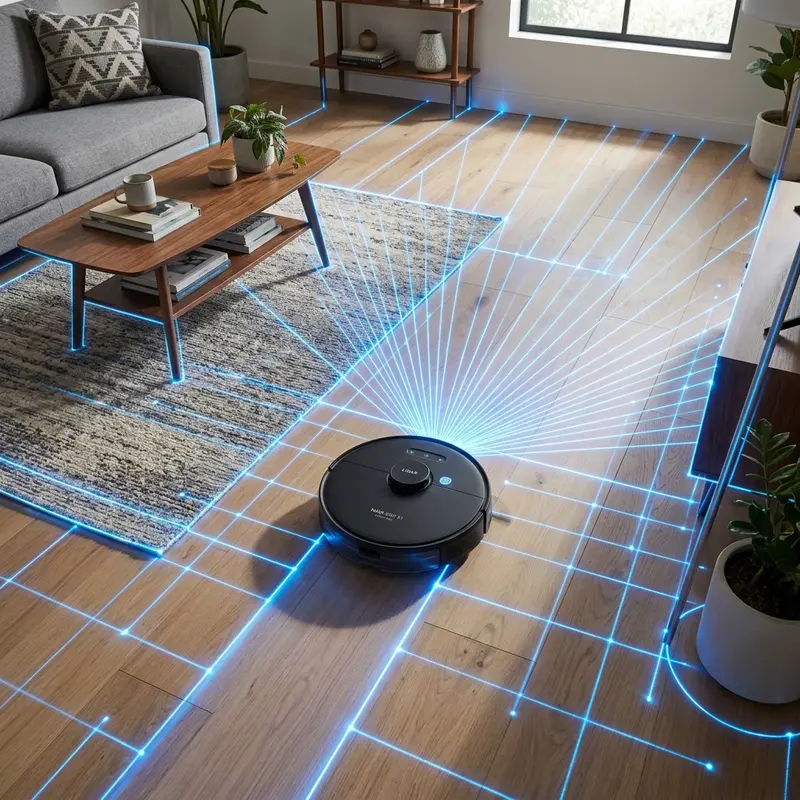
The KaBuM! Smart 700 robot vacuum features an advanced navigation system driven by a low-profile rotating LiDAR (Light Detection and Ranging) laser tower. This tower houses a near-infrared laser emitter diode operating at a wavelength of 785nm alongside a high-sensitivity optical receiver sensor. While the vacuum is cleaning, the scanner rotates at a rate of 5 to 10 revolutions per second, casting thousands of invisible laser points across the horizontal plane.
By measuring the precise time-of-flight (ToF) of the reflected light beam, the vacuum's onboard processor calculates distances with millimeter-level accuracy. The internal SLAM (Simultaneous Localization and Mapping) algorithm ingests this raw distance data and cross-references it with wheel odometry (tracked via digital encoders on the brushless wheel drive axles) and an onboard three-axis gyroscope. This real-time processing yields a detailed 2D map of your home, which is sent over Wi-Fi directly to the Smart Life or KaBuM! Smart app.
2. Room Preparation for the Initial Mapping Cycle
To prevent the SLAM algorithm from experiencing spatial distortions, such as duplicated rooms or skewed walls in the app interface, you must prepare the house before launching the first mapping run. Laser sensors can easily be misled by moving objects or highly reflective materials. Implement the following physical prep steps:
- Clear electrical cables and power cords: Loose cords under desks or TV stands can tangle in the main rolling brush. This causes the drive wheels to slip, throwing off the wheel odometry calculations and corrupting the coordinate mesh of the map;
- Open all interior doors: Leave doors to bedrooms, bathrooms, and walk-in closets wide open. If the laser scanner encounters a closed door on the first run, the SLAM processor will register a solid wall and the robot will exclude that room from its clean cycles;
- Cover low mirrors and glass surfaces: Mirrors that reach the floor reflect the 785nm infrared laser beam, tricking the SLAM algorithm into thinking the room extends beyond the reflective surface (creating "ghost rooms" in your app). Cover these areas temporarily during the first scan;
- Pick up pet bowls and light objects: Small dog or cat bowls can be pushed around by the front bumper, creating navigation noise and throwing off coordinate tracking.
3. Managing and Saving Multi-Floor Maps in the App
The KaBuM! Smart 700 supports multi-floor map storage, allowing you to save and manage maps for different levels of a home or distinct spaces without losing prior boundaries. Follow this procedure to lock your maps in the EEPROM storage:
- Open the Smart Life or KaBuM! Smart app, choose your vacuum device, and open the Settings menu;
- Locate the option named "Map Management" or "Save Map Mode" and toggle the switch to ON. If this setting is disabled, the system clears the cache on shutdown, requiring a fresh map to be generated on every cleaning cycle;
- Position the vacuum on its charging dock and launch a complete automatic cleaning cycle (Auto Mode). The robot must roll off the dock autonomously and return on its own after finishing the entire layout;
- Do not lift or manually move the vacuum during the cleaning run. Picking up the unit resets the internal coordinate system and ruins the current mapping sequence;
- Once the vacuum docks on its own, a notification in the app will confirm that a new floor map has been detected. Name it (e.g., "Downstairs") and save it to the permanent memory.
4. Configuring Virtual Boundaries and No-Go Zones
With a verified map saved in the vacuum's memory, you can establish physical boundaries directly from your mobile screen, without using physical magnetic tape. The app provides three primary boundary tools:
Virtual Walls: Draw red lines on the map within the app to act as solid barriers. The vacuum's processor monitors the coordinate distance to these lines. As the wheels approach a virtual wall, the software triggers a halt command and rotates the drive wheels to steer the unit away, keeping it clear of computer cables or delicate items.
No-Go Zones: Rectangular exclusion areas useful for protecting pet feeding areas or damp bathrooms. The navigation algorithms dynamically calculate cleaning routes around these boxes. Similarly, keeping your home automation system secure is vital. If you utilize security cameras in your household setup, read our guide on how to change Yoosee camera password to secure your IoT ecosystem from external access.
If you experience lag loading maps in your app, it may be a symptom of local wireless interference. Check our recommendations on the best Wi-Fi router for security cameras to learn how high-gain 2.4 GHz routers can prevent data loss and map corruption on smart robot vacuums.
| Mapping Feature | Control Function | Robot Response | Setup Tip |
|---|---|---|---|
| Virtual Wall | Block access to open doorways or specific areas | Steers away from the digital line as if it were a physical wall | Ensure the line extends fully across the entryway in the app |
| No-Go Zone | Exclude wet zones, pet bowls, or cluttered cords | Avoids entering the defined rectangular area completely | Provide a 10 cm buffer margin around the excluded objects |
| Room Selection | Target specific rooms (e.g., kitchen) for clean cycles | Drives directly to the selected room, cleans, and docks | Use the app to divide and name rooms after the initial map completes |
| Multi-Floor Map | Store layouts of different building levels | Recognizes saved features and loads the matching layout | Move both the charging dock and the vacuum to the new floor |
Preparing Indoor Environments for the Initial LiDAR Map Run
For the KaBuM! Smart 700's LiDAR scanner to generate a precise floor plan of your home, you must prepare the rooms before starting the initial cycle. The laser sensor in the top turret measures distances in real-time. If the vacuum runs over cables or shoes, it will navigate off course, creating overlapping lines and distorted maps on your mobile screen.
Before launching the vacuum, clear the floors of toys, slippers, pet food bowls, and loose power cords. Open all interior doors so the laser can scan the wall lines of every room. Keep large furniture in its regular position during the mapping run to help the navigation system calculate permanent boundaries and plan paths.
Preventing Cliff Sensor Faults on Black Rugs and Carpets
A common issue that interrupts mapping on the KaBuM! Smart 700 is navigation on dark or black carpets. The vacuum uses underside infrared cliff sensors to detect drops. These sensors emit light and measure reflections to determine if there is a floor surface beneath the chassis.
Because dark colors absorb infrared light instead of reflecting it, the vacuum's computer assumes the black rug is a drop-off or stair edge. This triggers a safety shutdown and stops the mapping process. If your home has no stairs, you can bypass this issue by covering the physical cliff sensors with white paper taped to the underside. This fools the sensor into reading a safe floor surface, allowing the vacuum to map dark rugs.
Saving Map Layouts, Room Partitioning, and Virtual Boundaries
Once the KaBuM! 700 completes its initial run and docks itself on the charging station, the map will display on your screen. Tap the settings menu and choose "Save Map" to store the layout. Use the "Room Management" tools to name areas, merge corridors, or split large living rooms into distinct cleaning zones.
You can also use the app to draw "Virtual Walls" or "No-Go Zones" over areas with tangled wires, pet feeding bowls, or fragile decor. The vacuum's navigation processor will treat these digital lines as physical walls, preventing the device from entering restricted zones and ensuring automated cleaning schedules run without stops.
Troubleshooting Lost or Shifted Maps in the Tuya Application
Occasionally, the KaBuM! Smart 700's saved map can rotate or shift by 45 degrees, causing virtual walls to align incorrectly. This software glitch is typically caused by wheel slippage on slippery floor surfaces or when the vacuum is manually moved while cleaning. When the wheels slip, the odometer coordinates desync from the LiDAR laser scanner calculations, causing map distortions.
To fix a shifted layout, place the vacuum back on the charging dock manually and start a localized zone clean. The LiDAR scanner will recognize the dock location and realign the spatial grid with the saved layout. If the map remains distorted, access the Map Management menu in the app and select your saved map backup to overwrite the active layout.
Mapping Multi-Level Houses and Storing Floor Plans
The KaBuM! Smart 700 supports multi-floor mapping configurations. To map a second floor, take the vacuum and its physical charging base to the new level. Position the dock against a wall, power on the vacuum, and launch a complete cleaning cycle from the dock. The SLAM algorithm will detect the new wall layout, generate a separate map, and save it under the Map Management settings, allowing you to switch layouts manually depending on where the vacuum is cleaning.
Preserving the Laser Emitter Lens from Humidity Fogging
When running the mopping function in warm rooms, humidity can sometimes fog the optical emitter lens inside the LiDAR tower of the KaBuM! Smart 700. This fogging scatters the laser pulses, causing the SLAM algorithm to lose its coordinate reference points and map outlines to fade. Always clean the room with the dry vacuum first, and use the mopping function afterward in well-ventilated rooms to prevent moisture condensation inside the laser turret.
Mapping Frequently Asked Questions (FAQ)
Does the KaBuM! Smart 700 map in the dark?
Yes. Because the LiDAR system on the KaBuM! Smart 700 emits its own infrared laser light, the scanner can map and navigate perfectly in complete darkness, unlike cameras that need light to work.
Why did my KaBuM! 700 delete its saved map?
This happens if the "Save Map" switch is disabled in the app settings, or if the vacuum is manually carried to a different room and started, forcing it to generate a new map file.
How do I reset and redraw the floor map?
Go to the map management section in the app settings, select the map you want to discard, and tap delete. Then, start a new Auto clean cycle from the charging dock to rebuild it.
Will the vacuum avoid shoes and scattered toys?
The LiDAR sensor on the KaBuM! 700 detects obstacles taller than 5 cm. Low-profile objects like flip-flops, socks, or power cords might not be detected, so they should be picked up beforehand.
Conclusion
Regular maintenance of the laser turret and cliff sensors is key to keeping your KaBuM! Smart 700 mapping accurately. Keeping the optical lenses clean and setting up boundaries in the app ensures reliable autonomous cleaning, reducing physical jams and maximizing battery life during scheduled cleans.
Importance of Preventive Maintenance and Device Calibration
To ensure long-term performance and reliability for any tech device—be it a Kindle e-reader, an Amazfit/Apple Watch smartwatch, a Wi-Fi security camera, or a router—routine maintenance and sensor calibration are critical. Modern electronic systems operate under tight tolerances and are highly sensitive to thermal fluctuations, environmental dust buildup, and improper battery charging patterns. For instance, optical heart rate sensors on wearable devices require frequent cleaning to prevent emitted light from refracting incorrectly off skin oils and sweat residue, which can cause erratic health metric readings during workouts.
Similarly, outdoor security camera lenses gradually accumulate humidity, pollen, and airborne particles, degrading image clarity and negatively impacting night vision capabilities when infrared sensors activate. Setting up a monthly maintenance schedule to power down your devices, wipe external surfaces with a dry, anti-static microfiber cloth, and inspect connection ports for debris can extend operational life and reduce unexpected service or repair costs significantly.
Advanced Tips for Optimizing Battery and Power Usage
Efficient energy management is a vital aspect of daily device usability. Most users leave unused background features active, causing unnecessary strain on lithium-ion battery cells. Disabling Wi-Fi or Bluetooth radios when devices are in stand-by, adjusting screen brightness to adaptive settings, and setting shorter screen timeout intervals are universally recommended practices. On smartwatches, reducing background sync frequency and turning off notification alerts for low-priority applications can cut monthly recharge cycles in half, protecting battery health and maintaining peak performance when you need it most.




