![How to Fix Bluetooth Headset Echo on Windows PC [Solved]](/images/posts/clean-airpods-earwax.webp)
Understanding Bluetooth Echo Issues: Core Definitions and Importance
Bluetooth echo is primarily a result of improper audio routing or conflicting audio profiles. When a Bluetooth headset is connected to a Windows PC, it may switch between different audio profiles based on the activity being performed. The two main profiles, namely the Hands-Free Profile (HFP) and the Advanced Audio Distribution Profile (A2DP), dictate how audio is transmitted and received. The Hands-Free Profile is typically used for voice calls, enabling the use of a microphone, whereas the Advanced Audio Distribution Profile is optimized for high-quality sound playback without microphone input. The presence of echo is most often linked to the use of the Hands-Free Profile, which uses a lower bitrate, resulting in diminished audio quality and increased latency. This latency can cause users to hear their own voice with a slight delay, leading to confusion and a frustrating communication experience. Conversely, switching to the Advanced Audio Distribution Profile allows for higher quality audio, but does not support microphone use, making it unsuitable for voice calls. Understanding these profiles is crucial in resolving echo issues effectively. Addressing echo problems is vital not only for enhancing communication clarity but also for improving overall user experience on a Windows PC. Whether for professional calls, gaming, or casual conversations, resolving audio issues can lead to better interactions and increased productivity. This guide aims to provide comprehensive steps to mitigate Bluetooth headset echo, ensuring seamless audio transmission and reception.Step-by-Step Guide to Fix Bluetooth Headset Echo on Windows PC
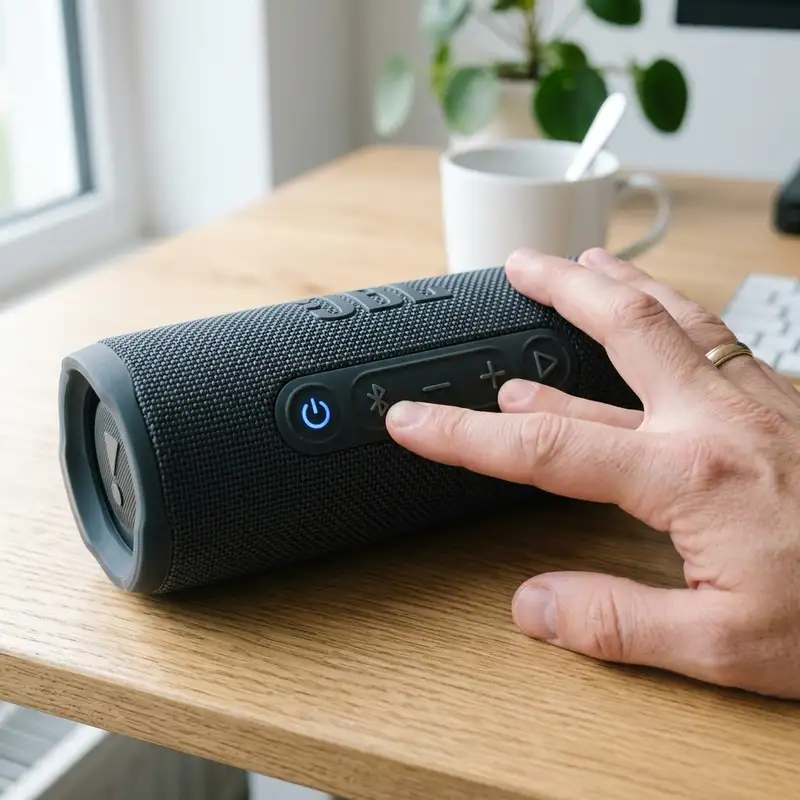
Audio Profile Comparison: Understanding the Differences
| Audio Profile | Bandwidth | Microphone Status | Sound Quality | Best Use Cases |
|---|---|---|---|---|
| Hands-Free Profile (HFP) | 64 kbps | Enabled | Low Quality | Voice Calls |
| Stereo (A2DP) | 320 kbps | Disabled | High Quality | Music, Gaming |
Additional Resources and Recommended Links
For further assistance and detailed instructions on related topics, several resources are available. Users looking to connect Bluetooth headphones to their PC can refer to this guide on how to connect Bluetooth headphones to PC. Additionally, should audio delay be an issue, a comprehensive solution is provided in the article on how to fix Bluetooth audio delay PC. These resources can offer valuable insights and troubleshooting techniques for optimizing audio performance on Windows systems. For authoritative information about Bluetooth technology and its applications, the official Bluetooth SIG website offers extensive documentation and support resources.Detailed Technical Troubleshooting, Advanced Settings, or Hardware Checks
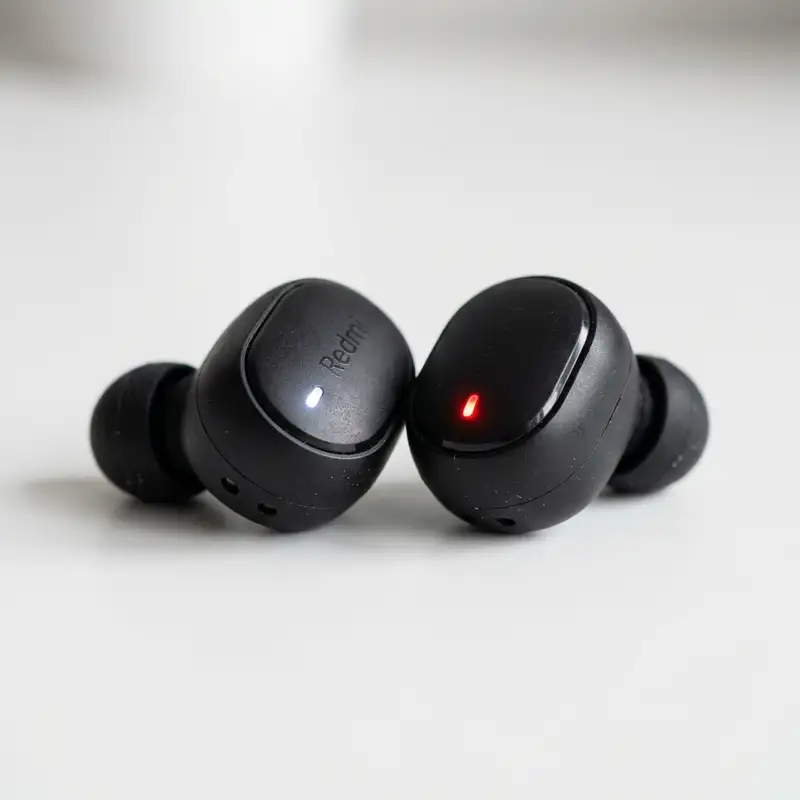
When addressing the echo issue with Bluetooth headsets on Windows PCs, it is essential to first conduct a thorough examination of the audio settings within the operating system. This includes accessing the sound settings through the Control Panel or the Settings app. Here, it is crucial to ensure that the correct output device is selected, as having multiple audio devices can sometimes lead to confusion in the audio output routing.
Verifying the default playback and recording devices can eliminate potential conflicts that may cause echoing.
Another critical aspect to investigate involves the advanced properties of the selected playback device. By right-clicking on the playback device, navigating to Properties, and then selecting the Levels tab, one can adjust the microphone and speaker levels. It is advisable to maintain these at optimal levels, as excessively high volumes can lead to feedback loops that manifest as echo.
Additionally, checking the enhancements tab can reveal various audio effects that might inadvertently be causing echo. Disabling all enhancements should be considered a troubleshooting step to see if it resolves the issue.
In some cases, hardware components may be contributing to the echo problem. It is recommended to inspect the Bluetooth headset for any physical defects or damage. Ensuring that the headset is clean and free of debris can prevent audio issues.
Furthermore, checking the Bluetooth adapter on the PC is essential. This can involve verifying that the drivers for the Bluetooth adapter are up to date, as outdated drivers can lead to performance issues, including audio quality degradation. Updating drivers can be performed through Device Manager or by downloading the latest version from the manufacturer’s website.
Another effective troubleshooting method includes testing the Bluetooth headset on another device. This can help determine if the issue lies with the headset itself or the Windows PC. If the echo persists across different devices, the headset may need to be reset or replaced.
Most Bluetooth headsets have a specific reset procedure, which typically involves holding down buttons for a designated period. Consulting the manufacturer's guidelines will provide the exact steps to reset the device properly.
Lastly, it is beneficial to check for potential interference from other electronic devices. Bluetooth operates on a 2.4GHz frequency, which can be susceptible to interference from Wi-Fi networks, microwaves, and other Bluetooth devices. Moving the PC and headset away from such devices or changing the Wi-Fi frequency band, if possible, can help mitigate interference that may be causing echo issues.
These steps can significantly enhance the overall audio experience and reduce the likelihood of echo occurring during use.
Preventative Maintenance, Battery Protection Practices, or Compatibility Insights
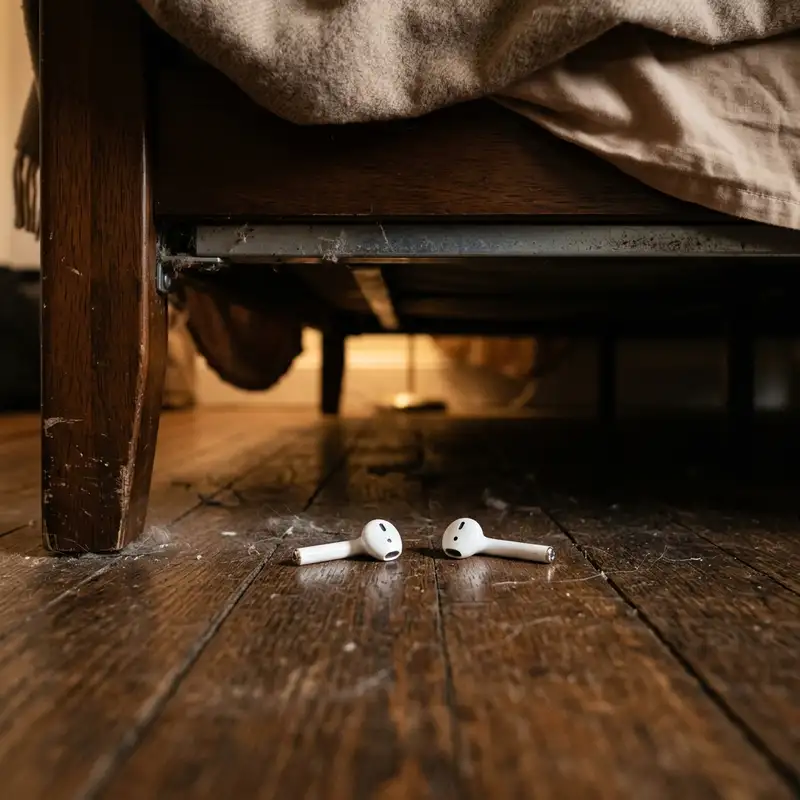
Preventative maintenance is crucial for ensuring that Bluetooth headsets perform optimally and do not develop echo issues over time. Regular cleaning of the headset is one of the simplest yet most effective maintenance practices. Dust, earwax, and moisture can accumulate in the audio ports, hindering sound quality and potentially leading to echo.
Using a soft, dry cloth and a gentle cleaning solution designed for electronics can help maintain the headset’s integrity and functionality.
Battery care also plays a vital role in the longevity and performance of Bluetooth headsets. Lithium-ion batteries, commonly used in these devices, should be charged regularly but should not be left plugged in for extended periods after reaching 100% charge. Implementing a charging routine that allows the battery to cycle between 20% and 80% can help extend its lifespan and maintain optimal performance.
Additionally, avoiding extreme temperatures during usage and storage can prevent battery degradation, which can indirectly affect audio quality and cause echo.
Compatibility between the Bluetooth headset and the Windows PC is another critical factor to consider. It is advisable to verify that both devices support the same Bluetooth version, as discrepancies in Bluetooth profiles can lead to connectivity issues and audio problems. Checking the specifications of the Bluetooth headset and ensuring that the Windows PC’s Bluetooth adapter is compatible can prevent future issues.
When purchasing new headsets, seeking those that have been proven to work seamlessly with Windows operating systems can save time and frustration.
Furthermore, regular firmware updates for both the headset and the Windows operating system can significantly improve performance and reduce the likelihood of echo. Many manufacturers provide software tools or mobile applications that allow for easy firmware updates. Keeping the headset’s software current ensures that any known bugs or compatibility issues are addressed, which can enhance audio quality and stability.
It is also beneficial to establish a routine for troubleshooting common audio issues, including echo. Documenting the steps taken to resolve previous problems can create a quick reference guide for future use. This proactive approach can streamline the troubleshooting process and reduce downtime when audio issues arise, allowing for a more efficient resolution.
By implementing these preventative maintenance practices and ensuring compatibility, the chances of encountering echo issues with Bluetooth headsets can be greatly minimized.
Long Term Expectations, Technology Landscape, and Expert Recommendations
As technology continues to advance, the expectations for audio quality from Bluetooth headsets are evolving as well. The advent of high-definition audio codecs, such as aptX and AAC, has significantly improved Bluetooth audio quality, leading to a reduction in issues like echo. Users can expect that as these technologies become more widespread, the overall performance and reliability of Bluetooth headsets will improve correspondingly.
However, it is essential to remain vigilant about the potential for echo and other audio disturbances as Bluetooth technology matures.
The landscape of Bluetooth technology is also rapidly changing, with new standards and innovations emerging. It is anticipated that future developments will prioritize audio clarity and latency reduction. Innovations such as Bluetooth 5.0 are already contributing to better range and stability, which can alleviate some of the echo problems experienced with earlier versions.
Keeping abreast of these advancements can aid users in selecting headsets that leverage the latest technology for the best audio experience.
For those looking to invest in Bluetooth headsets, expert recommendations often highlight the importance of brand reputation and user reviews. Manufacturers known for their commitment to audio quality and customer service are likely to provide better support and updates for their products, which can be crucial in addressing issues like echo. Researching and comparing different models based on user feedback can provide insights into which headsets are less prone to echo and other audio glitches.
Moreover, understanding the importance of proper pairing and connection processes cannot be overstated. Users should ensure that their Bluetooth headsets are properly paired with their Windows PCs, as a poor connection can lead to audio quality issues, including echo. Following the manufacturer’s instructions for pairing and ensuring that the headset is within the recommended range of the PC can enhance the stability of the connection and improve audio performance.
Lastly, seeking professional assistance when persistent echo issues arise can save time and resources. Many audio specialists and technicians can diagnose and resolve complex audio issues that may not be apparent to the average user. This investment in professional help can lead to a better understanding of the underlying causes of echo and provide tailored solutions that improve the overall user experience.
DomineTec Tip: Regularly updating both headset firmware and Windows audio drivers can significantly minimize echo issues and enhance overall performance. Always refer to the manufacturer’s website for the latest updates.



