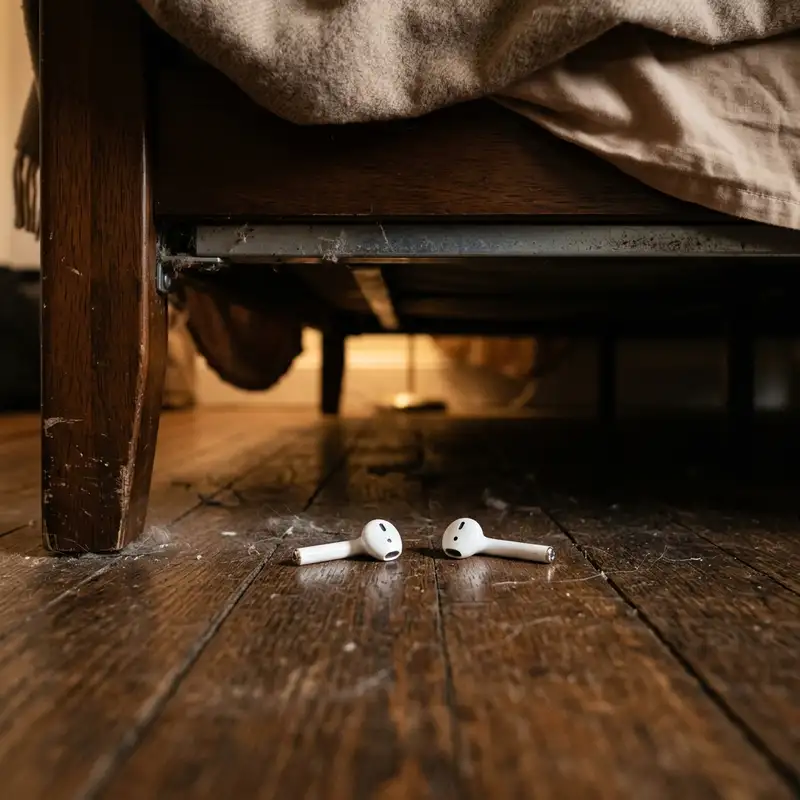
If your AirPods are dead or offline, you can still find them by utilizing the Apple Find My app's "last known location" feature, which displays where they were last connected to your device, or by relying on the Find My network if they are newer models, before commencing a thorough manual search of that area. Losing your AirPods can be incredibly frustrating, especially when they're no longer emitting a sound or showing up in real-time on a map. While the Find My app is a powerful tool, its capabilities change significantly once your earbuds run out of battery or disconnect from your devices. This comprehensive guide will walk you through every possible strategy, from leveraging the residual data in Find My to employing practical, systematic physical search techniques, ensuring you have the best chance of reuniting with your valuable audio companions.
Understanding Why Finding Dead AirPods is Tricky
- Direct Bluetooth Connection: When your AirPods are powered on and within Bluetooth range of your paired Apple device, they maintain a direct connection. This allows for real-time location updates and the "Play Sound" feature.
- Find My Network: For newer AirPods models (AirPods Pro, AirPods Max, AirPods 3rd Generation, and later), Apple introduced the Find My network. This network leverages millions of other Apple devices worldwide. If a lost AirPod (even a dead one, in some cases, for a short period after losing power) comes within Bluetooth range of another user's iPhone, iPad, or Mac, that device can anonymously and securely relay the AirPod's location to Apple's servers, which then appears on your Find My map. This is a game-changer for offline finding, but it still has limitations, particularly if the battery has been dead for an extended period or if they are in an isolated location.
Leveraging Find My's "Last Known Location" Feature
Even when your AirPods are completely drained of power, the Find My app isn't entirely useless. It retains the last piece of information it received about their whereabouts. This "last known location" is often the most valuable clue you'll have, especially for older AirPods models that don't fully support the Find My network's offline capabilities. Here's how to access and interpret this critical information:- Open the Find My App: On your iPhone, iPad, or Mac, launch the Find My application. This app is pre-installed on all modern Apple devices.
- Navigate to the "Devices" Tab: At the bottom of the screen (on iOS/iPadOS) or in the sidebar (on macOS), tap or click on the "Devices" tab. This will display a list of all your Apple devices and Find My-enabled accessories.
- Select Your AirPods: From the list, locate and tap on your AirPods. If you have multiple pairs, ensure you select the correct ones.
- Observe the Map and Status: The map will then display the last recorded location of your AirPods. You'll likely see a grey icon (indicating they are offline or dead) at this spot, accompanied by a timestamp indicating when their location was last updated. Below the map, the status will typically say "No Location Found," "Offline," or show the last known location with a message like "Last seen [Date] at [Time]."
- Interpret the Data:
- Grey Icon: This unequivocally means your AirPods are either powered off, out of battery, or out of range of any Apple device that could report their location.
- Last Known Location: This is your starting point. The AirPods were definitely in this vicinity at the time indicated. Your search should begin here.
- "No Location Found": This can be more challenging. It means Find My never received a location update before they went offline, or that information has since been purged (less common). In such cases, you'll need to rely more heavily on retracing your steps and manual searching.
The Power of Find My Network and Offline Finding
- AirPods Pro (1st and 2nd Generation)
- AirPods Max
- AirPods (3rd Generation)
- Battery Life After Death: Even AirPods with Find My network support still rely on a residual charge to transmit their Bluetooth signal to nearby devices. If they've been dead for an extended period (e.g., several days), this residual charge might be completely gone, rendering them undetectable even by the network.
- Proximity to Other Apple Devices: For the network to work, your dead AirPods need to come within Bluetooth range (typically around 30 feet or 10 meters) of another active Apple device on the network. If they are in a remote or isolated area, they might not be detected.
- Accuracy: The location reported by the Find My network might not be as precise as a real-time GPS location. It usually gives a general area, which is still incredibly useful but requires a manual search within that zone.
- Case vs. Individual Earbuds: If your AirPods are inside their charging case and the case itself is dead, their ability to broadcast a signal for the Find My network might be further limited or non-existent, depending on the specific model and how its internal components are powered. The Find My network primarily works best when the individual earbuds are outside the case, or if the case itself has Find My capabilities (like the newer AirPods Pro 2nd Gen case).
Manual Search Strategies for Dead AirPods
Once you've exhausted the digital clues from the Find My app, it's time to put on your detective hat and embark on a systematic physical search. This approach is crucial, especially when your AirPods are dead and can't emit a sound. Start your search from the last known location provided by the Find My app, or by retracing your steps if no location was available. Here's a comprehensive approach:- Divide and Conquer: Break down the search area (room, car, garden) into smaller, manageable sections. Don't just randomly look. Mentally (or physically) section off areas and clear them one by one.
- Get Down Low: AirPods are small and tend to fall into hidden crevices. Get on your hands and knees. Look under furniture, between couch cushions, under rugs, and behind objects.
- Use a Flashlight (Crucial!): Even in a well-lit room, a flashlight can highlight small, dark objects like AirPods. The light can catch reflections off the smooth surface of the AirPods or their case, making them stand out against a cluttered background. Shine it under furniture, into corners, and along baseboards.
- Check Common "Drop Zones":
- Couches and Chairs: Deep within cushions, under the seat, or along the sides.
- Beds: Under pillows, sheets, blankets, or between the mattress and bed frame.
- Cars: Between seats, under floor mats, in side pockets, glove compartments, or the trunk. Don't forget to check under child seats if applicable.
- Laundry Baskets/Piles: They often fall out when clothes are removed. Check pockets of recently worn clothes.
- Bags and Backpacks: Inside pockets, at the bottom, or caught in the lining.
- Desks and Tables: Underneath, behind monitors, or entangled in cables.
- Bathroom: Near the sink, on shelves, or under towels.
- Kitchen: Under cabinets, near appliances, or in drawers.

Diagnostic Scenarios and Next Steps

| Scenario | Possible Cause | Action Plan |
|---|---|---|
| Both AirPods and Case Dead, Find My Shows "Last Known Location" | Complete battery drain for all components; location is historical. | Start manual search immediately at the "last known location." Use a flashlight and systematically comb the area. Focus on places where they might have fallen or been set down. |
| Both AirPods and Case Dead, Find My Shows "No Location Found" | Lost connection before any location could be recorded, or older model without Find My Network support and out of range of your device. | Retrace your steps meticulously from the last time you remember having them. Perform a broad manual search in all likely areas you visited. Consider places where they could have fallen out of a pocket or bag. |
| One AirPod Dead (e.g., Left), Other (Right) Still Alive in Case | One AirPod used more or not charged fully; the other is still functional. | Use Find My to play a sound on the *alive* AirPod. This will help pinpoint the general area. Once in the area, conduct a very specific manual search for the dead AirPod, assuming it's very close to the live one or the case. |
| AirPods Dead, Case Still Has Charge and is Found Separately | AirPods fell out of the case; the case itself might be fine. | First, verify the case's charge by opening it (lights usually indicate charge). Then, focus your manual search for the individual dead AirPods in the immediate vicinity where the case was found, or where you last used the AirPods outside the case. |
| AirPods Dead, Find My Shows "Offline" but a Recent Location (Find My Network) | Newer AirPods model detected by another Apple device on the Find My network. | Proceed directly to the reported location. Even if they're dead, the Find My network has given you a recent, relatively accurate starting point. Begin a thorough manual search in that specific zone. |
Advanced Tips and Prevention
- Check Your Charging Case Thoroughly: Often, one AirPod is lost, but the other is still nestled inside the charging case. If you find the case, immediately check inside to see if one or both AirPods are present. If one is, you can use its charge to potentially play a sound if it's still connected to your device, guiding you to the case's location, and thus, potentially the other missing AirPod.
- Look for Physical Clues: Sometimes, the AirPods aren't visible, but you might spot the charging cable, a small indentation in a soft surface, or a displaced object that suggests something fell. These subtle clues can point you in the right direction.
- Consider Environmental Factors: If you were outside, think about where they might have rolled (down a slight incline), been covered (by leaves or debris), or picked up by an animal (unlikely but possible for small, shiny objects).
- Use a Vacuum Cleaner (with caution!): For very small, difficult-to-reach spaces (like under a heavy appliance or deep in a vent), you can carefully use a vacuum cleaner with a nylon stocking or thin cloth secured over the nozzle. This allows the vacuum to suck up the AirPod without ingesting it into the bag or canister. This should be a last resort and used with extreme care to avoid damaging the AirPods.
- Develop a "Put Away" Routine: Always place your AirPods back into their charging case and then into a designated spot (e.g., a specific pocket in your bag, a dish on your desk) immediately after use. Consistency reduces the chance of misplacement.
- Use Lanyards or Straps: For AirPods that aren't Pro or Max, there are aftermarket lanyards that connect the two earbuds, making them harder to lose as individual units. This is particularly useful during physical activity. You can also explore accessories like cases with carabiners that attach to your keys or bag, making them harder to forget. For more active uses, consider reading about the best wireless earbuds for running to ensure a secure fit.
- Regular Find My Checks: Occasionally, open the Find My app to ensure your AirPods are showing up correctly. This can help you identify if they've been left behind somewhere *before* their battery dies.
- Keep Them Charged: A fully charged AirPod is a findable AirPod. Make it a habit to charge your AirPods and their case regularly.
- Consider an AirTag for the Case: For older AirPods models that don't have built-in Find My network support, attaching an AirTag to their charging case can significantly improve your chances of locating them, even if the AirPods themselves are dead. The AirTag will continue to broadcast its location via the Find My network for a much longer period.
Step-by-Step Procedure for a Thorough Search

- Establish the Search Zone:
- Check the Find My app for the "last known location" or a recent Find My network update.
- If no location is available, mentally trace your steps from the last time you remember having them.
- Define a clear, manageable area for your search based on this information.
- Grab a bright flashlight (your phone's flashlight works too).
- Consider a pair of gloves if searching in potentially dirty or cluttered areas.
- Start from one corner of the designated search zone and work your way across systematically.
- Visually scan every surface at eye level, then move to lower levels.
- Get down on your hands and knees to peer under furniture (couches, chairs, beds, tables).
- Check *inside* any soft furnishings: deep between couch cushions, under pillows, inside blankets.
- Investigate bags, backpacks, purses, and coats, checking all pockets and compartments.
- If in a car, look under seats, floor mats, and in side consoles.
- Shine the flashlight into dark corners, crevices, and under objects.
- The light can catch the reflection of the white AirPods or their case, even in dim conditions.
- Look for any disturbances, displaced items, or subtle marks that might indicate something fell.
- Remember, they are small and can easily be hidden by everyday objects.
- If the initial search in the primary zone is unsuccessful, slowly expand your search radius to adjacent rooms or areas you might have briefly visited.
- Re-evaluate your last known movements and think about any unusual actions you performed.
- If you were with other people, politely ask if they saw anything or accidentally picked them up.
DomineTec Tip: The Find My app shows the last known active location on the map before the AirPod battery drained completely.
Frequently Asked Questions
Can I find my AirPods if they are completely dead and the Find My app says "No Location Found"?
If your AirPods are completely dead and the Find My app shows "No Location Found," it means the app couldn't record their last location before they lost power or disconnected. In this scenario, your best approach is a thorough manual search. Systematically retrace your steps from the last time you remember having them, checking common drop zones like couch cushions, car seats, and laundry piles. A flashlight can be incredibly helpful for spotting them in dark or cluttered areas.
How long do dead AirPods remain discoverable by the Find My network?
For newer AirPods models (Pro, Max, 3rd Gen), even when completely dead, they retain a tiny residual charge that allows them to broadcast a low-power Bluetooth signal to the Find My network for a limited time. This duration isn't officially specified by Apple but is generally understood to be a few hours to a day or so after the main battery depletes. Beyond this, they will no longer be discoverable by the network and will appear as "Offline" with only their last reported location (if any).
What if only one of my AirPods is dead and the other is still working?
If one AirPod is dead but the other is still alive (and ideally still in the charging case or connected to your device), you have a significant advantage. Use the Find My app to play a sound on the *alive* AirPod. This sound will guide you to the general vicinity of the pair. Once you're close, conduct a very focused manual search for the dead AirPod, assuming it won't be far from its live counterpart or the charging case.
Is it worth replacing a single lost AirPod, or should I buy a new pair?
Apple allows you to purchase a replacement for a single lost AirPod or a lost charging case. The cost of a single replacement is significantly less than buying an entirely new set of AirPods. If you've exhausted all search efforts and are certain only one AirPod is missing, replacing the individual unit is usually the more economical choice. Ensure you contact Apple Support or visit an Apple Store to ensure you get the correct generation and model replacement for seamless pairing.
Finding dead or offline AirPods can be a daunting task, but it's far from impossible. By methodically leveraging the Find My app's historical data, understanding the capabilities of the Find My network for newer models, and employing systematic manual search strategies, you significantly increase your chances of success. Remember, patience and a keen eye are your best allies in reuniting with your valuable audio devices.
