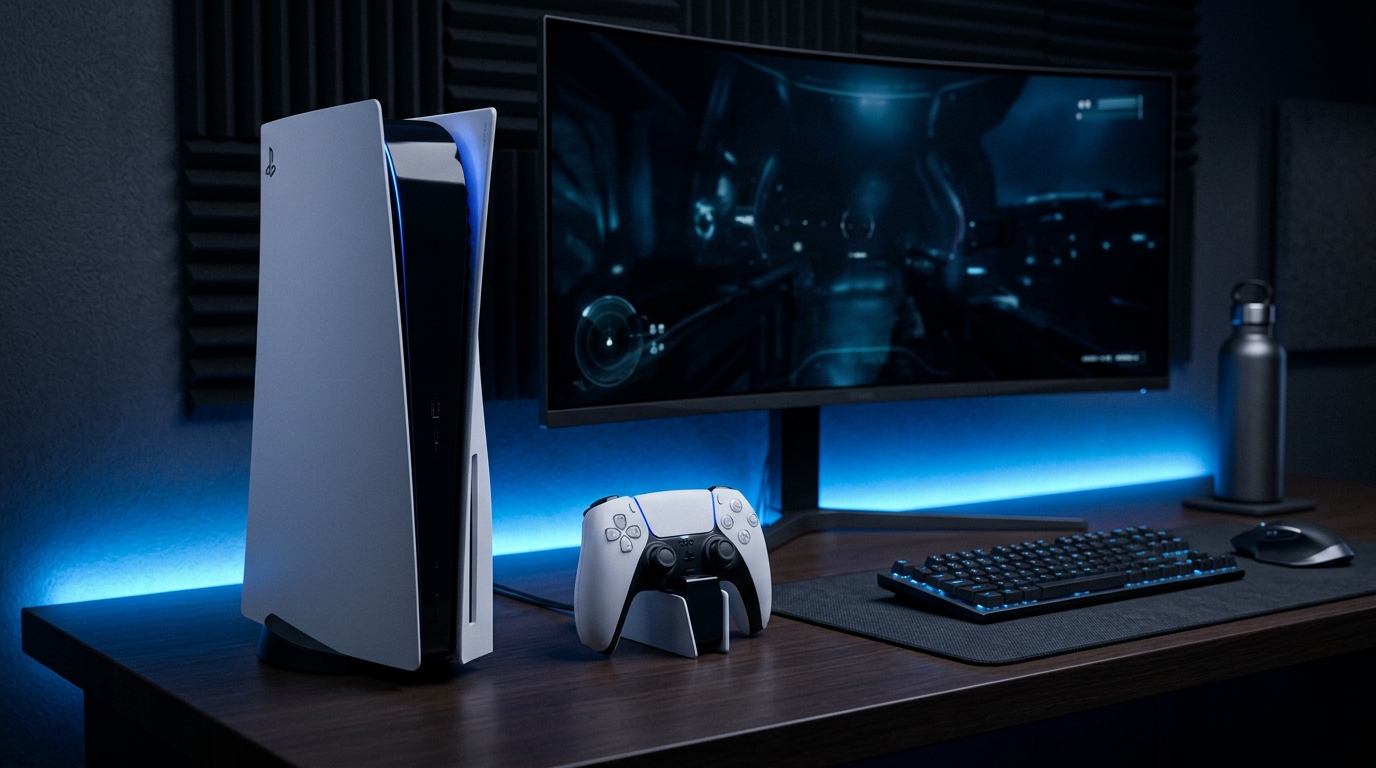
Charging your PlayStation 5 DualSense controller safely is crucial for both maintaining the longevity of the controller and ensuring optimal performance during gameplay. The DualSense controller is designed to be charged via the PS5 console's USB ports or through a dedicated charging station. However, understanding the specifications and best practices for charging is essential to avoid damage, particularly from high-wattage chargers that can harm internal components.
In this guide, we will delve into the various methods of charging your DualSense controller, covering everything from the recommended voltage and amperage to the risks associated with certain types of chargers. We will also explore the functionality of charging through the PS5 in Rest Mode, the importance of using the correct USB-C cables, and detailed troubleshooting steps for common charging issues.
Understanding the DualSense Controller
The DualSense controller is equipped with advanced features, including haptic feedback and adaptive triggers, which enhance the gaming experience on the PlayStation 5 console. It utilizes a rechargeable lithium-ion battery, which presents unique charging requirements compared to traditional AA or AAA batteries. To maximize the lifespan of the DualSense battery, it is essential to adhere to specific charging guidelines.
Battery Specifications and Charging Requirements
The DualSense controller's battery has a capacity of approximately 1560 mAh. When charging, it is vital to consider the following specifications:
- Voltage: The controller operates safely at a voltage of 5V.
- Current: The recommended charging current is between 1.5A to 2A. Exceeding this can lead to overheating and potential damage.
- Charging Time: Full charging typically takes around 3 hours when using the official charging methods.
Charging Methods
There are several methods to charge your DualSense controller, each with its own advantages and considerations.
1. Charging via PS5 Console USB Ports
The most straightforward method to charge your DualSense controller is directly through the USB ports on your PlayStation 5 console. Here’s how to do it:
- Connect the USB-C cable to the controller.
- Plug the other end of the cable into one of the USB ports on the front or back of the PS5.
- Ensure the console is powered on or in Rest Mode for the controller to charge.
When the controller is charging, the light bar on the front will pulse orange. Once fully charged, it will turn off or change to white, indicating that the controller is ready for use.
2. Charging in Rest Mode
Charging your controller in Rest Mode is an efficient way to ensure it’s ready when you are. Here’s how to enable charging in Rest Mode:
- Go to the PS5 Settings.
- Select System.
- Choose Power Saving.
- Select Features Available in Rest Mode.
- Ensure the options Supply Power to USB Ports is set to Always.
With this feature enabled, your DualSense controller can charge while the console is in Rest Mode. This method is particularly useful if you frequently leave your console on overnight or while you are away.
3. Using an Official DualSense Charging Dock
Another efficient way to charge your DualSense controller is by using the official DualSense charging dock. This device allows for simultaneous charging of two controllers and provides a convenient storage solution. Here’s how to use it:
- Connect the charging dock to a power outlet using the provided AC adapter.
- Align the controller with the charging pins on the dock.
- Ensure the controller is properly seated to initiate charging.
Similar to charging via the console, the light bar will pulse orange while charging and will turn off once fully charged. The charging dock is a great addition, especially for gamers who frequently switch between multiple controllers.
4. Using Wall Chargers
While it’s possible to charge the DualSense controller using wall chargers, caution is paramount. Using a high-wattage charger, such as those designed for smartphones, can potentially damage the controller's internal PMIC (Power Management Integrated Circuit). Here are some guidelines for safe charging:
- Choose the Right Charger: Ensure the wall charger outputs a voltage of 5V and a maximum current of 2A. Chargers exceeding 2A are not recommended.
- USB-C Compatibility: Use a compatible USB-C charging cable that meets the specifications for charging.
- Avoid Fast Chargers: Fast chargers can produce higher voltage outputs, which may lead to overheating and internal damage.
USB-C Cable Requirements
Charging the DualSense controller requires a USB-C cable that meets specific standards. Using the correct cable is essential to ensure safe and efficient charging.
1. Cable Specifications
When selecting a USB-C cable for charging, consider the following specifications:
- Data Transfer Rate: Ensure the cable supports at least USB 2.0 standards for optimal charging speeds.
- Amperage Rating: The cable should support at least 2A of current to ensure efficient charging.
- Length: A standard length of 1 to 2 meters is ideal for flexibility in charging while gaming.
2. Avoiding Low-Quality Cables
It is advisable to avoid low-quality or off-brand cables, as these may not meet the necessary specifications and can lead to subpar charging performance or even damage to the controller. Always opt for reputable brands or the official Sony USB-C cable.
Common Charging Issues and Troubleshooting
Despite following the recommended charging practices, you may encounter issues with your DualSense controller. Here are common problems and troubleshooting steps to resolve them.
1. Controller Not Charging
If your controller is not charging, follow these steps:
- Check the USB-C cable and ensure it is securely connected to both the controller and the power source.
- Inspect the cable for any visible damage or wear. Replace if necessary.
- Try using a different USB port on the PS5 or a different wall charger.
- Reset the controller by pressing the reset button located on the back, near the L2 shoulder button.
2. Slow Charging
If the controller is charging slowly, consider the following:
- Ensure you are using a charger that meets the voltage and amperage requirements.
- Check if there is any debris in the USB-C port on the controller, which could impede the connection.
- Make sure the PS5 is in Rest Mode if charging through the console.
3. Controller Overheating
Overheating during charging can be a sign of using an incompatible charger. To mitigate this:
- Immediately stop charging and unplug the controller.
- Allow the controller to cool down before attempting to charge again.
- Only use chargers that meet the recommended specifications.
4. Charging Indicator Not Working
If the charging indicator light is not functioning:
- Check the USB connection and ensure it is secure.
- Try resetting the controller as mentioned earlier.
- If the issue persists, consider contacting Sony support for further assistance.
Firmware Specifications
Keeping the DualSense controller's firmware updated is critical to ensure it functions optimally and to access new features. Firmware updates can enhance performance, fix bugs, and improve battery management.
1. Checking for Firmware Updates
To check for firmware updates, follow these steps:
- Connect your DualSense controller to the PS5 via USB or Bluetooth.
- Navigate to Settings on your PS5.
- Select Accessories and then Controllers.
- Check for updates available for the DualSense controller.
2. Installing Firmware Updates
If an update is available, the PS5 will prompt you to install it. Follow the on-screen instructions to complete the process. It’s essential to keep your controller updated to maintain compatibility with the latest games and features.
Connection Diagnostics
Understanding how to troubleshoot connection issues between your DualSense controller and the PS5 can enhance your gaming experience. Here are steps to diagnose and fix common connectivity problems.
1. Checking Bluetooth Connection
If you experience lag or disconnection, ensure the controller is properly paired with the console:
- Go to Settings on your PS5.
- Select Accessories and then Bluetooth Accessories.
- Verify that your controller is listed as connected. If not, try re-pairing it.
2. Re-pairing the Controller
To re-pair the DualSense controller:
- Connect the controller to the PS5 using a USB cable.
- Press the PS button to turn it on.
- Once connected, you can disconnect the USB and use it wirelessly.
Signal Interference Fixes
Wireless controllers can sometimes experience signal interference from other devices. Here are tips to mitigate these issues:
1. Identifying Interference Sources
Common sources of interference include:
- Other wireless devices such as routers, microwaves, and Bluetooth devices.
- Physical obstructions like walls and furniture that can weaken the signal.
2. Solutions to Reduce Interference
To enhance your controller's connection stability:
- Keep the PS5 and controller as close as possible.
- Avoid placing the PS5 near other electronic devices that emit wireless signals.
- Change the location of your router or reposition your console for better connectivity.
Maintenance Guide
Proper maintenance of your DualSense controller can prolong its lifespan and enhance its performance. Follow these tips to keep your controller in top shape.
1. Cleaning the Controller
Regular cleaning helps prevent buildup of dust and grime which can affect functionality:
- Use a soft, lint-free cloth to wipe the exterior.
- For stubborn stains, lightly dampen the cloth with water or isopropyl alcohol.
- Be cautious with liquid near the analog sticks and buttons to avoid damage.
2. Battery Care
To maximize battery health:
- Avoid letting the battery fully discharge frequently.
- Charge the controller when it reaches around 20% battery level.
- Store the controller in a cool, dry place when not in use.
Charging Comparison Table
| Charging Method | Charging Time | Simultaneous Charging | Recommended Voltage | Recommended Current |
|---|---|---|---|---|
| PS5 USB Port | 3 hours | No | 5V | 1.5A - 2A |
| Rest Mode | 3 hours | No | 5V | 1.5A - 2A |
| Charging Dock | 3 hours | Yes (2 controllers) | 5V | 1.5A - 2A |
| Wall Charger | Varies | No | 5V | 1.5A - 2A (max) |
| Portable Power Bank | Varies | No | 5V | 1.5A - 2A |
DomineTec Pro Tip: Always keep a spare USB-C cable handy for emergencies to avoid downtime during gaming sessions.
For more information on optimizing your gaming setup, check out our articles on best portable external SSD and how to translate entire PDF file free.
Firmware Specifications
Keeping the DualSense controller's firmware updated is critical to ensure it functions optimally and to access new features. Firmware updates can enhance performance, fix bugs, and improve battery management.
1. Checking for Firmware Updates
To check for firmware updates, follow these steps:
- Connect your DualSense controller to the PS5 via USB or Bluetooth.
- Navigate to Settings on your PS5.
- Select Accessories and then Controllers.
- Check for updates available for the DualSense controller.
2. Installing Firmware Updates
If an update is available, the PS5 will prompt you to install it. Follow the on-screen instructions to complete the process. It’s essential to keep your controller updated to maintain compatibility with the latest games and features.
Connection Diagnostics
Understanding how to troubleshoot connection issues between your DualSense controller and the PS5 can enhance your gaming experience. Here are steps to diagnose and fix common connectivity problems.
1. Checking Bluetooth Connection
If you experience lag or disconnection, ensure the controller is properly paired with the console:
- Go to Settings on your PS5.
- Select Accessories and then Bluetooth Accessories.
- Verify that your controller is listed as connected. If not, try re-pairing it.
2. Re-pairing the Controller
To re-pair the DualSense controller:
- Connect the controller to the PS5 using a USB cable.
- Press the PS button to turn it on.
- Once connected, you can disconnect the USB and use it wirelessly.
Signal Interference Fixes
Wireless controllers can sometimes experience signal interference from other devices. Here are tips to mitigate these issues:
1. Identifying Interference Sources
Common sources of interference include:
- Other wireless devices such as routers, microwaves, and Bluetooth devices.
- Physical obstructions like walls and furniture that can weaken the signal.
2. Solutions to Reduce Interference
To enhance your controller's connection stability:
- Keep the PS5 and controller as close as possible.
- Avoid placing the PS5 near other electronic devices that emit wireless signals.
- Change the location of your router or reposition your console for better connectivity.
Maintenance Guide
Proper maintenance of your DualSense controller can prolong its lifespan and enhance its performance. Follow these tips to keep your controller in top shape.
1. Cleaning the Controller
Regular cleaning helps prevent buildup of dust and grime which can affect functionality:
- Use a soft, lint-free cloth to wipe the exterior.
- For stubborn stains, lightly dampen the cloth with water or isopropyl alcohol.
- Be cautious with liquid near the analog sticks and buttons to avoid damage.
2. Battery Care
To maximize battery health:
- Avoid letting the battery fully discharge frequently.
- Charge the controller when it reaches around 20% battery level.
- Store the controller in a cool, dry place when not in use.
Charging Comparison Table
| Charging Method | Charging Time | Simultaneous Charging | Recommended Voltage | Recommended Current |
|---|---|---|---|---|
| PS5 USB Port | 3 hours | No | 5V | 1.5A - 2A |
| Rest Mode | 3 hours | No | 5V | 1.5A - 2A |
| Charging Dock | 3 hours | Yes (2 controllers) | 5V | 1.5A - 2A |
| Wall Charger | Varies | No | 5V | 1.5A - 2A (max) |
| Portable Power Bank | Varies | No | 5V | 1.5A - 2A |
DomineTec Pro Tip: Always keep a spare USB-C cable handy for emergencies to avoid downtime during gaming sessions.
For more information on optimizing your gaming setup, check out our articles on best portable external SSD and how to translate entire PDF file free.
Firmware Specifications
Keeping the DualSense controller's firmware updated is critical to ensure it functions optimally and to access new features. Firmware updates can enhance performance, fix bugs, and improve battery management.
1. Checking for Firmware Updates
To check for firmware updates, follow these steps:
- Connect your DualSense controller to the PS5 via USB or Bluetooth.
- Navigate to Settings on your PS5.
- Select Accessories and then Controllers.
- Check for updates available for the DualSense controller.
2. Installing Firmware Updates
If an update is available, the PS5 will prompt you to install it. Follow the on-screen instructions to complete the process. It’s essential to keep your controller updated to maintain compatibility with the latest games and features.
Connection Diagnostics
Understanding how to troubleshoot connection issues between your DualSense controller and the PS5 can enhance your gaming experience. Here are steps to diagnose and fix common connectivity problems.
1. Checking Bluetooth Connection
If you experience lag or disconnection, ensure the controller is properly paired with the console:
- Go to Settings on your PS5.
- Select Accessories and then Bluetooth Accessories.
- Verify that your controller is listed as connected. If not, try re-pairing it.
2. Re-pairing the Controller
To re-pair the DualSense controller:
- Connect the controller to the PS5 using a USB cable.
- Press the PS button to turn it on.
- Once connected, you can disconnect the USB and use it wirelessly.
Signal Interference Fixes
Wireless controllers can sometimes experience signal interference from other devices. Here are tips to mitigate these issues:
1. Identifying Interference Sources
Common sources of interference include:
- Other wireless devices such as routers, microwaves, and Bluetooth devices.
- Physical obstructions like walls and furniture that can weaken the signal.
2. Solutions to Reduce Interference
To enhance your controller's connection stability:
- Keep the PS5 and controller as close as possible.
- Avoid placing the PS5 near other electronic devices that emit wireless signals.
- Change the location of your router or reposition your console for better connectivity.
Maintenance Guide
Proper maintenance of your DualSense controller can prolong its lifespan and enhance its performance. Follow these tips to keep your controller in top shape.
1. Cleaning the Controller
Regular cleaning helps prevent buildup of dust and grime which can affect functionality:
- Use a soft, lint-free cloth to wipe the exterior.
- For stubborn stains, lightly dampen the cloth with water or isopropyl alcohol.
- Be cautious with liquid near the analog sticks and buttons to avoid damage.
2. Battery Care
To maximize battery health:
- Avoid letting the battery fully discharge frequently.
- Charge the controller when it reaches around 20% battery level.
- Store the controller in a cool, dry place when not in use.
Charging Comparison Table
| Charging Method | Charging Time | Simultaneous Charging | Recommended Voltage | Recommended Current |
|---|---|---|---|---|
| PS5 USB Port | 3 hours | No | 5V | 1.5A - 2A |
| Rest Mode | 3 hours | No | 5V | 1.5A - 2A |
| Charging Dock | 3 hours | Yes (2 controllers) | 5V | 1.5A - 2A |
| Wall Charger | Varies | No | 5V | 1.5A - 2A (max) |
| Portable Power Bank | Varies | No | 5V | 1.5A - 2A |
DomineTec Pro Tip: Always keep a spare USB-C cable handy for emergencies to avoid downtime during gaming sessions.
For more information on optimizing your gaming setup, check out our articles on best portable external SSD and how to translate entire PDF file free.
Connection Diagnostics
Understanding how to troubleshoot connection issues between your DualSense controller and the PS5 can enhance your gaming experience. Here are steps to diagnose and fix common connectivity problems.
1. Checking Bluetooth Connection
If you experience lag or disconnection, ensure the controller is properly paired with the console:
- Go to Settings on your PS5.
- Select Accessories and then Bluetooth Accessories.
- Verify that your controller is listed as connected. If not, try re-pairing it.
2. Re-pairing the Controller
To re-pair the DualSense controller:
- Connect the controller to the PS5 using a USB cable.
- Press the PS button to turn it on.
- Once connected, you can disconnect the USB and use it wirelessly.
Signal Interference Fixes
Wireless controllers can sometimes experience signal interference from other devices. Here are tips to mitigate these issues:
1. Identifying Interference Sources
Common sources of interference include:
- Other wireless devices such as routers, microwaves, and Bluetooth devices.
- Physical obstructions like walls and furniture that can weaken the signal.
2. Solutions to Reduce Interference
To enhance your controller's connection stability:
- Keep the PS5 and controller as close as possible.
- Avoid placing the PS5 near other electronic devices that emit wireless signals.
- Change the location of your router or reposition your console for better connectivity.
Maintenance Guide
Proper maintenance of your DualSense controller can prolong its lifespan and enhance its performance. Follow these tips to keep your controller in top shape.
1. Cleaning the Controller
Regular cleaning helps prevent buildup of dust and grime which can affect functionality:
- Use a soft, lint-free cloth to wipe the exterior.
- For stubborn stains, lightly dampen the cloth with water or isopropyl alcohol.
- Be cautious with liquid near the analog sticks and buttons to avoid damage.
2. Battery Care
To maximize battery health:
- Avoid letting the battery fully discharge frequently.
- Charge the controller when it reaches around 20% battery level.
- Store the controller in a cool, dry place when not in use.
Charging Comparison Table
| Charging Method | Charging Time | Simultaneous Charging | Recommended Voltage | Recommended Current |
|---|---|---|---|---|
| PS5 USB Port | 3 hours | No | 5V | 1.5A - 2A |
| Rest Mode | 3 hours | No | 5V | 1.5A - 2A |
| Charging Dock | 3 hours | Yes (2 controllers) | 5V | 1.5A - 2A |
| Wall Charger | Varies | No | 5V | 1.5A - 2A (max) |
| Portable Power Bank | Varies | No | 5V | 1.5A - 2A |
DomineTec Pro Tip: Always keep a spare USB-C cable handy for emergencies to avoid downtime during gaming sessions.
For more information on optimizing your gaming setup, check out our articles on best portable external SSD and how to translate entire PDF file free.
Firmware Specifications
Keeping the DualSense controller's firmware updated is critical to ensure it functions optimally and to access new features. Firmware updates can enhance performance, fix bugs, and improve battery management.
1. Checking for Firmware Updates
To check for firmware updates, follow these steps:
- Connect your DualSense controller to the PS5 via USB or Bluetooth.
- Navigate to Settings on your PS5.
- Select Accessories and then Controllers.
- Check for updates available for the DualSense controller.
2. Installing Firmware Updates
If an update is available, the PS5 will prompt you to install it. Follow the on-screen instructions to complete the process. It’s essential to keep your controller updated to maintain compatibility with the latest games and features.
Connection Diagnostics
Understanding how to troubleshoot connection issues between your DualSense controller and the PS5 can enhance your gaming experience. Here are steps to diagnose and fix common connectivity problems.
1. Checking Bluetooth Connection
If you experience lag or disconnection, ensure the controller is properly paired with the console:
- Go to Settings on your PS5.
- Select Accessories and then Bluetooth Accessories.
- Verify that your controller is listed as connected. If not, try re-pairing it.
2. Re-pairing the Controller
To re-pair the DualSense controller:
- Connect the controller to the PS5 using a USB cable.
- Press the PS button to turn it on.
- Once connected, you can disconnect the USB and use it wirelessly.
Signal Interference Fixes
Wireless controllers can sometimes experience signal interference from other devices. Here are tips to mitigate these issues:
1. Identifying Interference Sources
Common sources of interference include:
- Other wireless devices such as routers, microwaves, and Bluetooth devices.
- Physical obstructions like walls and furniture that can weaken the signal.
2. Solutions to Reduce Interference
To enhance your controller's connection stability:
- Keep the PS5 and controller as close as possible.
- Avoid placing the PS5 near other electronic devices that emit wireless signals.
- Change the location of your router or reposition your console for better connectivity.
Maintenance Guide
Proper maintenance of your DualSense controller can prolong its lifespan and enhance its performance. Follow these tips to keep your controller in top shape.
1. Cleaning the Controller
Regular cleaning helps prevent buildup of dust and grime which can affect functionality:
- Use a soft, lint-free cloth to wipe the exterior.
- For stubborn stains, lightly dampen the cloth with water or isopropyl alcohol.
- Be cautious with liquid near the analog sticks and buttons to avoid damage.
2. Battery Care
To maximize battery health:
- Avoid letting the battery fully discharge frequently.
- Charge the controller when it reaches around 20% battery level.
- Store the controller in a cool, dry place when not in use.
Charging Comparison Table
| Charging Method | Charging Time | Simultaneous Charging | Recommended Voltage | Recommended Current |
|---|---|---|---|---|
| PS5 USB Port | 3 hours | No | 5V | 1.5A - 2A |
| Rest Mode | 3 hours | No | 5V | 1.5A - 2A |
| Charging Dock | 3 hours | Yes (2 controllers) | 5V | 1.5A - 2A |
| Wall Charger | Varies | No | 5V | 1.5A - 2A (max) |
| Portable Power Bank | Varies | No | 5V | 1.5A - 2A |
DomineTec Pro Tip: Always keep a spare USB-C cable handy for emergencies to avoid downtime during gaming sessions.
For more information on optimizing your gaming setup, check out our articles on best portable external SSD and how to translate entire PDF file free.
Compatibility Matrix
Understanding compatibility between your DualSense controller and various devices is essential for seamless gaming. Here’s a matrix outlining the compatibility:
| Device | Compatibility | Notes |
|---|---|---|
| PlayStation 5 | Fully Compatible | Designed for optimal performance. |
| PC (Windows) | Compatible | Requires Steam or additional software for full functionality. |
| Mobile Devices (iOS/Android) | Partially Compatible | Limited features available; Bluetooth connectivity required. |
| PS4 Console | Not Compatible | Does not support DualSense features. |
| Other Bluetooth Devices | Limited Compatibility | May need additional configuration for use. |
Frequently Asked Questions (FAQ)
1. Can I use my smartphone charger to charge the DualSense controller?
While it's technically possible to use a smartphone charger, it is essential to ensure that it outputs a voltage of 5V and a maximum current of 2A. High-wattage fast chargers can damage the controller's internal components, so it’s advisable to use the original charging methods.
2. How long does it take to fully charge the DualSense controller?
Typically, it takes about 3 hours to fully charge a DualSense controller using the recommended charging methods, such as the PS5 USB port or the official charging dock.
3. What should I do if my controller won’t charge at all?
If your controller is not charging, check the cable and connections. Ensure you are using a compatible charger and try resetting the controller. If the problem persists, consider contacting Sony support for repairs.
4. Is it safe to leave the controller charging overnight?
Charging the DualSense controller overnight is generally safe, especially when using the official charging methods. However, avoid using high-wattage chargers, as they can cause overheating and damage.
5. How can I extend the battery life of my DualSense controller?
To extend the battery life, avoid overcharging, use the controller regularly, and keep it updated with the latest firmware. Additionally, consider lowering the controller's brightness and haptic feedback settings when not necessary.