How to Reset Epson L3250 Waste Ink Pad Error for Free
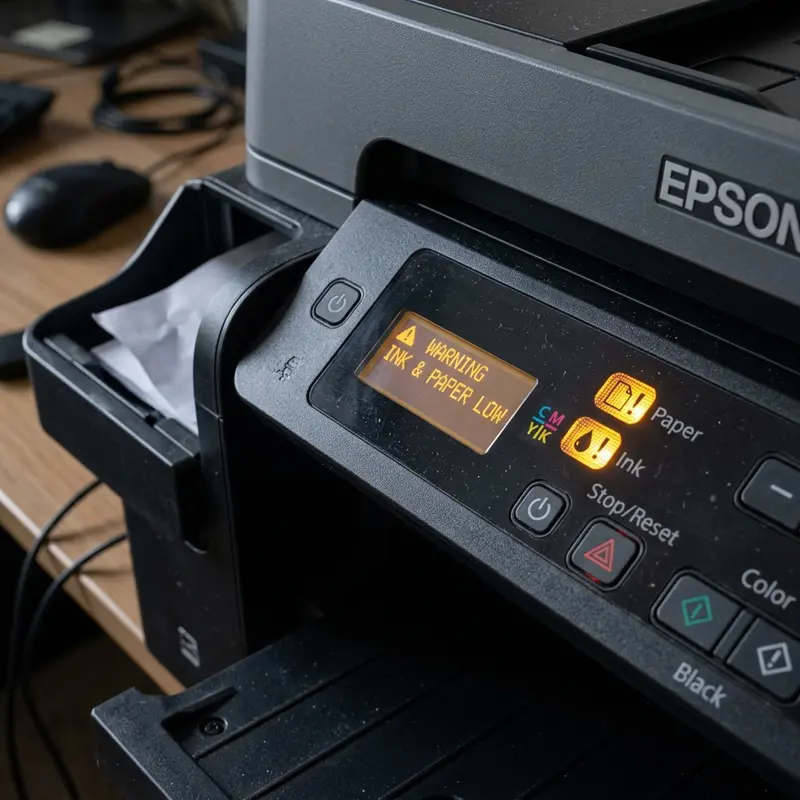
The "A printer's ink pad is at the end of its service life" error message or the simultaneous flashing of the paper and ink lights on your Epson L3250 means the internal waste ink absorption counter has reached its programmed limit. To reset the Epson L3250 waste ink pad error for free, download the WIC Reset Utility, connect the printer via USB or Wi-Fi, click "Read Waste Counters" to confirm the level, then click "Reset Waste Counters" using the free trial key — this clears the EEPROM counter on the main logic board and restores normal printing. Before resetting the software counter, you should also inspect and wash the physical felt absorption pads inside the printer's lower compartment.
1. What Are Waste Ink Pads and Why They Exist
Every inkjet printer — including EcoTank models like the Epson L3250 — performs automatic printhead cleaning cycles that expel small amounts of residual ink. This ink doesn't go to paper: it's routed to a set of absorbent foam or felt pads inside the printer's lower compartment. These pads capture ink discarded during:
- Automatic cleaning cycles when powering on and off;
- User-requested manual nozzle cleaning;
- Ink purging during initial tank filling;
- Overflow during printhead alignment calibration.
Over time, these physical felt absorbers become completely soaked with ink. When the internal EEPROM counter (non-volatile memory on the printer's main logic board) detects that accumulated volume has reached Epson's programmed limit — typically around 18,000 to 20,000 ml of waste — the firmware blocks all printing functions as protection against internal ink spills onto the user's desk.
2. Real Risk vs. Premature Alert
The EEPROM counter is deliberately conservative. Epson programs the lockout point before pads are absolutely full, creating a safety margin. This means in many cases — especially printers that ran many deep cleaning cycles (which consume more ink per purge) — the counter can reach 100% while the physical pads still have residual capacity. Resetting just the counter without inspecting the pads may be safe for additional months, but carries real progressive leak risk.
Inspect the pads by removing the lower rear panel (usually secured with 2 Phillips screws). The pads sit inside a plastic holder and can be removed for washing under cold running water (avoid detergent that could react with dye-based ink). Allow to dry completely for at least 48 hours before reinstalling — residual moisture can short-circuit the logic board.
3. Free Method: WIC Reset Utility
The WIC Reset Utility offers a limited free reset function — typically 2 free resets via a "trial key" code. To use it:
- Download and install the WIC Reset Utility on a Windows computer;
- Connect the printer via USB or ensure it's on the same Wi-Fi network;
- Open the utility and wait for automatic L3250 detection;
- In the "Waste Ink Pad Counter" section, click "Read Waste Counters" to see the current percentage;
- Click "Reset Waste Counters" and enter the free trial key when prompted;
- Restart the printer at the end of the process.
After the reset, the counter returns to zero and the printer resumes normal operation. The utility also shows ink tank levels and allows executing controlled nozzle cleaning cycles without accessing the Windows driver.
4. Alternative Method: Epson Adjustment Program
The Epson Adjustment Program is the official Epson service software used by certified technicians. It accesses the printer's EEPROM directly via USB and allows not only resetting the waste ink counter but also advanced factory configurations such as motor voltage adjustment, printhead alignment, safety mode configuration, and complete error log dumps.
For the Epson L3250 (which is officially the L3151 model in global firmware, based on the L3150 hardware platform family), you can find the specific Adjustment Program for the L3250 in specialized technical support repositories. The procedure is identical to WIC Reset: open the program, select the model, read the current counter, and execute the waste ink pad reset. The difference is that the Epson Adjustment Program has no per-use cost after purchase — download once and use as many times as needed on the same model.
5. What Happens If You Don't Reset
Ignoring the warning and continuing to print activates a progressive hardware lockout. In the first phase, only cleaning cycles are blocked. In the second phase, printing itself stops after a few seconds. In the third and final phase, the printer refuses to initialize at all. This lockout is implemented in firmware stored in the main board's flash memory — the EEPROM counter persists even without power, so power cycling does not clear it.
If the physical pads are truly saturated and you continue operating after resetting the counter without replacing them, ink will begin leaking from the lower compartment corners, dripping onto your desk and potentially damaging internal electrical components. This type of physical damage is not covered by warranty.
6. Counter Status and Recommended Actions
| EEPROM Counter Level | Physical Pad Status | Recommended Action |
|---|---|---|
| 0% – 80% | Normal, ink absorbed with capacity to spare | No action needed |
| 80% – 95% | Moist but functional | Plan future pad replacement |
| 95% – 100% | Saturated or near limit | Wash or replace pads + reset counter |
| 100% (Locked) | Variable — physically inspect | Mandatory reset via utility + physical inspection |
To understand other Epson L3250 hardware errors, read our guide on Epson L3250 paper and ink lights flashing together, where we explain all error codes by LED combination.
If after the reset your printer still shows print quality issues, run a printhead cleaning cycle. See our guide on how to run Epson L3250 printhead cleaning from PC for the complete procedure.
7. Prevention: How to Slow Pad Saturation
While pad saturation is inevitable long-term, some usage practices can significantly delay the rate of waste ink accumulation and extend the interval between resets:
- Avoid unnecessary Power Cleaning cycles: Each deep cleaning dumps 2 to 5 times more ink into the pads than a standard cleaning. Use Power Cleaning only after standard cleaning fails twice in a row.
- Keep the printer on during frequent-use periods: Repeatedly power cycling the printer triggers automatic initialization cleaning cycles that consume extra ink. If you print daily, leaving the printer in standby mode instead of fully powered off reduces unnecessary cycles.
- Don't attempt to reprint failed documents multiple times before cleaning: Users who notice striped printing and keep resending the same document before running a cleaning cycle trigger multiple error purge cycles that waste ink and unnecessarily burden the waste pads.
- Use Draft mode for internal documents: Draft mode uses less ink per page, generating less purge waste per cleaning cycle and slowing the pace of pad saturation.
8. Physical Pad Replacement vs Recurring Resets
The decision between recurring counter resets and physical pad replacement depends on print volume and printer age. Replacement pad kits for the Epson L3250 (absorbent felt and foam) are available at computer parts shops and specialized e-commerce sites for $5–20 depending on quality and source.
Consider physical pad replacement when: the counter has reached 100% for the third or fourth time, the pads are visibly saturated with spill risk, or the printer is under heavy use (above 300 pages/month), as at that rate the counter may be hit again within months even after a reset.
The swap procedure is straightforward: remove the rear panel (2 Phillips screws), access the internal absorber box, remove old pads (use disposable gloves to avoid ink staining), install new pads, reassemble, then run the counter reset to synchronize the firmware with the renewed physical state of the pads.
9. Common Reset Errors and What They Mean
During the WIC Reset Utility process, some errors can interrupt the reset or prevent successful counter clearing. The most common are:
- "Printer not found" error: The utility cannot detect the printer. Verify the USB or Wi-Fi connection, restart the utility with the printer fully powered on, and ensure the official Epson driver is installed and the printer appears in Windows Devices and Printers.
- "Key not valid" error: The reset key entered has already been used, is expired, or is for a different model. Free trial keys are typically single-use. Purchase a permanent key or search for a valid free key on the WIC Reset community forums.
- "Communication timeout" during reset: The utility lost connection to the printer mid-process. Do not power off the printer — wait 3 minutes for the process to complete or timeout fully, then restart both the printer and the utility before attempting again.
10. Technical Questions About the Reset: Direct Answers
During the waste pad reset process, users have specific questions about the procedure's impact on printer state. Here are direct answers to the most recurring technical questions:
Does the reset affect the total pages printed counter? No. The waste ink pad counter reset only affects the waste ink control variable in EEPROM. The total pages printed counter (life page count) is stored in a separate memory area and is not affected by the WIC or Adjustment Program reset.
Does the reset clear the printer's Wi-Fi settings? No. Network settings (SSID, password, IP) are stored in a different NVRAM memory area from the maintenance counters. A waste ink pad reset doesn't affect network connectivity.
Do I need USB or does Wi-Fi also work for the reset? Both connections work with the WIC Reset Utility. USB provides a more stable, direct connection; Wi-Fi may add slightly more execution time due to network latency. For the Epson Adjustment Program, USB is always recommended due to the low-level communication protocol it uses.
Can I run the reset while the error light is blinking? Yes. The reset utility accesses EEPROM directly regardless of the error state shown by LEDs. Even with the printer in error-locked state, the utility can read and overwrite the counter, provided the printer is powered on and physically connected to the computer.
Will the reset fix other problems besides the blinking lights? Only if the blinking lights were caused exclusively by the waste ink counter reaching 100%. If other hardware problems (clogged nozzles, paper jam, cartridge error) were coexisting with the pad saturation error, those will remain after the counter reset and need to be addressed separately.
11. Warranty Considerations
Before performing any reset procedure, understand the legal and warranty implications. In most countries, manufacturers cannot void a product warranty solely because the user ran a third-party maintenance utility, as long as no physical damage was caused to the hardware. Consumer protection laws in Brazil and most of Latin America protect users from blanket warranty voidance for software-level maintenance operations. However, if the physical waste pads are damaged or show evidence of improper handling during user inspection, the manufacturer can legitimately decline warranty coverage for that specific damage. Document your pads condition with photos before and after any inspection to protect your rights in case a warranty claim becomes necessary later. Additionally, some extended warranty or insurance plans purchased at retail specifically exclude consumable maintenance items like waste ink pads from coverage. Review your extended warranty terms carefully before deciding whether to have the reset and pad replacement performed at an authorized service center versus a third-party shop.
Frequently Asked Questions (FAQ)
How many times can I reset the Epson L3250 waste ink pad counter?
There's no technical limit to how many times the counter can be cleared via software. However, each reset without physical pad replacement increases the risk of internal ink leaks. Ideally, combine electronic resets with washing or replacing the pads every two to three resets.
Does resetting the waste pads void the Epson warranty?
Epson does not officially support third-party reset tools and the procedure may be interpreted as tampering, potentially voiding warranty coverage. Check your equipment's warranty status before proceeding.
Can I wash the pads with isopropyl alcohol?
We don't recommend it. Use only cold running water and allow to dry for 48 hours. Isopropyl alcohol can break down Epson's dye-based ink pigments, turning them into waxy substances that clog the foam pores.
Can the waste pad error appear on a brand new Epson L3250?
It's rare but possible on units that ran many automatic cleaning cycles — especially after multiple consecutive deep cleaning cycles performed by the user. The EEPROM counter records every milliliter of purged ink regardless of how long the printer has been in service.
The Role of the Internal EEPROM Counter in Printer Lockouts
The waste ink pad lockout is not triggered by a physical moisture sensor inside the sponge compartment, but rather by an mathematical algorithm stored on the Epson L3250 mainboard's EEPROM chip. This counter estimates the volume of ink drained during startup cycles and printhead cleaning procedures. Once the counter reaches its programmed security threshold (100%), the printer locks itself down to prevent physical ink overflow, flashing its status lights alternately.
Physical Replacement and Cleaning of the Absorber Felt Pads
Resetting the electronic counter without cleaning or replacing the physical sponges poses a severe risk. The waste ink tray will continue to accumulate overflow ink from utility flushes and will eventually leak, potentially causing short circuits or staining furniture. The waste ink box is located at the bottom-back of the L3250, secured by a single screw. You can remove it, wash the felt pads with running water, let them dry completely, or purchase cheap replacement felt pads online.
Risks Associated with Cracked Adjustment Programs and Reset Utilities
Many free reset utilities (such as cracked versions of the Epson Adjustment Program or AdjProg) circulate online. However, these executable files frequently contain malware or trojans that can compromise your laptop. Furthermore, using a software version that does not match your specific L3250 firmware revision can corrupt the mainboard BIOS, bricking the device. Always run reset software over a stable USB cable connection and keep your antivirus software enabled during the process.




