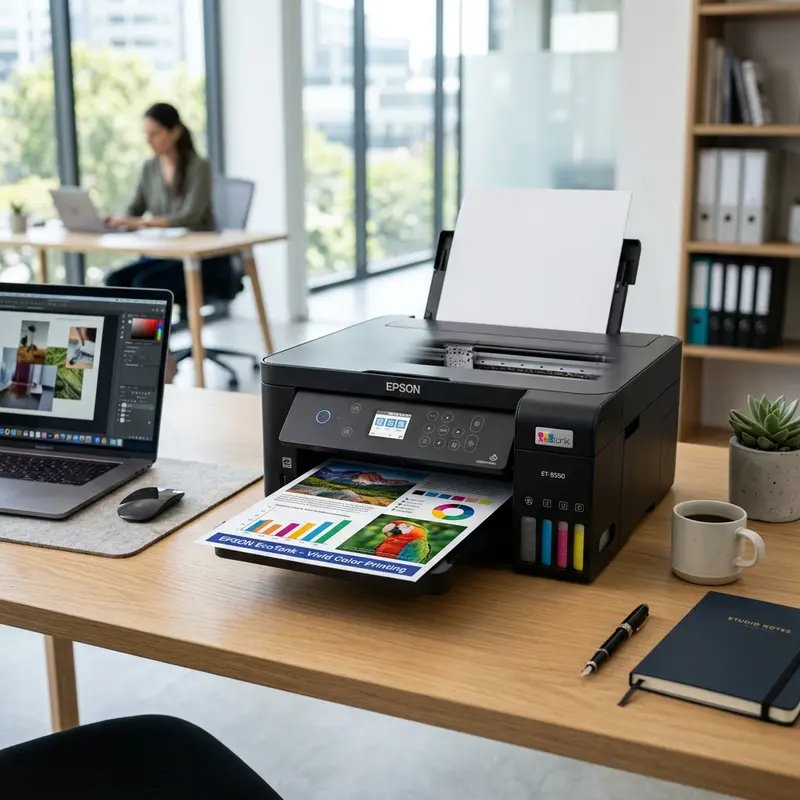
The Epson EcoTank L3250 revolutionized home printing with its continuous ink supply system powered by high-yield ink bottles. However, many users face frustrating error messages on their computer or smart app indicating that the printer is out of ink, or see the ink LED light flashing orange on the physical control panel, even after completely refilling the physical built-in ink tanks. This logical reading mismatch occurs because EcoTank printers do not feature physical or optical sensors to detect the actual liquid level inside the plastic reservoirs. To make the Epson L3250 printer recognize the ink level after refilling, you must perform a logical reset of the virtual drop counter by accessing printing preferences on your PC, opening the "Maintenance" tab, selecting the "Epson Status Monitor 3" tool, and clicking the "Reset Ink Levels" button, or by confirming the physical refill via the Epson Smart Panel mobile app.
Understanding the software-based drop-counting algorithm used by the printer's firmware is essential to prevent logical lockouts and protect the hardware. For other common home equipment issues, you can review our technical guide on the Liectroux C30B robot vacuum stop error or check our overview on Wi-Fi security camera data consumption.
1. The Hidden Engineering of the Epson L3250: How It "Reads" Ink
Unlike traditional cartridge-based printers — which use copper contacts and a built-in microchip (EEPROM) on the cartridge body to count print head nozzle firings and directly report when the ink runs dry —, EcoTank printers like the L3250 are manufactured without any electronic or optical sensors inside the physical ink wells. From the hardware motherboard's perspective, the printer is completely blind to how much ink you physically pour into the tanks.
Instead, ink consumption is estimated mathematically by the printer's mainboard CPU firmware. The board monitors every micro-electrical pulse sent to the MicroPiezo print head's piezo crystals. Each firing expels a tiny droplet measured in picoliters. The firmware logs these nozzle counts over time to calculate estimated ink consumption. When this counter matches the average page capacity of a full tank, the software triggers a low ink alert and blocks operation to protect the print head from sucking air bubbles into the ink tubes, which would cause severe damage to the piezo nozzles due to friction and heat.
2. Step-by-Step Guide to Reset Ink Levels
Every time you refill the physical ink reservoirs, follow these steps on your computer or mobile device to synchronize the software counter with your physical ink status:
Method 1: Resetting via Windows PC
- Ensure the printer is turned on and connected to your computer via USB or the same local Wi-Fi network.
- Open the Windows Control Panel, navigate to "Devices and Printers". Right-click on your Epson L3250 icon and select "Printing Preferences".
- In the preferences window, select the "Maintenance" tab at the top.
- Click on the "Epson Status Monitor 3" utility button. A small status window will pop up showing the estimated ink graphic.
- If the estimated levels show low or empty, click on the "How to Reset" or "Reset Ink Levels" link.
- The reset assistant will ask you to check the boxes corresponding to the ink tanks you have physically refilled (Black, Cyan, Magenta, Yellow). Check the boxes and click "Next" and then "Finish". The firmware will reset the drop counter to 100%.
Method 2: Resetting via the Epson Smart Panel App
If you use the printer without a computer, you can re-calibrate the ink levels using your smartphone:
- Open the Epson Smart Panel app on your smartphone.
- Select your active printer from the main dashboard to open the device configuration menu.
- Look for the "Ink Level Reset" option under the advanced maintenance tools list.
- The app will guide you through a visual confirmation process. Tap "Next," select all the colors you refilled, and tap the confirmation button to write the reset code into the printer's logic board memory.
| Physical Control Panel LED Status | Logical Meaning (Firmware) | Required Action |
|---|---|---|
| Ink LED Flashing Orange | Estimated ink level for one or more colors is below the safety margin (less than 10% estimated volume remaining). | Refill the corresponding physical ink tanks. The printer will temporarily continue printing. |
| Ink LED Solid Orange | The virtual drop counter has hit the critical empty threshold. Safety lock is active to protect the print head. | Refill the physical tanks and execute the reset on your PC driver or mobile app to unlock the device. |
| Ink and Paper LEDs Flashing Alternately | Hardware error or waste ink pad counter overflow (end of service life). | Check for paper jams or run the service reset utility to clear the waste pad error. |
3. The Dangers of Running out of Physical Ink
Because the printer relies entirely on mathematical estimates instead of physical sensors inside the tanks, it will continue printing even if you ignore the physical view windows and let the ink run completely dry. Running the printer without ink causes severe mechanical issues that can damage your device.
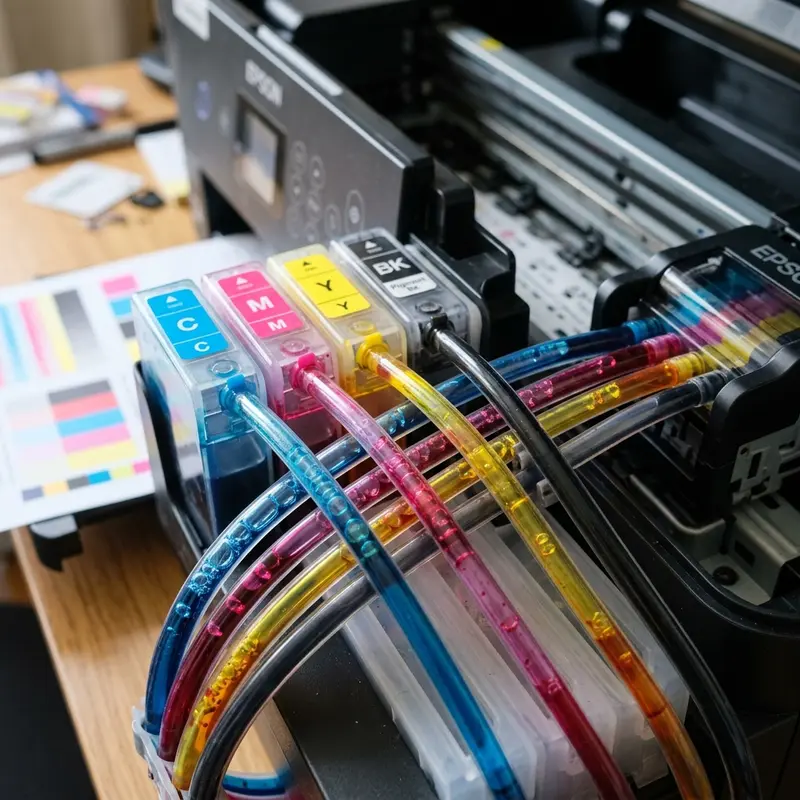
When an ink tank runs dry, the internal purge pump continues to draw air through the vinyl delivery tubes, creating large air gaps inside the dampening valves (dampers) situated directly above the print head. Operating the MicroPiezo print head's crystals without the physical cooling and lubrication provided by constant ink flow generates extreme localized heat on the nozzle plate. This damages the microscopic resistor pathways and clogs the jets with baked ink crust. **Never wait for the ink warning LED to turn solid orange before refilling your tanks**. Always keep an eye on the front visual windows, and top up the reservoirs as soon as the level approaches the bottom limit line.
4. Troubleshooting Missing Colors After Refilling
If you have refilled the physical tanks and reset the software levels, but the printer still prints documents with incorrect or missing colors, run this diagnostic routine:
- Print a Nozzle Check Pattern: In the PC printer driver, navigate to the "Maintenance" tab and click "Nozzle Check". Look at the printed pattern for gaps. If lines are broken, run a standard print head cleaning cycle.
- Run a Power Ink Flushing: If you see visible air gaps inside the vinyl tubes, run a "Power Ink Flushing" cycle from the utility software. Note that this process draws substantial ink from the tanks and fills the waste pad quickly, so it should only be performed as a last resort.
Understanding the Mathematical Ink Consumption Algorithm in Firmware
The Epson L3250 firmware uses a mathematical model to estimate ink consumption based on the number of dots printed by each color nozzle. This model does not interact with the physical tanks, so the printer will display low-ink warnings even if you have filled the reservoirs. Resetting the ink counters tells the firmware that the reservoirs are full, restarting the calculation model and clearing the flashing lights. This ensures that the electronic warnings align with the actual ink levels.
How to Deal with Blocked Ink Tanks Air Vent Ports
The EcoTank reservoirs require constant atmospheric pressure to feed ink to the printhead. This pressure is maintained by small vent ports located under the colored rubber fill plugs. If these vent ports are blocked by dried ink or dust, a vacuum forms inside the tank, starving the printhead nozzles. Clean the rubber caps regularly with warm water to keep the vents clear, preventing flow issues and missing colors on prints.
How Temperature Swings Affect Ink Volume Expansion and Flow
Extreme temperatures can cause ink inside the EcoTank reservoirs to expand, creating pressure issues. Keep the printer in a temperature-controlled room to ensure consistent flow and prevent nozzle drying, and ensure that the printer is placed away from direct sunlight. This stability prevents ink leaks and maintains high print quality during long sessions.
Why Keeping Physical Ink Levels Above the Minimum Line is Essential
Maintaining the ink levels above the physical limit line on the front tank windows is critical for the lifespan of your printer. If the reservoirs empty completely and print jobs continue, the pump draws air into the delivery tubes. This causes air pockets that disrupt flow and can overheat the piezo nozzles, resulting in permanent head damage. Refill the tanks early to prevent system errors.
Checking for Blocked Vent Paths on EcoTank Cap Assemblies
Each ink chamber cap has a small vent channel that balances the internal pressure with the outside atmosphere. If this vent path gets blocked by dried ink, a vacuum builds up inside the tank as ink is drawn. This negative pressure starves the printhead nozzles, triggering false low-ink warnings. Clean the rubber caps regularly with a damp cloth to keep the vents clear.
Priming the Dampers to Remove Air Pockets from Printhead Lines
If you refilled the tanks after they ran dry, running a reset will not clear the air already trapped in the tubes. You must prime the dampers by opening the printer cover, removing the cartridge-like dampers from the carriage, and using a syringe to draw ink through each damper until all air is removed. Reinstall the dampers and run a nozzle check to ensure a continuous ink supply.
Performing a Standard Ink Valve Safety Check During Refills
The Epson L3250 EcoTank is equipped with an ink transportation valve located on the side or rear chassis of the printer. This valve controls the physical flow of ink from the tanks to the printhead. During a refill or reset process, ensure that this valve is set to the 'Print' position. If the valve is set to 'Transport', the ink flow will be physically blocked, causing printhead drying and empty pages.
How Often to Reset the estimated Ink Level Counter Systems
Resetting the estimated ink counters should only be performed after you have physically refilled the EcoTank reservoirs to the upper limit line. Running the software reset when the reservoirs are empty causes the printer's mathematical usage algorithm to become inaccurate. This can lead to the printhead running dry, resulting in permanent damage to the piezo nozzles due to air blockages.
Understanding the Importance of the Printing Transportation Valve
The Epson L3250 features a manual ink transportation valve on the side chassis that regulates the flow of ink through the delivery tubes. During initial setup or ink refills, ensure this valve is set to the 'Print' position. If left in the 'Transport' position, the flow of ink is physically blocked, causing the nozzles to run dry during printing and triggering false empty tank errors. Keeping this valve open is vital to prevent printhead drying and flow blockages.
Dealing with Clogged Air Vent Holes on the Colored Rubber Tank Caps
The ink delivery system of the Epson L3250 EcoTank operates based on gravity and atmospheric pressure. Each ink tank chamber has a rubber cap that seals the reservoir, and integrated into these caps are microscopic air vent channels. If you accidentally spill ink over the rubber caps during a refill, or if dust settles inside the channels, they can become blocked. This prevents air from entering the tank as ink is consumed, creating a negative vacuum that starves the printhead. Clean the caps with warm water and a soft brush regularly to keep the vent channels open, ensuring steady flow.
How Extreme Ambient Temperatures Affect Ink Viscosity and Flow Control
The physical properties of the ink used in the L3250 are optimized for room temperature environments between 20°C and 25°C. If the printer is kept in a cold garage or next to a hot window, the ink's viscosity changes. Cold temperatures make the fluid thicker, reducing flow speed and causing nozzle dropouts during fast printing cycles. High temperatures make the ink thinner, which can cause dripping or bleeding on the page. Keep the printer in a stable, climate-controlled environment to prevent ink flow issues and protect print quality.
Frequently Asked Questions (FAQ)
Why is the ink light still on after I refilled my Epson L3250?
The ink light remains on because the printer's mainboard firmware doesn't have sensors inside the tanks to detect new ink. It relies on the user performing a virtual reset of the picoliter counter using the "Epson Status Monitor 3" on a PC or the "Epson Smart Panel" app on a mobile device.
Will the Epson L3250 stop printing if the driver reports low ink?
If the driver estimated levels are low (flashing orange LED), the printer will allow you to print. However, if the counter hits the critical empty threshold (solid orange LED), the device will lock down and reject all print commands until the levels are logically reset.
Can I use third-party compatible inks in the EcoTank L3250?
While generic inks are cheap, they do not match the exact viscosity, pigment density, and drying characteristics of Epson original ink. Using third-party inks often leads to nozzle clogging, incorrect color rendering, and voids the manufacturer warranty.




