How to Convert an Old Router into a Wired WiFi Access Point (AP)
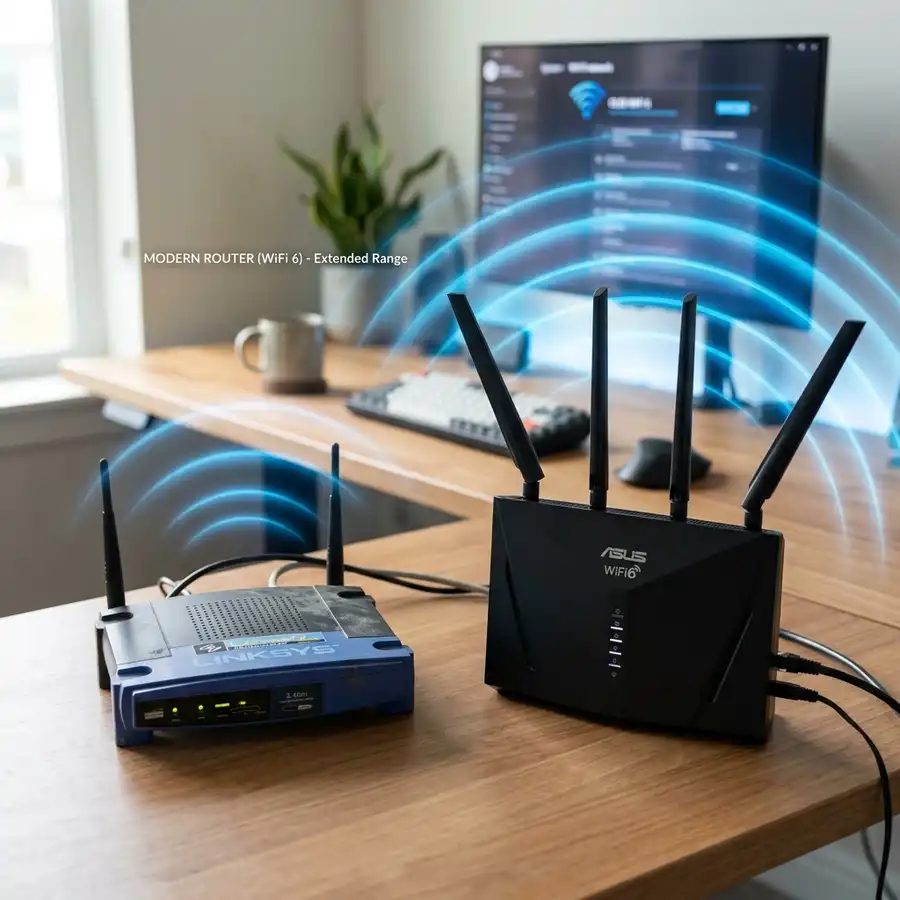
Convert an old router into a wired WiFi access point by resetting and reconfiguring it.
This process breathes new life into outdated hardware, providing a cost-effective solution for expanding network coverage.
Understanding the Basics of WiFi Access Points
A WiFi access point is a networking device that allows wireless devices to connect to a wired network.
The primary function of an access point is to provide a secure and reliable connection between wireless clients and the wired network infrastructure.
Key Components of a WiFi Access Point
A typical WiFi access point consists of a wireless radio, an Ethernet port, and a built-in switch.
The wireless radio is responsible for transmitting and receiving wireless signals, while the Ethernet port provides a connection to the wired network.
WiFi Access Point Protocols and Standards
WiFi access points operate on various protocols and standards, including IEEE 802.11a, IEEE 802.11b, IEEE 802.11g, IEEE 802.11n, and IEEE 802.11ac.
Each standard has its own set of features, data transfer rates, and compatibility requirements.
Preparation and Requirements
To convert an old router into a wired WiFi access point, certain requirements must be met, including a compatible router and a computer with internet access.
The router should support WiFi and have an Ethernet port for connecting to the main network.
Checking Router Compatibility
Before attempting to convert an old router into a wired WiFi access point, it is essential to check its compatibility.
This involves verifying the router's specifications, including its WiFi standard, Ethernet ports, and DHCP server capabilities.
Gathering Necessary Tools and Equipment
In addition to the old router and a computer with internet access, other necessary tools and equipment include a web browser, a cable for connecting the router to the computer, and a power source for the router.
It is also recommended to have a backup of the router's configuration settings, in case they are needed later.
Resetting the Old Router
Before reconfiguring the old router, it is essential to reset it to its factory settings.
This step ensures that any existing configurations are erased, providing a clean slate for the new setup.

Resetting the router typically involves pressing a small reset button located at the back or bottom of the device.
The reset process may vary depending on the router model, so it is crucial to consult the user manual or manufacturer's website for specific instructions.
Locating the Reset Button
The reset button is usually a small pinhole button located at the back or bottom of the router.
It may be labeled as "Reset" or have a picture of a circle with an arrow pointing to the center.
Performing a Hard Reset
To perform a hard reset, press and hold the reset button for 10-15 seconds, then release it.
The router will automatically restart and reset to its factory settings.
Configuring the Old Router as a Wired WiFi Access Point
Once the router is reset, the next step is to configure it as a wired WiFi access point.
This involves connecting to the router using a computer and a web browser, then accessing the router's web-based interface to configure the settings.
DomineTec Tip: When configuring the old router as a wired WiFi access point, it is essential to disable the DHCP server to prevent IP address conflicts with the main network.
The following steps outline the general configuration process:
- Connect to the router using a computer and a web browser.
- Access the router's web-based interface and log in using the default administrator credentials.
- Configure the WiFi settings, including the SSID, channel, and security protocol.
- Disable the DHCP server and set the router's IP address to a static IP address on the main network.
- Save the changes and reboot the router.
Configuring WiFi Settings
Configuring WiFi settings involves setting the SSID, channel, and security protocol.
The SSID is the name of the WiFi network, while the channel determines the frequency at which the router operates.
Disabling the DHCP Server
Disabling the DHCP server is crucial to prevent IP address conflicts with the main network.
This involves accessing the router's web-based interface and navigating to the DHCP settings section.
Setting a Static IP Address
Setting a static IP address involves assigning a fixed IP address to the router.
This ensures that the router always has the same IP address, even after a reboot.
Technical Considerations and Comparison
When selecting a router for conversion to a wired WiFi access point, several technical considerations come into play.
The following table compares some key technical specs and configuration parameters:
| Router Model | WiFi Standard | Ethernet Ports | DHCP Server |
|---|---|---|---|
| TP-Link TL-WR940N | IEEE 802.11n | 4 | Yes |
| Netgear R6220 | IEEE 802.11ac | 4 | Yes |
| Linksys EA6350 | IEEE 802.11ac | 4 | Yes |
Understanding these technical specs and configuration parameters is crucial for selecting the right router for the job and ensuring seamless integration with the existing network infrastructure.
Router Performance and Range
Router performance and range are critical factors to consider when selecting a router for conversion to a wired WiFi access point.
A router with a strong signal and good range will provide better coverage and reliability.
Security Features and Protocols
Security features and protocols are essential for protecting the network from unauthorized access and malicious activity.
A router with robust security features, such as WPA2 encryption and a firewall, will provide better protection for the network.

For users who want to learn more about networking and WiFi technology, it is recommended to explore topics such as smart home without internet and stabilizer vs UPS.
Additionally, for those interested in managing and controlling their WiFi network, the UniFi network controller is a powerful tool that offers a range of features and functionalities.
Network Security Best Practices for Access Points
Securing an old router when converting it into an access point is essential to prevent unauthorized access.
Important security measures include changing default credentials and enabling WPA3 or WPA2 encryption.
- Change Default Username and Password: Use a strong, unique password to prevent unauthorized access to the router's settings.
- Enable WPA3 or WPA2: These encryption methods offer robust security for wireless networks.
- Disable WPS: Wi-Fi Protected Setup can be a vulnerability; it should be disabled in the router settings.
Regular updates to the router's firmware can mitigate potential security vulnerabilities.
Additionally, consider setting up a guest network to isolate visitor devices from the main network.
Quality of Service (QoS) Settings for Enhanced Performance
Quality of Service (QoS) settings can significantly improve the performance of a wired Wi-Fi access point.
These settings prioritize bandwidth allocation for critical applications, such as video conferencing or gaming.
| Application Type | Recommended Priority | Typical Bandwidth Allocation |
|---|---|---|
| Video Streaming | High | 3-5 Mbps |
| Online Gaming | High | 3-6 Mbps |
| Web Browsing | Medium | 1-2 Mbps |
| File Downloads | Low | Varies |
To configure QoS, access the router settings and locate the QoS section, where specific devices and applications can be prioritized.
Monitoring bandwidth usage through the router interface may help in adjusting QoS settings over time.
Troubleshooting Common Connectivity Issues
When converting an old router into an access point, various connectivity issues may arise that require troubleshooting.
Common problems include IP address conflicts and weak signal strength, which can be resolved by following specific steps.
- IP Address Conflicts: Ensure that the access point has a static IP address that is outside the DHCP range of the primary router.
- Weak Signal Strength: Position the access point strategically to eliminate obstructions and extend coverage.
- Connection Drops: Check for interference from other electronic devices and adjust the channel settings accordingly.
Using a Wi-Fi analyzer tool can help identify channel congestion and suggest optimal settings.
Periodically rebooting the access point may also resolve temporary connectivity issues.
Security Considerations for Your Access Point Configuration
When converting an old router into a WiFi access point, security settings must be carefully configured to protect the network.
Ensure that WPA3 encryption is enabled if supported, as it provides enhanced security over previous protocols.
- Change Default Credentials: The default username and password should be modified to prevent unauthorized access.
- Disable WPS: Wi-Fi Protected Setup (WPS) can be exploited; disabling it enhances security.
- Enable MAC Address Filtering: This feature allows only specified devices to connect to the network.
Regular firmware updates should be applied to the router to address vulnerabilities.
Perform periodic security audits to ensure that no unauthorized devices are connected.
Optimizing Wireless Coverage and Performance
To optimize the performance of the wireless access point, strategic placement within the environment is crucial.
The AP should be located in a central area to maximize coverage and minimize obstacles such as walls or large furniture.
- Channel Selection: Use a Wi-Fi analyzer tool to select the least congested channel for operation.
- Bandwidth Control: Configure Quality of Service (QoS) settings to prioritize traffic for critical applications.
Consider implementing dual-band capabilities by enabling both 2.4 GHz and 5 GHz frequencies for improved performance.
Regularly test the network speed and connectivity to identify areas needing adjustment or troubleshooting.
Optimizing Wireless Performance in Access Point Mode
To ensure optimal performance when using an old router as an access point, several wireless settings should be adjusted.
Key parameters include the channel selection, bandwidth, and transmit power, which can greatly affect connectivity.
- Channel Selection: Manually set the channel to avoid interference from neighboring networks. Channels 1, 6, and 11 are recommended for 2.4 GHz networks.
- Bandwidth: Set the bandwidth to 20 MHz for better range in congested environments, or 40 MHz for higher throughput in less crowded areas.
- Transmit Power: Adjust the transmit power to the maximum allowed setting to enhance coverage, but be cautious of potential interference.
Regularly monitoring the network's performance using tools can help identify issues with signal quality or speed.
Utilizing WiFi analysis applications can assist in determining the best channel and configuration settings for the specific environment.
Troubleshooting Common Access Point Configuration Issues
When difficulties arise during the configuration of an old router as an access point, various troubleshooting steps should be considered.
Common issues include IP address conflicts, connectivity problems, and poor signal strength.
| Issue | Possible Cause | Troubleshooting Steps |
|---|---|---|
| IP Address Conflict | Duplicate IP address in the network. | Ensure that the access point has a static IP address outside the DHCP range of the main router. |
| Connectivity Problems | Improper cabling or faulty Ethernet ports. | Check all physical connections and test with different Ethernet cables. |
| Poor Signal Strength | Router placement or interference from obstacles. | Relocate the access point to a central location and avoid obstructions such as walls and electronic devices. |
Documentation for the specific router model can provide additional insights into troubleshooting specific issues.
In cases where basic troubleshooting does not resolve the issue, resetting the device to factory settings may be necessary.
Network Security Considerations for Your Access Point
When converting an old router into an access point, ensuring network security is paramount.
Basic security measures should be implemented to protect the network from unauthorized access.
- Change Default Credentials: The default username and password should be changed immediately to something more secure.
- Enable WPA3 or WPA2 Encryption: If supported, WPA3 provides enhanced security; otherwise, WPA2 should be used.
- Disable WPS: Wi-Fi Protected Setup can introduce vulnerabilities and should be disabled.
- Set Up a Guest Network: For visitors, create a separate guest network to isolate devices from the main network.
Regular firmware updates should also be performed to patch any vulnerabilities that may arise.
Using a network monitoring tool can help detect any unusual activity on the access point.
Optimizing Performance and Coverage of the Access Point
To maximize the performance of the newly configured access point, several optimization techniques can be applied.
Placement of the access point is crucial; it should be positioned in a central location to minimize interference and maximize coverage.
- Adjust Channel Settings: Use a Wi-Fi analyzer to choose the least congested channel, especially in environments with many networks.
- Reduce Interference: Keep the access point away from microwaves, cordless phones, and other electronic devices that can disrupt signals.
- Optimize Antenna Positioning: For routers with external antennas, adjust the angle to enhance signal distribution.
- Utilize Quality of Service (QoS): Configure QoS settings to prioritize bandwidth for critical applications like video conferencing or gaming.
Consider using a mesh network setup if coverage remains inadequate, which can further enhance connectivity throughout larger areas.
Regularly conducting speed tests can help in assessing the effectiveness of these optimizations.
Frequently Asked Questions
What is the purpose of a WiFi access point?
A WiFi access point is a networking device that allows wireless devices to connect to a wired network, providing a secure and reliable connection between wireless clients and the wired network infrastructure.
The primary function of an access point is to expand network coverage and provide wireless connectivity to devices that are not physically connected to the network.
Can any router be converted into a wired WiFi access point?
Not all routers can be converted into a wired WiFi access point, as some models may not support WiFi or have the necessary Ethernet ports.
It is essential to check the router's specifications and compatibility before attempting to convert it into a wired WiFi access point.
How do I reset my old router?
Resetting an old router typically involves pressing a small reset button located at the back or bottom of the device.
The reset process may vary depending on the router model, so it is crucial to consult the user manual or manufacturer's website for specific instructions.
What are the benefits of using a wired WiFi access point?
Using a wired WiFi access point provides a secure and reliable connection between wireless clients and the wired network infrastructure.
It also expands network coverage, providing wireless connectivity to devices that are not physically connected to the network.
Can I use a wired WiFi access point with my existing network infrastructure?
Yes, a wired WiFi access point can be used with existing network infrastructure, as long as it is compatible with the network's specifications and configuration.
It is essential to ensure that the access point is properly configured and integrated into the network to avoid any conflicts or issues.
Risks and Security Considerations
Using a wired WiFi access point can pose some security risks, such as unauthorized access to the network and data breaches.
To mitigate these risks, it is essential to implement robust security measures, such as WPA2 encryption, a firewall, and regular software updates.
Best Practices for Configuring a Wired WiFi Access Point
Best practices for configuring a wired WiFi access point include disabling the DHCP server, setting a static IP address, and configuring WiFi settings, such as the SSID, channel, and security protocol.
It is also essential to regularly update the router's software and firmware to ensure that it remains secure and compatible with the latest devices and technologies.




